
1. Įvadas
This manual provides instructions for the setup, operation, maintenance, and troubleshooting of your JUQITECH Backlit Keyboard Case. Please read this manual thoroughly before using the product to ensure proper function and longevity.

Image 1.1: JUQITECH Backlit Keyboard Case with a tablet in an upright position, showcasing the backlit keyboard.
2. Pakuotės turinys
Patikrinkite, ar pakuotėje yra visi reikalingi daiktai:
- 1 x Smart Case for Galaxy Tab S8/S7 11"
- 1 x Wireless Backlit Keyboard
- USB laidas (įkrovimui)
- 1 x Vartotojo vadovas
3. Suderinamumas
This keyboard case is designed for the following Samsung Galaxy Tab models:
- Samsung Galaxy Tab S8 11-inch (2022 models: SM-X700, SM-X706)
- Samsung Galaxy Tab S7 11-inch (2020 models: SM-T870, SM-T875, SM-T876)
Please verify your tablet's model number in the tablet's 'Settings' before use. This product is not compatible with other tablet models, including Samsung Galaxy Tab S7+, S7 FE, S8+, or 12.4-inch models.

Image 3.1: Visual guide to compatible Samsung Galaxy Tab models and their model numbers.
4. Sąranka
4.1 Installing the Tablet
- Align your Samsung Galaxy Tab with the case's inner shell.
- Gently press the tablet into the flexible TPU inner shell until it is securely seated. Ensure all edges are protected and cutouts align with ports and buttons.
4.2 Klaviatūros įkrovimas
Before initial use, fully charge the wireless keyboard.
- Connect the provided USB cable to the keyboard's charging port.
- Kitą USB kabelio galą prijunkite prie USB maitinimo adapterio (nepridedamas) arba kompiuterio USB prievado.
- Užsidegs įkrovimo indikatoriaus lemputė. Kai prietaisas bus visiškai įkrautas, lemputė pasikeis arba užges.

Image 4.1: Keyboard charging port with USB cable connection.
4.3 Bluetooth poravimas
To connect the wireless keyboard to your tablet:
- Ensure the keyboard is charged and powered on using the ON/OFF switch.
- Press the 'Connect' button on the keyboard. The Bluetooth indicator light will flash, indicating it is in pairing mode.
- On your Samsung Galaxy Tab, go to 'Settings' > 'Connected devices' > 'Bluetooth'.
- Įjunkite „Bluetooth“ ir ieškokite galimų įrenginių.
- Select 'Bluetooth Keyboard' (or similar name) from the list of devices.
- Follow any on-screen prompts to complete the pairing process. The Bluetooth indicator light on the keyboard will stop flashing once connected.
4.4 Operacinių sistemų perjungimas
The keyboard supports iOS, Android, and Windows operating systems. To switch between systems:
- Paspauskite Fn key simultaneously with the corresponding system key:
- Fn + Q skirta Android
- Fn + W skirta Windows
- Fn + E skirta iOS

Image 4.2: Keyboard layout showing system switching keys (Fn + Q/W/E).
5. Operating the Keyboard Case
5.1 Foninio apšvietimo valdymas
The keyboard features 7-color backlighting with stable and breathing modes.
- Paspauskite bulb key to cycle through stable backlight mode, breathing backlight mode, or turn the backlight off.
- Paspauskite RGB key to change the backlight color in stable mode (Blue, Green, Red, Light Blue, Purple, Yellow, White).
5.2 spartieji klavišai
The keyboard includes a row of dedicated shortcut keys for enhanced productivity:
- Esc: Pabegti
- Paieška: Access search function
- Pasirinkite Viskas
- Kopijuoti
- Įklijuoti
- Iškirpti
- Ankstesnis (media control)
- Leisti / pristabdyti (media control)
- Kitas (media control)
- Apimtis -
- Tomas +
- Screen Lightness -
- Screen Lightness +
- Ekrano užraktas

5.1 vaizdas: Baigtaview of dedicated shortcut keys.
5.3 Reguliavimas Viewing kampai
Byla leidžia atlikti kelis viewing angles. The keyboard is magnetically attached and can be detached to adjust the tablet's position for optimal viewing, reading, working, or gaming.
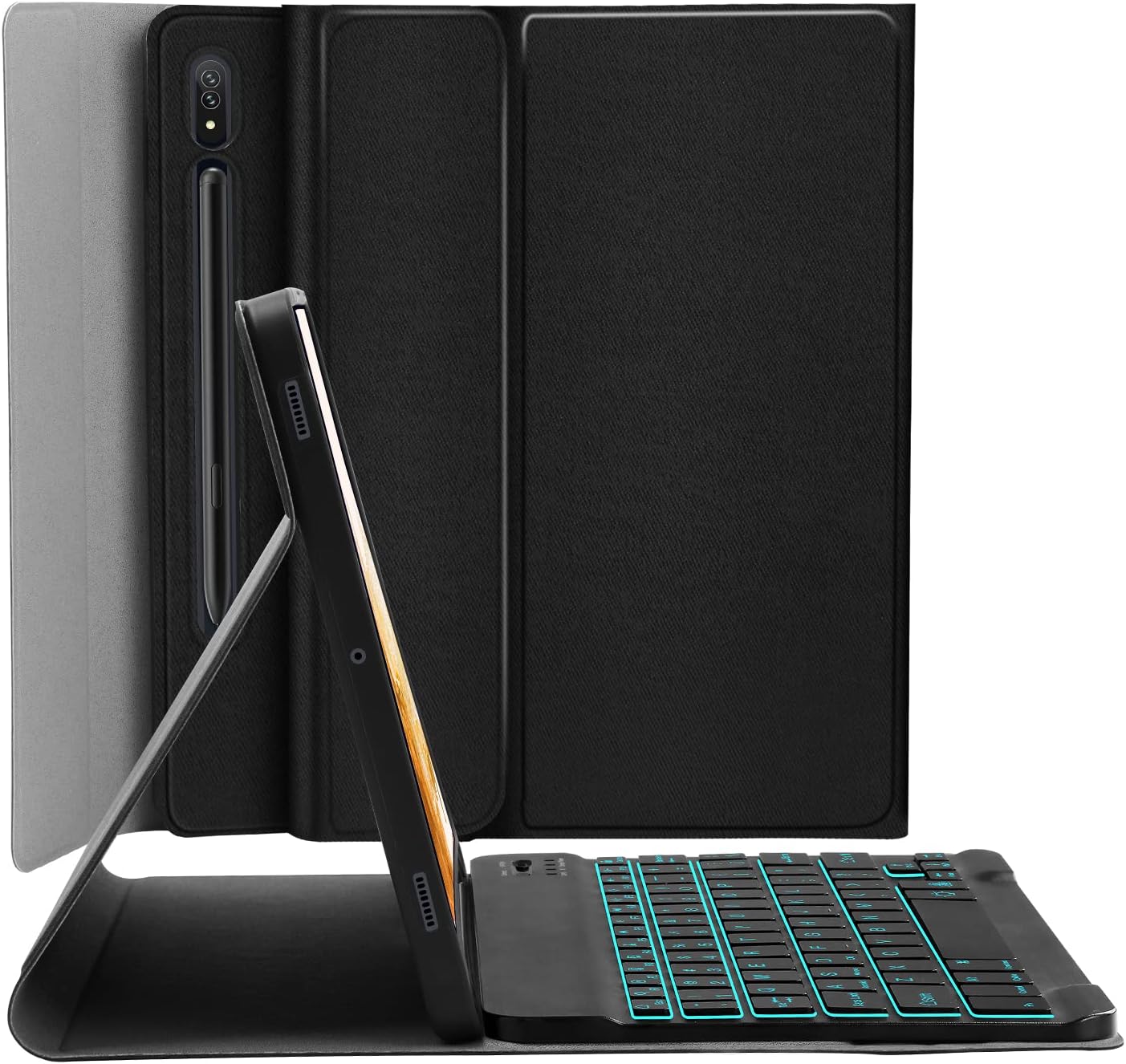
Image 5.2: Tablet case in a propped-up position with the keyboard, illustrating a common viewing kampas.

Image 5.3: Illustration of various adjustable viewkampų.
5.4 S Pen Integration
The case includes a built-in slot for the S Pen, ensuring it is stored securely and is readily available. The design also supports magnetic attachment and wireless charging of the S Pen on the tablet's side without removing the case.

Image 5.4: S Pen holder and magnetic charging area.

5.5 pav.: Išsamus view of the S Pen slot and magnetic attachment.
5.5 Automatinio miego / pabudimo funkcija
The magnetic auto sleep/wake feature helps conserve battery life. The tablet will automatically wake up when the lid is opened and go to sleep when the lid is closed.

Image 5.6: Features including auto sleep/wake, soft TPU, and precise cutouts.
6. Priežiūra
6.1 Valymas
- Wipe the case exterior with a soft, damp audinys. Venkite stiprių cheminių medžiagų.
- For the keyboard, use a dry, soft cloth. Do not immerse the keyboard in water.
6.2 Akumuliatoriaus priežiūra
- Reguliariai kraukite klaviatūrą, kad palaikytumėte baterijos veikimo laiką.
- Venkite ekstremalių temperatūrų, kurios gali turėti įtakos akumuliatoriaus veikimui.
7. Problemų sprendimas
7.1 Klaviatūra neprisijungia
- Įsitikinkite, kad klaviatūra įjungta ir visiškai įkrauta.
- Patikrinkite, ar jūsų planšetiniame kompiuteryje įjungtas „Bluetooth“ ryšys.
- Press the 'Connect' button on the keyboard to enter pairing mode.
- Forget the device in your tablet's Bluetooth settings and attempt to re-pair.
7.2 Klavišai nereaguoja
- Check if the keyboard is connected via Bluetooth.
- Ensure the correct operating system mode is selected (Fn + Q/W/E).
- Įkraukite klaviatūros bateriją.
7.3 Neveikia foninis apšvietimas
- Press the bulb key to cycle through backlight modes.
- Įsitikinkite, kad klaviatūros akumuliatorius yra pakankamai įkrautas.
8. Specifikacijos
| Modelio numeris | JU2011BTB |
| Gaminio matmenys | 10.2 x 7.37 x 0.78 colio |
| Prekės svoris | 1.28 svaro |
| Ryšio technologija | Bluetooth |
| Klaviatūros tipas | Wireless, Detachable, 7 Colors Backlit |
| Foninio apšvietimo spalvos | RGB (Blue, Green, Red, Light Blue, Purple, Yellow, White) |
| Baterija | 1 ličio jonų baterija (pridedama) |
| Ypatingos savybės | Backlit, Built-in S Pen Holder, Multi-Angle Adjustable, Rechargeable, Auto Sleep/Wake |
9. Garantija ir palaikymas
JUQITECH offers a 24-hour after-sales service guarantee for any issues with your purchase. Please contact JUQITECH customer support for assistance.