
Cisco 7911G
„Cisco Unified IP VoIP Phone 7911G“ naudotojo vadovas
Modelis: 7911G
1. Įvadas
This manual provides comprehensive instructions for the setup, operation, and maintenance of the Cisco Unified IP VoIP Phone 7911G. Designed for low to moderate telephone traffic environments, this phone offers intuitive features and reliable communication.
Pagrindinės funkcijos:
- Graphical monochrome display (192 x 64 pixels) for intuitive access to features and XML applications.
- Four dynamic soft keys for guided navigation through core business functions.
- Support for IEEE 802.3af Power over Ethernet (PoE) and Cisco Inline Power.
- Integrated comfort-noise generation and voice-activity-detection (VAD) programming.

Figure 1: Cisco Unified IP VoIP Phone 7911G (Angled View)
This image shows the Cisco Unified IP VoIP Phone 7911G from an angled perspective, highlighting its handset, keypad, and monochrome display. The phone features a silver and black color scheme.
2. Sąranka
Follow these steps to properly set up your Cisco Unified IP VoIP Phone 7911G.
2.1 Unpacking the Phone
Atsargiai išimkite visus komponentus iš pakuotės. Patikrinkite, ar yra visi daiktai:
- Cisco Unified IP VoIP Phone 7911G unit
- Ragelis
- Ragelis laidas
- Ethernet cable (may be included or required separately)
- Optional: Power adapter (if not using Power over Ethernet)

Figure 2: Shipping and Handling Symbols
This image displays various shipping and handling symbols, including "UP", "FRAGILE", "WATER PROOF", "STACKING LAYER LIMIT", "PROHIBIT ROLLING", and "LIMIT DROP HEIGHT". These symbols indicate proper handling during transport and unpacking.
2.2 Telefono prijungimas
- Prijunkite ragelį: Prijunkite vieną susukto ragelio laido galą prie ragelio, o kitą – prie ragelio prievado telefono bazėje.
- Prisijungimas prie tinklo (PoE): If using Power over Ethernet (PoE), connect one end of an Ethernet cable to the network port on the back of the phone and the other end to a PoE-enabled network switch or router. The phone will power on automatically.
- Connect to Network (Non-PoE with Power Adapter): If not using PoE, connect one end of an Ethernet cable to the network port on the back of the phone and the other end to a network switch or router. Then, connect the optional power adapter to the power port on the phone and plug it into a power outlet.

Figure 3: Ethernet Disconnected Message
This image shows the phone's display screen with the message "Ethernet Disconnected", indicating a network connectivity issue. This screen is typically seen during initial setup or troubleshooting network problems.
Once connected, the phone will attempt to connect to your Cisco Unified Communications Manager system. The display will show boot-up progress and then indicate readiness for use.
3. Naudojimo instrukcijos
This section details the basic operation of your Cisco Unified IP VoIP Phone 7911G.
3.1 Phone Layout and Buttons

4 pav.: priekis View of Cisco IP Phone 7911G
Šis paveikslėlis aiškiai parodo priekį view of the Cisco IP Phone 7911G, showcasing its display, keypad, navigation buttons, and soft keys. The display shows system information during boot-up.
- Ekranas: Shows call information, menus, and XML applications.
- Minkštieji klavišai: Four buttons directly below the display. Their function changes based on the context shown on the display.
- Navigacijos klasteris: Up/Down arrows for scrolling through menus and options.
- Klaviatūra: Standard 12-button dial pad for entering numbers and text.
- Laikymo mygtukas: Puts an active call on hold. The button lights up when a call is held.
- Garsumo valdymas: Adjusts handset, headset, or speaker volume.
3.2 Skambinimas ir skambučių priėmimas
- Norėdami paskambinti:
- Pakelkite ragelį arba paspauskite garsiakalbio mygtuką.
- Surinkite norimą numerį naudodami klaviatūrą.
- Paspauskite Surinkite programinį klavišą (jei yra) arba palaukite, kol bus sujungtas skambutis.
- Norėdami gauti skambutį:
- Kai suskamba telefonas, pakelkite ragelį arba paspauskite Atsakymas programinis mygtukas.
- Norėdami baigti skambutį:
- Padėkite ragelį arba paspauskite Baigti skambutį programinis mygtukas.

Figure 5: Display with Call Options
This image shows the phone's display screen presenting various call options, such as "Redial", "Divert Call", "Msgs", and "More". This interface guides users through available actions during a call or when the phone is idle.
4. Priežiūra
Proper care and maintenance will extend the life of your Cisco Unified IP VoIP Phone 7911G.
- Valymas: Use a soft, dry cloth to clean the phone's exterior. For stubborn marks, slightly dampNuvalykite šluostę vandeniu. Nenaudokite stiprių cheminių medžiagų ar abrazyvinių valiklių.
- Aplinka: Laikykite telefoną sausoje vietoje, atokiau nuo tiesioginių saulės spindulių, per didelio karščio ar drėgmės.
- Tvarkymas: Venkite telefono numetimo ir stiprių smūgių.
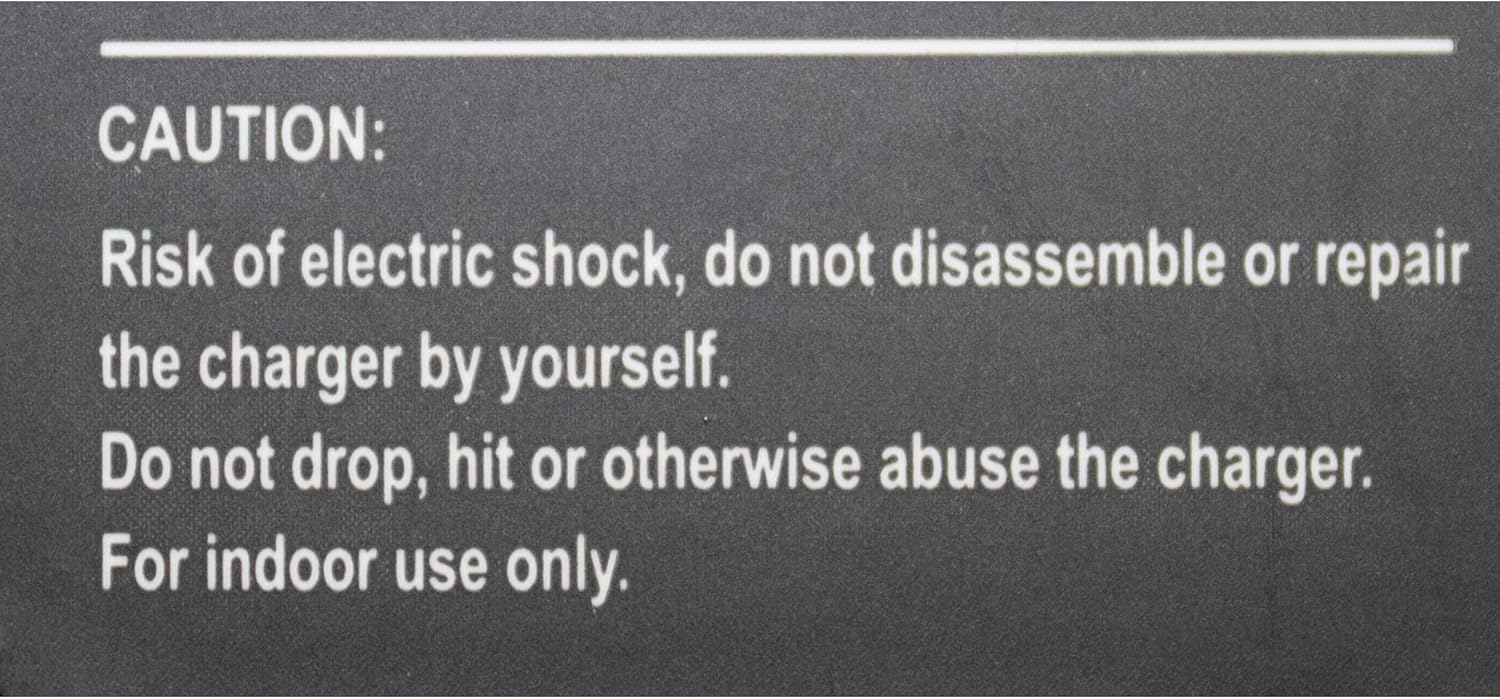
Figure 6: Electric Shock Caution Label
This image displays a caution label with text: "CAUTION: Risk of electric shock, do not disassemble or repair the charger by yourself. Do not drop, hit or otherwise abuse the charger. For indoor use only." This emphasizes safety precautions for handling the device and its components.

Figure 7: "DO NOT COVER THIS HOLE" Warning
This image shows a warning label, possibly from the phone or an accessory, stating "DO NOT COVER THIS HOLE". This is crucial for maintaining proper ventilation and preventing overheating of the device.
5. Problemų sprendimas
This section provides solutions to common issues you might encounter with your phone.
| Problema | Galima priežastis | Sprendimas |
|---|---|---|
| Telefonas neįsijungia. | Nėra maitinimo iš PoE jungiklio ar maitinimo adapterio. | Ensure Ethernet cable is securely connected to a PoE-enabled port, or verify power adapter is correctly plugged in and receiving power. |
| "Ethernet Disconnected" message on display. | Network cable is loose or disconnected; network issue. | Check Ethernet cable connection at both the phone and the network switch/router. Verify network connectivity. |
| Negalima skambinti arba priimti skambučių. | Phone not registered with Cisco Unified Communications Manager; network issue. | Ensure network connection is stable. Contact your system administrator to verify phone registration status. |
| Nėra rinkimo tono. | Phone not registered; handset or speaker issue. | Verify phone registration. Check handset cord connection. Try using speakerphone mode. |
6. Specifikacijos
Detailed technical specifications for the Cisco Unified IP VoIP Phone 7911G.
- Gaminio matmenys: 6 x 8 x 7 colio
- Prekės svoris: 2 svaro
- Ekranas: Graphical monochrome, 192 x 64 pixels
- Maitinimo šaltinis: Corded Electric (supports IEEE 802.3af Power over Ethernet and Cisco Inline Power)
- Medžiaga: Plastikiniai
- Spalva: Mėlyna (Note: Product images show silver/black, but specification lists blue. Refer to actual product.)
- Telefono tipas: Virveli
- Rinkiklio tipas: Viena klaviatūra
- Atsakiklio tipas: Skaitmeninis
- Gamintojas: CISCO SISTEMOS – ĮMONĖ
- ASIN: B07GSJ32BQ
- Pirmoji prieinama data: 23 m. rugpjūčio 2018 d
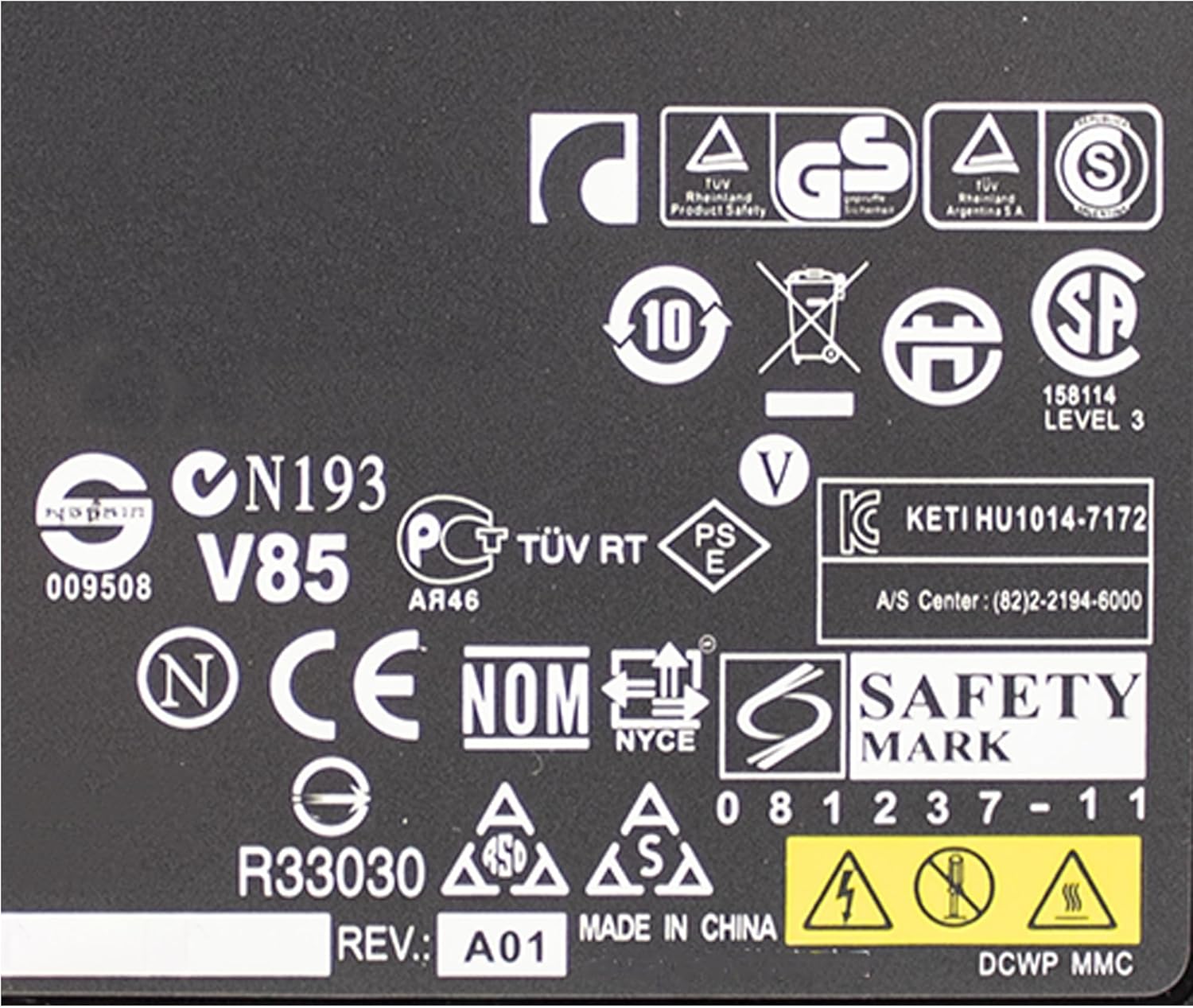
Figure 8: Product Certification Labels
This image displays various certification and compliance labels, including TÜV, GS, CSA, CE, FCC, and others, indicating the product meets various international safety and quality standards.
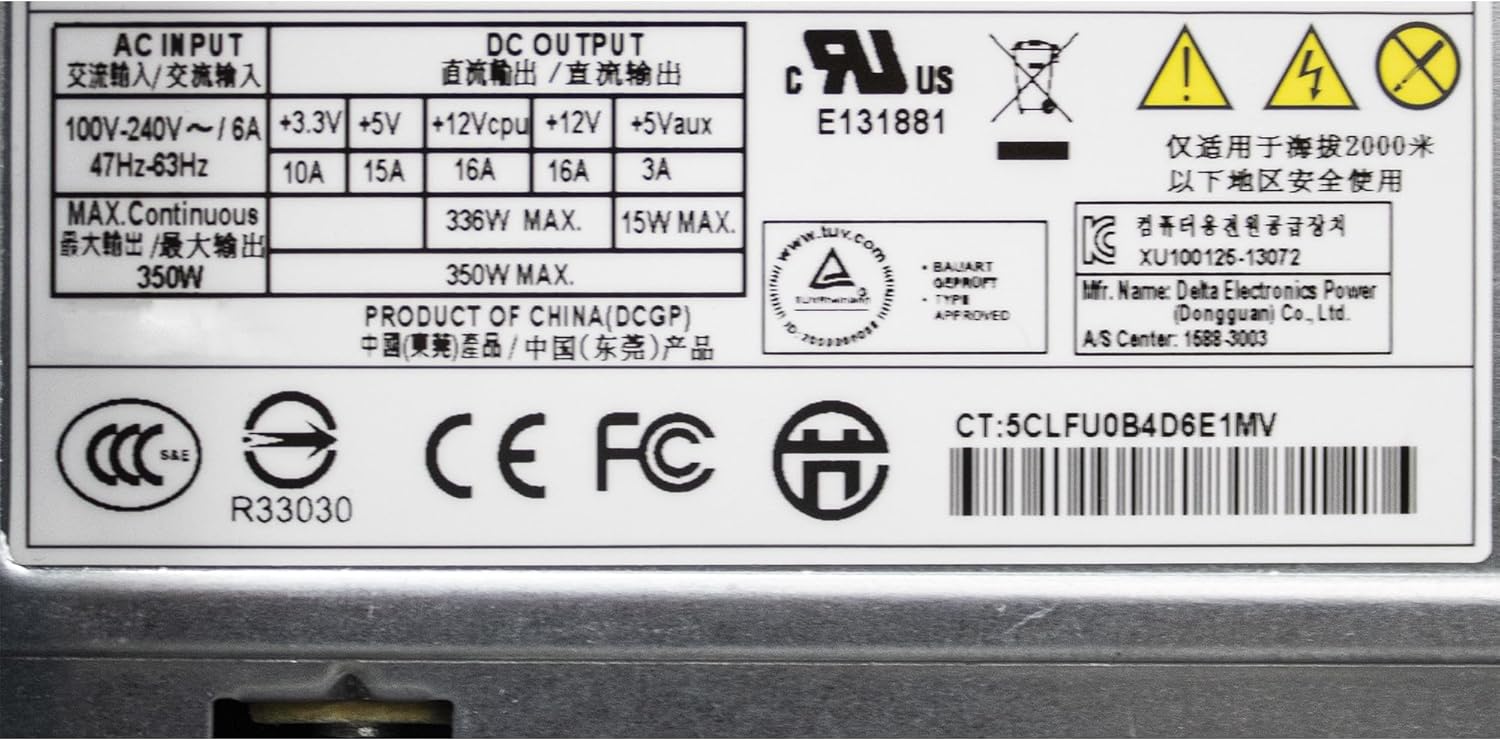
Figure 9: Power Supply Specifications
This image shows a label detailing the power supply specifications, including AC input (100-240V~), DC output voltages (+3.3V, +5V, +12V, +5Vaux), and maximum wattage. It also includes various regulatory marks.
7. Garantija ir palaikymas
7.1 Informacija apie garantiją
This Cisco Unified IP VoIP Phone 7911G is a Certified Refurbished product. It is tested and certified to look and work like new. The refurbishing process includes functionality testing, basic cleaning, inspection, and repackaging. The product ships with a minimum 90-day warranty.
For specific warranty claims or details beyond the initial 90-day period, please refer to the terms provided by the seller at the time of purchase or contact the seller directly.
7.2 Pagalba klientams
For technical assistance, troubleshooting beyond this manual, or warranty inquiries, please contact the seller from whom you purchased this Certified Refurbished product. You can typically find seller contact information through your purchase history on the platform where the item was acquired.
For general information about Cisco products, you may visit the official Cisco website, though direct support for refurbished units is typically handled by the refurbisher/seller.
Ask a question about this manual
Ask about setup, troubleshooting, compatibility, parts, safety, or missing instructions. Manuals+ will review the question and use this page’s manual context to help answer it.