
Logitech X Pro Superlight Mouse Setup Guide
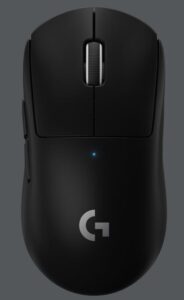
PACKAGE CONTENTS
- Mouse
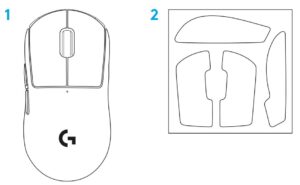
- Optional grip tape
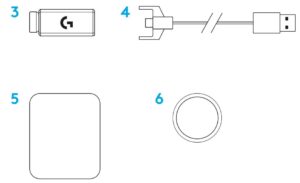
- Receiver (installed in extension adapter)
- USB charging and data cable
- Surface preparation cloth
- Optional POWERPLAY aperture door with PTFE foot
MOUSE FEATURES
- Left Click
- Right Click
- Middle Click/Scroll
- Browser Forward
- Browser Back
- Power LED
- USB charging/data port
- Power on/off
- POWERPLAY™ Aperture door


SETUP
- Plug charging/data cable into PC, then plug extension adapter and receiver into charging/data cable
- Turn on mouse


- To configure mouse settings like DPI, download G HUB software from logitechG.com/GHUB


For optimal wireless performance, use mouse within 20cm of receiver and greater than 2m from sources of 2.4GHz interference (such as wifi routers).

To install optional grip tape, first clean surface of mouse with provided surface preparation cloth to remove any oil or dust. Then, carefully align grip tape to mouse surfaces.

The USB receiver can be stored inside the mouse by removing the POWERPLAY aperture door. This can prevent the receiver from being lost when using the mouse with the Logitech G POWERPLAY wireless charging system.
Removing this door also allows the included, optional aperture door with PTFE foot to be installed instead of the default aperture door.


©2020 Logitech. Logitech, Logitech G, Logi and their respective logos are trademarks or registered trademarks of Logitech Europe S.A. and/or its affiliates in the U.S. and other countries. All other trademarks are the property of their respective owners. Logitech assumes no responsibility for any errors that may appear in this manual. Information contained herein is subject to change without notice.
Read More About This User Manuals…
Logitech-X-Pro-Superlight-Mouse-Setup-Guide-Optimized.pdf
Logitech-X-Pro-Superlight-Mouse-Setup-Guide-Orginal.pdf
Questions about your Manual? Post in the comments!
References
- User Manualmanual.tools
His last update bugged my mouse and it only works with wire now what do I do? help me porfv already sent to support no one responds
A ultima atualização dele bugou meu mouse e ele só funciona com fio agora oq eu faço? me ajudem porfv ja mandei no suporte ninguem responde
A ultima atualização dele bugou meu mouse e ele só funciona com fio agora oq eu faço? me ajudem porfv ja mandei no suporte ninguem responde
My Logitech G Pro X Superlight only works when wired after a firmware update. How can I fix the wireless connection?
If your Logitech G Pro X Superlight stopped working wirelessly after an update, it is likely that the mouse and the USB receiver have become unpaired. Follow these steps to restore the connection:
Read the full Q&A page
Добрый день, у это мыши есть подсветка?
Does this mouse have backlighting?
No, the Logitech G Pro X Superlight does not have RGB backlighting. To achieve its ultra-lightweight design (under 63 grams), Logitech removed the illuminated "G" logo found on the standard Pro Wireless model.
The only light on the mouse is a small Power LED indicator on the top, which is used to show battery status and DPI changes, but it does not function as decorative lighting.
Read the full Q&A page