
1. ບົດແນະນຳ
This manual provides essential information for setting up, operating, maintaining, and troubleshooting your HP Pavilion 16-inch 2K Laptop. Please read this guide thoroughly to ensure optimal performance and longevity of your device.
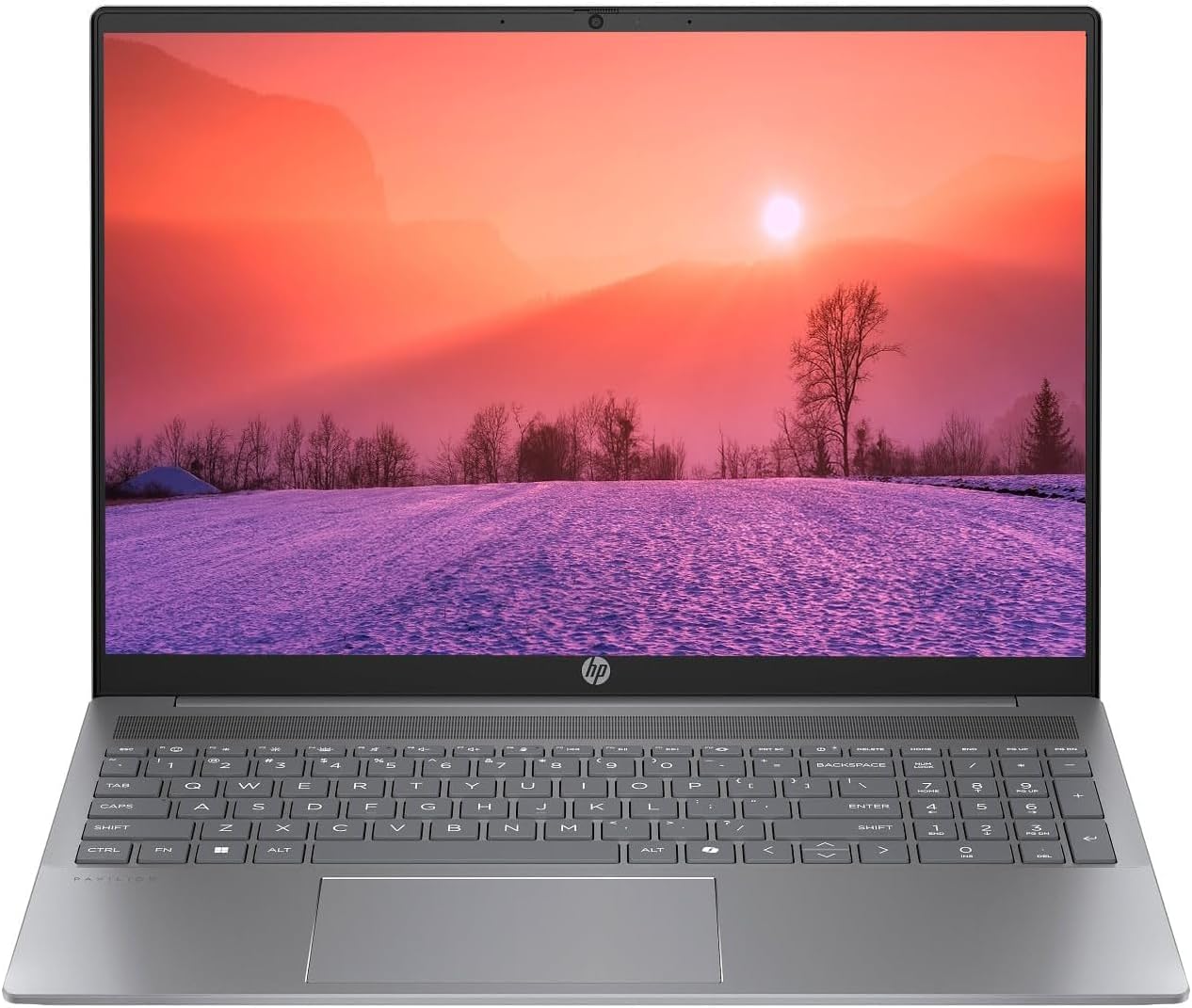
Figure 1.1: HP Pavilion 16-inch Laptop (Angled View)
This image displays the HP Pavilion 16-inch laptop in an open, angled position, highlighting its display and keyboard layout.
2. ຕັ້ງຄ່າ
2.1 ການຫຸ້ມຫໍ່ແລະການກວດກາເບື້ອງຕົ້ນ
Carefully remove the laptop and all accessories from the packaging. Inspect for any signs of damage. If any components are missing or damaged, contact your retailer or HP support immediately.
2.2 ການເຊື່ອມຕໍ່ພະລັງງານ
- ເຊື່ອມຕໍ່ອະແດບເຕີ AC ເຂົ້າກັບຕົວເຊື່ອມຕໍ່ໄຟຢູ່ດ້ານຂ້າງຂອງຄອມພິວເຕີໂນດບຸກຂອງທ່ານ.
- ສຽບສາຍໄຟໃສ່ບ່ອນສຽບໄຟຟ້າ.
- ປ່ອຍໃຫ້ແລັບທັອບສາກໄຟຢ່າງໜ້ອຍ 30 ນາທີກ່ອນການນຳໃຊ້ຄັ້ງທຳອິດ, ໂດຍສະເພາະຖ້າແບັດເຕີຣີໝົດ.
2.3 ການ Boot ເບື້ອງຕົ້ນ ແລະການຕິດຕັ້ງ Windows 11
Press the power button to turn on your laptop. Follow the on-screen instructions to complete the Windows 11 Home OS setup, including language selection, network connection, and user account creation.
2.4 ການເຊື່ອມຕໍ່ອຸປະກອນຕໍ່
ແລັບທັອບຂອງເຈົ້າມີພອດຕ່າງໆເພື່ອເຊື່ອມຕໍ່ອຸປະກອນພາຍນອກ:
- USB Type-C Ports (2): For data transfer, charging compatible devices, and video output.
- USB Type-A Ports (2): ສໍາລັບການເຊື່ອມຕໍ່ອຸປະກອນ USB ມາດຕະຖານເຊັ່ນ: ເມົາສ໌, ແປ້ນພິມ, ຫຼືໄດຣຟ໌ພາຍນອກ.
- HDMI Port (1): ສໍາລັບການເຊື່ອມຕໍ່ກັບຈໍສະແດງຜົນພາຍນອກຫຼືໂປເຈັກເຕີ.
- Headphone/Microphone Combo Jack (1): ສໍາລັບການເຊື່ອມຕໍ່ຫູຟັງ, ລໍາໂພງພາຍນອກ, ຫຼືຊຸດຫູຟັງທີ່ມີໄມໂຄໂຟນ.
3. ຄໍາແນະນໍາການດໍາເນີນງານ
3.1 ເປີດ/ປິດ ແລະ ໂໝດນອນ
- ເປີດ: ກົດປຸ່ມເປີດປິດທີ່ຕັ້ງຢູ່ເທິງແຖບແປ້ນພິມ.
- ປິດລົງ: ຄລິກທີ່ປຸ່ມ Start ໃນ Windows, ຈາກນັ້ນເລືອກ Power > Shut down.
- ຮູບແບບການນອນ: Close the laptop lid or click the Start button, then select Power > Sleep.
3.2 ການໃຊ້ແປ້ນພິມ ແລະ Touchpad
The laptop features a full-size keyboard and a precision touchpad.
- ແປ້ນພິມ Backlit: To activate or adjust the keyboard backlight, use the dedicated function key (usually F5 or F4, look for a keyboard icon).
- ທ່າທາງສຳຜັດ: Refer to Windows 11 settings for customizable touchpad gestures (e.g., two-finger scroll, pinch-to-zoom).
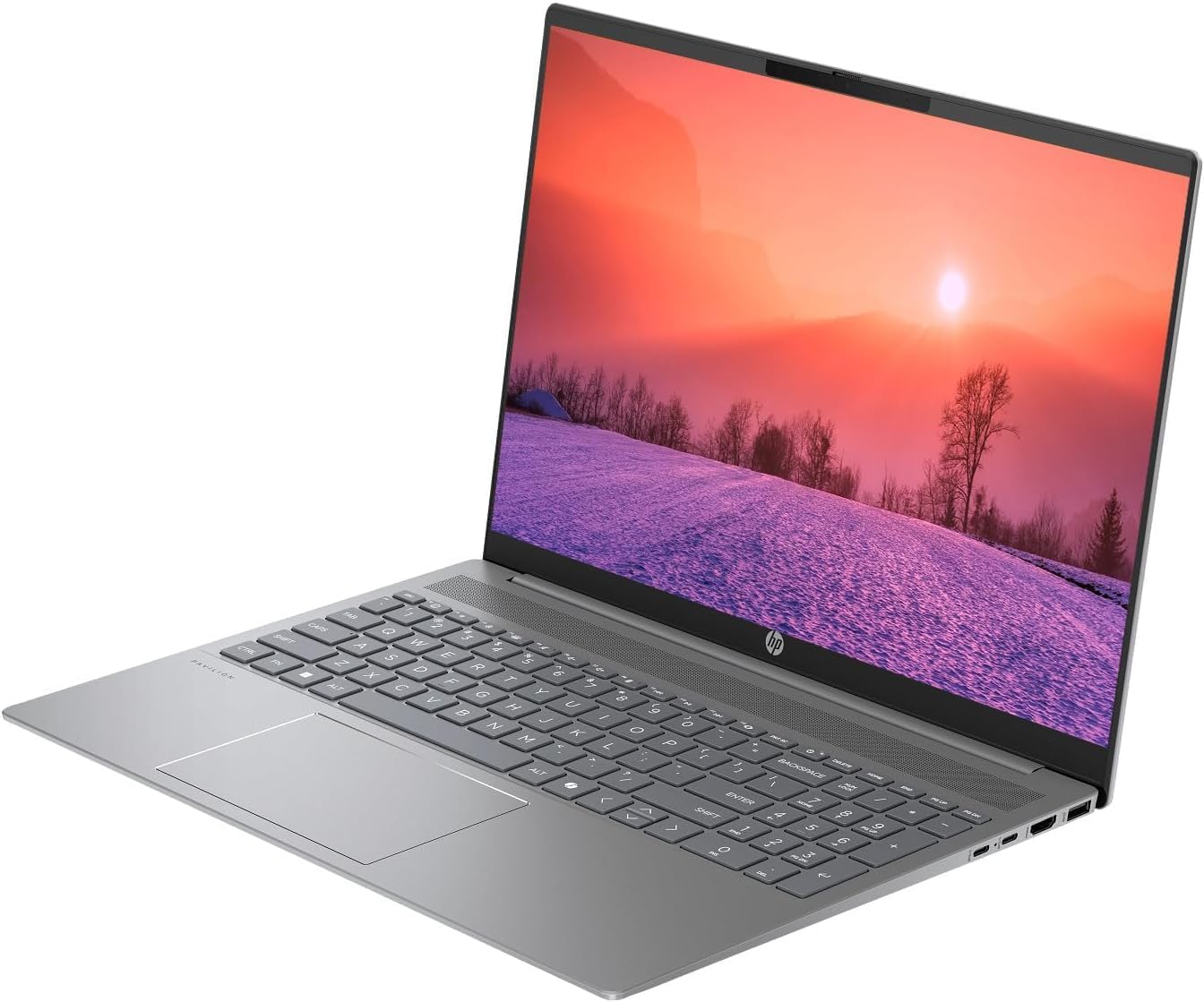
Figure 3.1: HP Pavilion 16-inch Laptop (Front View)
This image shows the HP Pavilion 16-inch laptop from a direct front view, highlighting the screen and keyboard.
3.3 ການເຊື່ອມຕໍ່ໄຮ້ສາຍ
- Wi-Fi 6: ເພື່ອເຊື່ອມຕໍ່ກັບເຄືອຂ່າຍໄຮ້ສາຍ, ໃຫ້ຄລິກໄອຄອນ Wi-Fi ໃນແຖບໜ້າວຽກ, ເລືອກເຄືອຂ່າຍຂອງທ່ານ, ແລະໃສ່ລະຫັດຜ່ານ.
- Bluetooth: To pair Bluetooth devices, go to Windows Settings > Bluetooth & devices, and turn on Bluetooth.
3.4 ການນໍາໃຊ້ Webກ້ອງ
HD ປະສົມປະສານ webcam can be used for video calls and conferences. Access it through applications like Camera, Microsoft Teams, or Zoom.
4. ບໍາລຸງຮັກສາ
4.1 ການເຮັດຄວາມສະອາດແລັບທັອບ
- ໃຊ້ຜ້າແພທີ່ອ່ອນໆ ທີ່ບໍ່ມີເສັ້ນດ່າງ dampສໍາເລັດດ້ວຍນ້ໍາຫຼືເຄື່ອງເຮັດຄວາມສະອາດຫນ້າຈໍສໍາລັບຈໍສະແດງຜົນ.
- ສໍາລັບແປ້ນພິມ ແລະຕົວເຄື່ອງ, ໃຫ້ໃຊ້ຜ້າອ່ອນໆ. ຫຼີກເວັ້ນການສານເຄມີທີ່ຮຸນແຮງ.
- ໃຊ້ອາກາດບີບອັດເພື່ອລ້າງຂີ້ຝຸ່ນອອກຈາກຊ່ອງລະບາຍອາກາດແຕ່ລະໄລຍະ.
4.2 ການດູແລຫມໍ້ໄຟ
- ຫຼີກລ້ຽງການຫມົດຫມໍ້ໄຟເລື້ອຍໆ.
- ເກັບຮັກສາແລັບທັອບໃນບ່ອນເຢັນ ແລະແຫ້ງ ຖ້າບໍ່ໄດ້ໃຊ້ເປັນເວລາດົນ.
- For optimal battery health, avoid continuous charging at 100% for prolonged durations.
4.3 ການປັບປຸງຊອບແວ
Regularly check for and install Windows updates to ensure system stability, security, and performance. Go to Windows Settings > Windows Update.
4.4 ການຄຸ້ມຄອງການເກັບຮັກສາ
ແຕ່ລະໄລຍະເຮັດຄວາມສະອາດທີ່ບໍ່ຈໍາເປັນ files and applications to maintain optimal performance of the 512GB SSD. Use Windows built-in tools like Disk Cleanup or Storage Sense.
5. ການແກ້ໄຂບັນຫາ
This section addresses common issues you might encounter with your HP Pavilion laptop.
5.1 Laptop Not Powering On
- ກວດໃຫ້ແນ່ໃຈວ່າອະແດັບເຕີ AC ເຊື່ອມຕໍ່ຢ່າງປອດໄພກັບທັງແລັບທັອບ ແລະປລັກສຽບໄຟທີ່ເຮັດວຽກໄດ້.
- ກວດສອບວ່າປລັກສຽບໄຟເຮັດວຽກໄດ້ໂດຍການສຽບໃສ່ອຸປະກອນອື່ນ.
- ຖ້າແບດເຕີລີ່ຫມົດແລ້ວ, ປ່ອຍໃຫ້ມັນສາກຢ່າງຫນ້ອຍ 30 ນາທີກ່ອນທີ່ຈະພະຍາຍາມເປີດ.
5.2 ບັນຫາການເຊື່ອມຕໍ່ Wi-Fi
- ກວດເບິ່ງວ່າ Wi-Fi ຖືກເປີດໃຊ້ໃນການຕັ້ງຄ່າ Windows.
- ຣີສະຕາດເຣົາເຕີ ແລະໂມເດັມຂອງທ່ານ.
- ໃຫ້ແນ່ໃຈວ່າທ່ານຢູ່ໃນຂອບເຂດຂອງເຄືອຂ່າຍ Wi-Fi.
- ລອງລືມເຄືອຂ່າຍ ແລະເຊື່ອມຕໍ່ຄືນໃໝ່.
5.3 ໄຟພື້ນຫຼັງແປ້ນພິມບໍ່ເຮັດວຽກ
- Press the dedicated keyboard backlight function key (e.g., F5 or F4) to toggle or adjust the brightness.
- Check Windows Mobility Center settings (search for it in the Start menu) for backlight options.
5.4 ການປະຕິບັດຊ້າ
- ປິດແອັບພລິເຄຊັນທີ່ບໍ່ຈໍາເປັນທີ່ເຮັດວຽກຢູ່ໃນພື້ນຫຼັງ.
- ໃຫ້ແນ່ໃຈວ່າ Windows ເປັນລຸ້ນລ້າສຸດ.
- Run a disk cleanup and check for malware.
- Verify that the laptop is not overheating.
6. ຂໍ້ມູນຈໍາເພາະ
| ຄຸນສົມບັດ | ຂໍ້ມູນຈໍາເພາະ |
|---|---|
| ຊື່ຕົວແບບ | ແລັບທັອບ HP 16 ນິ້ວ |
| ໂຮງງານຜະລິດ | AMD Ryzen 5 8540U (Up to 4.89GHz) |
| RAM | 8GB LPDDR5 |
| ການເກັບຮັກສາ | SSD 512GB |
| ຈໍສະແດງຜົນ | 16-inch WUXGA 2K (1920 x 1200 pixels) LED |
| ຮູບພາບ | AMD Radeon Graphics (Dedicated) |
| ລະບົບປະຕິບັດການ | Windows 11 Home OS |
| ທ່າເຮືອ | 2x USB Type-C, 2x USB Type-A, 1x HDMI, 1x ຊ່ອງສຽບຫູຟັງ/ໄມໂຄຣໂຟນ Combo |
| ການເຊື່ອມຕໍ່ໄຮ້ສາຍ | Wi-Fi 6 (802.11ax), Bluetooth |
| ແປ້ນພິມ | Backlit |
| Webກ້ອງ | ແມ່ນແລ້ວ |
| ຂະໜາດ (ຍ x ກວ້າງ x ສູງ) | 14.17" x 9.2" x 0.7" |
| ແບັດເຕີຣີ | Lithium Ion, 4 Watt Hours |
| UPC | 197961359091 |
7. ການຮັບປະກັນແລະການສະຫນັບສະຫນູນ
7.1 ຂໍ້ມູນການຮັບປະກັນ
This HP Pavilion laptop comes with a ການຮັບປະກັນ 30-Day. ກະລຸນາຮັກສາຫຼັກຖານການຊື້ຂອງທ່ານສໍາລັບການຮຽກຮ້ອງການຮັບປະກັນໃດໆ. ການຮັບປະກັນກວມເອົາຄວາມບົກຜ່ອງດ້ານການຜະລິດພາຍໃຕ້ເງື່ອນໄຂການນໍາໃຊ້ປົກກະຕິ.
7.2 ສະຫນັບສະຫນູນລູກຄ້າ
For further assistance, technical support, or warranty inquiries, please visit the official HP support website or contact their customer service. You can typically find contact information and support resources by searching for "HP Support" online.