
ແນະນຳ
Welcome to the HP OmniDesk M03 AI Desktop PC. This manual provides essential information for setting up, operating, maintaining, and troubleshooting your new computer. The HP OmniDesk M03 is designed for performance and efficiency, featuring an Intel Core Ultra 7 265 processor with dedicated AI cores, 16GB DDR5 RAM, and a 2TB NVMe SSD, running on Windows 11 Home.
ແມ່ນຫຍັງຢູ່ໃນກ່ອງ
ກວດສອບວ່າອົງປະກອບທັງຫມົດແມ່ນມີຢູ່ໃນການຫຸ້ມຫໍ່:
- ຄອມພິວເຕີຕັ້ງໂຕະ HP OmniDesk
- ແປ້ນພິມໄຮ້ສາຍ
- ຫນູ
- Quick Setup Guide
- ສາຍໄຟ

Image: The HP OmniDesk M03 desktop PC, wireless keyboard, mouse, and power cable, illustrating the contents of the product box.
ຕັ້ງຄ່າ
1. ເຊື່ອມຕໍ່ອຸປະກອນເສີມ
Before powering on your PC, connect your monitor, keyboard, and mouse.
- ຈໍພາບ: Connect your monitor to the PC using an HDMI or DisplayPort cable. The ports are located on the rear of the PC.
- ແປ້ນພິມແລະຫນູ: The included keyboard and mouse are wireless. Insert batteries (if not pre-installed) and connect their USB receiver to an available USB port on the PC.
- ພະລັງງານ: Connect the power cable to the PC's power input on the rear and then to a wall outlet.
- ເຄືອຂ່າຍ (ທາງເລືອກ): For a wired internet connection, connect an Ethernet cable from your router to the RJ45 port on the rear of the PC.

Image: Rear panel of the HP OmniDesk M03, highlighting the DisplayPort, HDMI, USB, and Ethernet ports for connecting external devices.

ຮູບພາບ: ຂ້າງ view of the HP OmniDesk M03 AI Desktop PC, showing its compact tower design.
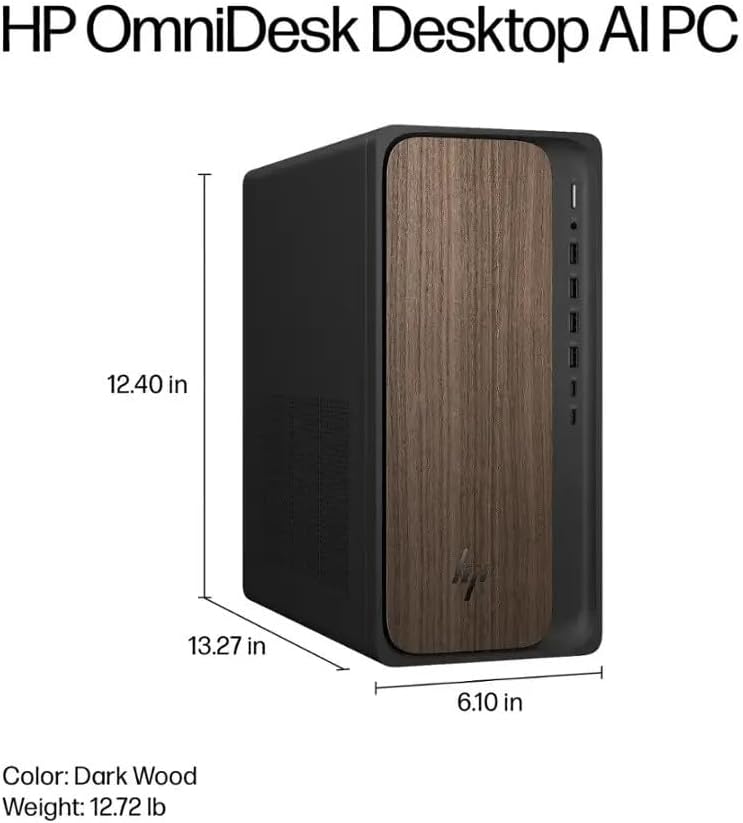
Image: Diagram illustrating the location and type of front and rear ports on the HP OmniDesk M03, including USB-A, USB-C, HDMI, DisplayPort, and audio jacks.
2. ການເປີດເຄື່ອງ ແລະການຕັ້ງຄ່າເບື້ອງຕົ້ນ
ເມື່ອອຸປະກອນຕໍ່ພ່ວງທັງໝົດເຊື່ອມຕໍ່ແລ້ວ:
- ກົດປຸ່ມເປີດປິດທີ່ຕັ້ງຢູ່ດ້ານຫນ້າຂອງ PC.
- Follow the on-screen instructions to complete the Windows 11 Home initial setup, including language selection, network connection (if not wired), account creation, and privacy settings.

ຮູບພາບ: ທາງຫນ້າ view of the HP OmniDesk M03, showing the power button at the top right and various USB ports below it.
ປະຕິບັດການ PC ຂອງທ່ານ
ໜ້າຫຼັກ Windows 11
Your HP OmniDesk M03 comes pre-installed with Windows 11 Home. Familiarize yourself with the operating system's interface, Start menu, and settings. Microsoft provides extensive online resources for Windows 11 usage.
ຄຸນນະສົມບັດ AI
The Intel Core Ultra 7 265 processor includes dedicated AI cores and Intel AI Boost, enhancing performance for AI-driven applications and features within Windows 11, such as AI Copilot. These features can assist with tasks, content creation, and system optimization.
ການເຊື່ອມຕໍ່
- Wi-Fi 6 (802.11ax): Connect to wireless networks for internet access. Manage Wi-Fi settings through the Windows 11 network settings.
- Bluetooth 5.4: Pair wireless devices such as headphones, speakers, or additional input devices. Access Bluetooth settings via the Windows 11 settings menu.
- ອີເທີເນັດ: For a stable, high-speed wired connection, ensure an Ethernet cable is connected to the RJ45 port.
ບໍາລຸງຮັກສາ
Cleaning Your PC
- ພາຍນອກ: ໃຊ້ຜ້າແພທີ່ອ່ອນໆ ທີ່ບໍ່ມີເສັ້ນດ່າງ dampened with water or a mild cleaning solution to wipe down the exterior. Avoid harsh chemicals.
- ຮູ: ອະນາໄມຂີ້ຝຸ່ນອອກຈາກເຕົາລະບາຍອາກາດເປັນໄລຍະໂດຍໃຊ້ອາກາດອັດແໜ້ນເພື່ອຮັບປະກັນການໄຫຼວຽນຂອງອາກາດທີ່ເໝາະສົມ ແລະປ້ອງກັນຄວາມຮ້ອນເກີນ.
- ພອດ: ຮັກສາທ່າເຮືອບໍ່ໃຫ້ມີຂີ້ຝຸ່ນ ແລະສິ່ງເສດເຫຼືອ.
ອັບເດດຊອບແວ
Regularly update Windows 11 and device drivers to ensure optimal performance, security, and compatibility. Access Windows Update through the Settings menu.
ການສໍາຮອງຂໍ້ມູນ
ຂໍແນະນຳໃຫ້ສຳຮອງຂໍ້ມູນສຳຄັນຂອງທ່ານໃສ່ໄດຣຟ໌ພາຍນອກ ຫຼືບ່ອນເກັບຂໍ້ມູນຄລາວເປັນປະຈຳເພື່ອປ້ອງກັນການສູນເສຍຂໍ້ມູນ.
ການແກ້ໄຂບັນຫາ
ພາກສ່ວນນີ້ແກ້ໄຂບັນຫາທົ່ວໄປທີ່ທ່ານອາດຈະພົບ.
- ບໍ່ມີພະລັງງານ:
- ໃຫ້ແນ່ໃຈວ່າສາຍໄຟຖືກເຊື່ອມຕໍ່ຢ່າງປອດໄພກັບທັງ PC ແລະເຕົ້າສຽບໄຟ.
- ກວດສອບວ່າປ່ຽງຕິດຝາໃຊ້ງານໄດ້ໂດຍການສຽບອຸປະກອນອື່ນ.
- ບໍ່ມີການສະແດງຜົນ:
- Check that the monitor is powered on and correctly connected to the PC via HDMI or DisplayPort.
- ໃຫ້ແນ່ໃຈວ່າເລືອກແຫຼ່ງປ້ອນທີ່ຖືກຕ້ອງຢູ່ໃນຈໍພາບຂອງທ່ານ.
- ບໍ່ມີການເຊື່ອມຕໍ່ອິນເຕີເນັດ:
- ສຳລັບ Wi-Fi, ໃຫ້ກວດສອບວ່າອະແດບເຕີ Wi-Fi ຖືກເປີດໃຊ້ງານແລ້ວ ແລະ ທ່ານໄດ້ເຊື່ອມຕໍ່ກັບເຄືອຂ່າຍທີ່ຖືກຕ້ອງດ້ວຍລະຫັດຜ່ານທີ່ຖືກຕ້ອງແລ້ວຫຼືບໍ່.
- For wired connection, ensure the Ethernet cable is properly connected and your router is working.
- ແປ້ນພິມ/ເມົາສ໌ບໍ່ຕອບສະໜອງ:
- ກວດສອບລະດັບແບັດເຕີຣີສຳລັບອຸປະກອນໄຮ້ສາຍ.
- Ensure the USB receiver is plugged into a functional USB port.
- Try restarting the PC.
ສໍາລັບບັນຫາທີ່ສັບສົນຫຼາຍ, ອ້າງອີງເຖິງການຊ່ວຍເຫຼືອຂອງ HP webເວັບໄຊ ຫຼືຕິດຕໍ່ບໍລິການລູກຄ້າ.
ຂໍ້ມູນຈໍາເພາະ
Detailed technical specifications for the HP OmniDesk M03 AI Desktop PC:
| ອົງປະກອບ | ຂໍ້ມູນຈໍາເພາະ |
| ໂຮງງານຜະລິດ | Intel Core Ultra 7 265 (20-Core, up to 5.3 GHz, Intel AI Boost) |
| ລະບົບປະຕິບັດການ | Windows 11 Home (64-bit) |
| ໜ່ວຍຄວາມຈຳ (RAM) | 16GB DDR5 5600 MHz |
| ການເກັບຮັກສາ | 2TB PCIe NVMe M.2 SSD |
| ຮູບພາບ | ປະສົມປະສານ Intel Graphics |
| ຜົນຜະລິດວິດີໂອ | 1x HDMI 2.1, 1x DisplayPort 1.4a |
| ພອດ USB (ທາງຫນ້າ) | 2x USB-A 5Gbps, 2x USB-A 10Gbps, 1x USB-C 5Gbps, 1x USB-C 10Gbps |
| ພອດ USB (ດ້ານຫຼັງ) | 4x USB 2.0 Type-A |
| ພອດສຽງ | 1x Headphone/Microphone Combo, 1x Line Input, 1x Line Output |
| ເຄືອຂ່າຍ | Wi-Fi 6 (802.11ax), Bluetooth 5.4, Gigabit Ethernet (RJ45) |
| ຂະໜາດ (H x W x D) | 13.3" x 6.1" x 12.4" (33.8 cm x 15.5 cm x 31.5 cm) |
| ນ້ຳໜັກ | 11.77 lb (5.34 ກິໂລ) |

Image: Diagram showing the height (13.27 inches), width (6.10 inches), and depth (12.40 inches) of the HP OmniDesk M03 desktop PC.
ການຮັບປະກັນແລະການສະຫນັບສະຫນູນ
ຂໍ້ມູນການຮັບປະກັນ
Your HP OmniDesk M03 AI Desktop PC comes with a ການຮັບປະກັນຈໍາກັດ 90 ວັນ. This warranty covers defects in materials and workmanship under normal use. For detailed terms and conditions, please refer to the warranty documentation included with your product or visit the official HP support webເວັບໄຊ.
ການຊ່ວຍເຫຼືອລູກຄ້າ
ສຳລັບການຊ່ວຍເຫຼືອດ້ານເຕັກນິກ, ການແກ້ໄຂບັນຫາ ຫຼື ການຮຽກຮ້ອງການຮັບປະກັນ, ກະລຸນາຕິດຕໍ່ຝ່າຍຊ່ວຍເຫຼືອລູກຄ້າຂອງ HP:
- ສະຫນັບສະຫນູນອອນໄລນ໌: ຢ້ຽມຢາມຢ່າງເປັນທາງການ ສະຫນັບສະຫນູນ HP Webເວັບໄຊ ສໍາລັບຄົນຂັບ, ຄູ່ມື, ແລະຄູ່ມືການແກ້ໄຂບັນຫາ.
- ສະຫນັບສະຫນູນໂທລະສັບ: Refer to the Quick Setup Guide or HP's webສະຖານທີ່ສໍາລັບເບີໂທລະສັບຕິດຕໍ່ພາກພື້ນ.
When contacting support, please have your product model (M03) and serial number ready.