
1. ບົດແນະນຳ
The StarTech.com SV231DPU34K is a 2-Port DisplayPort KVM Switch designed to allow control of two DisplayPort-enabled computers from a single monitor, keyboard, and mouse. This device supports high-resolution video up to 4K at 60Hz and includes an integrated USB 3.0 hub for sharing additional USB peripherals between connected systems. It also features 3.5mm analog audio switching and offers flexible control via front-panel push buttons or hotkey commands.
2. ເນື້ອໃນຊຸດ
- 1x KVM Switch (SV231DPU34K)
- 1x Universal Power Adapter (NA/JP, EU, UK, ANZ)
- 4x Rubber Foot Pads
3. ຜະລິດຕະພັນເກີນview
3.1 ກະດານດ້ານ ໜ້າ
The front panel provides convenient access to a USB HID port, a USB 3.0 port, and selection buttons for switching between connected computers.

ຮູບພາບ 1: Front Panel of the SV231DPU34K KVM Switch. Features include a USB HID port, a USB 3.0 port, and two computer selection buttons (1 and 2) with a 'SELECT' button.
3.2 ແຜງດ້ານຫລັງ
The rear panel houses the power input, console DisplayPort and USB HID ports, and dedicated DisplayPort, USB, and audio ports for each connected PC.
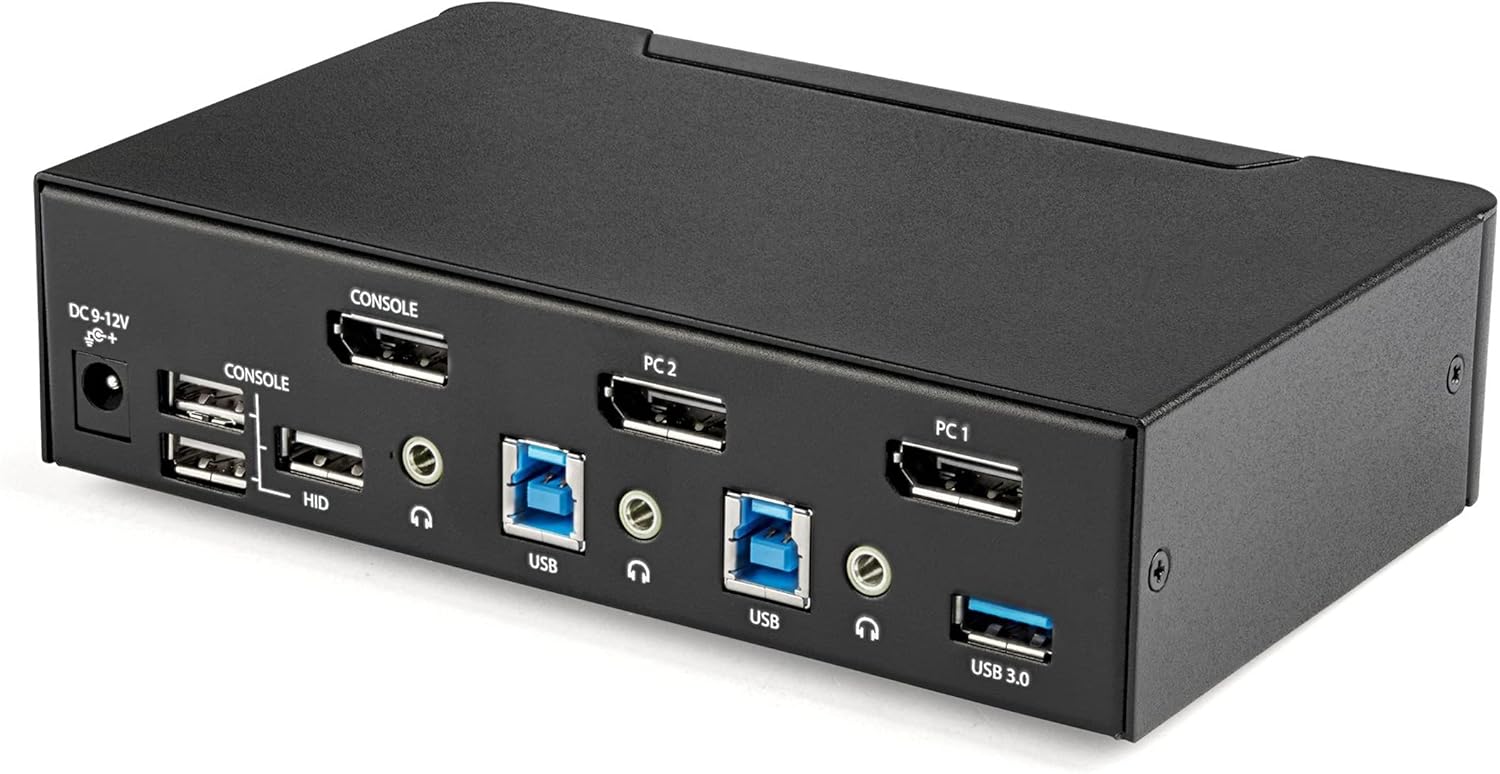
ຮູບພາບ 2: Rear Panel of the SV231DPU34K KVM Switch. Connections include DC 9-12V power, Console DisplayPort, Console USB HID ports, and individual DisplayPort, USB 3.0 Type-B, and 3.5mm audio jacks for PC1 and PC2.
3.3 Labeled Diagram
ແຜນວາດນີ້ໃຫ້ຄວາມສົມບູນແບບ view of all ports and their functions on both the front and rear panels.

ຮູບພາບ 3: Labeled diagram illustrating all ports on the SV231DPU34K KVM Switch, including console connections for monitor, keyboard, and mouse, and PC connections for two computers.
4. ຄໍາແນະນໍາການຕິດຕັ້ງ
Follow these steps to set up your StarTech.com SV231DPU34K KVM Switch:
- ອຸປະກອນປິດເຄື່ອງ: Ensure all computers, monitors, and peripherals are powered off before beginning the installation.
- ເຊື່ອມຕໍ່ອຸປະກອນຄອນໂຊນ:
- ເຊື່ອມຕໍ່ຈໍ DisplayPort ຂອງທ່ານກັບ CONSOLE DisplayPort on the rear of the KVM switch.
- ເຊື່ອມຕໍ່ແປ້ນພິມ ແລະ ເມົ້າ USB ຂອງທ່ານກັບ CONSOLE HID USB Type-A ports on the rear of the KVM switch.
- If using external speakers or a microphone, connect them to the CONSOLE 3.5mm audio jacks ດ້ານຫລັງ.
- Connect Computers (PC1 and PC2): ສໍາລັບແຕ່ລະຄອມພິວເຕີ:
- Connect a DisplayPort cable from your computer's DisplayPort output to the corresponding PC1 DisplayPort or PC2 DisplayPort input on the KVM switch.
- Connect a USB 3.0 Type-A to Type-B cable from your computer's USB 3.0 port to the corresponding PC1 USB 3.0 Type-B or PC2 USB 3.0 Type-B input on the KVM switch.
- If using audio, connect 3.5mm audio cables from your computer's audio output/input to the corresponding PC1/PC2 3.5mm audio jacks.
- ເຊື່ອມຕໍ່ອຸປະກອນພ່ວງ USB: Connect any additional USB 3.0 peripherals (e.g., USB hub, printer, flash drive) to the ພອດ USB 3.0 Type-A on the front or rear of the KVM switch.
- ເຊື່ອມຕໍ່ພະລັງງານ: Connect the included universal power adapter to the ການປ້ອນຂໍ້ມູນພະລັງງານ DC 9-12V on the rear of the KVM switch, then plug it into a power outlet.
- ເປີດ: Power on the KVM switch, then power on your monitor, and finally power on your connected computers.
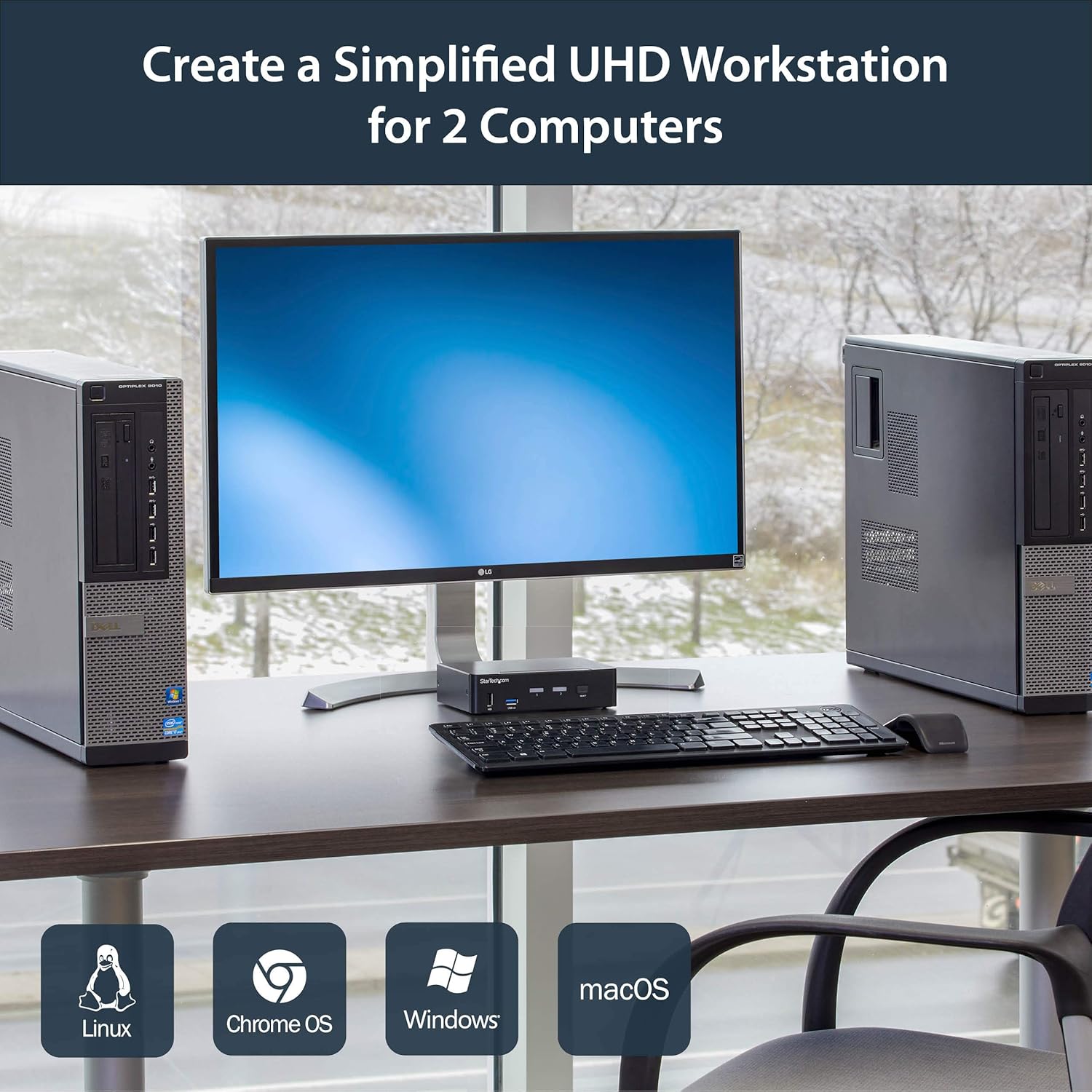
ຮູບພາບ 4: Connection diagram for the SV231DPU34K KVM Switch, showing how two computers share one display and peripherals.
5. ຄໍາແນະນໍາການດໍາເນີນງານ
The SV231DPU34K KVM Switch offers two methods for switching between connected computers:
5.1 Front Panel Push Buttons
ກົດທີ່ສອດຄ້ອງກັນ ເລືອກ button on the front panel of the KVM switch to switch to the desired computer (PC1 or PC2). The LED indicator for the selected computer will illuminate.
ຮູບພາບ 5: Front panel with computer selection buttons.
5.2 Hotkey Switching
The KVM switch supports hotkey commands for switching between computers. Refer to the quick start guide or the official StarTech.com product page for specific hotkey sequences.
6. ບໍາລຸງຮັກສາ
To ensure optimal performance and longevity of your KVM switch, follow these maintenance guidelines:
- ທໍາຄວາມສະອາດ: Keep the device clean and free from dust. Use a soft, dry, lint-free cloth for cleaning. Avoid using liquid or aerosol cleaners.
- ການລະບາຍອາກາດ: Ensure adequate airflow around the KVM switch to prevent overheating. Do not block any ventilation openings.
- ການຄຸ້ມຄອງສາຍໄຟ: ຈັດລະບຽບສາຍໄຟເພື່ອປ້ອງກັນຄວາມເຄັ່ງຕຶງໃນພອດ ແລະ ການຕັດການເຊື່ອມຕໍ່ໂດຍບັງເອີນ.
- ເງື່ອນໄຂສິ່ງແວດລ້ອມ: Operate the device within its specified temperature and humidity ranges. Avoid extreme temperatures or moisture.
7. ການແກ້ໄຂບັນຫາ
ຖ້າຫາກທ່ານພົບບັນຫາກັບສະວິດ KVM ຂອງທ່ານ, ເບິ່ງບັນຫາທົ່ວໄປດັ່ງຕໍ່ໄປນີ້ແລະການແກ້ໄຂ:
| ບັນຫາ | ການແກ້ໄຂທີ່ເປັນໄປໄດ້ |
|---|---|
| No display or flickering display after switching. |
|
| ແປ້ນພິມ ຫຼືເມົາສ໌ບໍ່ຕອບສະໜອງ. |
|
| USB 3.0 devices not detected or working intermittently. |
|
| Audio issues (static, no sound). |
|
| G-Sync or FreeSync not working. |
|
8. ຂໍ້ມູນຈໍາເພາະ
| ຄຸນສົມບັດ | ລາຍລະອຽດ |
|---|---|
| ຕົວແບບ | SV231DPU34K |
| ຍີ່ຫໍ້ | StarTech.com |
| ອິນເຕີເຟດວິດີໂອ | DisplayPort 1.2 |
| ຄວາມລະອຽດສູງສຸດ | 3840 x 2160 @ 60Hz (4K UHD) |
| MST Passthrough | ສະຫນັບສະຫນູນ |
| Hub USB | 2- ພອດ USB 3.0 Hub |
| ພອດ USB HID | 4x USB Type-A (for keyboard/mouse) |
| ສຽງ | 3.5mm Analog Audio Switching |
| ວິທີການປ່ຽນ | Push Button, Hotkey |
| ວັດສະດຸ | ເຫຼັກກ້າ |
| ຂະໜາດ (L x W x H) | 3.9 x 6.3 x 1.6 ນິ້ວ (9.9 x 16.0 x 4.1 cm) |
| ນ້ໍາຫນັກລາຍການ | 1.3 ປອນ (0.59 ກິໂລ) |
| ການປ້ອນຂໍ້ມູນພະລັງງານ | DC 9-12V, 18 Watts |
| ສີ | ດຳ |
| ອຸນຫະພູມປະຕິບັດການ | 0°C ຫາ 40°C (32°F ຫາ 104°F) |
| ອຸນຫະພູມການເກັບຮັກສາ | -20°C ຫາ 60°C (-4°F ຫາ 140°F) |
| ຄວາມຊຸ່ມຊື່ນ | 0-80% RH (ບໍ່ condensing) |
9. ການຮັບປະກັນແລະການສະຫນັບສະຫນູນ
9.1 ຂໍ້ມູນການຮັບປະກັນ
ຜະລິດຕະພັນ StarTech.com ນີ້ແມ່ນສະຫນັບສະຫນູນໂດຍ a ຮັບປະກັນ 2 ປີ. For detailed warranty terms and conditions, please refer to the official StarTech.com webເວັບໄຊ.
9.2 ສະຫນັບສະຫນູນດ້ານວິຊາການ
For technical assistance, product documentation, or driver downloads, please visit the official StarTech.com support webເວັບໄຊ: