
소개
This user guide provides essential information for the HP OfficeJet Pro 8125e printer. It covers initial setup, connecting to networks, performing print, scan, and copy functions, routine maintenance, and troubleshooting common issues. Follow these instructions to ensure optimal performance and longevity of your device.
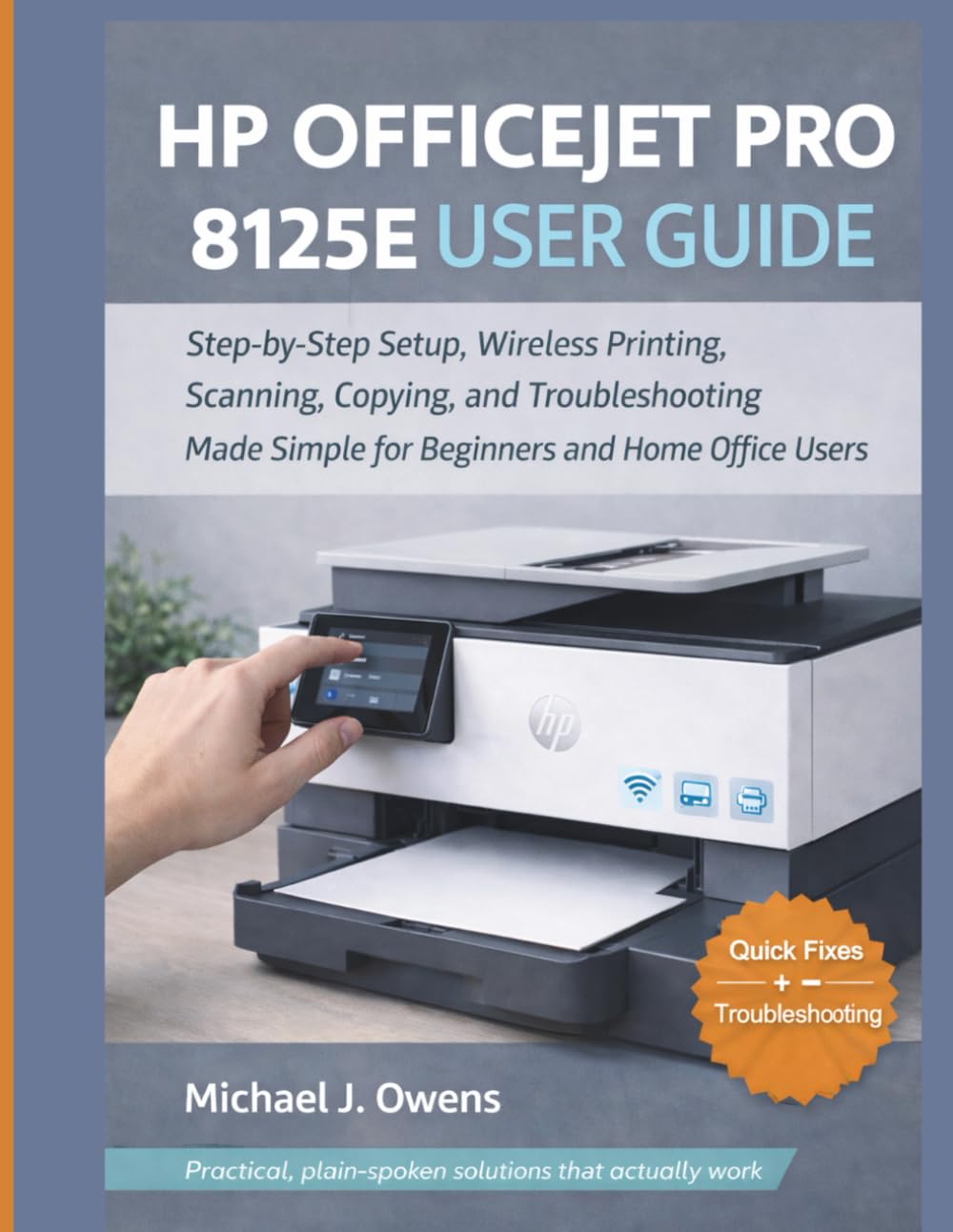
Image: Front cover of the HP OfficeJet Pro 8125e User Guide. This image represents the manual itself, designed to assist users with their printer.
1. 설정
1.1 언박싱 및 초기 전원 켜기
- 프린터의 포장을 조심스럽게 꺼냅니다.
- 프린터의 외부와 내부에 있는 모든 보호 테이프와 포장재를 제거하십시오.
- 전원 코드를 프린터에 연결한 다음 벽면 콘센트에 연결합니다.
- 전원 버튼을 눌러 프린터를 켭니다.
- Follow the on-screen prompts on the printer's control panel to select your language and region.
1.2 잉크 카트리지 설치
- 잉크 카트리지 액세스 도어를 엽니다.
- 프린터 캐리지가 중앙으로 이동할 때까지 기다리세요.
- Unpack the new ink cartridges.
- 각 카트리지를 해당 슬롯에 삽입하고 딸깍 소리가 나면서 제자리에 고정되었는지 확인하십시오.
- 잉크 카트리지 액세스 덮개를 닫습니다.
1.3 용지 적재
- 입력 용지함을 당겨 빼냅니다.
- 용지 가이드를 올바른 용지 크기에 맞게 조정하세요.
- 용지함에 흰색 일반 용지를 인쇄면이 아래로 향하도록 넣으세요.
- 입력 용지함을 프린터로 다시 밀어 넣습니다.
- Confirm paper type and size on the printer's control panel if prompted.
1.4 Wi-Fi에 연결하기
- 프린터 제어판에서 무선 설정 마법사를 엽니다.
- 사용 가능한 네트워크 목록에서 Wi-Fi 네트워크를 선택합니다.
- Enter the Wi-Fi password (WPA key) when prompted.
- 연결을 확인하십시오. 프린터의 무선 표시등이 파란색으로 켜져 있어야 합니다.
1.5 드라이버 설치
For Windows and Mac computers, download the latest drivers and HP Smart software from the official HP support web사이트. 설치 중에는 화면의 지침을 따르세요.
2. 프린터 작동
2.1 문서 인쇄
- 컴퓨터에서: Open the document, select "Print," choose your HP OfficeJet Pro 8125e, and adjust settings as needed before printing.
- 모바일 기기에서 (HP 스마트 앱): Install the HP Smart app, add your printer, and use the app to print photos or documents directly from your smartphone or tablet.
- 이메일 인쇄: If enabled, send documents to your printer's unique email address.
2.2 문서 스캔
- 문서를 스캐너 유리 위에 앞면이 아래로 향하게 놓거나 자동 문서 공급기(ADF)에 앞면이 위로 향하게 놓으십시오.
- On the printer's control panel or via the HP Smart app/software on your computer, select "Scan."
- Choose scan settings (e.g., color, resolution, destination).
- 스캔을 시작하세요.
2.3 문서 복사
- 원본 문서를 스캐너 유리판이나 자동 문서 공급기(ADF)에 놓으십시오.
- On the printer's control panel, select "Copy."
- Adjust settings such as number of copies, color/black & white, and size.
- "복사 시작" 버튼을 누르세요.
3. 유지관리
3.1 Cleaning the Print Heads
If print quality degrades (streaks, faded colors), perform a print head cleaning from the printer's control panel or the HP Smart software. This process uses ink, so only perform it when necessary.
3.2 잉크 카트리지 교체
When an ink cartridge is low or empty, the printer will notify you. Follow the steps in Section 1.2 to replace cartridges. Use genuine HP ink cartridges for best results.
3.3 일반 청소
프린터 외부를 부드러운 천으로 닦으세요.amp, lint-free cloth. Clean the scanner glass regularly with a glass cleaner applied to a cloth (not directly to the glass) to prevent smudges from affecting scan quality.
4. 문제 해결
| 문제 | 해결책 |
|---|---|
| 프린터 오프라인 메시지 |
|
| 용지 걸림 |
|
| 인쇄 품질 불량 |
|
| HP Smart App Issues |
|
5. 사양
Note: The following specifications are typical for the HP OfficeJet Pro 8125e printer. For precise details, refer to the official HP product page or documentation.
- 기능: Print, Copy, Scan, Fax (optional, depending on region/model)
- 인쇄 기술: HP 열전 사 잉크젯
- 인쇄 속도(흑백): 최대 22ppm(ISO)
- 인쇄 속도(컬러): 최대 18ppm(ISO)
- Print Resolution (Best): Up to 4800 x 1200 optimized dpi color
- 스캔 해상도(광학): 최대 1200dpi
- 연결성: Wi-Fi 802.11a/b/g/n, Ethernet, USB 2.0
- 용지 취급: 250-sheet input tray, 60-sheet output tray, 35-sheet ADF
- 양면 인쇄: 자동 (표준)
- 표시하다: 컬러 터치 스크린
6. 보증 및 지원
For warranty information, please refer to the documentation included with your printer or visit the official HP support website. HP provides various support resources, including online FAQs, driver downloads, and contact options for technical assistance.
Image: Back cover of the HP OfficeJet Pro 8125e User Guide. This image provides additional information and ISBN details for the manual.