
1. 서론
This manual provides essential information for the safe and efficient use of your HP 17.3 Inch FHD Business Laptop. Please read this guide thoroughly before operating your device to ensure optimal performance and longevity. This laptop is designed for business and everyday computing tasks, offering a large display, robust performance, and portability.
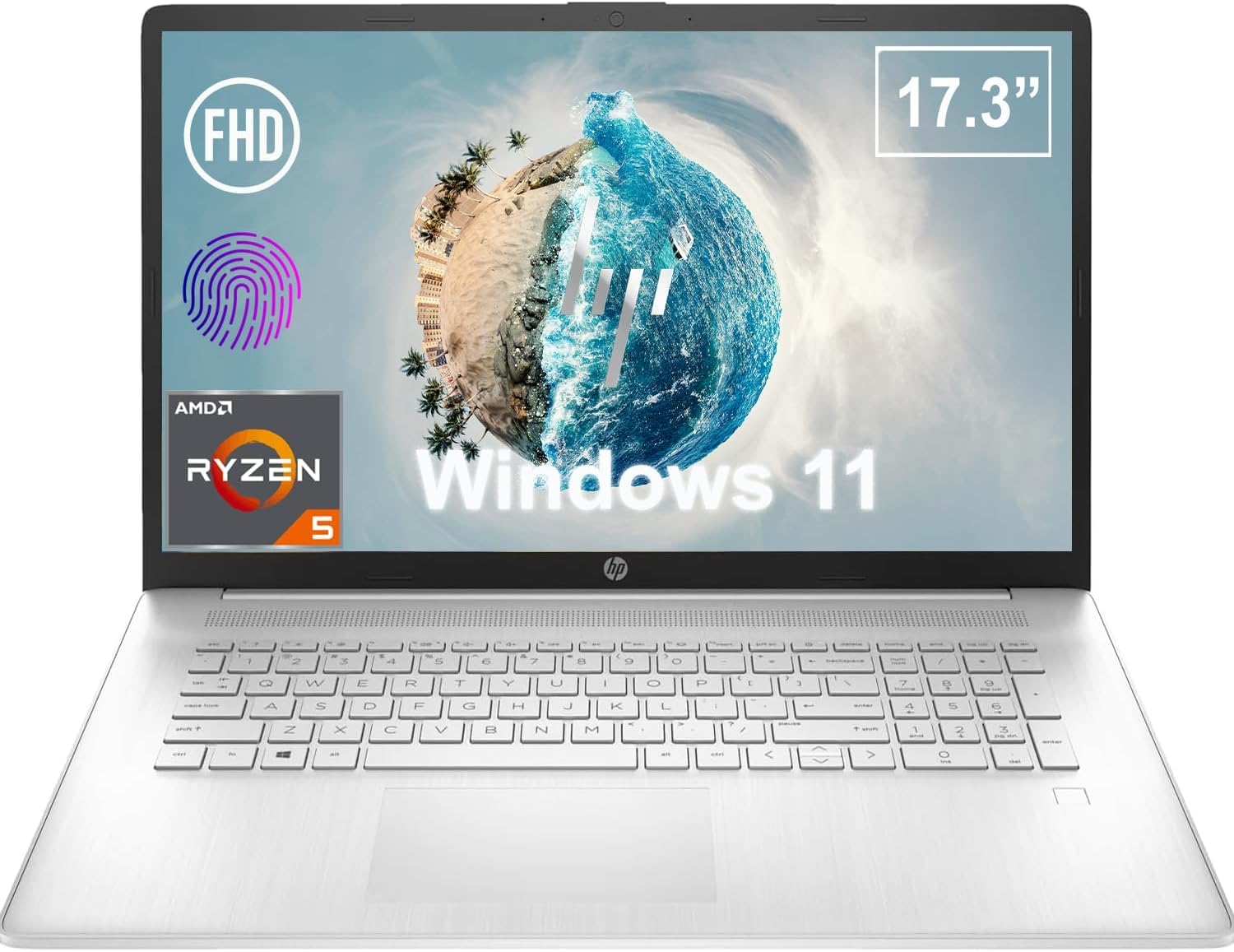
그림 1.1: 전면 view of the HP 17.3 Inch FHD Business Laptop, showcasing the large display and keyboard.
2. 설정
2.1 언박싱 및 초기 검사
모든 구성품을 포장에서 조심스럽게 꺼내세요. 다음 품목이 모두 있는지 확인하세요.
- HP 17.3 Inch FHD Business Laptop
- Power Adapter (45 W Smart AC Power Adapter)
- 문서(이 매뉴얼, 보증 정보)
Inspect the laptop and accessories for any signs of damage. If any items are missing or damaged, contact your retailer or HP support immediately.
2.2 전원 어댑터 연결
Before first use, ensure the laptop is fully charged. Connect the power adapter to the AC smart pin port on the side of the laptop and then plug the adapter into a power outlet.
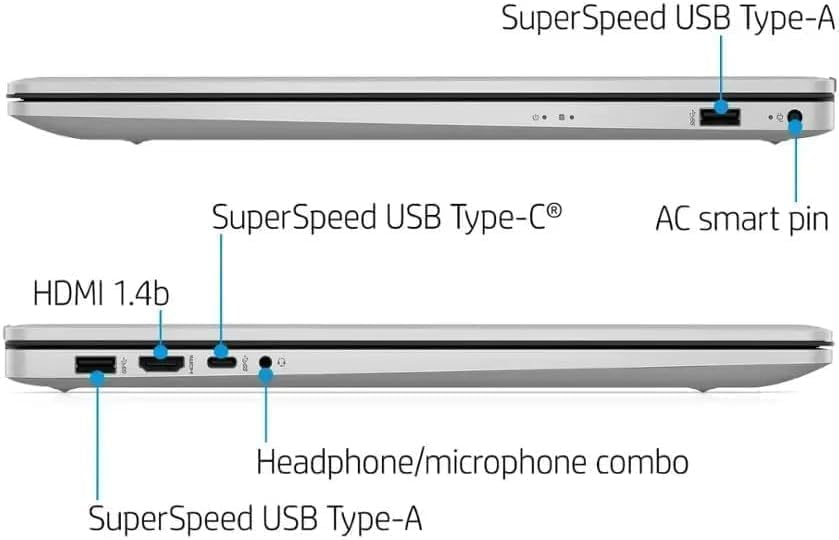
그림 2.1: 측면 view illustrating the location of the AC smart pin and other ports.
2.3 초기 전원 켜기 및 Windows 설치
Press the power button to turn on the laptop. Follow the on-screen instructions to complete the Windows 11 Home setup process. This includes setting up your user account, network connection, and initial preferences.
3. 노트북 작동
3.1 키보드 및 터치패드
The laptop features a full-size QWERTY keyboard with a 10-key number pad for efficient data entry. The integrated touchpad provides precise cursor control. Refer to the operating system's settings for customizing touchpad gestures and keyboard shortcuts.
3.2 지문 판독기
For enhanced security and convenient login, utilize the integrated fingerprint reader. Set up your fingerprints through Windows Hello in the Windows 11 settings.
3.3 Web카메라 및 마이크
The HP True Vision 720p HD Camera and integrated dual array digital microphones are located at the top of the display. These are suitable for video conferencing and online communication.
3.4 연결성
- 와이파이: The laptop supports 802.11a/b/g/n/ac Wi-Fi for wireless internet access. Connect to available networks via the Windows network settings.
- 블루투스: Bluetooth 5 allows for wireless connection to compatible devices such as headphones, mice, and keyboards. Enable and manage Bluetooth devices through Windows settings.
3.5 포트 및 외부 장치
노트북에는 외부 장치를 연결하기 위한 다양한 포트가 장착되어 있습니다.
- 1 x USB Type-C (5Gbps, Data Only): For connecting USB-C compatible devices and data transfer.
- 2 x USB Type-A (5Gbps): For connecting standard USB devices like external drives, mice, or keyboards.
- 1 x HDMI 1.4b: For connecting to external displays or projectors.
- 1 x Headphone/Microphone Combo: For connecting a headset with a single 3.5mm jack.
- 1 x AC Smart Pin: For connecting the power adapter.

그림 3.1: 열기 view of the laptop, highlighting the keyboard and touchpad area.
3.6 배터리 관리
The laptop is powered by a 3-Cell, 41 Wh Li-ion battery, offering up to 8 hours and 30 minutes of video playback. Use the provided 45 W Smart AC Power Adapter for charging. HP Fast Charge technology allows for quicker charging times.
4. 유지관리
4.1 노트북 청소
노트북의 외관과 기능을 유지하려면:
- 부드럽고 보풀이 없는 천을 사용하십시오. damp물이나 디스플레이 전용 세척제로 닦아주세요.
- 키보드와 본체는 부드럽고 마른 천으로 닦으십시오. 강한 화학 약품이나 연마재는 사용하지 마십시오.
- 청소하기 전에 노트북의 전원이 꺼져 있고 플러그가 뽑혀 있는지 확인하세요.
4.2 소프트웨어 업데이트
Regularly update your Windows operating system and drivers to ensure optimal performance, security, and compatibility. Windows Update can be accessed through the Settings menu.
4.3 Security Software
The laptop comes preloaded with McAfee LiveSafe for security. Ensure this software is active and updated to protect against viruses and other threats.
5. 문제 해결
이 섹션에서는 HP 노트북에서 발생할 수 있는 일반적인 문제에 대해 설명합니다.
5.1 전원 문제
- 노트북이 켜지지 않습니다: 전원 어댑터가 노트북과 작동하는 전원 콘센트에 제대로 연결되어 있는지 확인하십시오. 배터리가 충전되어 있는지 확인하십시오.
- 배터리가 충전되지 않음: 전원 어댑터와 케이블이 손상되었는지 확인하세요. 다른 콘센트에 연결해 보세요.
5.2 디스플레이 문제
- 화면에 이미지가 없습니다: 외부 모니터를 연결하여 노트북 디스플레이에 문제가 있는지 확인하십시오. 노트북을 재시작하십시오.
- 깜빡이거나 왜곡된 이미지: 그래픽 드라이버를 업데이트하세요. Windows 설정에서 디스플레이 해상도와 화면 주사율을 조정하세요.
5.3 연결 문제
- Wi-Fi가 연결되지 않음: Ensure Wi-Fi is enabled. Restart your router and the laptop. Check network settings for correct password and configuration.
- Bluetooth 장치가 페어링되지 않음: 두 기기 모두 블루투스가 켜져 있는지 확인하십시오. 기기가 페어링 모드이고 블루투스 범위 내에 있는지 확인하십시오.
더 복잡한 문제는 HP 지원을 참조하세요. web사이트를 방문하거나 고객 서비스에 문의하세요.
6. 사양
| 특징 | 세부 사항 |
|---|---|
| 상표 | HP |
| 모델명 | HP17 |
| 모델 번호 | i5-1135G7 |
| 화면 크기 | 17.3 인치 |
| 디스플레이 유형 | IPS, Anti-Glare, LED |
| 해결 | 1920 x 1080 (풀HD) |
| 새로 고침 빈도 | 60Hz |
| 프로세서 | AMD Ryzen 5 5500U (6 Cores, 12 Threads, up to 4.0 GHz Max Boost Clock) |
| 제도법 | 통합 AMD Radeon 그래픽 |
| 램 메모리 | 32 GB DDR4-3200 MHz (Max 64 GB) |
| 저장 | 1TB PCIe NVMe M.2 SSD |
| 운영 체제 | 윈도우 11 홈, 64비트, 영어 |
| 무선 연결 | 802.11a/b/g/n/ac Wi-Fi, 블루투스 5 |
| 포트 | 1x USB Type-C (5Gbps), 2x USB Type-A (5Gbps), 1x HDMI 1.4b, 1x Headphone/Microphone Combo, 1x AC Smart Pin |
| Web캠 | HP 트루 비전 720p HD 카메라 |
| 오디오 | Dual Speakers, Integrated Dual Array Digital Microphones |
| 배터리 | 3-Cell, 41 Wh Li-ion (Up to 8.5 hours video playback) |
| 전원 어댑터 | 45 W Smart AC Power Adapter |
| 치수(폭 x 깊이 x 높이) | 40.07 x 25.78 x 2.06cm (길이 14.14인치 x 너비 9.31인치 x 두께 0.78인치) |
| 무게 | 2.07 kg에서 시작 |
| 특별 기능 | Fingerprint Reader, Lightweight Design, HP Fast Charge |
7. 보증 및 지원
7.1 보증 정보
This HP laptop comes with a 1-year manufacturer's limited warranty. For detailed terms and conditions, please refer to the warranty documentation included with your product or visit the official HP support web대지.
7.2 고객 지원
이 설명서의 문제 해결 단계를 사용해도 해결되지 않는 문제가 발생하면 HP 고객 지원팀에 문의하십시오. 연락처 정보 및 추가 자료는 HP 공식 웹사이트에서 확인할 수 있습니다. web대지:
- HP 지원 Web대지: 지원.hp.com
- HP 스토어: Amazon의 HP 스토어