
1. 서론
This manual provides detailed instructions for the installation, configuration, and operation of the Intelbras iNVD 5232 32-Channel IP Digital Video Recorder. Please read this manual thoroughly before using the device to ensure proper functionality and to prevent damage.
The Intelbras iNVD 5232 is designed for professional surveillance applications, offering advanced features for recording, monitoring, and managing IP camera feeds.
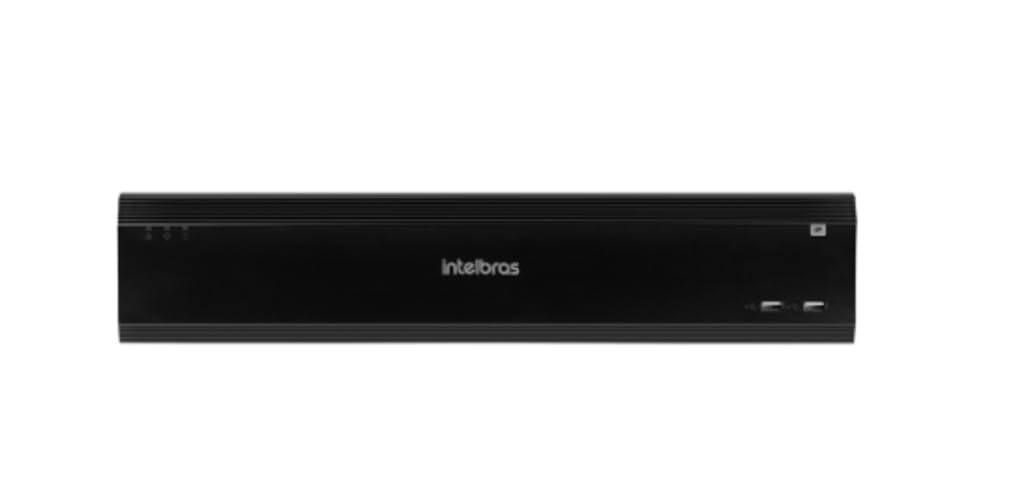
Figure 1: Intelbras iNVD 5232 Digital Video Recorder. This image shows the front panel of the iNVD 5232 unit, featuring a sleek black design with the Intelbras logo and USB ports.
2. 안전 정보
부상 및 기기 손상을 방지하기 위해 다음 안전 수칙을 준수하십시오.
- 전원 공급 장치 볼륨을 확인하십시오.tage는 장치의 요구 사항과 일치합니다.
- 기기를 습기, 비 또는 극한 온도에 노출시키지 마십시오.
- 직사광선이나 열원 근처에 장치를 두지 마십시오.
- 장치를 열지 마십시오.asing. 모든 서비스는 자격을 갖춘 담당자에게 의뢰하세요.
- 제조업체에서 지정한 액세서리만 사용하십시오.
- 감전을 방지하기 위해 기기를 제대로 접지하십시오.
3. 패키지 내용
패키지에 모든 품목이 들어 있는지 확인하세요.
- Intelbras iNVD 5232 Digital Video Recorder Unit
- 전원 어댑터
- USB 마우스
- HDD 설치용 나사
- 빠른 시작 가이드
- CD-ROM (소프트웨어 및 전체 설명서 포함)
4. 제품 오버view
4.1 전면 패널
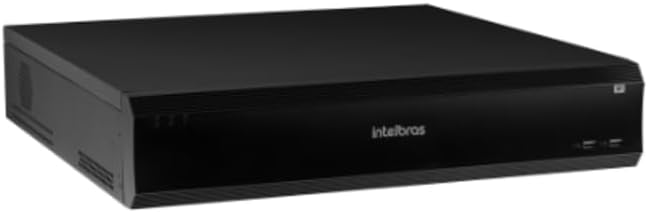
Figure 2: Front Panel of the iNVD 5232. This image displays the front of the DVR, showing LED indicators for power and status, along with two USB ports for peripheral connections.
- 전원 LED: 전원 상태를 나타냅니다.
- 상태 LED : 시스템 작동 상태를 나타냅니다.
- USB 포트: 마우스, USB 드라이브 또는 기타 주변 장치를 연결하는 데 사용합니다.
4.2 후면 패널

Figure 3: Rear Panel of the iNVD 5232. This image details the rear connections, including power input, network ports, video outputs (HDMI, VGA), audio inputs/outputs, and alarm terminals.
- 전원 입력: 제공된 전원 어댑터를 연결하세요.
- HDMI 출력: Connect to an HDMI-compatible monitor.
- VGA 출력: Connect to a VGA-compatible monitor.
- LAN 포트 : Connect to your network for IP camera communication and remote access.
- 오디오 입력/출력: 외부 오디오 장치를 연결합니다.
- 경보 입력/출력: For connecting external alarm sensors and actuators.
- USB 포트: 주변 기기를 위한 추가 USB 포트.
5. 설정
5.1 하드웨어 설치
- 하드 드라이브 설치(사전 설치되지 않은 경우): DVR을 엽니다asing, mount the hard drive using the provided screws, and connect the SATA power and data cables.
- 모니터 연결: 모니터를 HDMI 또는 VGA 출력 포트에 연결합니다.
- 마우스 연결: USB 마우스를 USB 포트 중 하나에 꽂습니다.
- 네트워크 연결: Connect an Ethernet cable from the LAN port to your network router or switch.
- 전원 연결: Plug the power adapter into the DVR's power input and then into a power outlet. The device will power on automatically.
5.2 초기 구성
Upon first boot, the system will guide you through an initial setup wizard:
- 언어 선택: 선호하는 언어를 선택하십시오.
- 비밀번호 설정: 강력한 관리자 암호를 만드세요.
- 네트워크 설정: Configure IP address, subnet mask, gateway, and DNS. DHCP is usually enabled by default.
- 날짜 및 시간: 날짜, 시간 및 시간대를 올바르게 설정하십시오.
- 하드디스크 초기화: Format the installed hard drive for recording.
- IP Camera Search and Add: The system will scan for available IP cameras on the network. Select and add your cameras.
6. 운영
6.1 라이브 View
초기 설정 후 시스템은 라이브를 표시합니다. view 연결된 카메라의. 단일 카메라 간에 전환할 수 있습니다. view, multi-camera grids, and sequence views using the on-screen controls or mouse.
6.2 녹화 관리
- 녹화 일정: Configure continuous, motion-detection, or alarm-triggered recording schedules for each camera.
- 수동 녹음: Initiate recording manually from the live view 인터페이스.
- 재생: 기록된 foo에 액세스tage by date, time, and event type. Use the playback controls to navigate through recordings.
- 지원: Export recorded video clips to a USB drive or network storage.
6.3 원격 접속
The iNVD 5232 supports remote access via a web browser or dedicated mobile application. Ensure your network is configured for remote access (e.g., port forwarding or P2P cloud service activation).
- Web 브라우저: Enter the DVR's IP address into a web 동일한 네트워크에 연결된 컴퓨터의 브라우저.
- 모바일 앱: Download the official Intelbras surveillance app from your device's app store. Scan the QR code on the DVR (if available) or manually enter the device ID for connection.
7. 유지관리
7.1 청소
DVR 외부를 부드럽고 마른 천으로 정기적으로 닦아주십시오. 액체 세척제나 스프레이형 세척제는 사용하지 마십시오. 통풍구에 먼지나 이물질이 끼지 않도록 하십시오.
7.2 펌웨어 업데이트
Periodically check the Intelbras web펌웨어 업데이트 사이트입니다. 펌웨어 업데이트는 새로운 기능, 성능 향상 및 보안 강화를 제공할 수 있습니다. 펌웨어 업데이트 패키지와 함께 제공된 지침을 주의 깊게 따르세요.
7.3 하드 드라이브 관리
Monitor the health of your hard drives through the system's HDD management menu. Replace failing drives promptly to avoid data loss. Configure automatic overwriting of old footage 지속적인 녹화를 보장합니다.
8. 문제 해결
| 문제 | 가능한 원인 | 해결책 |
|---|---|---|
| 전원이 없습니다 | Power cable disconnected; faulty power adapter; power outlet issue. | Check power connections; test power adapter; try a different outlet. |
| 비디오 출력이 없습니다 | Monitor off/disconnected; incorrect video output settings; faulty cable. | Ensure monitor is on and connected; check video cable; try a different output port or cable. |
| Cannot connect IP cameras | Network issue; incorrect camera IP address/credentials; camera not powered. | Verify network connectivity; ensure cameras are powered and configured correctly; check camera credentials. |
| 녹음 없음 | HDD not initialized/full; recording schedule not set; camera disconnected. | Initialize HDD; check recording schedule; verify camera connection and status. |
9. 사양
| 특징 | 설명 |
|---|---|
| 모델 | iNVD 5232 |
| 비디오 입력 | 32 IP 채널 |
| 비디오 출력 | HDMI 1 개, VGA 1 개 |
| 오디오 입력/출력 | Specific ports (e.g., RCA) |
| 녹화 해상도 | Up to 8MP (depending on camera) |
| 재생 기능 | Multi-channel synchronous playback |
| 저장 | Multiple SATA HDD bays (HDDs not included) |
| 네트워크 인터페이스 | 기가비트 이더넷 포트 |
| USB 인터페이스 | USB 2.0/3.0 포트 |
| 전원 공급 장치 | DC 12V (어댑터 포함) |
| 작동 온도 | 0°C ~ 50°C(32°F ~ 122°F) |
10. 보증 및 지원
For warranty information, please refer to the warranty card included with your product or visit the official Intelbras website. Technical support is available through Intelbras authorized service centers and online resources.
인텔브라스 공식 Web대지: www.intelbras.com.br
지원팀에 문의할 때는 제품 모델과 일련번호를 미리 준비해 두시기 바랍니다.