
1. 서론
The NUROUM V403-A35 is an all-in-one video conferencing system designed for small to medium conference rooms. It integrates a PTZ (Pan-Tilt-Zoom) webcam (V403) with 5X optical zoom and a Bluetooth conference speakerphone (A35) featuring 4 noise-cancelling microphones. This system provides high-quality video and crystal-clear audio for effective remote collaboration.

Image: The NUROUM V403-A35 system integrated into a modern conference room setting.
2. 제품 오버view
2.1 패키지 내용
- 1x V403 PTZ Webcam Set
- 1x A35 Speakerphone Set
2.2 주요 특징
- All-in-one System: Combines a PTZ webcam (V403) and a Bluetooth conference speakerphone (A35) for integrated video and audio.
- PTZ Camera with 5X Optical Zoom: 2MP CMOS sensor with 5x optical zoom for high-quality, undistorted images. Features true autofocus and 4 preset positions for easy camera control.
- 고급 오디오: A35 speakerphone utilizes deep learning-based algorithms for echo suppression, reverberation reduction, and ambient noise filtering.
- 무지향성 마이크: Built-in 4 professional-level microphones capture voices at a 360-degree angle with a 32kHz sampling rate for clear audio.
- 다중 연결 옵션: Plug-and-play via USB. Speakerphone also supports Bluetooth or dongle connectivity. Camera features RJ45 port with POE and LAN/NDI support for professional streaming.
- 보편적 인 호환성 : Works with major conferencing platforms like Zoom, Teams, Google Meet, WebEx, Skype, OBS, YouTube, and operating systems including Windows, macOS, Linux, and ChromeOS.

이미지: 상세 view of the V403 camera's internal components and the A35 speakerphone's multiple interfaces including Type-C, Power Supply, and LAN/NDI support.
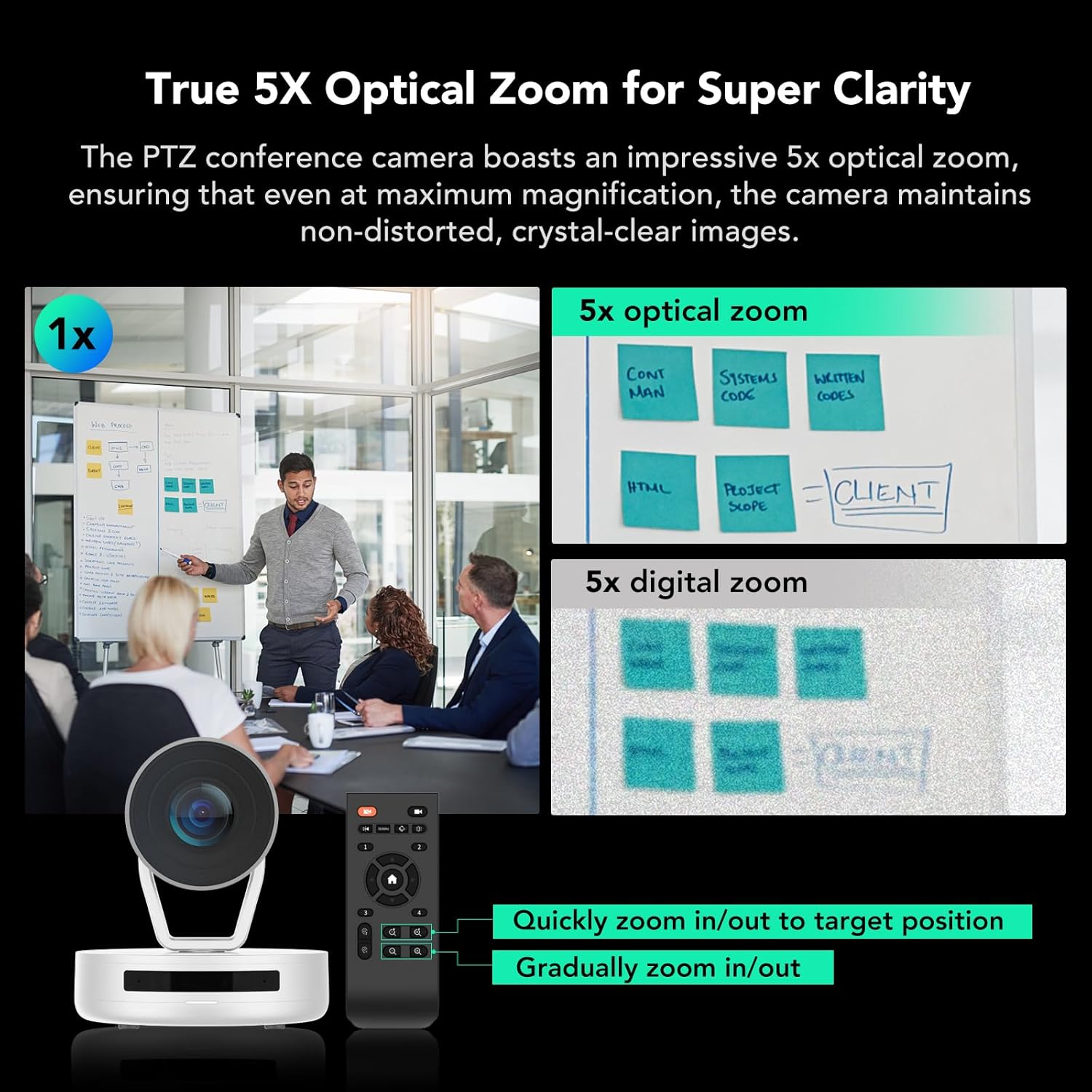
Image: Comparison showing the clarity of 5X optical zoom compared to 5X digital zoom, highlighting the V403's superior image quality at magnification.

Image: Visual representation of the A35 speakerphone's 4-MEMS microphone array and AI noise cancellation technology for enhanced audio pickup.
3. 설정 지침
Follow these steps to set up your NUROUM V403-A35 conference system.
3.1 시스템 연결
- 전원 연결: Connect the V403 PTZ webcam to a power source using the provided power cable.
- USB Connection (Recommended): Connect the V403 webcam to your computer (PC/laptop) via a USB cable.
- Speakerphone Connection:
- USB: Connect the A35 speakerphone directly to your computer via USB.
- 블루투스: Pair the A35 speakerphone with your computer via Bluetooth.
- 동글 : Use the provided dongle to connect the A35 speakerphone wirelessly to your computer.
- 디스플레이 연결(선택 사항): If desired, connect your computer to a smart TV or monitor using an HDMI cable for a larger display.
- Network Connection (V403 Camera, Advanced): For professional live streaming or NDI support, connect the V403 camera to your network via the RJ45 port (supports POE).

Image: A clear diagram illustrating the various ways to connect the V403 camera and A35 speakerphone to a computer and external display.
3.2 배치
The V403 camera features a standard 1/4" thread base, allowing for flexible placement:
- 테이블에
- Mounted to a tripod (not included)
- Secured to a wall (mounting accessories not included)

이미지: 시각적 examples demonstrating versatile placement options for the V403 camera within a conference room.
4. 사용 설명서
4.1 Using the V403 PTZ Web캠
- 좌우 이동, 상하 이동, 확대/축소: Use the included remote control to adjust the camera's pan, tilt, and 5X optical zoom.
- 사전 설정 위치: The V403 supports 4 preset positions. You can save specific pan, tilt, and zoom settings for quick recall during meetings. Refer to the remote control for setting and recalling presets.
- 자동 초점 : The camera features true autofocus to maintain sharp images automatically.
4.2 Using the A35 Speakerphone
- 전원 켜기/끄기: Press and hold the power button to turn the speakerphone on or off.
- 볼륨 조절: 볼륨 높이기(+) 버튼과 볼륨 낮추기(-) 버튼을 사용하여 음량을 조절하세요.
- 음소거/음소거 해제: Press the microphone button to mute or unmute the microphones.
- 통화 제어: Use the call answer/end button to manage calls when connected via Bluetooth or USB.
- 소음 제거 : The A35 automatically applies AI-based noise cancellation to filter out ambient sounds and echoes.
4.3 소프트웨어 및 설정
For advanced settings and firmware updates, download the NearSync software from the official NUROUM website. This software allows you to customize image settings such as brightness, contrast, and white balance.

Image: A screenshot of the NearSync software, showing options for video settings like saturation, brightness, contrast, hue, and white balance.
5. 유지관리
To ensure optimal performance and longevity of your NUROUM conference system, follow these maintenance guidelines:
- 청소: 부드럽고 마른 천을 사용하여 카메라 렌즈와 스피커폰 표면을 닦으세요. 연마성 세척제나 용제는 사용하지 마세요.
- 저장: 장시간 사용하지 않을 경우, 직사광선과 극한의 온도를 피해 시원하고 건조한 곳에 보관하세요.
- 펌웨어 업데이트: Regularly check the NUROUM official website for firmware updates and install them using the NearSync software to ensure the system has the latest features and bug fixes.
6. 문제 해결
If you encounter issues with your NUROUM V403-A35 system, refer to the following common problems and solutions:
| 문제 | 가능한 해결책 |
|---|---|
| 카메라에서 영상 출력이 없습니다. | Ensure the camera is powered on and the USB cable is securely connected to both the camera and the computer. Check if the camera is selected as the video source in your conferencing software. |
| 스피커폰에서 소리가 나지 않습니다. | Verify the speakerphone is powered on and connected (USB, Bluetooth, or dongle). Check the volume levels on the speakerphone and your computer. Ensure the A35 is selected as the audio output device in your conferencing software. |
| 마이크가 소리를 포착하지 못함 | Ensure the speakerphone is not muted. Confirm the A35 is selected as the audio input device in your conferencing software. Check microphone permissions in your operating system settings. |
| Camera zoom/PTZ not responding | Check the remote control batteries. Ensure there are no obstructions between the remote and the camera. Restart the camera and computer. |
| Compatibility issues with software | Ensure your conferencing software is updated to the latest version. Verify your operating system meets the minimum requirements. Download and install the latest drivers or firmware using NearSync. |
For further assistance, please contact NUROUM customer service.
7. 사양
| 특징 | 세부 사항 |
|---|---|
| 상표 | NUROUM |
| 모델 번호 | AW-VAS403-35 |
| 연결 기술 | USB, 블루투스 |
| 비디오 캡처 해상도 | 1080p |
| 광학 줌 | 5X |
| 광센서 기술 | CMOS |
| View잉 각도 | 122도 |
| 마이크 | 4 Noise Cancellation Microphones (32kHz samp링율) |
| 프레임 속도 | 30 FPS, 60 FPS, 120 FPS |
| 호환 장치 | Laptops, Personal Computers |
| 운영 체제 | 윈도우, 맥OS, 리눅스, 크롬OS |
| 추천 객실 크기 | Up to 30㎡ (323ft²) |
8. 보증 및 지원
8.1 제조업체 보증
The NUROUM V403-A35 Conference Room Camera System comes with a 1년 제조사 보증 구매일로부터. 이 보증은 정상적인 사용 하에서 재료 및 제조상의 결함을 포함합니다.
8.2 고객 지원
NUROUM provides 평생 고객 서비스 지원 for this video conferencing system. If you have any questions, require technical assistance, or need to report an issue, please contact NUROUM customer service through their official web사이트 또는 제품 포장과 함께 제공된 연락처 정보를 참조하세요.
For firmware updates and advanced image customization, please download the NearSync software from the official NUROUM web대지.