
Kogan KAQL55XQ98GSTA
Kogan 55인치 QLED 4K 144Hz 스마트 AI Google TV 사용 설명서
Model: KAQL55XQ98GSTA
소개
This user manual provides comprehensive instructions for the setup, operation, and maintenance of your Kogan 55" QLED 4K 144Hz Smart AI Google TV (Model: KAQL55XQ98GSTA). Please read this manual thoroughly before using your TV to ensure proper functionality and to maximize your viewing 경험. 나중에 참조할 수 있도록 이 설명서를 보관하십시오.

Figure 1: Kogan 55" QLED 4K 144Hz Smart AI Google TV
This image shows the Kogan 55-inch QLED 4K 144Hz Smart AI Google TV from the front, highlighting its slim bezels and the vibrant display. The Kogan logo is visible on the bottom left, and the screen displays a colorful abstract pattern, emphasizing its QLED technology.
설정
포장 풀기 및 초기 검사
Carefully remove the TV from its packaging. Inspect the TV and all accessories for any signs of damage. If any damage is found, do not proceed with setup and contact Kogan customer support immediately.
Attaching the Stand or Wall Mounting
Your TV comes with a stand for tabletop placement. For wall mounting, a VESA-compatible wall mount (not included) is required. Refer to the wall mount's instructions for proper installation.
- 스탠드 설치:
- 화면 손상을 방지하려면 부드럽고 깨끗한 표면에 TV를 뒤집어서 놓으세요.
- 스탠드 브래킷을 TV 하단의 나사 구멍에 맞춰 정렬합니다.
- 제공된 나사를 사용하여 스탠드를 고정하세요. 스탠드가 단단히 고정되었는지 확인하세요.
- 벽면 장착:
This TV supports wall mounting. Ensure you use a compatible wall mount and follow the manufacturer's instructions for safe and secure installation. Professional installation is recommended for wall mounting.
주변 장치 연결
Connect your external devices such as set-top boxes, gaming consoles, or sound systems to the TV's input ports (HDMI, USB, etc.).
- HDMI 연결: Use HDMI cables for high-definition video and audio. This TV features multiple HDMI inputs.
- USB 연결: 미디어 재생을 위해 USB 장치를 연결합니다.
- 전원 연결: TV의 전원 입력 단자에 전원 코드를 꽂은 다음 벽면 콘센트에 꽂으세요.
작동 지침
First-Time Setup and Google TV
Upon first power-on, the TV will guide you through the initial setup process, including network connection, Google account login, and channel scanning. Google TV integrates your favorite streaming services and content into one personalized hub.

Figure 2: Google TV Interface in Use
This image depicts two individuals comfortably seated in a living room, viewing the Kogan Google TV. The TV screen displays the Google TV interface with various streaming app icons and content recommendations, illustrating the user-friendly nature of the smart TV system.

Figure 3: Detailed Google TV Home Screen
This image provides a closer look at the Google TV home screen, showcasing content recommendations like "Nine Perfect Strangers" and various app icons such as Netflix, YouTube, and Prime Video. The interface is clean and organized, making content discovery intuitive.

Figure 4: All Your Favorite Apps
This image highlights the extensive selection of streaming applications available on the Kogan Google TV. It displays numerous popular app logos, including Netflix, Prime Video, Disney+, YouTube, and Stan, emphasizing the TV's capability to serve as a comprehensive entertainment hub.
주요 특징 및 기능
- QLED 기술: Experience mesmerizing color reproduction and vibrant visuals thanks to Quantum Dot Technology.
- 4K UHD 해상도: Enjoy stunning clarity and detail with 3840 x 2160 pixel resolution.

Figure 5: Ultra HD (4K) Visual Comparison
This image visually compares Full HD and Ultra HD (4K) resolutions using a scenic view of boats on clear water. The 4K side demonstrates significantly clearer picture quality and sharper colors, illustrating the enhanced immersive viewing experience provided by 4K resolution.
- 144Hz 가변 주사율(VRR): Achieve smoother and tear-free visuals, especially beneficial for fast-paced scenes and gaming.

Figure 6: 144Hz Variable Refresh Rate in Action
This image illustrates the benefit of a 144Hz Variable Refresh Rate (VRR) for gaming. It shows a split screen with a racing game, comparing the visual quality "Without 144Hz VRR" (blurry) and "With 144Hz VRR" (sharp and smooth), highlighting the enhanced gaming experience.
- 돌비 비전™: Enjoy cinematic immersion with lifelike and vibrant visuals.
- HDR(고화질 범위): Delivers brighter highlights, better contrast, and more realistic colors.
- 내장형 구글 크롬캐스트: Stream content directly from your smartphone, laptop, or tablet to your TV.
- 구글 플레이 스토어: Access over 400,000 movies, TV episodes, live TV, and a wide range of applications.
- 동작 추정 및 동작 보상(MEMC): Improves clarity and reduces blur in fast-moving scenes for smoother visuals.
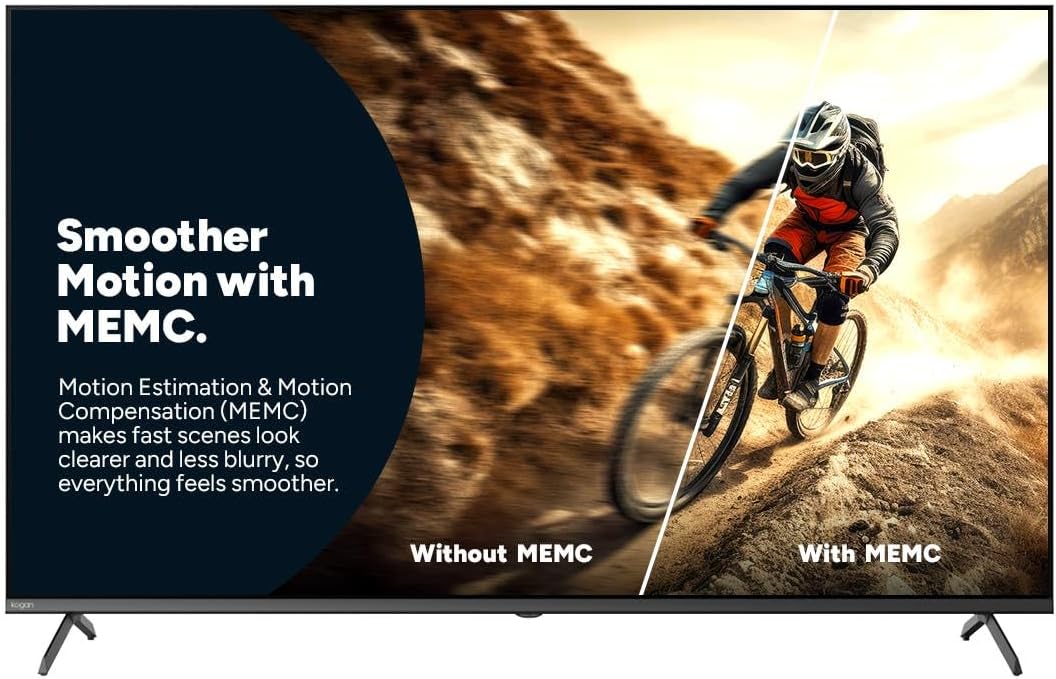
Figure 7: Smoother Motion with MEMC
This image demonstrates the effect of Motion Estimation & Motion Compensation (MEMC). It shows a split view of a cyclist in motion, comparing the visual "Without MEMC" (blurry) and "With MEMC" (clearer and smoother), illustrating how MEMC enhances the clarity of fast-paced scenes.
- 자동 낮은 대기 시간 모드(ALLM): Automatically reduces response time for an ultra-smooth and lag-free gaming experience.
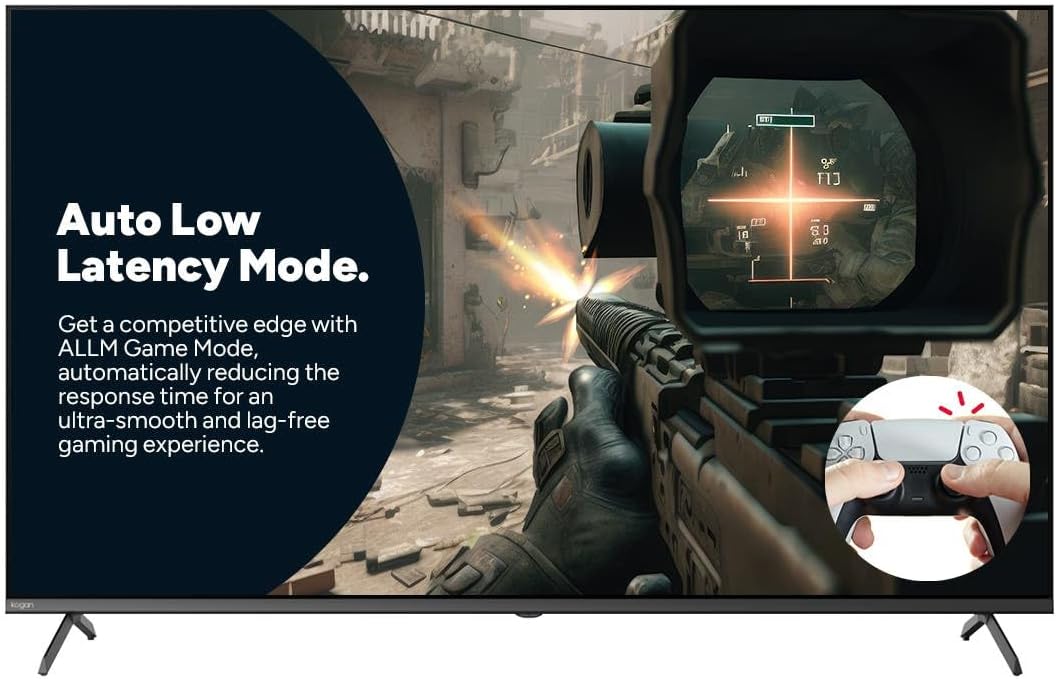
Figure 8: Auto Low Latency Mode for Gaming
This image highlights the benefits of Auto Low Latency Mode (ALLM) for gaming. It features a first-person shooter game scene, emphasizing how ALLM automatically reduces response time, providing a competitive edge with ultra-smooth and lag-free gameplay.
원격 제어 사용
The included remote control allows you to navigate the Google TV interface, adjust settings, change channels, and control connected devices. Familiarize yourself with the button layout for optimal use.
유지
TV 청소
- 화면: 부드럽고 보풀이 없는 천으로 화면을 부드럽게 닦으세요. 잘 지워지지 않는 얼룩의 경우, TV용 화면 세척제를 천에 묻혀 사용하세요. 화면에 직접 묻히지 않도록 주의하세요.
- 액자: 부드럽고 마른 천으로 TV 프레임과 스탠드를 닦으세요.
- 사용하지 마세요: TV의 마감을 손상시킬 수 있으므로 연마성 세척제, 왁스 또는 용제의 사용은 피하세요.
일반 관리
- 과열을 방지하려면 TV 주변에 적절한 환기가 이루어지도록 하세요.
- TV를 직사광선, 열원, 과도한 먼지로부터 멀리 두세요.
- 번개가 칠 때나 장시간 방치할 때는 TV의 플러그를 콘센트에서 뽑아 두세요.
문제 해결
If you encounter issues with your Kogan TV, refer to the following common problems and solutions. If the problem persists, contact Kogan customer support.
| 문제 | 가능한 원인 / 해결책 |
|---|---|
| 전원이 없습니다 | Check if the power cord is securely plugged into the TV and the wall outlet. Ensure the wall outlet has power. Try a different outlet. |
| 화면/소리 없음 | Verify the correct input source is selected (e.g., HDMI 1, TV). Check cable connections to external devices. Ensure volume is not muted or too low. |
| 리모컨이 작동하지 않음 | 배터리를 점검하고 교체하세요. 리모컨과 TV IR 센서 사이에 장애물이 없는지 확인하세요. |
| 화질 저하 | 안테나/케이블 연결 상태를 확인하십시오. 화면 설정(밝기, 대비, 선명도)을 조정하십시오. 소스 콘텐츠가 고화질인지 확인하십시오. |
| 인터넷 연결 없음 | Check Wi-Fi router and modem. Reconnect to the Wi-Fi network in TV settings. Try restarting the TV and router. |
명세서
| 특징 | 세부 사항 |
|---|---|
| 상표 | 코간 |
| 모델명 | 코간 55인치 QLED 4K 144Hz 스마트 AI 구글 TV |
| 모델 번호 | KAQL55XQ98GSTA |
| 화면 크기 | 55 인치 |
| 디스플레이 기술 | QLED |
| 해결 | 4K(3840 x 2160) |
| 새로 고침 빈도 | 144Hz |
| 운영 체제 | 구글 티비 |
| RAM 크기 | 3GB (XNUMX기가바이트) |
| 특별 기능 | Chromecast, Dolby Vision, HDR, MEMC, ALLM |
| 연결 기술 | USB,HDMI |
| 오디오 입력 호환 | USB,HDMI |
| 권tage | 240 볼트 |
| 품목 무게 | 18.2kg |
| 패키지 크기 | 134 x 85 x 14cm |
보증 및 지원
For warranty information and technical support, please refer to the warranty card included with your product or visit the official Kogan website. You can also contact Kogan customer service directly for assistance with product issues or inquiries.
Kogan Support: https://www.kogan.com/au/help/
Ask a question about this manual
Ask about setup, troubleshooting, compatibility, parts, safety, or missing instructions. Manuals+ will review the question and use this page’s manual context to help answer it.