
소개
This manual provides comprehensive instructions for the installation, operation, and maintenance of your AVer TR333V2 4K PTZ Camera. Please read this manual thoroughly before using the product to ensure proper setup and optimal performance. Keep this manual for future reference.
설정
1. 개봉 및 검사
포장에서 모든 구성품을 조심스럽게 꺼내십시오. 포장 목록에 있는 모든 품목이 있는지, 손상되지 않았는지 확인하십시오. 누락되거나 손상된 품목이 있는 경우 즉시 판매점에 문의하십시오.
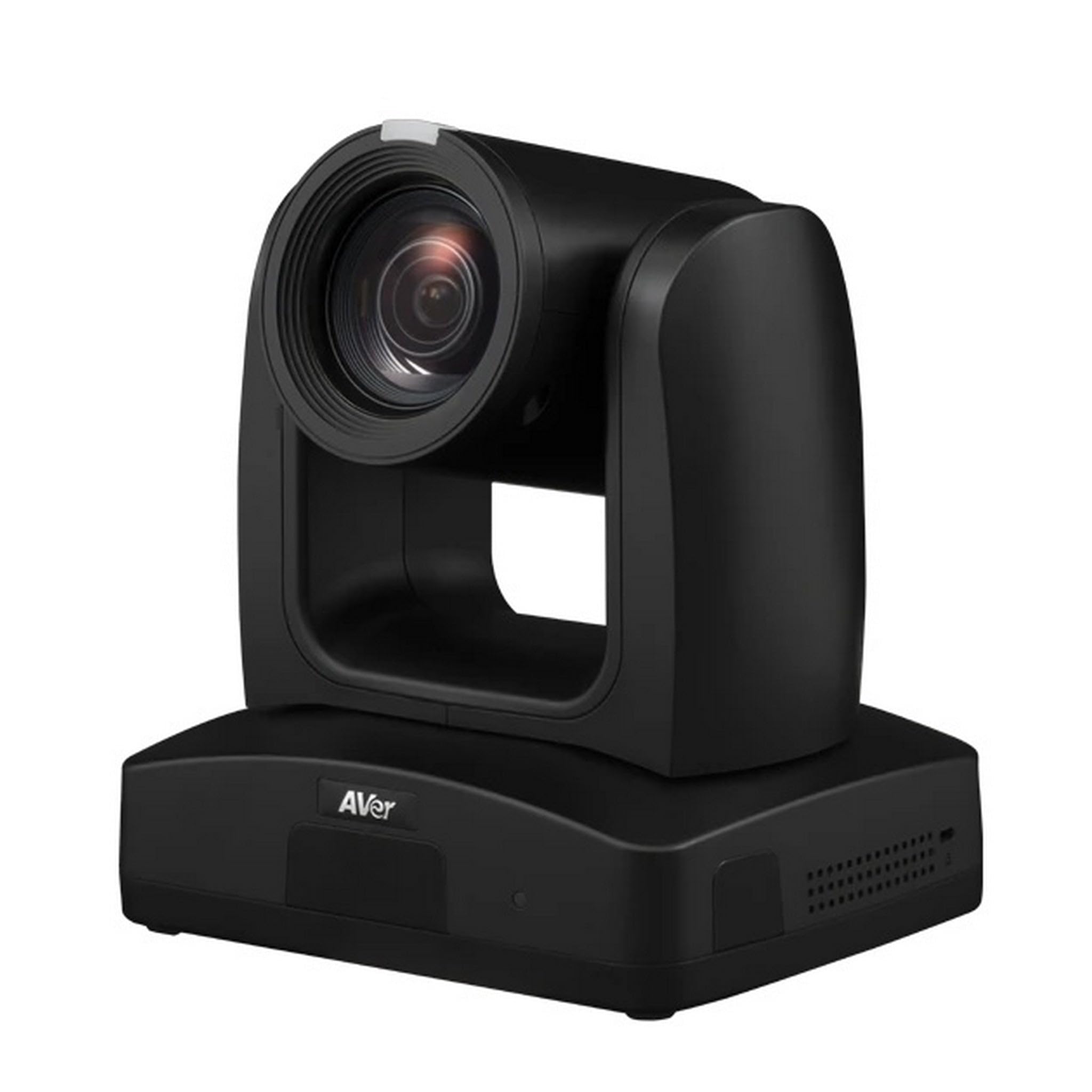
Figure 1: AVer TR333V2 4K PTZ Camera. This image shows the front view of the camera, highlighting its lens and general form factor.
2. 물리적 설치
The TR333V2 camera can be installed in various configurations, including desktop, wall-mount, or ceiling-mount. Ensure the mounting surface is stable and can support the camera's weight. Use appropriate mounting hardware (not included unless specified by your dealer).
- 데스크탑 배치: Place the camera on a flat, stable surface. Ensure adequate ventilation around the unit.
- 벽/천장 마운트: Securely attach the camera to a wall or ceiling using a compatible mounting bracket. Follow the bracket's specific installation instructions. Ensure the camera is level and oriented correctly for your desired field of view.
3. 케이블 연결하기
Connect the necessary cables to the camera's rear panel. Refer to the port labels for correct connections.
- 힘: Connect the provided power adapter to the DC IN port and then to a power outlet.
- 비디오 출력: Connect an HDMI, SDI, or IP cable to your display or streaming device. The camera supports 4K resolution output.
- USB: Connect a USB cable to the USB port for direct connection to a computer for video and control.
- 네트워크(LAN): Connect an Ethernet cable to the LAN port for IP streaming and network control.
- 오디오 입력: Connect external microphones or audio sources to the audio input ports if required.
4. 초기 전원 켜기
After all connections are secure, plug the power adapter into an electrical outlet. The camera will perform a self-test, and the indicator light will illuminate. Allow a few moments for the camera to initialize.
카메라 작동
1. 기본 제어
The TR333V2 can be controlled via a remote control, web interface, or third-party control systems. Basic functions include:
- 팬/틸트/줌(PTZ): Adjust the camera's horizontal (pan), vertical (tilt), and optical zoom (30x) to frame your subject.
- 집중하다: The camera features auto-focus. Manual focus adjustment may be available via the web interface for specific scenarios.
- 사전 설정 : Save and recall specific camera positions (pan, tilt, zoom, focus) for quick scene changes.
2. Auto-Tracking Features
The TR333V2 incorporates advanced AI technology for automatic tracking. This feature allows the camera to follow a presenter or subject without manual intervention.
- 화자 추적: The camera identifies and follows a designated speaker within the defined tracking area.
- 구역 추적: Define specific zones within the camera's field of view. The camera will track subjects moving within these predefined zones.
- 구성: Auto-tracking settings, including tracking sensitivity and exclusion zones, are configured via the camera's web 인터페이스입니다. 다음을 참조하세요. web interface manual for detailed setup.
3. 라이브 스트리밍 및 녹화
The camera supports 4K live streaming and can output video simultaneously via USB and IP.
- IP 스트리밍: Configure streaming protocols (e.g., RTMP, RTSP) via the web interface to stream directly to platforms or media servers.
- USB 출력: Connect the camera to a computer via USB for use with video conferencing software or recording applications.
4. Web 인터페이스 액세스
To access advanced settings and features, open a web browser and enter the camera's IP address. The default IP address can usually be found in the quick start guide or obtained using AVer's IP Finder utility. Log in with the default username and password (refer to your quick start guide for credentials).
유지
1. 청소
Regularly clean the camera lens and body to ensure optimal performance and image quality.
- 렌즈: Use a soft, lint-free cloth specifically designed for optical lenses. If necessary, use a small amount of lens cleaning solution. Avoid abrasive materials or harsh chemicals.
- 몸: Wipe the camera body with a soft, dry cloth. Do not use liquid cleaners directly on the camera.
2. 펌웨어 업데이트
Periodically check the AVer website for firmware updates. Firmware updates can improve performance, add new features, and resolve known issues. Follow the instructions provided with the firmware update package carefully.
3. 보관
If storing the camera for an extended period, disconnect all cables, power off the unit, and store it in a dry, dust-free environment at a moderate temperature. Use the original packaging if available.
문제 해결
This section addresses common issues you might encounter with the AVer TR333V2 camera.
| 문제 | 가능한 원인 | 해결책 |
|---|---|---|
| 전원 표시 없음 | 전원 케이블이 분리되었습니다. 전원 콘센트가 고장났습니다. | 전원 케이블 연결 상태를 확인하십시오. 다른 콘센트에 연결해 보십시오. |
| 비디오 출력이 없습니다 | Video cable disconnected/faulty; Incorrect input selected on display; Camera not initialized | Verify video cable connections; Select correct input on display; Wait for camera initialization |
| 자동 추적 기능이 작동하지 않습니다 | Tracking feature disabled; Incorrect tracking zone setup; Insufficient lighting; Subject too far/small | Enable tracking via web interface; Reconfigure tracking zones; Ensure adequate lighting; Adjust camera position or zoom |
| 접근할 수 없습니다 web 인터페이스 | Incorrect IP address; Network cable disconnected; Firewall blocking access | Verify camera's IP address; Check network cable; Temporarily disable firewall or add exception |
If the problem persists after attempting these solutions, please contact AVer technical support.
명세서
The following table details the key specifications of the AVer TR333V2 4K PTZ Camera.
| 특징 | 세부 사항 |
|---|---|
| 상표 | 단언 |
| 모델 번호 | TR333V2 |
| 품목 무게 | 9파운드 |
| 비디오 캡처 해상도 | 480p, 720p (Supports 4K UHD output) |
| 광학 줌 | 30 개 |
| 디지털 줌 | 30 개 |
| 렌즈 유형 | 줌 |
| 초점 유형 | 자동 초점 |
| 폼 팩터 | 콤팩트 |
| 촬영 모드 | 오토매틱 |
| 이미지 안정화 | 아니요 |
보증 및 지원
보증 정보
AVer products are backed by a limited warranty. The specific terms and duration of your warranty may vary by region and product. Please refer to the warranty card included with your product or visit the official AVer web자세한 보증 정보는 사이트를 참조하십시오.
기술 지원
For technical assistance, troubleshooting beyond this manual, or warranty claims, please contact AVer customer support. You can find contact information, FAQs, and additional resources on the official AVer web대지: