
1. 제품 오버view
The MINISFORUM UN150P is a compact mini PC designed for various applications, including home entertainment, office tasks, surveillance, digital signage, and multimedia centers. It features an Intel Twin Lake N150 processor, expandable memory and storage options, and versatile connectivity.
- 프로세서: Intel Twin Lake N150 CPU with 4 cores/4 threads, up to 3.60GHz, 6MB cache, and a 6W TDP for efficient performance.
- 메모리 및 스토리지 : Supports 16GB DDR4 SO-DIMM memory (3200MHz), includes a 256GB M.2 SSD, and offers additional slots for a 2.5-inch SATA drive and a TF card for storage expansion.
- 연결성: Features HDMI 2.1 (4K@60Hz) x2, USB 3.2 Gen2 Type-A, and USB-C (supporting DisplayPort and 15W PD). Supports up to three 4K displays. Includes a 2.5G LAN port, Wi-Fi, and Bluetooth.
- 설계: Compact dimensions (127.5 x 112.4 x 40 mm) and lightweight (350g), making it suitable for space-saving setups and quiet environments.
- 다재: An affordable and reliable desktop solution with low power consumption, suitable for various computing needs.

그림 1.1: 전면 view of the MINISFORUM UN150P Mini PC, showcasin컴팩트한 디자인과 다양한 포트를 갖추고 있습니다.
2. 패키지 내용
모든 구성품이 들어 있는지 확인하려면 상자를 풀 때 패키지 내용물을 확인하세요.
- MINISFORUM UN150P Mini PC
- 전원 어댑터
- HDMI 케이블
- 사용 설명서 (본 문서)
- Mounting Bracket (optional, may vary by region/bundle)
3. Hardware Layout and Ports
Familiarize yourself with the ports and features of your UN150P Mini PC.

그림 3.1: 상세 view of the UN150P's ports, including USB, HDMI, LAN, and power input.
- 전면 패널:
- 전원 버튼
- 오디오 잭
- USB 3.2 Gen1 Type-A ports (x2)
- USB 3.2 Gen1 Type-C port (x1, supports DisplayPort and 15W PD)
- 후면 패널 :
- 2.5G LAN RJ45 포트
- USB 3.2 Gen2 Type-A ports (x2)
- HDMI 2.1 TMDS ports (x2)
- DC 12V 전원 입력
- 사이드 패널 :
- 켄싱턴 잠금 슬롯
- TF 카드 슬롯
- CMOS Clear Button (small pinhole)
4. 설정 가이드
4.1 초기 연결
- 디스플레이 연결: Connect your monitor or TV to one of the HDMI 2.1 ports or the USB-C port (with DisplayPort support) using a compatible cable. The UN150P supports up to three displays simultaneously.
- 주변기기 연결: Plug in your USB keyboard and mouse to the available USB Type-A ports.
- 네트워크 연결(선택 사항): For a wired internet connection, connect an Ethernet cable from your router/modem to the 2.5G LAN RJ45 port. For wireless, ensure Wi-Fi is enabled during OS setup.
- 전원 연결: Connect the power adapter to the DC 12V power input port on the rear of the mini PC, then plug the adapter into a power outlet.
4.2 물리적 배치
The UN150P Mini PC is designed for versatile placement, including horizontal desktop use or mounting behind a monitor.

Figure 4.1: The UN150P Mini PC can be wall-mounted or placed horizontally, showcasing. 컴팩트한 형태가 특징입니다.
4.3 첫 번째 부팅 및 운영 체제 설정
- 전면 패널의 전원 버튼을 누르세요. 전원 표시등이 켜집니다.
- Follow the on-screen instructions to complete the operating system setup (e.g., Windows initial configuration). This typically involves setting language, region, user accounts, and network settings.
- Once the OS setup is complete, your MINISFORUM UN150P is ready for use.
5. 사용 설명서
5.1 전원 켜기/끄기
- 전원 켜기: 전원 버튼을 한 번 누르세요.
- 종료: Use the operating system's shutdown function (e.g., Start Menu > Power > Shut down in Windows).
- 강제 종료: 시스템이 응답하지 않으면 전원 버튼을 약 5~10초 동안 길게 눌러 기기가 꺼질 때까지 기다리십시오. 데이터 손실을 방지하기 위한 최후의 수단으로만 사용하십시오.
5.2 디스플레이 구성
The UN150P supports up to three independent 4K displays. You can configure display settings through your operating system.
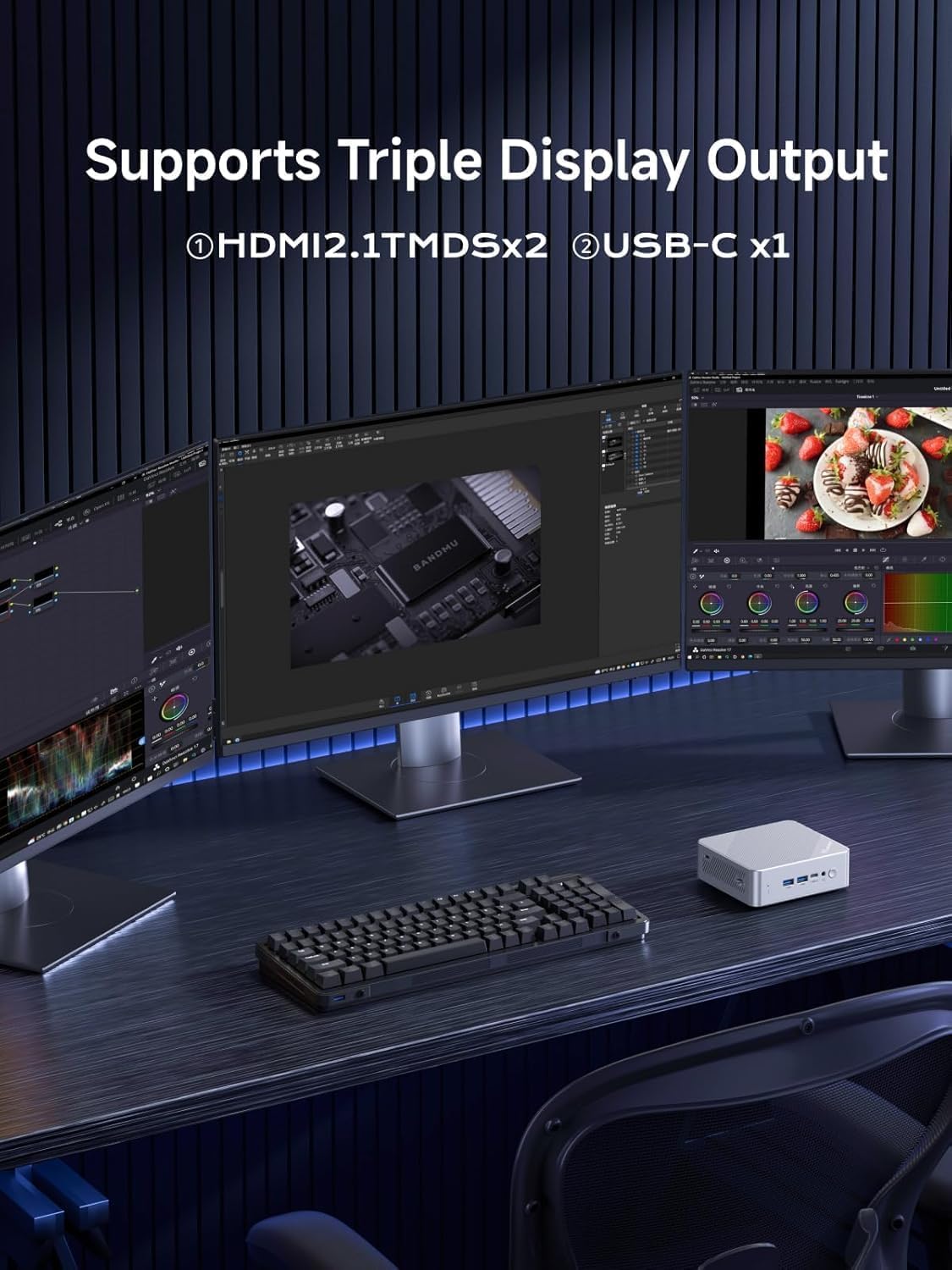
Figure 5.1: Illustration of the UN150P supporting a triple display setup via HDMI and USB-C.
- Connect monitors to the two HDMI 2.1 ports and the USB-C port (requires a USB-C to DisplayPort/HDMI adapter if your monitor doesn't have direct USB-C input).
- In Windows, right-click on the desktop, select "Display settings," and arrange your displays as desired (extend, duplicate, or show only on one).
5.3 네트워크 및 무선 연결
- 유선 연결: Ensure an Ethernet cable is connected to the 2.5G LAN port. The system should automatically detect the connection.
- 와이파이: Access network settings in your operating system to connect to available Wi-Fi networks. The UN150P supports Wi-Fi 6.
- 블루투스: Enable Bluetooth in your operating system settings to pair with Bluetooth devices such as keyboards, mice, or headphones.

Figure 5.2: The UN150P supports 2.5G RJ45, Wi-Fi 6, and Bluetooth 5.2 for comprehensive connectivity.
6. 저장 장치 및 메모리 확장
The MINISFORUM UN150P offers flexible options for expanding its storage and memory.

Figure 6.1: Internal layout showing the M.2 2280 SSD slot, DDR4 Memory Slot, 2.5-inch SATA HDD Slot, and TF Card Slot.
- M.2 2280 SSD: The device comes with a pre-installed M.2 2280 SSD (PCIe 3.0x1/SATA) and supports up to 1TB.
- 2.5인치 SATA HDD/SSD: An additional slot is available for a 2.5-inch SATA HDD or SSD, supporting up to 2TB.
- DDR4 메모리: The UN150P supports up to 16GB DDR4 SO-DIMM memory (3200MHz).
- TF 카드 슬롯 : A TF card slot is available for additional portable storage.
For detailed instructions on installing or upgrading components, please refer to the official MINISFORUM support resources or consult a qualified technician.
7. 유지관리 및 관리
- 청소: Use a soft, dry cloth to clean the exterior of the mini PC. For dust in vents, use compressed air. Do not use liquid cleaners directly on the device.
- 통풍: Ensure the ventilation openings are not blocked to prevent overheating. Place the mini PC in a well-ventilated area.
- 온도: 권장 작동 온도 범위 내에서 기기를 작동하십시오. 극심한 고온이나 저온을 피하십시오.
- 전원 공급 장치: 기기와 함께 제공된 원래 전원 어댑터만 사용하세요.
- 소프트웨어 업데이트: 최적의 성능과 보안을 보장하려면 운영 체제와 드라이버를 정기적으로 업데이트하세요.
8. 문제 해결
| 문제 | 가능한 해결책 |
|---|---|
| 디스플레이 출력 없음 |
|
| 미니 PC 전원이 켜지지 않습니다 |
|
| 인터넷 연결 없음(유선) |
|
| Wi-Fi or Bluetooth not working |
|
| 시스템 속도가 느리거나 응답하지 않습니다. |
|
9. 기술 사양
| 특징 | 사양 |
|---|---|
| 상표 | 미니포럼 |
| 모델 번호 | UN150P |
| 프로세서 | Intel Twin Lake N150 (4 Cores/4 Threads, up to 3.6 GHz, 6MB Cache) |
| 제도법 | 통합 그래픽 |
| 숫양 | 16GB DDR4 SO-DIMM (3200MHz), expandable up to 16GB |
| 저장 | 256GB M.2 2280 PCIe/SATA SSD, expandable with 2.5" SATA HDD/SSD slot (up to 2TB) and TF Card slot |
| 비디오 출력 | 2x HDMI 2.1 (4K@60Hz), 1x USB-C (DisplayPort support) - Triple Display Support |
| USB 포트 | 2x USB 3.2 Gen1 Type-A, 2x USB 3.2 Gen2 Type-A, 1x USB 3.2 Gen1 Type-C (with 15W PD) |
| 회로망 | 2.5G RJ45 LAN, Wi-Fi 6, Bluetooth 5.2 |
| 오디오 | 오디오 잭 |
| 전원 공급 장치 | 직류 12V |
| 치수 | 127.5 x 112.4 x 40mm |
| 무게 | 약 350g |
| 운영 체제 | OS (as per product specifications, typically Windows 11 Pro) |
10. 보증 및 지원
보증 정보: The product specifications indicate "No Warranty" for manufacturer warranty. Please refer to your purchase documentation or retailer for specific warranty terms and conditions applicable to your region.
기술 지원: For technical assistance, driver downloads, or further inquiries, please visit the official MINISFORUM website or contact their customer support directly. Keep your product model number (UN150P) and purchase details ready when seeking support.
온라인 리소스: You can often find FAQs, troubleshooting guides, and community forums on the manufacturer's web대지.