
1. 서론
The UGREEN USB C to DisplayPort 2.1 Cable is designed to connect devices with a USB Type-C or Thunderbolt 4/3 port to a DisplayPort-enabled monitor, providing high-resolution video and audio transmission. This cable supports advanced display technologies for an immersive visual experience.
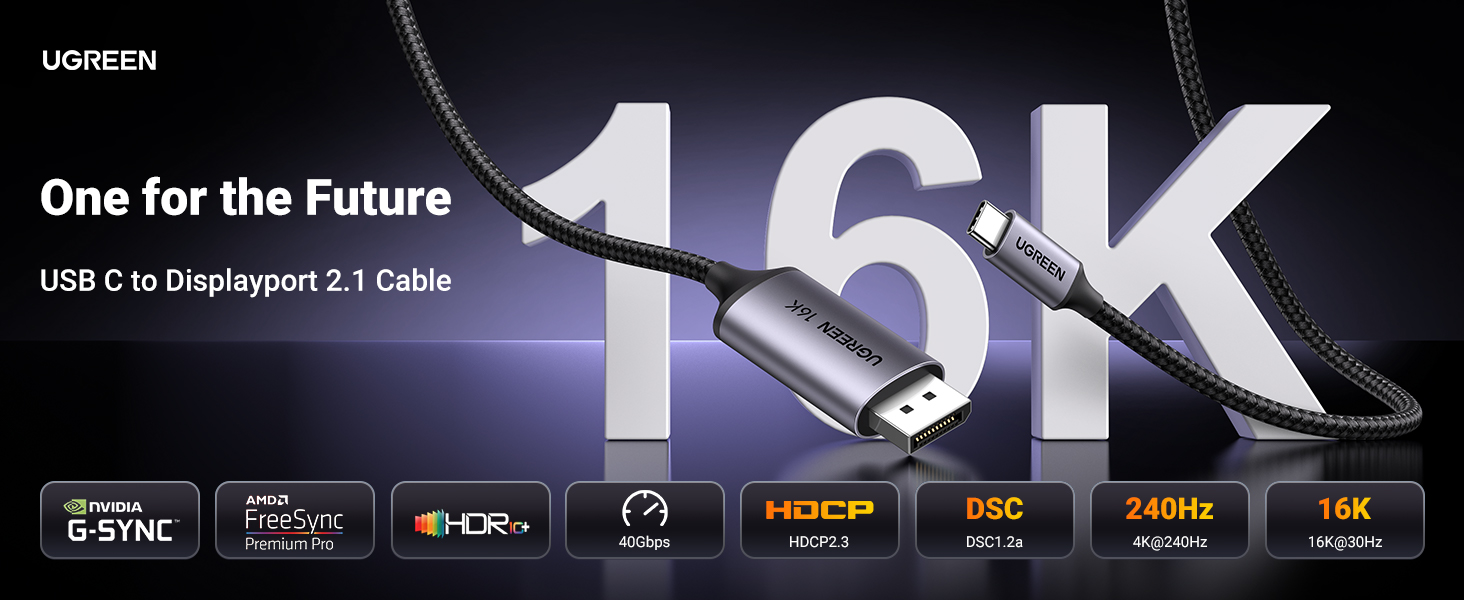
Image: UGREEN USB C to DisplayPort 2.1 Cable connecting a laptop to an external monitor.
2. 주요 특징
- 고해상도 지원: Supports 16K@30Hz, backward compatible with 8K@120Hz, 4K@240Hz, and 2K@480Hz for exceptional visual clarity.
- 높은 대역폭: Features DisplayPort 2.1 with a maximum bandwidth of 40 Gbps, ensuring stable signal transmission and eliminating screen flickering.
- 고급 비디오 기술: Supports HDR (High Dynamic Range), HDCP2.3, VRR (Variable Refresh Rate), ALLM (Auto Low Latency Mode), eARC, DTS, and Dolby for an immersive audio-visual experience.
- Multi-Video Modes: Allows for Mirror, Extend, and Clamshell modes. Supports Multi-Stream Transport (MST) for daisy-chaining multiple monitors.
- 내구성 있는 구조: Constructed with a braided nylon cable for enhanced durability and strain relief, and a premium aluminum alloy case for superior heat dissipation.
- 플러그 앤 플레이: No additional drivers or software installation required for operation.

Image: Table comparing features of DisplayPort 2.1/2.0, DP 1.4, and DP 1.2, highlighting resolution, HDR, HDCP, DSC, and bandwidth.
3. 설정 지침
- USB-C 연결: Plug the USB-C end of the cable into your source device (e.g., laptop, smartphone, tablet). Ensure your device's USB-C port supports "DP Alt Mode" or is a Thunderbolt 3/4 port.
- DisplayPort를 연결하세요: Insert the DisplayPort end of the cable into the DisplayPort input on your monitor or display device.
- 전원 켜기: Ensure both your source device and display are powered on. The display should automatically detect the video signal.

Image: Diagram illustrating compatible USB-C port types (Thunderbolt Full Function, DP Alt Mode, Data Transfer + DP Alt Mode) and incompatible types (Data Transfer Only, Charging Only).
4. 작동 모드
The UGREEN USB C to DisplayPort 2.1 Cable supports various display modes to suit your needs:
- 미러 모드: Duplicates the content of your source device's screen onto the external display. Ideal for presentations or sharing content.
- 확장 모드: Expands your desktop workspace across the external display, allowing you to view different content on each screen.
- 클램셸 모드: Enables a laptop to operate with its lid closed while connected to an external monitor, keyboard, and mouse, effectively turning your laptop into a desktop setup.
- 다중 스트림 전송(MST): If your source device and monitors support MST, you can daisy-chain multiple DisplayPort monitors from a single DisplayPort output for an expanded multi-display setup.

Image: Visual representation of Mirror Mode, Extend Mode, and Clamshell Mode for connecting a laptop to an external monitor.
5. 호환성
This cable is compatible with a wide range of devices that feature a USB-C port with video output functionality (DP Alt Mode) or Thunderbolt 3/4 ports. It connects to any display device with a DisplayPort input.
호환 가능한 소스 장치:
- 스마트폰: iPhone 17 Pro Max/17 Pro/Air/17/16 Pro Max/16 Pro/16 Plus/16, Galaxy S26/25 Ultra, Note 20, LG V40.
- 노트북/PC: Mac Mini M4/M4 Pro, MacBook Pro 2023/Air 2024, XPS 17/15/13, Dell, HP Chromebook x360, Surface Book 3/2.
- 정제: iPad Pro/Air 2024, Samsung Tablet S9, Valve Steam Deck.
호환 가능한 디스플레이 장치:
- Monitors with DisplayPort input (e.g., Odyssey G8 G9).
- HDTVs with DisplayPort input.
- Graphic cards with DisplayPort output (e.g., Nvidia RTX 5090, AMD Radeon RX 7900).
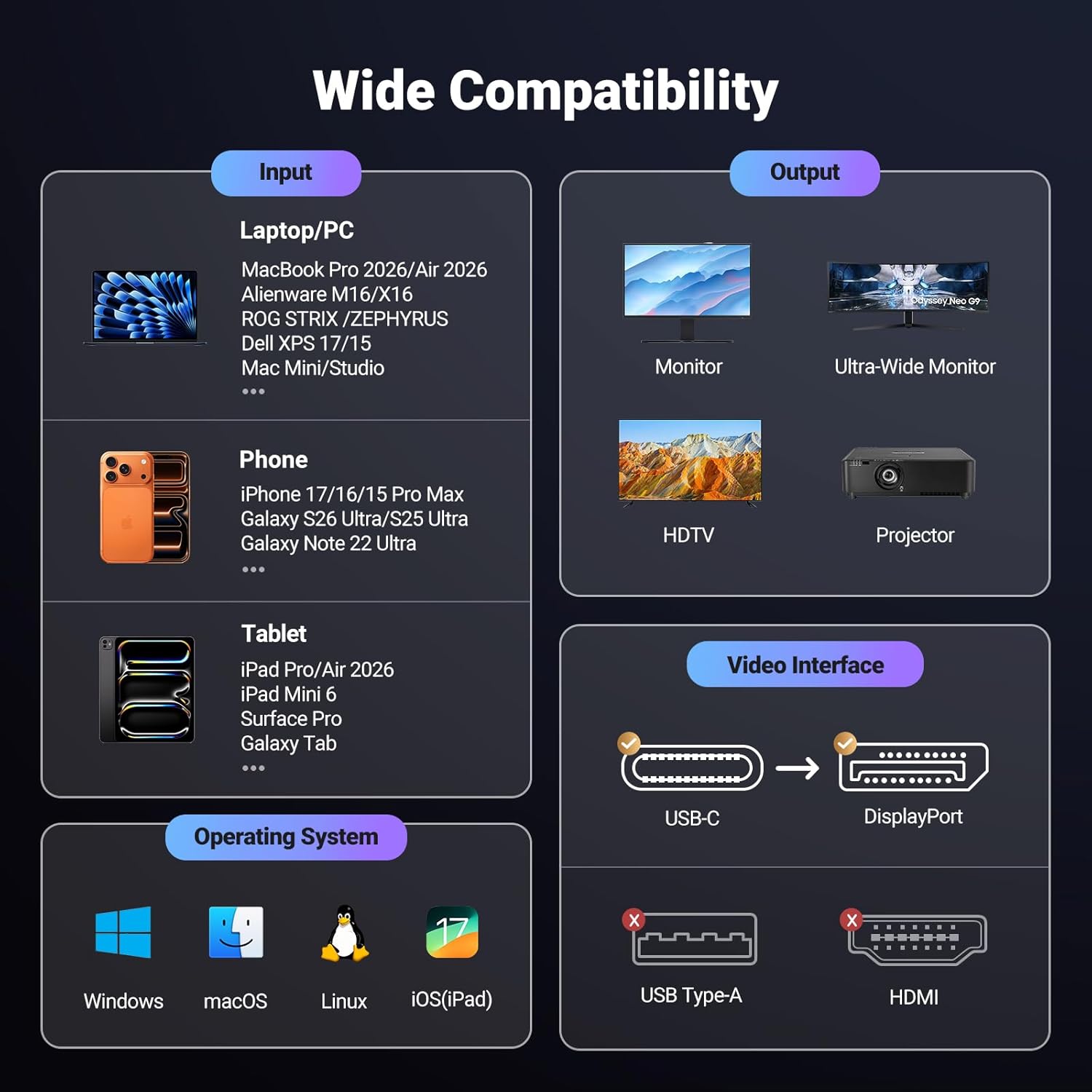
Image: Infographic detailing input devices (laptops, phones, tablets) and output devices (monitors, HDTVs, projectors) compatible with the UGREEN USB C to DisplayPort cable.
6. 사양
| 상표 | 유그린 |
| 모델 | 40610950348862 |
| 커넥터 유형 | USB Type-C, DisplayPort |
| 케이블 유형 | Braided Net |
| 해결 지원 | 16K@30Hz, 8K@120Hz, 4K@240Hz, 2K@480Hz |
| 대역폭 | 40Gbps |
| 특별 기능 | HDR, HDCP2.3, VRR, ALLM, eARC, DTS, Dolby, DSC 1.2a |
| 재료 | Aluminum and Braided Nylon |
| 길이 | 6.6 피트 |
| 색상 | 회색 |
| 품목 무게 | 0.11 킬로그램 |
| 인증 | 로이스 |
7. 유지관리
To ensure the longevity and optimal performance of your UGREEN USB C to DisplayPort 2.1 Cable, follow these maintenance guidelines:
- 청소: Keep the cable and its connectors clean and free from dust and debris. Use a soft, dry cloth for cleaning.
- 손질: Avoid sharp bends, kinks, or excessive pulling on the cable, especially near the connectors, to prevent internal wire damage.
- 저장: 사용하지 않을 때는 케이블을 느슨하게 감아서 직사광선과 극한 온도 변화를 피해 서늘하고 건조한 곳에 보관하십시오.
- 연결: 케이블을 연결하거나 분리할 때는 케이블 자체를 잡아당기지 말고 항상 커넥터 하우징을 잡으십시오.

Image: Durability features of the UGREEN cable, highlighting its robust construction.
8. 문제 해결
If you encounter issues with your UGREEN USB C to DisplayPort 2.1 Cable, please refer to the following common solutions:
- 디스플레이 없음/검은 화면:
- Ensure both your source device and monitor are powered on.
- Verify that the USB-C port on your source device supports "DP Alt Mode" or is a Thunderbolt 3/4 port. Not all USB-C ports support video output.
- Check that the cable is securely connected to both the source device and the monitor.
- Try connecting to a different DisplayPort input on your monitor, if available.
- 소스 장치를 다시 시작하십시오.
- Flickering/Unstable Image:
- Ensure the cable connections are firm and not loose.
- 기기의 디스플레이 설정에서 해상도나 재생 빈도를 낮추어 안정성이 향상되는지 확인하세요.
- Update your graphics drivers on your source device to the latest version.
- 오디오 없음:
- Check the audio output settings on your source device to ensure audio is directed to the DisplayPort.
- Verify the audio settings on your monitor.
9. 공식 제품 영상
비디오: 공식 UGREEN 비디오 쇼asing the features and benefits of the DisplayPort 2.1 cable, including universal device connection, fast 40Gbps transfer, multi-screen display support, and durable construction.
10. 보증 및 지원
For detailed warranty information, product registration, or technical support, please visit the official UGREEN website or contact UGREEN customer service directly. Contact information can typically be found on the product packaging or the UGREEN official web대지.