
1. 서론
This manual provides comprehensive instructions for the installation, operation, maintenance, and troubleshooting of your MAXSUN A520 M-ATX Motherboard. Please read this manual thoroughly before proceeding with any installation or operation to ensure proper functionality and to prevent damage to your components.
The MAXSUN A520 M-ATX Motherboard supports AMD AM4 Zen 3 processors, DDR4 memory, PCIe 3.0 x16, SATA 6Gb/s, M.2, USB 3.1, and offers HDMI/VGA outputs. It is designed for compatibility with all Ryzen 1000-4000 Series APU/CPU and Ryzen 5000 Series CPU. Note that 5000 Series APUs may require a BIOS flash to activate the internal GPU.

The MAXSUN A520M M-ATX Motherboard, shown alongside its retail packaging.
2. 마더보드 레이아웃
마더보드의 다양한 구성 요소와 커넥터에 대해 알아보세요.

An angled perspective of the MAXSUN A520M Motherboard, highlighting its compact M-ATX form factor and component layout.

상세한 view of the motherboard's PCIe 3.0 slots, including one PCIe 3.0 x16 slot for graphics cards and one PCIe 3.0 x1 slot for expansion cards.

Illustration showing the dual DDR4 memory slots and the M.2 NVMe SSD slot, compatible with SATA, for high-speed storage.

View of the motherboard's power delivery system, featuring 3+2 phases pure digital PWM for stable power to the CPU.
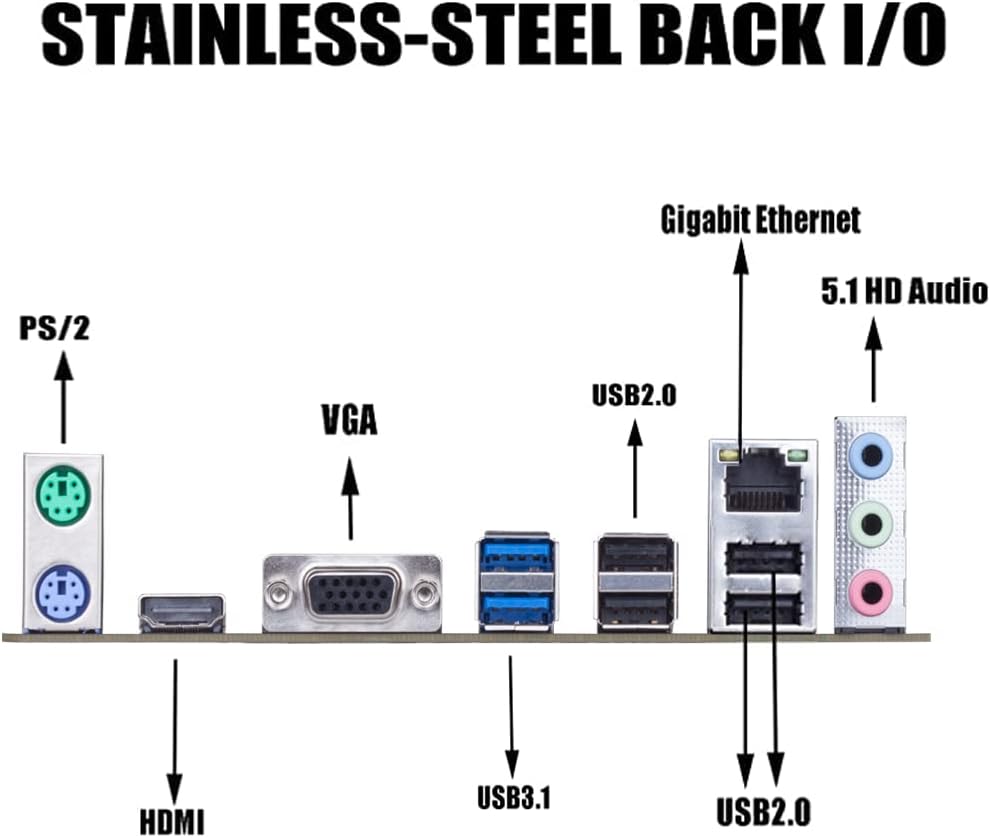
The rear input/output panel, showcasing ports such as PS/2, HDMI, VGA, USB 3.1, USB 2.0, Gigabit Ethernet, and 5.1 HD Audio jacks.

오버헤드 view of the entire MAXSUN A520M Motherboard, providing a comprehensive look at all its components and connectors.
3. 설정 및 설치
3.1. CPU 설치
AMD AM4 프로세서를 마더보드의 소켓에 조심스럽게 맞춰주세요. CPU의 삼각형과 소켓의 삼각형이 일치하는지 확인하십시오. 고정 레버를 아래로 내려 CPU를 고정합니다.
3.2. RAM 설치
This motherboard supports Dual Channel DDR4 memory. Open the clips on both ends of the memory slots. Align the notch on the RAM module with the key in the slot, then press down firmly on both ends until the clips snap into place.
3.3. 스토리지 설치
The motherboard features an M.2 NVMe SSD slot and SATA 6Gb/s ports. For M.2 SSDs, insert the drive into the slot at an angle and secure it with the provided screw (ensure your M.2 drive comes with one, as the motherboard package may not include it). For SATA drives, connect the SATA data cable to the motherboard and the drive, and ensure the power cable is connected from your power supply.
3.4. 전원 연결
Connect the 24-pin ATX power connector and the 8-pin CPU power connector from your power supply to the corresponding ports on the motherboard. Ensure all connections are secure.
3.5. 전면 패널 연결
Connect the front panel headers (power button, reset button, USB ports, audio jacks, etc.) to the corresponding pins on the motherboard. Refer to the motherboard's detailed diagram for precise pin assignments.
3.6. BIOS 업데이트
Updating the BIOS may be necessary for compatibility with newer CPUs, especially AMD Ryzen 5000 Series APUs. This process typically involves downloading the latest BIOS file from the MAXSUN support website and flashing it using a USB drive. Ensure all hard drives (M.2 and SATA SSDs) are disconnected before proceeding with a BIOS update to prevent data loss or corruption.
This video provides a step-by-step guide on how to update the BIOS for your MAXSUN motherboard using a USB storage device. It covers preparing the USB, downloading the BIOS file, configuring BIOS settings, and initiating the flash process.
4. 운영체제 설치
After assembling your system, you can proceed with installing your preferred operating system. Insert your OS installation media (USB drive or DVD) and follow the on-screen prompts. You may need to adjust the boot order in the BIOS to boot from the installation media.
5. Drivers and Software
For optimal performance and stability, install the latest drivers for your motherboard's components. These include chipset drivers, graphics drivers (if using an integrated GPU or dedicated graphics card), audio drivers, and LAN drivers. Drivers can typically be found on the MAXSUN support web대지.
6. 유지관리 및 관리
- 먼지 청소: Regularly clean dust from the motherboard and other components using compressed air. Accumulation of dust can lead to overheating and reduced performance.
- 적절한 취급: Always handle the motherboard by its edges to avoid touching sensitive components or circuits. Use an anti-static wrist strap when working inside your PC.
- BIOS 업데이트: Only update the BIOS when necessary, such as for new CPU support or critical bug fixes. Follow the update procedure carefully to avoid damaging the BIOS.
7. 문제 해결
- No Boot/POST Errors: Ensure all power cables are securely connected. Verify that RAM modules are properly seated in their slots. Check CPU and GPU seating. If the system fails to POST (Power-On Self-Test), listen for beep codes or check for diagnostic LEDs on the motherboard (if available) to identify the issue.
- 드라이버 문제: If a component is not functioning correctly after OS installation, ensure the correct drivers are installed. Download the latest drivers directly from the MAXSUN website or the component manufacturer's web대지.
- 저장소가 감지되지 않음: Verify SATA data and power connections for traditional drives. For M.2 SSDs, ensure it is properly seated and secured. Some M.2 slots may share bandwidth with SATA ports, disabling certain SATA ports when an M.2 drive is used. Consult the motherboard's detailed manual for specific configurations.
- 휘어진 CPU 핀: Exercise extreme caution when installing the CPU. Bent pins can prevent the system from booting. If pins are bent, professional repair may be required.
8. 사양
| 특징 | 사양 |
|---|---|
| 상표 | 맥스선 |
| 모델명 | A520M CHALLENGER Motherboard |
| CPU 소켓 | 소켓 AM4 |
| 호환 프로세서 | Ryzen 1000, 2000, 3000, 4000 Series CPU, Ryzen 5000 Series WITHOUT Internal GPU |
| RAM 메모리 기술 | DDR4 |
| 메모리 클럭 속도 | 2400MHz |
| 칩셋 유형 | AMD A520 |
| 패키지 크기 | 10.24 x 9.88 x 2.32 인치 |
| 품목 무게 | 1.54파운드 |
| 플랫폼 | 리눅스 |
9. 보증 및 지원
MAXSUN products are covered by a limited warranty. For detailed warranty terms, conditions, and duration, please refer to the warranty information included with your product or visit the official MAXSUN web본 사이트는 기술 지원, 드라이버 다운로드 및 기타 도움을 받기 위한 사이트입니다. 자세한 내용은 해당 사이트를 방문해 주시기 바랍니다. MAXSUN Official Support Site.