
1. 제품 오버view
The ViaBecs Android 10.0 Rotating Wireless Apple CarPlay Stereo is a double DIN car radio designed to enhance your driving experience with advanced features. It boasts an Android 10.0 operating system, an Octa Core 2.5GHz 64-bit processor, and a built-in DSP with 36-Band EQ for superior audio quality. Key functionalities include FM/AM Radio, Bluetooth 5.0, 4G Internet via WiFi, GPS Navigation, and support for both wired and wireless Apple CarPlay and Android Auto. The unique 10.2-inch IPS display can rotate 90 degrees, offering flexible viewing options. It also includes multiple connectivity ports such as 2 USB, 1 SUB out, 1 Camera In, 1 GPS antenna, 1 4G antenna, 1 extra MIC, and 1 SIM card slot.

Image: Main unit of the ViaBecs Android 10.0 Rotating Wireless Apple CarPlay Stereo, showcasing its rotating screen capability and wireless Apple CarPlay/Android Auto features.
2. 설치 가이드
This head unit is designed for vehicles with a 7-inch original car head unit slot, provided the length is ≥ 178mm and width is ≥ 100mm, allowing for the installation of this 13.3-inch car stereo. Professional installation is recommended.
2.1 설치 전 확인
- 포장에 나열된 모든 구성품이 들어 있는지 확인하세요.
- Verify the dimensions of your car's head unit slot to ensure compatibility.
- 전기적 손상을 방지하기 위해 설치를 시작하기 전에 차량 배터리를 분리하십시오.
2.2 물리적 설치
- 대시보드에서 기존 차량용 스테레오를 조심스럽게 분리하세요.
- Connect the provided wiring harness to the vehicle's wiring and the new head unit. Ensure all connections are secure.
- Connect the GPS antenna, 4G antenna, and external microphone to their respective ports on the head unit.
- If installing a backup camera (sold separately), connect its video input to the "Camera In" port.
- Slide the ViaBecs head unit into the dashboard slot until it is securely in place.
- 차량 배터리를 다시 연결합니다.
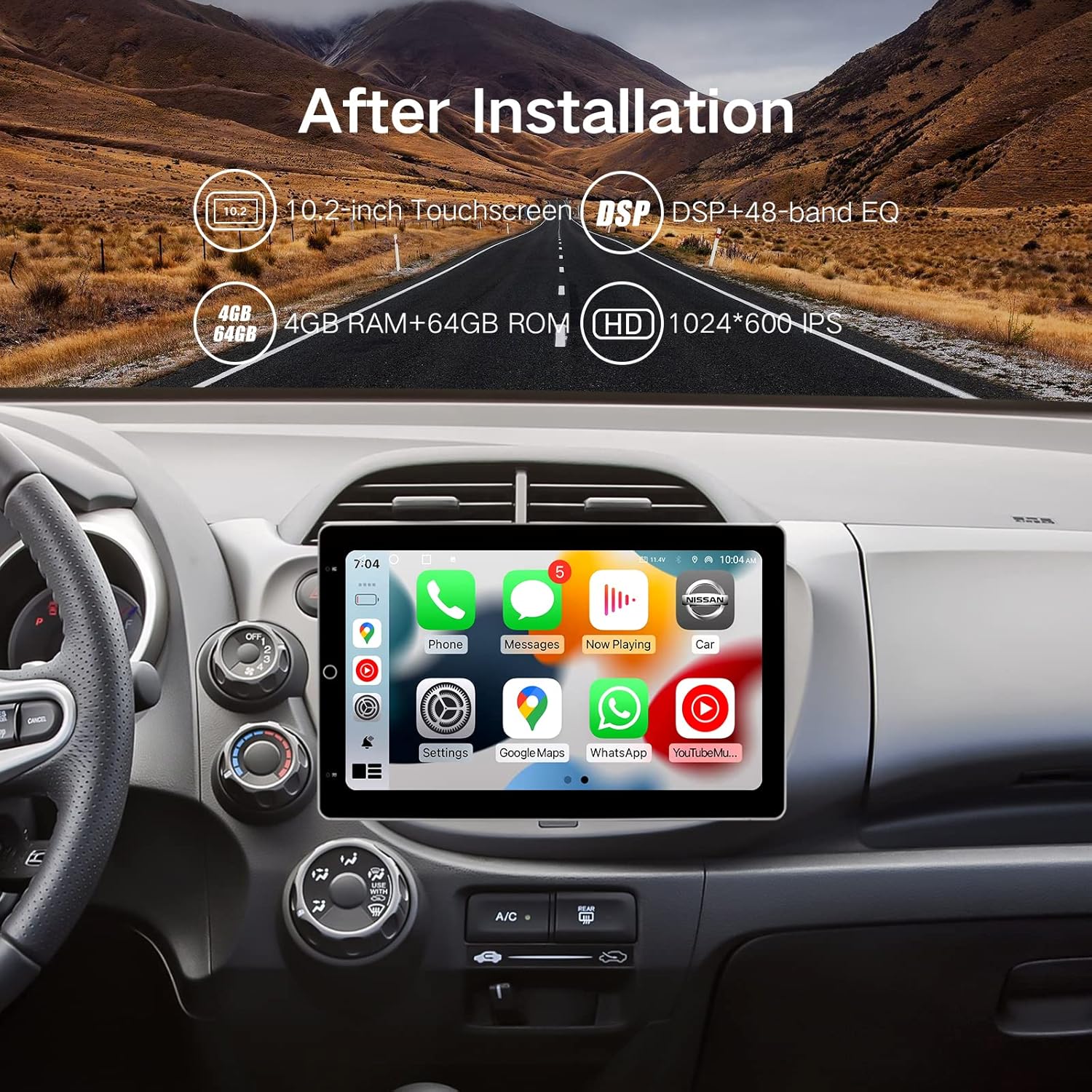
Image: The ViaBecs stereo unit seamlessly integrated into a car's dashboard, demonstrating its fit and appearance after installation.
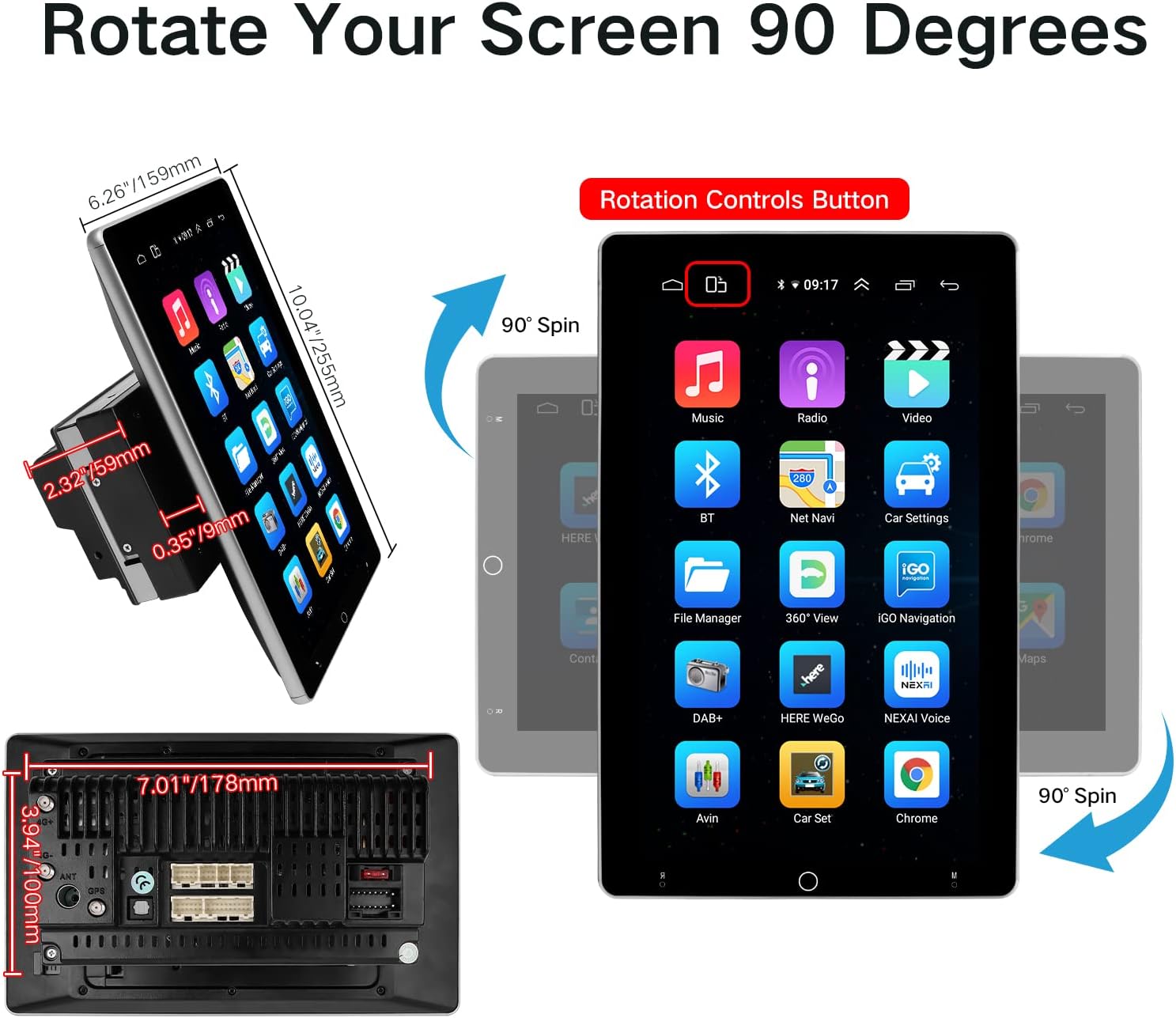
이미지: 상세 view of the stereo's dimensions and the mechanism allowing the screen to rotate 90 degrees, highlighting its adaptability.
3. 사용 설명서
3.1 전원 켜기/끄기 및 기본 탐색
- 전원 버튼을 길게 눌러 장치를 켜거나 끄세요.
- Navigate the interface using the responsive touchscreen.
- The screen can be rotated 90 degrees for portrait or landscape viewing by pressing the quick rotating shortcut.
3.2 Apple CarPlay 및 Android Auto
The unit supports both wired and wireless Apple CarPlay and Android Auto. To use these features, ensure the Zlink app is enabled and configured correctly.
3.2.1 유선 연결
- Prepare a 6PIN USB cable and your iPhone's charging cable.
- Connect your iPhone to the head unit via the 6PIN USB cable.
- Open the Zlink app on the head unit.
- In Zlink settings, enable "Auto Reconnect" for automatic connection.
- If using Android Auto, ensure "Android Auto" is enabled in Zlink settings.
3.2.2 무선 연결
- For first-time activation, connect the head unit to WiFi or a phone hotspot.
- Connect the radio and your iPhone via Bluetooth.
- Check if the radio hotspot connects to your iPhone.
- Open the Zlink app; it will automatically connect to wireless CarPlay.
Video: Demonstrates how to use both wired and wireless Apple CarPlay with the ViaBecs Stereo unit, including setup steps and interface navigation.

Image: The Zlink application interface on the stereo, illustrating the options for connecting Apple CarPlay and Android Auto, both wired and wirelessly.
3.3 탐색
The unit supports both online and offline GPS navigation. Ensure the GPS antenna is properly connected for optimal performance.

Image: The stereo screen showing navigation maps, demonstrating its capability for both online and offline route guidance.
3.4 블루투스 5.0
Connect your smartphone via Bluetooth 5.0 for hands-free calling, music streaming, and phonebook synchronization. Bluetooth 5.0 offers a more stable connection compared to previous versions.

Image: Visual representation of the Bluetooth 5.0 feature, highlighting its use for hands-free calls and audio streaming.
3.5 인터넷 연결
The unit supports 4G internet connectivity through various methods:
- 와이파이 핫스팟: Connect to your smartphone's mobile hotspot.
- 4G LTE USB Modem: Use an external 4G LTE USB modem.
- 3G/4G SIM Card: Insert a compatible SIM card directly into the unit's SIM card slot. (Note: Please purchase a SIM brand that supports Band 5 or Band 41 in the US, such as Sprint SIM card.)

Image: An illustration detailing the three methods for internet access on the stereo: Wi-Fi hotspot from a smartphone, a 4G LTE USB modem, and direct 3G/4G SIM card insertion.
3.6 오디오 기능
- DSP 36-Band EQ: Customize your audio experience with the built-in Digital Signal Processor and 36-band equalizer.
- FM/AM 라디오: Enjoy local radio stations with auto-searching frequency. Save up to 36 FM and 36 AM stations.
- 음악 재생: Play music from your phone via Bluetooth, or from a U disk/local memory.

Image: A composite image highlighting various audio features such as DSP 48-band EQ, built-in Bluetooth 5.0, and AM/FM radio functionality.

Image: The Digital Signal Processor (DSP) interface, showing audio equalization and sound field adjustments for an optimized listening experience.
4. 유지관리
To ensure the longevity and optimal performance of your ViaBecs stereo, follow these maintenance guidelines:
- 화면 청소: 부드럽고 보풀 없는 천으로 터치스크린을 살살 닦아주세요. 디스플레이를 손상시킬 수 있는 연마성 세척제나 독한 화학 물질은 사용하지 마세요.
- 소프트웨어 업데이트: 제조사에서 제공하는 소프트웨어 업데이트를 정기적으로 확인하여 최신 기능과 버그 수정 사항을 활용하십시오.
- 연결 무결성: Regularly inspect all cable connections (USB, power, antenna) to ensure they are secure and free from damage.
- 온도 조절: 제품의 전자 부품이 손상될 수 있으므로 고온이나 저온과 같은 극한 온도에 노출시키지 마십시오.
5. 문제 해결
이 섹션에서는 일반적으로 발생할 수 있는 문제에 대한 해결책을 제공합니다.
| 문제 | 가능한 원인 | 해결책 |
|---|---|---|
| 장치의 전원이 켜지지 않습니다. | 전원 연결이 느슨하거나, 퓨즈가 끊어지거나, 차량 배터리에 문제가 있습니다. | 전원 케이블과 연결 상태를 확인하세요. 차량 퓨즈를 점검하세요. 자동차 배터리가 충전되어 있는지 확인하세요. |
| 스피커에서 소리가 나지 않습니다. | Incorrect wiring, volume too low, mute activated, speaker issues. | Verify speaker wiring. Increase volume. Check if mute is on. Test speakers with another audio source. |
| Apple CarPlay/Android Auto가 연결되지 않습니다. | Incorrect Zlink settings, faulty USB cable, Bluetooth not paired, phone hotspot issues. | Ensure "Auto Reconnect" and "Android Auto" (if applicable) are enabled in Zlink. Try a different USB cable. Re-pair Bluetooth. Check phone hotspot settings. |
| GPS 신호가 약하거나 부정확합니다. | GPS 안테나가 제대로 설치되지 않았거나 가려져 있습니다. | Ensure GPS antenna is placed in an unobstructed location (e.g., dashboard, not under metal). Check antenna connection. |
| 화면 회전이 작동하지 않습니다. | Software glitch, physical obstruction. | Restart the unit. Ensure no physical objects are blocking the screen's rotation mechanism. |
6. 사양
- 운영 체제: 안드로이드 10.0
- 프로세서: Octa Core 2.5GHz 64-bit
- 메모리: 4GB RAM + 64GB ROM (implied from feature bullets and images)
- 표시하다: 10.2-inch IPS Touchscreen, 1024*600 pixels, 90-degree rotation
- 오디오: Built-in DSP 36-Band EQ, 4*50W amplifier, 4 Audio Output
- 연결성: Bluetooth 5.0, WiFi, 4G Internet (via SIM or USB modem), USB (2 ports), Auxiliary
- 항해: GPS Navigation (online/offline)
- 호환성: Wired and Wireless Apple CarPlay, Android Auto
- 입력: 1* SUB out, 1*Camera In, 1*GPS antenna, 1*4G antenna, 1*extra MIC, 1* SIM card Slot
- 크기(패키지): 12.28 x 8.66 x 5.59 인치
- 무게(품목): 4.49파운드
- 호환 장치: 스마트폰
- 한국어: 753165265097
7. 보증 및 지원
ViaBecs products are designed for reliability and performance. For any questions, concerns, or technical assistance, please contact ViaBecs customer support. Refer to your purchase documentation for specific warranty details and terms.
You can visit the official ViaBecs Store for more information and support: ViaBecs Store on Amazon.