
Fnatic BOLT
Fnatic BOLT Wireless Gaming Mouse User Manual
소개
This manual provides detailed instructions for the setup, operation, maintenance, and troubleshooting of your Fnatic BOLT Wireless Gaming Mouse. Please read this manual thoroughly before using the product to ensure optimal performance and longevity.
제품 끝view
The Fnatic BOLT is a lightweight wireless gaming mouse designed for high performance. It features a durable construction and versatile connectivity options.
구성 요소
- 왼쪽 및 오른쪽 클릭 버튼
- 스크롤 휠
- DPI Cycle Button (typically located on the bottom or top)
- 측면 버튼(앞으로/뒤로)
- USB-C 충전 포트
- Wireless Receiver (dongle)

그림 1: 상단 view of the Fnatic BOLT Wireless Gaming Mouse, showing the main click buttons and scroll wheel.

그림 2: 각도 view of the Fnatic BOLT Wireless Gaming Mouse, highlighting the two programmable side buttons.

그림 3: 전면 view of the Fnatic BOLT Wireless Gaming Mouse, displaying the USB-C charging port.
설정
1. 초기 충전
Before first use, it is recommended to fully charge the Fnatic BOLT mouse.
- 제공된 USB-C 케이블을 마우스 전면의 충전 포트에 연결하십시오.
- USB-C 케이블의 다른 쪽 끝을 컴퓨터의 전원이 공급되는 USB 포트나 USB 벽면 어댑터에 연결합니다.
- The mouse's indicator light will show charging status (refer to product documentation for specific light patterns). A full charge typically takes a few hours.
2. 컴퓨터에 연결하기
The Fnatic BOLT supports two wireless connection modes: 2.4 GHz wireless (via USB dongle) and Bluetooth.
2.1. 2.4GHz 무선 연결
- Locate the USB wireless receiver (dongle) that came with your mouse.
- USB 수신기를 컴퓨터의 사용 가능한 USB 포트에 연결합니다.
- 마우스 바닥에 있는 전원 스위치를 사용하여 마우스를 켭니다.
- The mouse should automatically connect to the receiver. The indicator light will confirm a successful connection.
2.2. 블루투스 연결
- 컴퓨터의 Bluetooth가 활성화되어 있는지 확인하세요.
- 마우스를 켜고 블루투스 모드로 전환하세요(모드 선택은 마우스 하단의 스위치 또는 버튼을 참조하세요).
- 컴퓨터에서 Bluetooth 설정으로 가서 새 장치를 검색하세요.
- Select "Fnatic BOLT" from the list of available devices to pair.
- 마우스의 표시등이 페어링 성공을 확인시켜 줍니다.
작동 지침
DPI 조정
The Fnatic BOLT mouse allows you to adjust its Dots Per Inch (DPI) sensitivity. This mouse features 4 preset DPI levels.
- Locate the DPI cycle button, typically on the bottom of the mouse.
- Press the DPI button to cycle through the available sensitivity settings.
- An indicator light (often on the scroll wheel or top of the mouse) may change color or flash to indicate the current DPI level.
버튼 기능
- 좌 클릭: 1차적 행동, 선택.
- 마우스 오른쪽 버튼으로 클릭: 상황에 맞는 메뉴, 보조 작업.
- 스크롤 휠 클릭: 마우스 가운데 버튼 클릭은 링크를 새 탭에서 열거나 게임 내 특정 기능을 사용할 때 자주 사용됩니다.
- 위/아래로 스크롤: Navigating documents or web 페이지.
- 측면 버튼: Default to Forward/Back in web browsers. These can often be customized via software (if available).
전원 관리
- To conserve battery life, turn off the mouse using the power switch when not in use for extended periods.
- The mouse may enter a sleep mode after a period of inactivity. Move the mouse or click a button to wake it up.
- Monitor the battery indicator (if available) to know when to recharge.
유지
청소
- 부드럽고 건조하며 보푸라기가 없는 천으로 마우스 표면을 정기적으로 청소하세요.
- 완고한 먼지에는 약간 damp천에 물이나 순한 세척액을 묻혀 닦으세요. 강한 화학 물질은 피하세요.
- Clean the optical sensor on the bottom of the mouse with a cotton swab to ensure accurate tracking.
- 액체가 마우스의 내부 구성품에 들어가지 않도록 주의하세요.
배터리 관리
- 배터리를 자주 완전히 방전시키지 마세요.
- 장기간 사용하지 않을 때는 마우스를 시원하고 건조한 곳에 보관하세요.
- 마우스를 극한 온도에 노출시키지 마세요.
문제 해결
마우스가 응답하지 않음
- 배터리 확인: Ensure the mouse is charged. Connect it to the USB-C cable and allow it to charge for a period.
- 전원 스위치: Verify the mouse's power switch is in the "ON" position.
- Wireless Connection (2.4 GHz):
- USB 수신기가 정상적으로 작동하는 USB 포트에 제대로 꽂혀 있는지 확인하세요. 다른 USB 포트에 연결해 보세요.
- Ensure the mouse is within range of the receiver.
- 간섭을 일으킬 수 있는 요소(예: 다른 무선 기기, 큰 금속 물체)를 피하십시오.
- 블루투스 연결 :
- 컴퓨터의 Bluetooth가 활성화되어 있는지 확인하세요.
- Check if the mouse is in Bluetooth pairing mode or already paired. Re-pair if necessary.
- 컴퓨터의 블루투스 설정에서 해당 장치를 제거한 후 다시 추가하세요.
- 다시 시작: 컴퓨터를 다시 시작하세요.
부정확한 추적
- 센서 청소: 마우스 바닥의 광학 센서를 청소하세요.
- 표면: Ensure you are using the mouse on a suitable surface. Highly reflective or uneven surfaces can affect tracking. A mouse pad is recommended.
- DPI 설정: 사용자의 선호도와 작업에 맞는 DPI 설정으로 조정하십시오.
짧은 배터리 수명
- 충전 중: 마우스가 완전히 충전되었는지 확인하세요.
- 전원 끄기 : Remember to turn off the mouse when not in use.
- 용법: High-intensity usage or certain settings might consume more power.
명세서
| 특징 | 세부 사항 |
|---|---|
| 상표 | 프나틱 |
| 모델명 | FnaticGear BOLT |
| 품목 모델 번호 | 볼트 |
| 색상 | 하얀색 |
| 연결 기술 | Bluetooth, Wi-Fi (2.4 GHz Wireless) |
| 움직임 감지 기술 | 광학 |
| 버튼의 수 | 6 |
| 손의 방향 | 오른쪽 |
| 특별 기능 | 가벼움 |
| 전원 유형 | Wireless (Rechargeable Battery) |
| 배터리 포함 | 예 (리튬 금속 배터리 1개) |
| 리튬 배터리 에너지 함량 | 470밀리amp 시간(mAh) |
| 제품 치수 | 12.5 x 6.5 x 0.1 cm; 69g |
| 호환 장치 | 노트북, 개인용 컴퓨터 |
| 운영 체제 | Linux, Windows 7, Windows XP (and newer) |
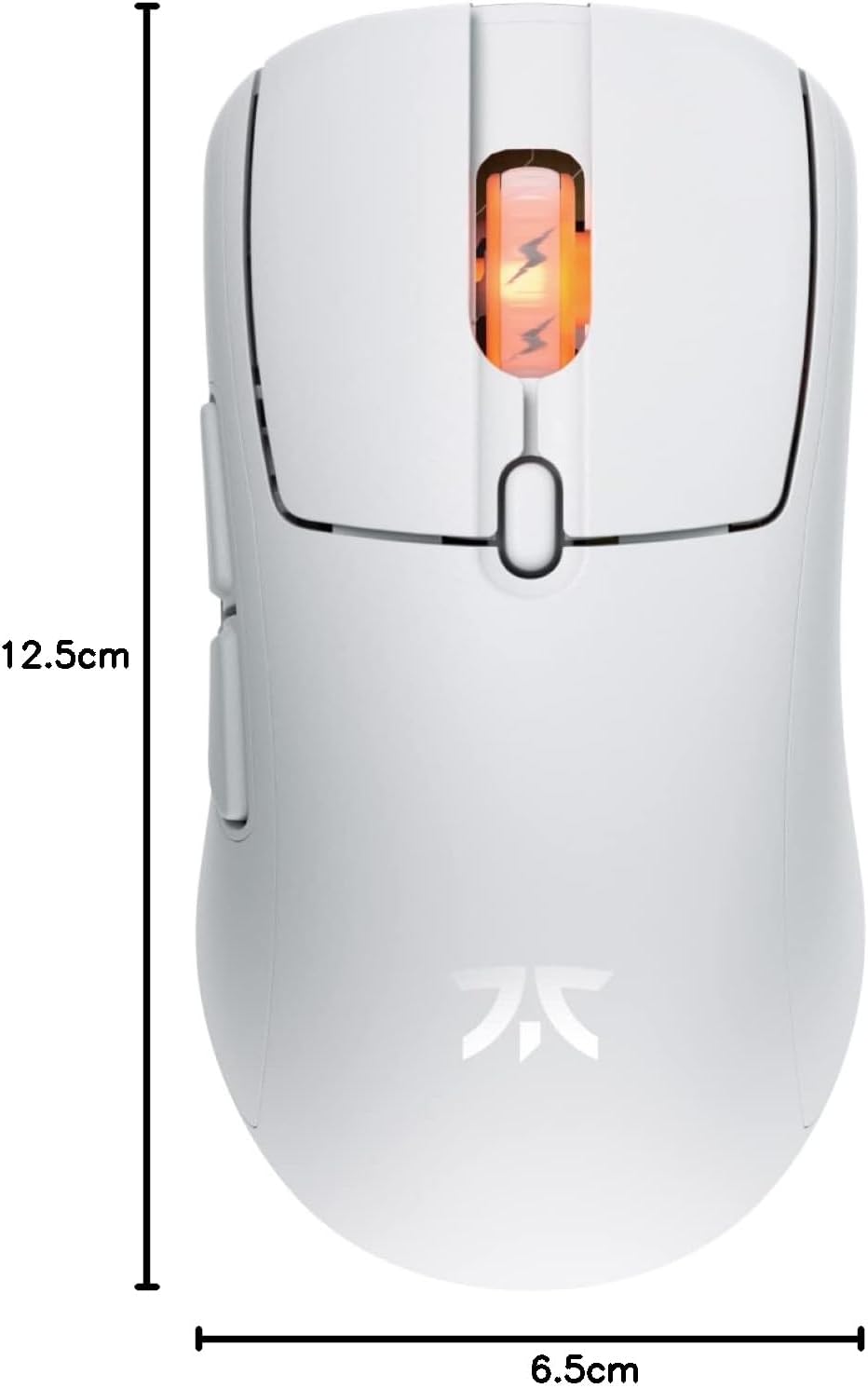
Figure 4: Diagram showing the dimensions of the Fnatic BOLT Wireless Gaming Mouse.
보증 및 지원
For information regarding warranty coverage and technical support, please refer to the official Fnatic web사이트에 접속하거나 제품에 포함된 보증 카드를 확인하세요.
You can typically find support resources, FAQs, and contact information on the manufacturer's official support pages.