
소개
This manual provides essential information for setting up, operating, maintaining, and troubleshooting your HP 2021 15.6-inch Full HD Laptop. This device is equipped with an Intel Celeron N4020 Processor, 8GB DDR4 RAM, and a 256GB Solid State Drive, designed for everyday computing tasks.
상자 안에 무엇이 들어있나요?
Carefully unpack your new HP laptop and ensure all components are present.
- HP 15 노트북
- 45W 스마트 AC 전원 어댑터
- Documentation (Setup poster)

Image: Contents of the HP laptop box, showing the laptop, AC adapter, and setup poster.
설정
1. 초기 전원 켜기 및 충전
Before first use, connect the AC power adapter to the laptop's power port and then to a wall outlet. Allow the battery to charge sufficiently before disconnecting the power adapter.
2. Windows 10 S Mode Setup
Follow the on-screen prompts to complete the initial Windows 10 S mode setup. This includes selecting your region, keyboard layout, connecting to a Wi-Fi network, and signing in with or creating a Microsoft account.
3. Activating Microsoft Office 365
Your laptop includes a 1-year subscription to Microsoft Office 365. To activate:
- Office 응용 프로그램(예: Word, Excel)을 실행합니다.
- Start activation by signing in with your Microsoft account. Create one if you do not have one.
- "Office 활성화"를 클릭하세요.
- Sign in to your account and follow the prompts.
- Complete steps 1, 2, and 3 as indicated.
- Click "Refresh" once Office is ready.
- Open a document and accept the license agreement.
4. Switching Out of Windows 10 S Mode (Optional)
Windows 10 S mode is designed for security and performance, limiting app installations to the Microsoft Store. If you need to install apps from outside the Microsoft Store, you can switch to regular Windows 10 Home or Pro. This process is irreversible.
- Windows 10 S 모드를 실행하는 PC에서 다음을 엽니다. 설정 > 업데이트 및 보안 > 활성화.
- "Windows 10 Home으로 전환" 또는 "Windows 10 Pro로 전환" 섹션에서 선택하세요. 스토어로 이동. (Ensure you do not click a "Go to the Store" link in an "Upgrade your edition of Windows" section if present.)
- Microsoft Store에 나타나는 "S 모드 종료"(또는 유사한) 페이지에서 다음을 선택합니다. 얻다 단추.
- After you see a confirmation message on the page, you will be able to install apps from outside of the Microsoft Store.
이미지: 측면 view of the HP laptop highlighting the SuperSpeed USB Type-C, SuperSpeed USB Type-A, HDMI 1.4b, RJ-45 Ethernet port, headphone/microphone combo, and media card reader.
작동 지침
키보드 및 터치패드
The laptop features a full-size keyboard with an integrated numeric keypad for enhanced productivity. The precision touchpad supports multi-touch gestures for intuitive navigation.
주변 장치 연결
- USB 장치: Connect USB devices such as external drives, mice, or keyboards to the SuperSpeed USB Type-A or Type-C ports.
- 외부 디스플레이: HDMI 1.4b 포트를 사용하여 외부 모니터나 프로젝터를 연결하세요.
- 회로망: 유선 네트워크 연결을 위해 이더넷 케이블을 RJ-45 포트에 연결하십시오.
- 오디오: 헤드폰이나 외부 마이크를 헤드폰/마이크 콤보 잭에 연결합니다.
Web캠과 마이크
The integrated HP True Vision 720p HD camera and dual array digital microphones are ready for online meetings and video calls. Ensure appropriate privacy settings are configured in Windows.
미디어 카드 리더
Insert compatible SD media cards into the multi-format SD media card reader to access photos and files.

Image: The HP laptop's display area, highlighting the HP True Vision 720p HD Camera, rich 6.5 mm micro-edge Full HD IPS display, Intel UHD Graphics, and tuned stereo speakers.
유지
배터리 관리
To prolong battery life, avoid fully discharging the battery frequently. For optimal performance, use the provided HP 45W Smart AC power adapter. The laptop supports HP Fast Charge, allowing it to charge up to 50% in approximately 45 minutes when powered off.
노트북 청소
부드럽고 털이 없는 천을 살짝 사용하세요.amp물이나 화면 세척제를 사용하여 디스플레이를 닦으세요. 키보드와 케이스는 부드럽고 마른 천을 사용하세요. 강한 화학 물질이나 연마재는 사용하지 마세요.
소프트웨어 업데이트
Regularly check for and install Windows updates to ensure your system has the latest security patches and performance improvements. You can find these in 설정 > 업데이트 및 보안 > 윈도우 업데이트.
문제 해결
노트북 전원이 켜지지 않음
- AC 어댑터가 노트북과 작동하는 전원 콘센트에 모두 단단히 연결되어 있는지 확인하세요.
- 다른 장치를 연결하여 전원 콘센트가 작동하는지 확인하세요.
- 배터리가 완전히 방전된 경우 노트북의 전원을 켜기까지 몇 분 정도 충전이 필요할 수 있습니다.
Battery Not Holding Charge / Only Works When Plugged In
- Check the battery health status in Windows settings.
- Ensure all drivers, especially power management drivers, are up to date.
- If the issue persists, the battery may require service or replacement. Contact HP Support for assistance.
Wi-Fi 연결 없음
- Windows 설정에서 Wi-Fi가 활성화되어 있는지 확인하세요.
- 라우터와 모뎀을 다시 시작하세요.
- Wi-Fi 드라이버가 설치되어 있고 최신 버전인지 확인하십시오.
디스플레이 문제
- If the screen is blank, try connecting an external monitor to determine if the issue is with the laptop's display or graphics card.
- 기능 키를 사용하여 화면 밝기를 조절하세요.
더 복잡한 문제는 HP 지원을 참조하세요. web사이트를 방문하거나 고객 서비스에 문의하세요.
명세서
Below are the key technical specifications for your HP 2021 15.6" FHD Laptop:
| 특징 | 사양 |
|---|---|
| 상표 | HP |
| 모델명 | HP 2021 |
| 화면 크기 | 15.6 인치 |
| 디스플레이 해상도 | FHD (1920 x 1080) IPS, Anti-Glare |
| 프로세서 | Intel Celeron N4020 (up to 2.8 GHz, 2 Cores, 4MB Cache) |
| 램 메모리 | 8GB DDR4 SD램 |
| 저장 | 256GB SSD(솔리드 스테이트 드라이브) |
| 제도법 | 인텔 UHD 그래픽 |
| 운영 체제 | 윈도우 10 S |
| 포트 | 1x SuperSpeed USB Type-C, 2x SuperSpeed USB Type-A, 1x HDMI 1.4b, 1x RJ-45, 1x Headphone/Microphone Combo, 1x AC Smart Pin |
| 무선 연결 | 802.11a/b/g/n/ac Wi-Fi, 블루투스 |
| Web캠 | 통합 듀얼 어레이 디지털 마이크가 있는 HP True Vision 720p HD 카메라 |
| 배터리 | 3-Cell, 41 WHr, Integrated Lithium Ion |
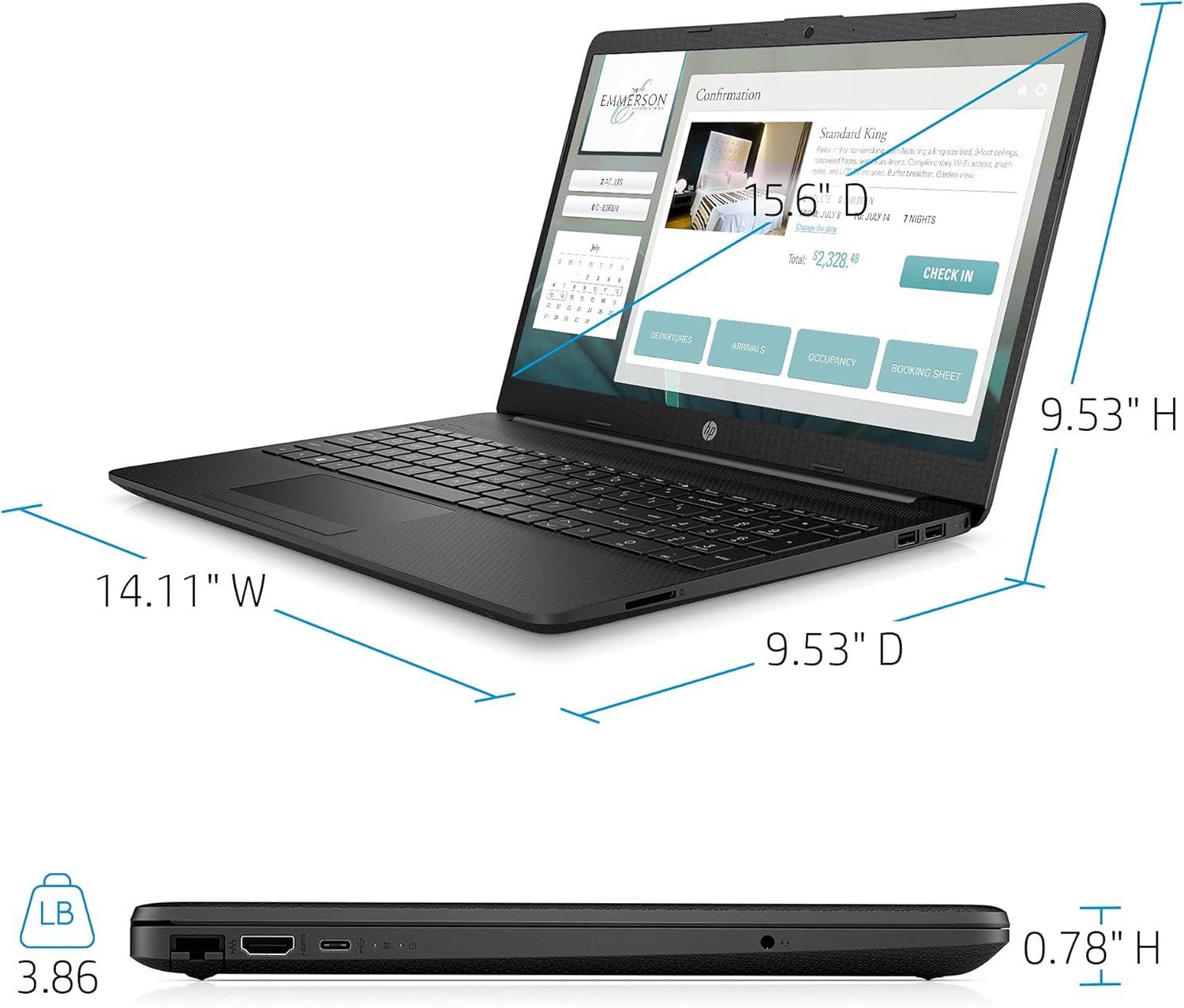
| 무게 | 3.86 파운드 |
| 색상 | 검은색 |

Image: Physical dimensions of the HP laptop (14.11" W x 9.53" D x 0.78" H) and weight (3.86 lbs).
보증 정보
Your HP 2021 15.6" FHD Laptop comes with a limited manufacturer's warranty. Please refer to the documentation included in the box for specific terms, conditions, and duration of your warranty. Keep your proof of purchase for warranty claims.
지원하다
추가적인 지원, 기술 지원 또는 서비스 문의 사항이 있는 경우 HP 공식 지원 페이지를 방문하십시오. website or contact HP customer service directly. You can find contact information and resources on the HP web대지: