
소개
This manual provides essential information for setting up, operating, maintaining, and troubleshooting your HP 2022 14-inch HD Laptop. Please read this guide thoroughly to ensure proper use and to maximize the performance and longevity of your device.
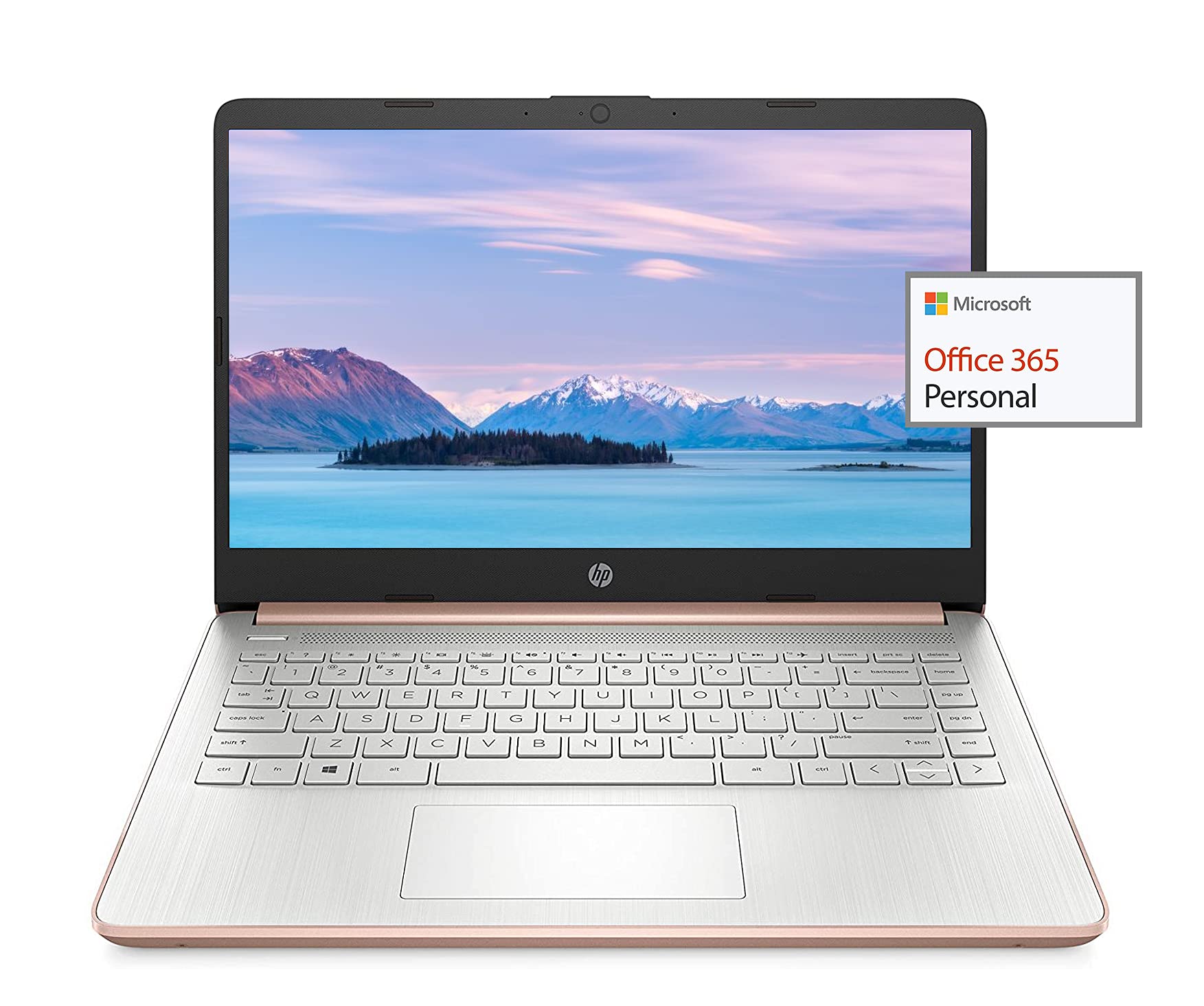
Image: The HP 14-inch HD Laptop, showcasin세련된 디자인이에요.
설정
1. 초기 전원 켜기
Connect the power adapter to the laptop and a power outlet. Open the laptop lid. The laptop should power on automatically or by pressing the power button, typically located on the keyboard deck.
2. 운영 체제 설정
Follow the on-screen prompts to complete the Windows 10 setup. This includes selecting your region, connecting to a Wi-Fi network, and creating a user account.
3. Activating Microsoft Office 365
Your laptop includes a 1-year subscription to Microsoft Office 365. To activate:
- Office 응용 프로그램(예: Word, Excel)을 실행합니다.
- Sign in with your Microsoft account. If you do not have one, create a new account.
- Click "Activate Office" and follow the subsequent prompts.
- Complete steps 1, 2, and 3 as instructed.
- Click "Refresh" once Office is ready.
- 문서를 열고 라이선스 계약에 동의하여 활성화를 완료하세요.

Image: The HP laptop displaying Microsoft Office 365 applications.
4. Switching Out of Windows 10 S Mode
Windows 10 in S mode is designed for security and performance, exclusively running apps from the Microsoft Store. If you need to install apps from outside the Microsoft Store, you can switch out of S mode. This is a one-way switch and cannot be undone.
- 이동하다 설정 > 업데이트 및 보안 > 활성화.
- "Windows 10 Home으로 전환" 또는 "Windows 10 Pro로 전환" 섹션에서 선택하세요. 스토어로 이동.
- 에 Switch out of S mode (or similar) page that appears in the Microsoft Store, click the 얻다 단추.
- After confirming, you will be able to install apps from outside the Microsoft Store.
5. 주변기기 연결하기
노트북에는 외부 장치를 연결하기 위한 다양한 포트가 있습니다.
- USB Type-A & Type-C: For connecting USB devices like external drives, mice, and keyboards.
- HDMI : 외부 디스플레이나 프로젝터에 연결합니다.
- 헤드폰/마이크 콤보 잭: 오디오 입력/출력용.
- 미디어 카드 리더기: SD 카드를 삽입하기 위한 것입니다.

이미지: 측면 view of the HP laptop, highlighting the SuperSpeed USB Type-A, USB Type-C, HDMI 1.4b, and headphone/microphone combo ports.

이미지: 반대편 view of the HP laptop, showing the media card reader slot.
작동 지침
1. 전원 관리
- 전원 켜기: 전원 버튼을 누르세요.
- 수면 모드 : 뚜껑을 닫거나 전원 버튼을 짧게 누르세요.
- 종료: 시작 > 전원 > 시스템 종료로 이동합니다.
- 다시 시작: 시작 > 전원 > 다시 시작으로 이동합니다.
2. 디스플레이 사용법
The laptop features a 14-inch HD (1366 x 768) display with a micro-edge bezel design and WLED-backlit BrightView technology. Adjust brightness using the function keys (F2/F3) or through Windows display settings.

Image: The HP laptop display showcasing its micro-edge bezel and HD resolution.
3. 키보드 및 터치패드
The standard keyboard provides comfortable typing. The integrated touchpad supports multi-touch gestures for navigation. Refer to Windows settings for customizing touchpad sensitivity and gestures.
4. Web캠 및 오디오
The HP True Vision 720p HD camera with integrated dual array digital microphones is suitable for video calls. The laptop features HP custom-tuned dual speakers for clear audio output.

Image: The HP laptop showing the webcam in use and highlighting the dual speaker setup.
5. 무선 연결
- Wi-Fi 5 (1x1): Connect to wireless networks for internet access. Manage Wi-Fi connections via the network icon in the taskbar.
- 블루투스 5.0 : Pair with Bluetooth-enabled devices such as headphones, speakers, or mice. Access Bluetooth settings via Windows Settings > Devices > Bluetooth & other devices.
유지
1. 배터리 관리
The laptop's battery provides up to 10.5 hours of video playback and up to 9 hours of wireless streaming. To prolong battery life:
- 극한의 온도를 피하세요.
- 배터리를 자주 완전히 방전시키지 마세요.
- Utilize HP Fast Charge for quick recharging.
- 배터리 사용량을 최적화하려면 Windows의 전원 설정을 조정하십시오.
2. 스토리지 관리
Your laptop is equipped with 256GB SSD and 64GB eMMC storage. Regularly manage your files to ensure sufficient free space. Use Disk Cleanup and Storage Sense features in Windows to remove unnecessary files.
3. 노트북 청소
- 부드럽고 털이 없는 천을 살짝 사용하세요.amp디스플레이에는 물이나 화면 세척제를 사용하세요.
- 키보드와 케이스에는 부드러운 천을 사용하세요. 강한 화학 물질은 피하세요.
- 청소하기 전에 노트북의 전원이 꺼져 있고 플러그가 뽑혀 있는지 확인하세요.
4. 소프트웨어 업데이트
Keep your operating system and drivers updated. Windows Update automatically handles system updates. Check the HP support web해당 모델에 맞는 드라이버 업데이트 사이트입니다.
문제 해결
일반적인 문제 및 해결책:
- 노트북 전원이 켜지지 않음: 전원 어댑터가 제대로 연결되어 있고 배터리가 충분히 충전되어 있는지 확인하세요. 다른 콘센트에 연결해 보세요.
- 디스플레이 문제: Check display cable connections if using an external monitor. Adjust brightness settings.
- 소리가 나지 않습니다: Verify volume levels, check audio output device settings in Windows, and ensure headphones are properly connected.
- 와이파이 연결 문제: 공유기와 노트북을 재시작하세요. Wi-Fi 설정을 확인하고 비행기 모드가 꺼져 있는지 확인하세요.
- 느린 성능: 불필요한 애플리케이션을 닫으세요. 백그라운드 프로세스를 확인하세요. 충분한 저장 공간을 확보하세요.
보다 자세한 문제 해결 방법이나 지속적인 문제가 발생하는 경우 HP 지원 페이지를 참조하십시오. web사이트를 방문하거나 HP 고객 서비스에 문의하세요.
명세서
| 특징 | 사양 |
|---|---|
| 상표 | HP |
| 모델명 | HP 2022 |
| 화면 크기 | 14 인치 |
| 프로세서 | AMD 3020e (2 Cores, 4 Threads, 1.2GHz Base, 2.6GHz Max Boost) |
| 숫양 | 8GB DDR4 |
| 저장 | 256GB SSD + 64GB eMMC (Total 320 GB) |
| 제도법 | 통합 AMD Radeon 그래픽 |
| 운영 체제 | Windows 10 Home in S mode (upgradeable) |
| 연결성 | Wi-Fi 5(1x1), 블루투스 5.0 |
| 포트 | USB Type-A, USB Type-C, HDMI 1.4b, Headphone/Microphone Combo, Media Card Reader |
| Web캠 | HP 트루 비전 720p HD 카메라 |
| 배터리 수명(대기) | 최대 10.5시간 (동영상 재생) |
| 무게 | 3.24 파운드 |
| 치수(길이 x 너비 x 두께) | 8.86인치 길이 x 12.76인치 너비 x 0.71인치 두께 |

이미지: 이상view of the HP 14 laptop's key features including AMD 3020e processor, battery life, Windows 10 S mode, HP Fast Charge, and Wi-Fi 5 & Bluetooth 5.0.
보증 및 지원
Your HP laptop comes with a standard manufacturer's warranty. Please refer to the warranty documentation included with your purchase for specific terms and conditions. For technical support, driver downloads, and service information, visit the official HP support web해당 웹사이트를 방문하거나 HP 고객 서비스에 직접 문의하십시오.
추가적인 보호를 위해 구매를 고려해 보세요.asing extended protection plans from your retailer.