
1. 제품 오버view
The SIIG JU-DK0L11-S1 is a versatile USB 3.0 Dual Monitor Docking Station designed to expand your laptop or desktop's connectivity and display capabilities. It supports up to two 1080p@60Hz Full HD video displays via two HDMI ports, along with multiple USB ports, Gigabit Ethernet, and a 3.5mm audio jack. This docking station is compatible with both Windows and macOS operating systems, including Mac M1/M2/M3 Pro&Max.
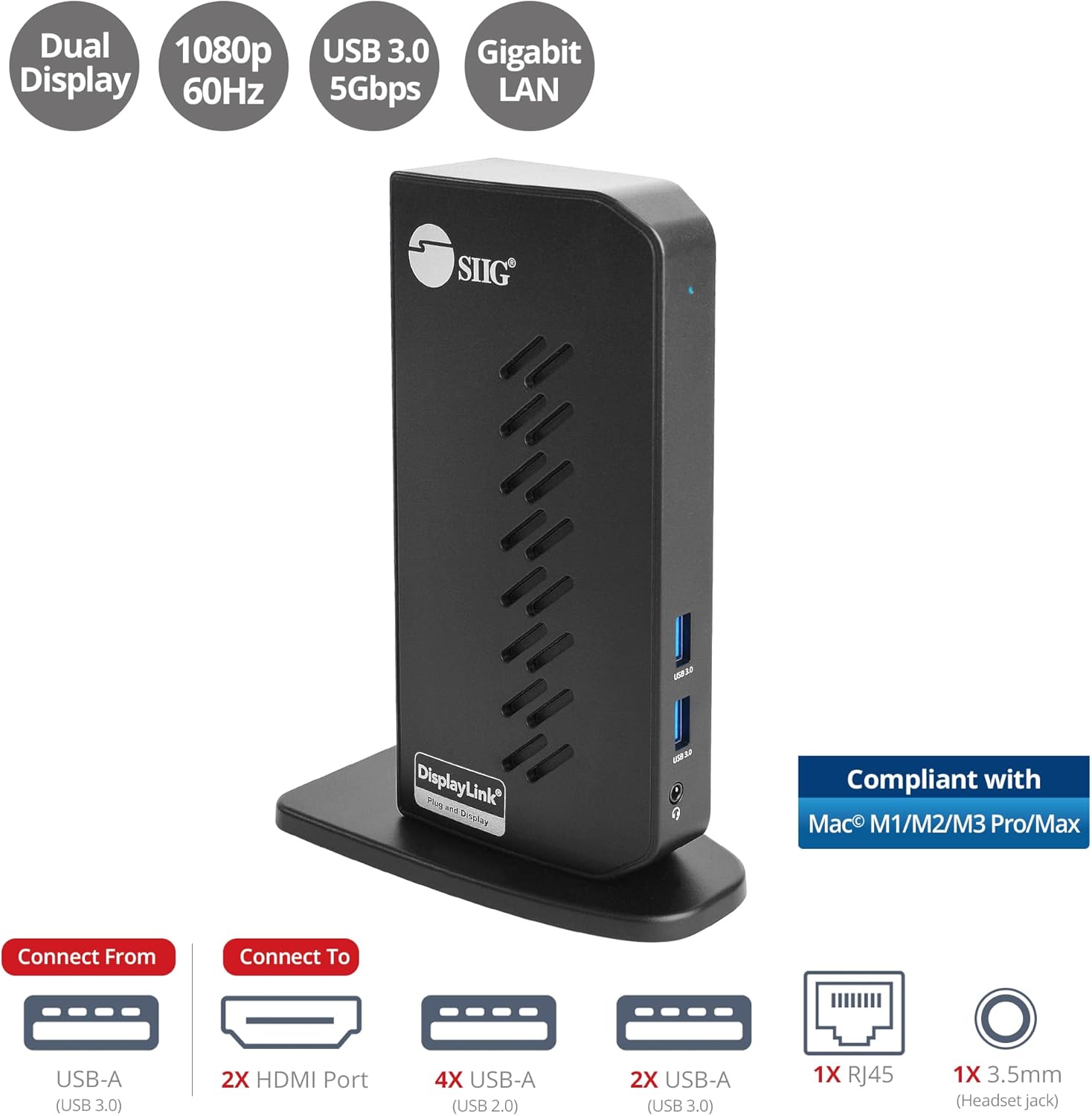
Image 1.1: The SIIG JU-DK0L11-S1 Dual Monitor Docking Station, showcasing its compact vertical design and various connectivity options.
2. 패키지 내용
설치를 진행하기 전에 패키지에 모든 품목이 들어 있는지 확인하세요.
- SIIG JU-DK0L11-S1 Dual Head Full HD HDMI Video Docking Station
- 전원 어댑터(12V/2A)
- USB 3.0 Type-A to Type-B 케이블
- Driver CD (Drivers can also be downloaded from the official SIIG web대지)
- 사용자 설명서

Image 2.1: All components included in the SIIG JU-DK0L11-S1 docking station package, including the docking station, power adapter, USB cable, driver CD, and user manual.
3. 하드웨어 레이아웃
Familiarize yourself with the ports and indicators on the docking station.
전면 패널
- 전원 LED: 전원 상태를 나타냅니다.
- USB 3.0 포트 2개: For connecting high-speed USB devices (5Gbps, 4.5W/900mA).
- 3.5mm 헤드셋 잭: For connecting headphones or stereo speakers with microphone input.
후면 패널
- USB 2.0 포트 4개: For connecting standard USB devices (480Mbps, 5V/900mA).
- RJ45 기가비트 이더넷 포트: 유선 네트워크 연결용 (10/100/1000Mbps).
- 2x HDMI Outputs: For connecting external displays (up to 1080p@60Hz).
- USB 3.0 Type-B Port: For connecting the docking station to your host computer.
- 전원 잭 : 12V/2A 전원 어댑터를 연결하기 위한 것입니다.

이미지 3.1: 상세 view of the front and rear panels of the docking station, highlighting all available ports and their functions.
4. 설정 지침
도킹 스테이션을 설정하려면 다음 단계를 따르세요.
- DisplayLink 드라이버를 설치하세요: Before connecting the docking station, install the necessary DisplayLink drivers on your computer. You can use the included driver CD or download the latest drivers from the official DisplayLink web사이트 (www.displaylink.com/downloads) or SIIG's support page.
- 전원 연결: Plug the provided 12V/2A power adapter into the docking station's power jack and then into a wall outlet. The Power LED on the front panel should illuminate.
- 호스트 컴퓨터에 연결: Use the supplied USB 3.0 Type-A to Type-B cable to connect the docking station's USB 3.0 Type-B port to an available USB 3.0 Type-A port on your laptop or desktop computer.
- 디스플레이 연결: Connect your external monitors to the two HDMI output ports on the rear of the docking station using HDMI cables.
- 주변기기 연결: Connect your USB devices (keyboard, mouse, printer, flash drives, etc.) to the available USB 3.0 and USB 2.0 ports. Connect an Ethernet cable to the RJ45 port for a wired network connection. Plug your headset or speakers into the 3.5mm audio jack.
Video 4.1: An official video demonstrating the setup and connectivity of the SIIG JU-DK0L11-S1 Dual Head Full HD HDMI Docking Station, showing how to connect monitors and peripherals.
5. 사용 설명서
Once the docking station is set up, you can configure your display settings and utilize the connected peripherals.
디스플레이 모드
The docking station supports three primary display modes:
- 미러 모드: Duplicates your primary display onto the external monitors.
- 확장 모드: 데스크톱을 여러 화면으로 확장하여 작업 공간을 넓힐 수 있습니다.
- 기본 모드: Designates one of the connected displays as the main display.
이러한 설정은 운영 체제의 디스플레이 설정(예: Windows 디스플레이 설정 또는 macOS 시스템 설정 > 디스플레이)을 통해 구성할 수 있습니다.

Image 5.1: A typical dual 1080p monitor setup utilizing the SIIG docking station, demonstrating an extended display configuration for enhanced productivity.
USB 연결
The docking station provides two USB 3.0 ports for high-speed data transfer (e.g., external hard drives, SSDs) and four USB 2.0 ports for standard peripherals (e.g., keyboard, mouse, printer). Simply plug your devices into the corresponding ports.
기가비트 이더넷
For a stable and fast internet connection, connect an Ethernet cable from your router or modem to the RJ45 port on the docking station. This provides a more reliable connection than Wi-Fi, supporting 10/100/1000 BASE-T wired networks.

이미지 5.2: 클로즈업 view of the Gigabit RJ45 Ethernet port and USB ports, illustrating their use for network and high-speed data transmission.
오디오 연결
The 3.5mm headset jack allows you to connect headphones, speakers, or a microphone. Ensure your operating system's audio settings are configured to use the docking station's audio output/input.
6. Specifications (Model: JU-DK0L11-S1)
| 상표 | SIIG |
| 모델 번호 | JU-DK0L11-S1 |
| 하드웨어 인터페이스 | 3.5mm Audio, Ethernet, HDMI, USB 1.1, USB 2.0, USB 3.0 |
| 호환 장치 | Desktop or laptop computer with an available USB 3.0 Type-A port. Compatible with Windows® 11/10/8.1/8/7 and macOS® 11 / 10.15 to 10.10. |
| 총 USB 포트 | 6개 (USB 3.0 2개, USB 2.0 4개) |
| 총 HDMI 포트 | 2 |
| 최대 해상도 | 1080p@60Hz (per display) |
| 이더넷 속도 | 기가비트(10/100/1000Mbps) |
| 입력 Voltage | 100볼트(AC) |
| 제품 크기(L x W x H) | 5.31인치 x 2.87인치 x 7.36인치 |
| 품목 무게 | 0.75 파운드 |

Image 6.1: Physical dimensions of the SIIG JU-DK0L11-S1 docking station, illustrating its compact and space-saving design.
7. 문제 해결
- 디스플레이 출력 없음:
- 도킹 스테이션의 전원이 켜져 있고 전원 LED가 켜져 있는지 확인하십시오.
- Verify that the USB 3.0 cable is securely connected between the docking station and your computer.
- Check that HDMI cables are firmly connected to both the docking station and your monitors.
- Confirm that DisplayLink drivers are correctly installed and up to date.
- 컴퓨터를 다시 시작해 보세요.
- USB 장치가 인식되지 않음:
- Ensure the docking station is powered and connected to your computer.
- USB 장치를 도킹 스테이션의 다른 포트에 연결해보세요.
- 기기 문제인지 확인하려면 USB 장치를 컴퓨터에 직접 연결하십시오.
- 네트워크 연결 없음:
- Verify the Ethernet cable is securely connected to the RJ45 port on the docking station and your network source.
- 컴퓨터의 네트워크 설정에서 이더넷 어댑터가 활성화되어 있는지 확인하십시오.
- Confirm that your router/modem is functioning correctly.
- 오디오 문제:
- Ensure your headset/speakers are properly plugged into the 3.5mm jack.
- Check your computer's sound settings to select the docking station as the default audio output/input device.
8. 유지관리
To ensure the longevity and optimal performance of your SIIG docking station, follow these maintenance guidelines:
- 부드럽고 마른 천으로 닦아 기기를 깨끗하게 유지하세요. 액체 세척제나 에어로졸은 사용하지 마세요.
- Ensure proper ventilation around the docking station to prevent overheating. The vertical design with heat dissipation features aids in this.
- 극한의 온도, 습도 또는 직사광선에 장치를 노출하지 마십시오.
- 케이블과 커넥터는 손상을 방지하기 위해 조심스럽게 다루십시오.
9. 보증 및 지원
For warranty information and technical support, please refer to the documentation included with your product or visit the official SIIG website. SIIG is committed to providing reliable products and customer assistance.
For further assistance, you may contact SIIG customer support directly through their web웹사이트 또는 제품 포장에 제공된 연락처 정보를 참조하십시오.