
1. 제품 오버view
The ProCase Keyboard Case is designed for Microsoft Surface Pro 7 Plus (2021), Surface Pro 7 (2019), Surface Pro 6 (2018), Surface Pro 5th Gen (2017), and Surface Pro 4 (2015) 12.3-Inch Tablets. This product combines a protective case with a functional, laptop-style detachable wireless keyboard, enhancing the usability of your tablet.
Key features include a magnetically detachable wireless keyboard, multiple adjustable viewing angles, and comprehensive protection for your device. The case also supports the Surface Pen's magnetic attachment feature and the tablet's auto Sleep/Wake function when the keyboard is not attached.

Image 1: ProCase Keyboard Case with a Microsoft Surface Pro tablet, showcasing the detachable keyboard and stand functionality.
2. 패키지 내용
패키지를 열면 모든 구성품이 들어 있는지 확인하세요.
- 자기 분리형 무선 키보드
- Tablet Case (with integrated stand)
- 마이크로 USB 충전 케이블
- Instruction Manual / Thanks Card
영상 1: 언박싱 및 종료view of the ProCase Keyboard Case components, including the keyboard, case, and charging cable.
3. 설정 및 설치
3.1 Installing the Tablet into the Case
- Align your Microsoft Surface Pro tablet with the hard shell case.
- Gently press the tablet into the case, ensuring all edges are securely fitted.
- Confirm that all ports, buttons, and the camera are accessible through the precise cutouts.

Image 2: Compatibility chart showing the ProCase Keyboard Case fits Surface Pro 7 Plus / 7 / 6 / 5 / 4 (12.3 inch) tablets.
3.2 Pairing the Wireless Keyboard
- 키보드가 충전되어 있는지 확인하십시오(충전 방법은 3.3절을 참조하십시오).
- Slide the power button on the keyboard to the 'ON' position. The blue status light will illuminate briefly and then turn off.
- Press the 'Connect' button on the keyboard. The blue Bluetooth indicator light will blink, indicating it is in pairing mode.
- On your Microsoft Surface Pro, navigate to Settings > Devices > Bluetooth & other devices. Ensure Bluetooth is turned 'On'.
- Select 'Bluetooth 3.0 Keyboard' from the list of available devices.
- If prompted, enter the displayed code on the keyboard and press 'Enter'.
- Once connected, the blue Bluetooth indicator light on the keyboard will turn off.
3.3 키보드 충전
To charge the keyboard, connect the provided Micro-USB charging cable to the keyboard's charging port and a suitable USB power source. The Battery status light will be red while charging. Charge the keyboard for 1 to 3 hours, or until the Battery status light turns off, indicating a full charge.
4. 사용 설명서
4.1 일체형 스탠드 사용하기
The case features three dents that allow you to prop up your tablet at different viewing angles in landscape mode. Adjust the tablet's position in the case to achieve your desired view잉 각도.
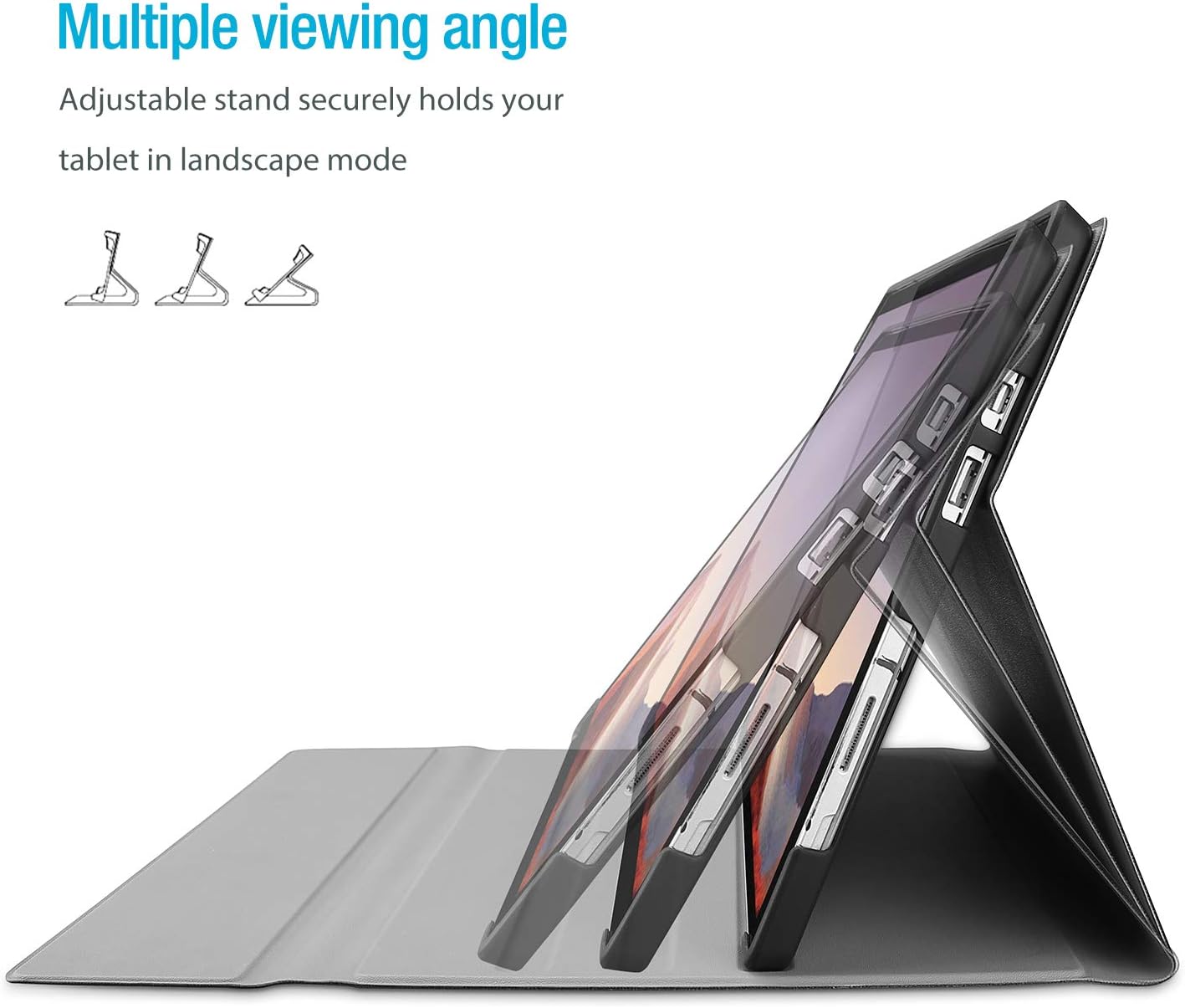
Image 3: The case's design allows for multiple viewing angles, providing flexibility for various tasks.
4.2 분리형 키보드 기능
The wireless keyboard is magnetically detachable, allowing you to use the tablet independently or position the keyboard for optimal typing comfort. The laptop-style keys with a spring mechanism offer a tactile typing experience.
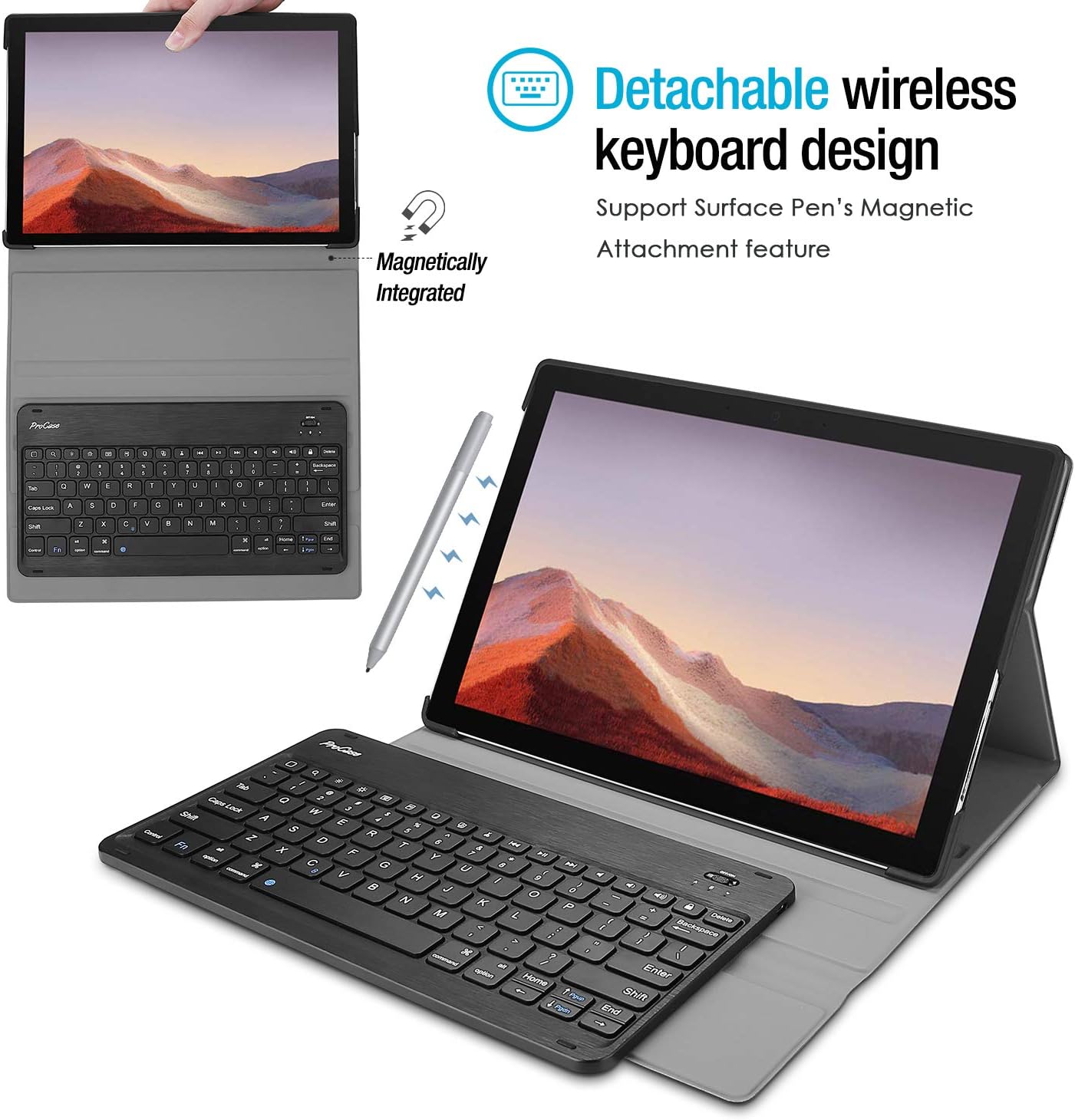
Image 4: The keyboard is magnetically integrated and supports the Surface Pen's magnetic attachment feature.
4.3 자동 절전/깨우기 기능
The case supports the auto Sleep/Wake function of your tablet. This feature works only when the keyboard is not attached to the case. Closing the cover will put your tablet to sleep, and opening it will wake it up.
4.4 Changing Keyboard Language Settings
To change the input language of the keyboard on your tablet, navigate to Settings > General > Keyboard > Keyboards > Add New Keyboard. Select your desired language from the list. For iOS devices, you can typically switch between languages by pressing the 'Control' and 'Space' keys simultaneously.
5. 유지관리 및 관리
- Keep the keyboard and case away from sharp objects to prevent scratches or damage.
- Avoid placing heavy objects on the keyboard or case.
- Do not expose the product to microwave items.
- Do not force or distort the keyboard or the case.
- Keep the keyboard and case away from water, oil, chemical substances, or other organic liquids.
- If a key falls off, it can typically be reassembled by pressing it back into place until you hear a click.
- Clean the case and keyboard with a soft, dry cloth. Avoid abrasive cleaners.
6. 문제 해결
6.1 키보드 연결 안 됨/응답 안 됨
- 전원 확인: Ensure the keyboard is turned 'ON' and has sufficient battery charge.
- 장치 재페어링: Go to your tablet's Bluetooth settings, forget the 'Bluetooth 3.0 Keyboard' device, and then repeat the pairing process (Section 3.2).
- 장치 재시작: 태블릿과 키보드를 모두 재시작하세요.
- 간섭: 간섭을 일으킬 수 있는 다른 무선 장치에서 멀리 떨어지세요.
6.2 키가 제대로 작동하지 않음
- 언어 설정을 확인하세요: Ensure the correct keyboard language is selected on your tablet (Section 4.4). Incorrect settings can cause keys to produce unexpected characters.
- 깨끗한 키보드: Dust or debris under the keys can affect functionality. Gently clean around the affected keys.
- 수리하다: Try re-pairing the keyboard as described in Section 6.1.
7. 사양
| 상표 | 프로케이스 |
| 모델 번호 | PC-08362125 |
| 호환 장치 | Surface Pro 7 Plus (2021), Surface Pro 7 (2019), Surface Pro 6 (2018), Surface Pro 5th Gen (2017), Surface Pro 4 (2015) 12.3 inch Tablet |
| 연결 기술 | 무선 전화 |
| 키보드 설명 | 무선 전화 |
| 특징 | 자기 |
| 색상 | 검은색 |
| 재료 | 아크릴로 니트릴 부타디엔 스티렌 |
| 품목 무게 | 10 온스 |
| 제품 치수 | 11.5 x 7.9 x 0.29 인치 |
| 전원 | 충전식 배터리 |
8. 보증 및 지원
8.1 보증 정보
Warranty details for your ProCase Keyboard Case are typically included with the product packaging or can be found on the official ProCase web사이트. 보증 청구를 위해 구매 증빙 자료를 보관하세요.
8.2 고객 지원
For technical assistance, troubleshooting, or any inquiries regarding your ProCase Keyboard Case, please contact ProCase customer support through their official web사이트 또는 제품 설명서에 제공된 연락처 정보를 참조하세요.