
1. 서론
This manual provides detailed instructions for the setup, operation, and maintenance of your Cooler Master CM310 Gaming Mouse. The CM310 is designed for gamers seeking reliable performance and comfort. It features an adjustable 10000 DPI optical sensor, ambidextrous design with rubber side grips, and customizable RGB illumination.

Figure 1: Cooler Master CM310 Gaming Mouse
2. 패키지 내용
패키지에 다음 품목이 포함되어 있는지 확인하십시오.
- Cooler Master CM310 Gaming Mouse (1 unit)
3. 제품 특징
The Cooler Master CM310 Gaming Mouse offers several key features:
- 게이밍급 광학 센서: A 10000 DPI optical sensor provides precise tracking and responsiveness.
- Ambidextrous Ergonomic Design: Shaped for comfort and suitable for both left and right-handed users, accommodating various grip styles.
- Rubberized Side Grips: Enhances grip stability and control during use.
- 균형 잡힌 무게: Calibrated to 100 grams for optimal handling and control.
- RGB 조명 : Features five preset lighting modes and effects for customizable aesthetics.
- Eight Programmable Buttons: Provides extensive control options for various applications.

Figure 2: High-Precision 10000 DPI Optical Sensor

Figure 3: Ergonomic and Well-Balanced Design

Figure 4: RGB Illumination Zones
4. 설정
4.1 마우스 연결
- 컴퓨터에서 사용 가능한 USB 포트를 찾습니다.
- Plug the USB connector of the Cooler Master CM310 Gaming Mouse into the USB port.
- The operating system will automatically detect and install the necessary drivers. This is a plug-and-play device, and no additional software installation is typically required for basic functionality.
Once connected, the mouse's RGB illumination should activate, indicating it is powered on and ready for use.
5. 사용 설명서
5.1 버튼 기능
The CM310 mouse features 8 buttons:
- 왼쪽 클릭 버튼
- 오른쪽 클릭 버튼
- 스크롤 휠(클릭 가능)
- DPI Cycle Button (behind scroll wheel)
- RGB Mode Cycle Button (behind scroll wheel, next to DPI button)
- 앞쪽 측면 버튼
- 뒤로가기 버튼
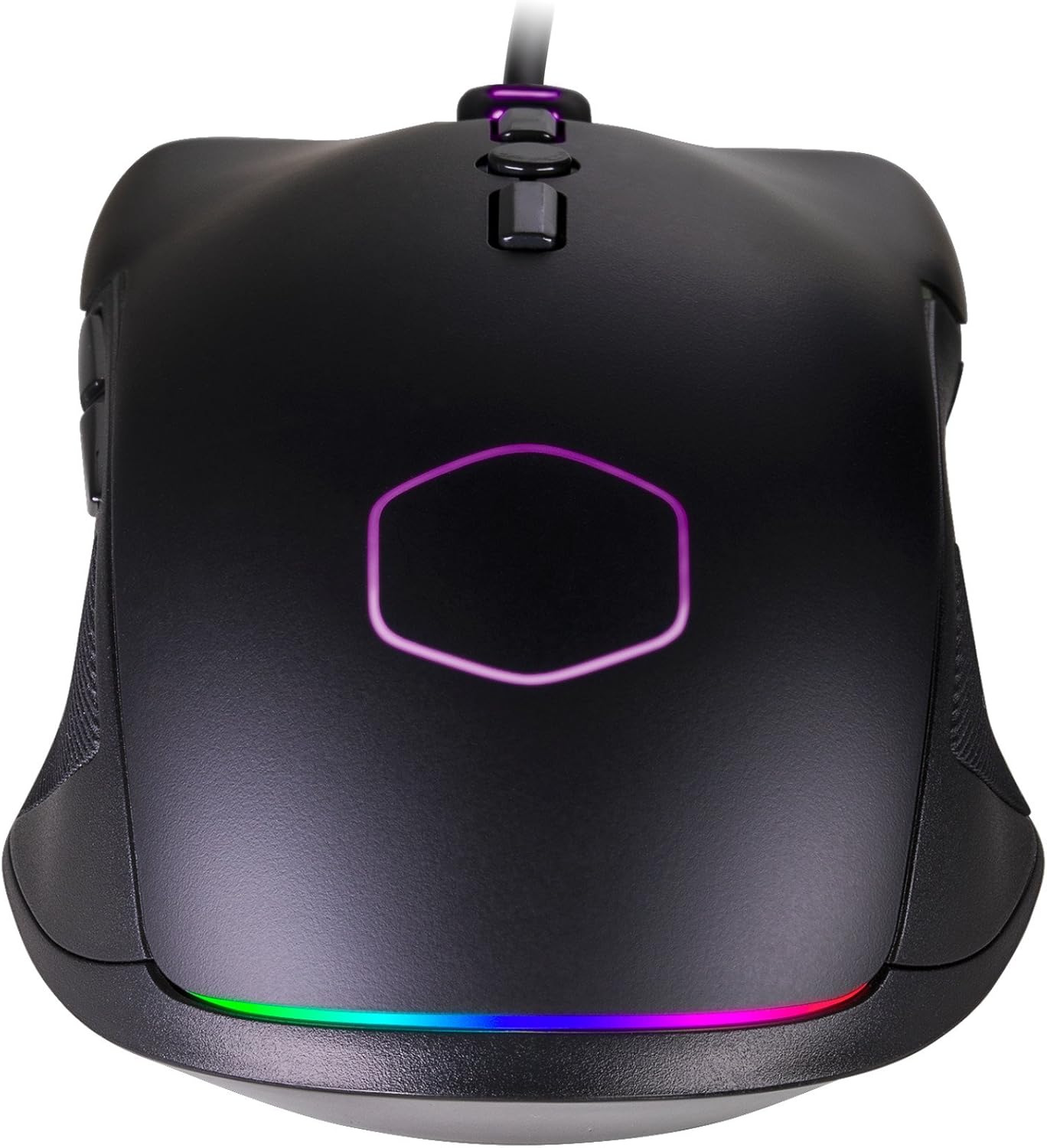
그림 5: 버튼 레이아웃
5.2 DPI 조정
The CM310 allows for on-the-fly DPI (Dots Per Inch) adjustment. Press the dedicated DPI Cycle Button (located behind the scroll wheel) to cycle through preset DPI levels. Each press will switch to the next DPI setting, allowing you to quickly adapt to different tasks or gaming scenarios.
5.3 RGB Illumination Control
Customize the mouse's lighting effects using the RGB Mode Cycle Button (located behind the scroll wheel, adjacent to the DPI button). Press this button to cycle through the five preset RGB illumination modes and effects. This allows you to personalize the mouse's appearance without requiring additional software.
6. 유지관리
6.1 청소
- 청소하기 전에 마우스가 컴퓨터에서 분리되어 있는지 확인하세요.
- 부드럽고 건조하며 보푸라기가 없는 천을 사용하여 마우스 표면을 닦으세요.
- 잘 지워지지 않는 더러움에는 가볍게 dampen the cloth with water. Avoid using harsh chemicals, abrasive cleaners, or excessive moisture, as these can damage the mouse.
- 면봉이나 압축 공기를 사용하여 스크롤 휠과 센서 주변을 청소하세요.
6.2 보관
장시간 사용하지 않을 경우 마우스를 직사광선과 극한의 온도를 피해 시원하고 건조한 곳에 보관하세요.
7. 문제 해결
7.1 마우스가 응답하지 않음
- USB 연결 확인: USB 케이블이 컴퓨터의 정상 작동하는 USB 포트에 제대로 꽂혀 있는지 확인하세요. 다른 USB 포트에 연결해 보세요.
- 컴퓨터를 다시 시작합니다. 때로는 시스템을 재시작하는 것만으로 연결 문제가 해결될 수 있습니다.
- 다른 컴퓨터에서 테스트: 가능하다면 다른 컴퓨터에서 마우스를 테스트하여 문제가 마우스 자체에 있는지 아니면 컴퓨터 설정에 있는지 확인하십시오.
7.2 RGB Illumination Not Working
- 연결 확인: 마우스가 제대로 연결되어 있고 전원이 공급되고 있는지 확인하십시오.
- 사이클 모드: Press the RGB Mode Cycle Button multiple times to ensure you are not on a "lights off" setting or a very dim mode.
7.3 부정확한 추적
- 센서 청소: 마우스 하단에 있는 광학 센서가 깨끗하고 먼지나 이물질이 없는지 확인하십시오.
- 마우스 패드 표면: 최적의 추적 성능을 위해 깨끗하고 균일한 표면이나 고품질 마우스 패드에서 마우스를 사용하세요.
- DPI 조정: Experiment with different DPI settings using the DPI Cycle Button to find the sensitivity that best suits your needs.
8. 사양
| 특징 | 세부 사항 |
|---|---|
| 상표 | 쿨러마스터 |
| 모델 번호 | CM310KKWO2 |
| 센서 유형 | 광학 |
| 디피에이 | 최대 10000개 |
| 버튼의 수 | 8 |
| 조명 | RGB(5가지 사전 설정 모드) |
| 그립 타입 | Ambidextrous with Rubberized Side Grips |
| 무게 | 100그램(4.8온스) |
| 연결성 | USB 2.0 |
| 하드웨어 플랫폼 | PC |
| 운영 체제 | Windows or Linux |
| 제품 크기(LxWxH) | 1.6 x 2.8 x 5 인치 |
| 제조업체 | Cooler Master USA, Inc. |
9. 보증 정보
Cooler Master products are covered by a limited warranty. For detailed information regarding the warranty period, terms, and conditions applicable to your CM310 Gaming Mouse, please refer to the official Cooler Master website or the warranty card included with your purchase (if applicable). Keep your proof of purchase for warranty claims.
10. 지원
For technical support, driver downloads, FAQs, or further assistance, please visit the official Cooler Master support web대지:
Cooler Master 웹사이트에 제공된 연락처 정보를 통해 Cooler Master 고객 서비스에 직접 문의하실 수도 있습니다. web대지.