
MAYFLASH F300
MAYFLASH F300 Arcade Fight Stick Instruction Manual
모델: F300
소개
Thank you for choosing the MAYFLASH F300 Arcade Fight Stick. This manual provides detailed instructions to help you set up, operate, and maintain your fight stick, ensuring an optimal gaming experience across multiple platforms.
The MAYFLASH F300 is compatible with a wide range of systems including Switch/Switch 2, PS4, PS3, Xbox Series S/X, Xbox One, Xbox 360, PC Windows, macOS, Steam Deck, Android, NeoGeo mini, SEGA MEGA DRIVE, and SEGA GENESIS.
제품 끝view
The MAYFLASH F300 features a robust design with a high-quality metal panel for stability and durability. It includes a responsive joystick and eight action buttons, designed for precision and comfort during intense gameplay.


설정
Follow these steps to connect your MAYFLASH F300 Arcade Fight Stick to your desired gaming platform.
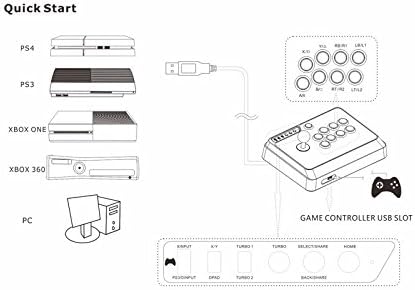
- For PS4/PS3/Xbox One/Xbox 360/Xbox Series S/X:
Connect the original console controller to the USB slot on the MAYFLASH F300 using a USB cable. Then, connect the F300 to your console via its main USB cable. The original controller is required to initiate the fight stick on these consoles.
Note: For Xbox 360, a wired Xbox 360 Controller is needed. For Xbox One, the original Xbox One Controller must be connected via USB cable. For PS4, the original PS4 controller must be connected during gameplay.
- 닌텐도 스위치/스위치 2용:
Ensure your Switch console's "Pro Controller Wired Communication" setting is enabled. Connect the F300 directly to the Switch dock via its USB cable.
- For PC (Windows/macOS/Steam Deck) & Android:
Connect the F300 directly to your PC or Android device via its USB cable. The fight stick supports both XINPUT and DINPUT modes on PC.
Setup Demonstration Video (PS4)
작동 지침
Familiarize yourself with the various functions and modes of your MAYFLASH F300.

- XINPUT and DINPUT Modes (PC):
The F300 supports both XINPUT (Xbox 360 controller protocol) and DINPUT (Direct Input, standard HID protocol) when used on PC. Use the switch on the control panel to select the desired mode.
- X/Y and D-Pad Mode:
The D-Pad and X/Y Analog Axis mode can be exchanged using the dedicated switch. If the switch is set to "X/Y", the stick functions as the "Left Joystick". If set to "DPAD", the stick functions as "POV".
- 터보 기능:
The F300 supports Turbo functions with different speed settings. There are two Turbo speeds: Turbo 1 (15 times/second) and Turbo 2 (25 times/second).
To set Turbo for individual buttons (A/X, B/O, X/□, Y/△, RB/R1, RT/R2, LB/L1, LT/L2), press and hold the button you wish to set Turbo for, and then press the TURBO button. The TURBO LED will flash, indicating the setting is finished.
To remove the Turbo setting for a specific button, press and hold the button previously set for Turbo and press the TURBO button again. To clear all Turbo settings for all buttons, quickly press the TURBO button twice within half a second.
유지
To ensure the longevity and optimal performance of your MAYFLASH F300, follow these maintenance guidelines:
- 청소:
Wipe the surface of the fight stick with a soft, dry cloth. Avoid using abrasive cleaners or solvents that may damage the finish.
- 저장:
파이트 스틱은 직사광선과 극한 온도 변화를 피해 서늘하고 건조한 곳에 보관하십시오.
- Customization (Modding):
The F300 is compatible with Sanwa Denshi buttons and joysticks, making it ideal for customization. The back panel can be easily unscrewed to access internal components for part swapping. Cables are color-coded for straightforward modifications.
문제 해결
If you encounter any issues with your MAYFLASH F300, refer to the following common solutions:
- 연결 문제:
Ensure all cables are securely connected. For console connections requiring an original controller, verify that the original controller is properly connected and recognized by the console before connecting the F300.
If experiencing issues with Xbox Series S/X, ensure your Xbox controller is updated to the latest version.
- 입력이 응답하지 않습니다:
Check the input mode switch (XINPUT/DINPUT) on the control panel to ensure it is set correctly for your platform. Verify the D-Pad/X/Y Analog Axis mode switch is in the desired position.
- Turbo Function Malfunction:
Refer to the "Operating Instructions" section for correct Turbo setting and clearing procedures. Ensure no conflicting settings are active.
명세서
| 특징 | 세부 사항 |
|---|---|
| 상표 | 메이플래쉬 |
| 모델명 | F300 아케이드 파이트 스틱 |
| 품목 모델 번호 | F300 |
| 호환 장치 | Switch, PS4, PS3, Xbox Series S/X, Xbox One, Xbox 360, PC Windows, macOS, Steam Deck, Android, NeoGeo mini, SEGA Mega Drive, Genesis |
| 컨트롤러 유형 | 조종간 |
| 연결 기술 | USB |
| 품목 무게 | 3.98파운드 |
| 제품 치수 | 22 x 13 x 11 인치 |
| 색상 | 검정, 파랑 |
| 전원 | 코드식 전기 |
보증 및 지원
보증 정보 및 기술 지원은 MAYFLASH 공식 웹사이트를 방문하십시오. web사이트를 방문하거나 고객 서비스에 문의하세요. 보증 청구에 대비해 구매 증빙 자료로 구매 영수증을 보관하세요.
중요 법적 고지: When using on Xbox 360, Xbox One, or PS4 consoles, the original console controller is required to first initiate the MAYFLASH F300. Wireless Xbox 360 controllers with play & charge kits do NOT work for this purpose. Xbox One Elite controllers do NOT work for this purpose. The original PS4 controller must be connected during gameplay.
For the latest firmware updates and additional support, please refer to the MAYFLASH official support channels.
Ask a question about this manual
Ask about setup, troubleshooting, compatibility, parts, safety, or missing instructions. Manuals+ will review the question and use this page’s manual context to help answer it.