
1. 소개 및 이상view
This manual provides comprehensive instructions for the installation, operation, and maintenance of the Matrox Millennium G200 Graphics Adapter, model G2+/DUALP-PL. This PCI-based graphics card is designed to provide multi-monitor dual analog output, making it suitable for professional workstations and systems requiring reliable display capabilities. The Matrox G200 series is known for its robust performance and stability in various computing environments.
2. 상자 안에 무엇이 들어있나요?
모든 구성품을 조심스럽게 꺼내어 다음 항목들이 모두 들어 있는지 확인하십시오.
- Matrox Millennium G200 Graphics Adapter (G2+/DUALP-PL)
- DMS-59 to Dual VGA Y-cable
- DMS-59 to DVI and S-Video/Composite Y-cable (may vary by package)
- Driver CD (if included, otherwise drivers can be downloaded from the Matrox web대지)
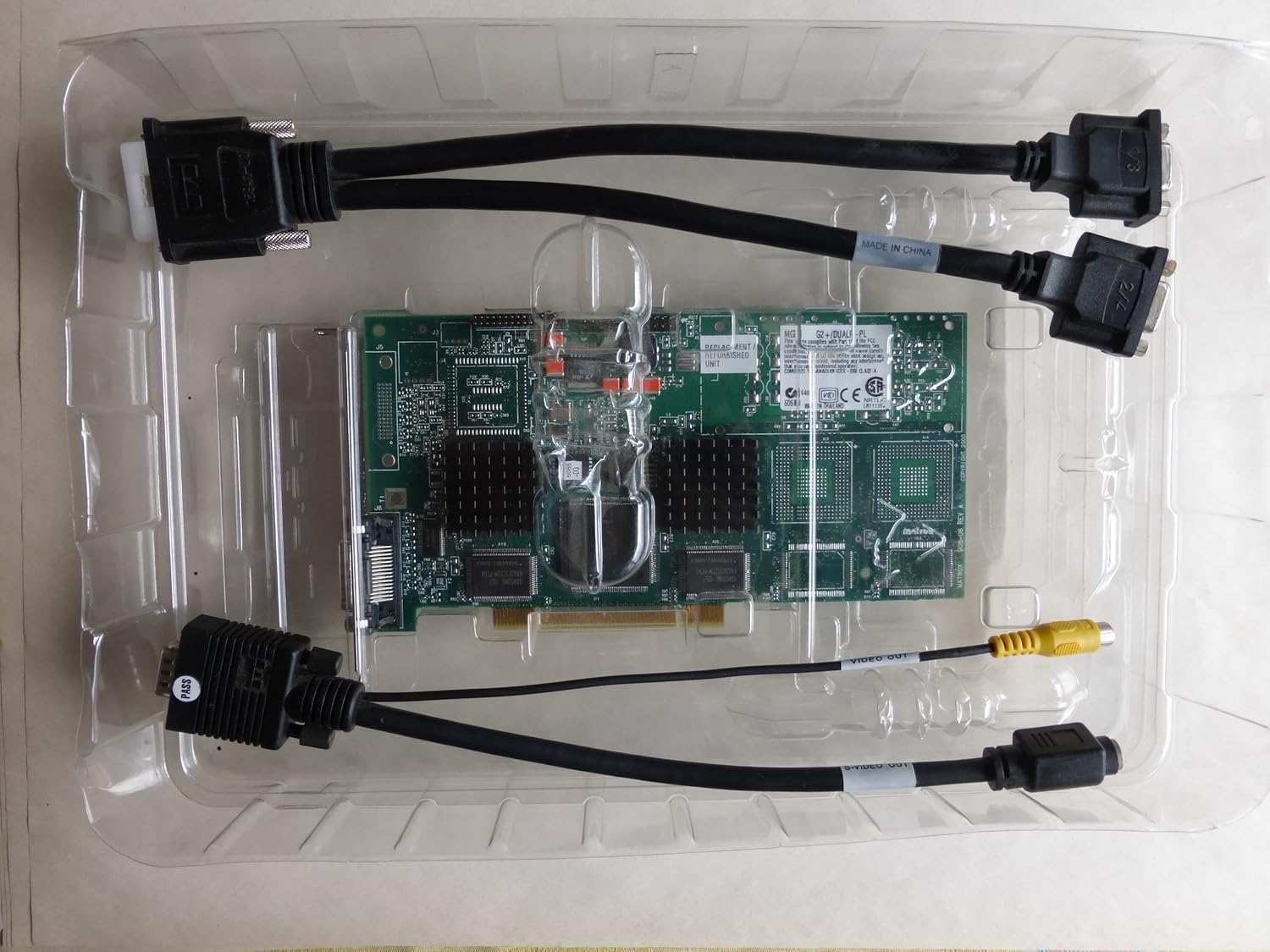
Image: The Matrox Millennium G200 graphics adapter shown within its clear plastic packaging, accompanied by its connecting cables.
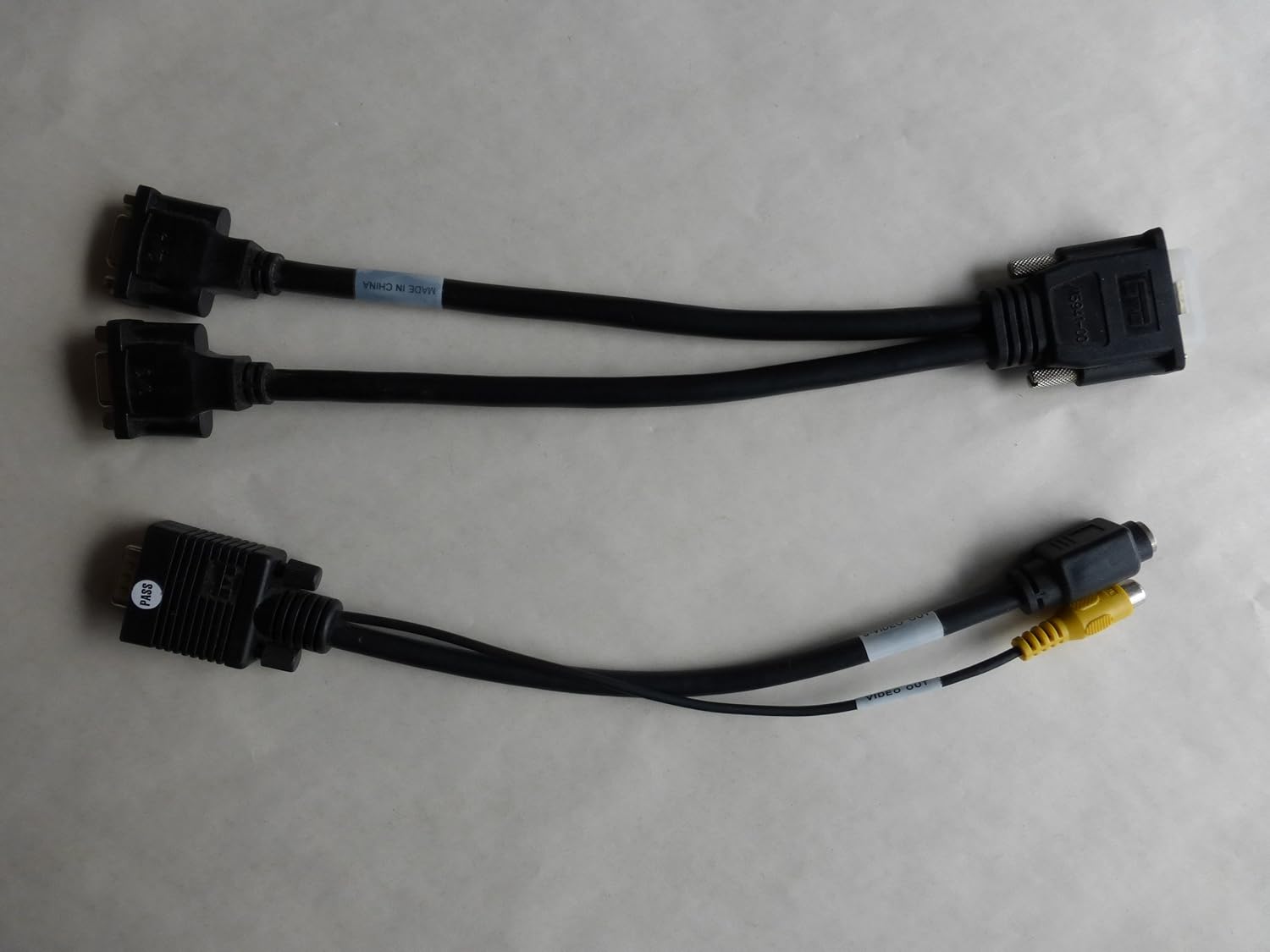
Image: Two types of Y-cables: one for dual VGA output and another for DVI and S-Video/Composite output, used with the graphics adapter.
3. 설정 및 설치
3.1 안전 예방 조치
- Always power off your computer and unplug it from the wall outlet before opening the case.
- Discharge any static electricity by touching a grounded metal object (e.g., the computer chassis) before handling internal components.
- Avoid touching the gold connector pins on the graphics card.
3.2 하드웨어 설치
- 컴퓨터 케이스를 엽니다. 마더보드에 접근하려면 컴퓨터 케이스의 측면 패널을 제거하세요.
- 사용 가능한 PCI 슬롯을 찾으십시오. Identify an empty PCI expansion slot on your motherboard. The Matrox Millennium G200 is a PCI card.
- 슬롯 커버 제거: 컴퓨터 케이스 뒷면에서 선택한 PCI 슬롯에 해당하는 금속 슬롯 커버를 조심스럽게 제거하십시오.
- 그래픽 카드를 장착하세요: Align the graphics card with the PCI slot and press down firmly and evenly until the card is fully seated. Ensure the metal bracket on the card aligns with the opening in the case.
- 카드를 안전하게 보호하세요: Use a screw or the case's retention mechanism to secure the graphics card's bracket to the computer case.
- 컴퓨터 케이스를 닫습니다. 컴퓨터 케이스의 측면 패널을 교체하세요.
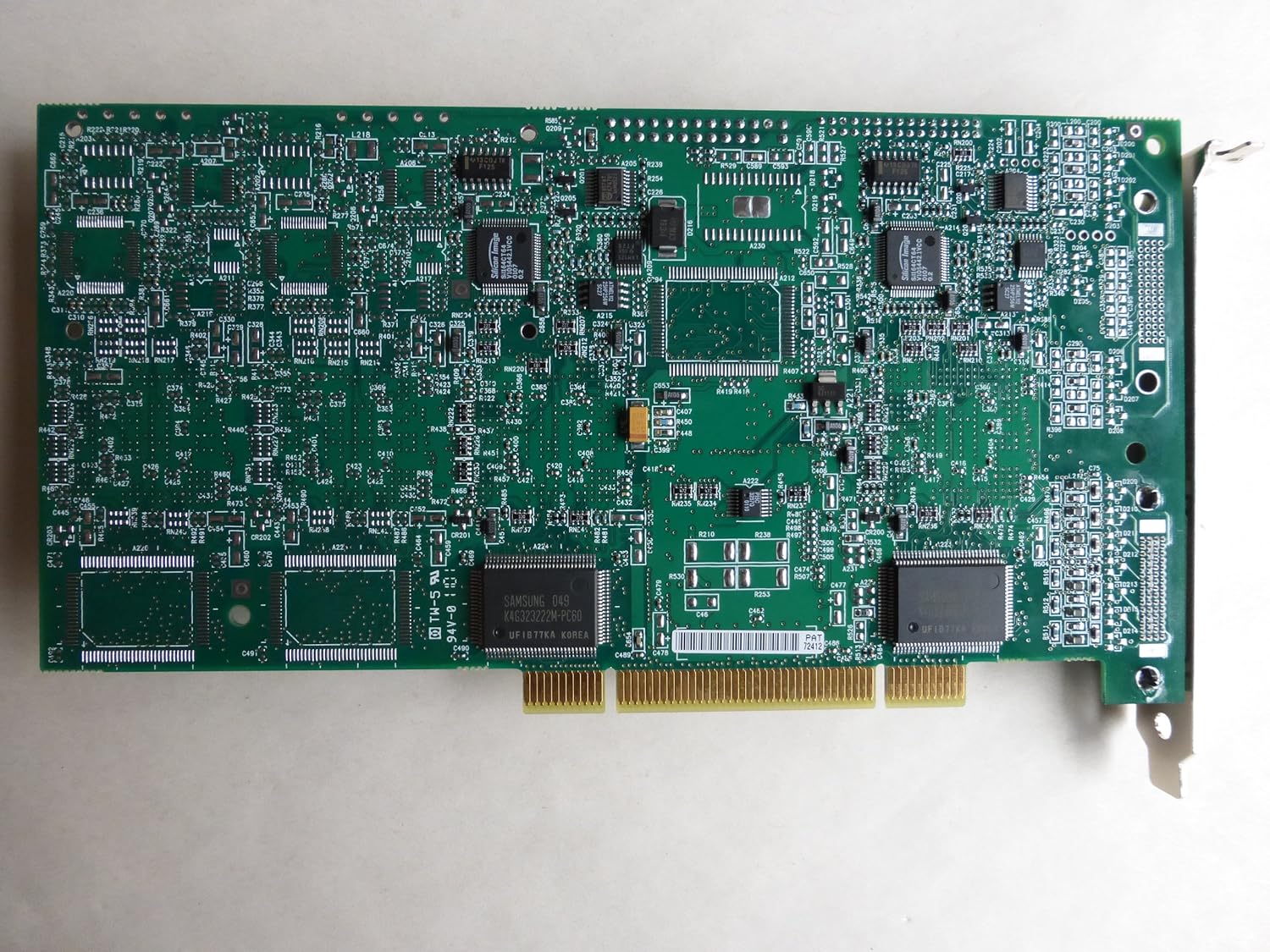
이미지: 위에서 아래로 view of the Matrox Millennium G200 graphics adapter, showcasing its green circuit board with various chips and components.

이미지: 각도가 있는 view of the Matrox Millennium G200 graphics adapter, highlighting the DMS-59 output port and the passive heatsinks on the main chips.
3.3 드라이버 설치
- 모니터 연결: Connect your monitor(s) to the DMS-59 port on the graphics card using the appropriate Y-cable (DMS-59 to Dual VGA or DMS-59 to DVI/S-Video).
- 컴퓨터 전원 켜기: Plug in your computer and power it on. The operating system may detect new hardware and attempt to install generic drivers.
- Install Matrox Drivers:
- If a driver CD was included, insert it into your optical drive and follow the on-screen instructions.
- Alternatively, download the latest drivers for the Matrox Millennium G200 (G2+/DUALP-PL) from the official Matrox website. Run the installer and follow the prompts.
- 컴퓨터를 다시 시작합니다. After the driver installation is complete, restart your computer to apply the changes.

이미지: 자세한 view of the DMS-59 connector along with S-Video and Composite video output jacks on one of the adapter cables.
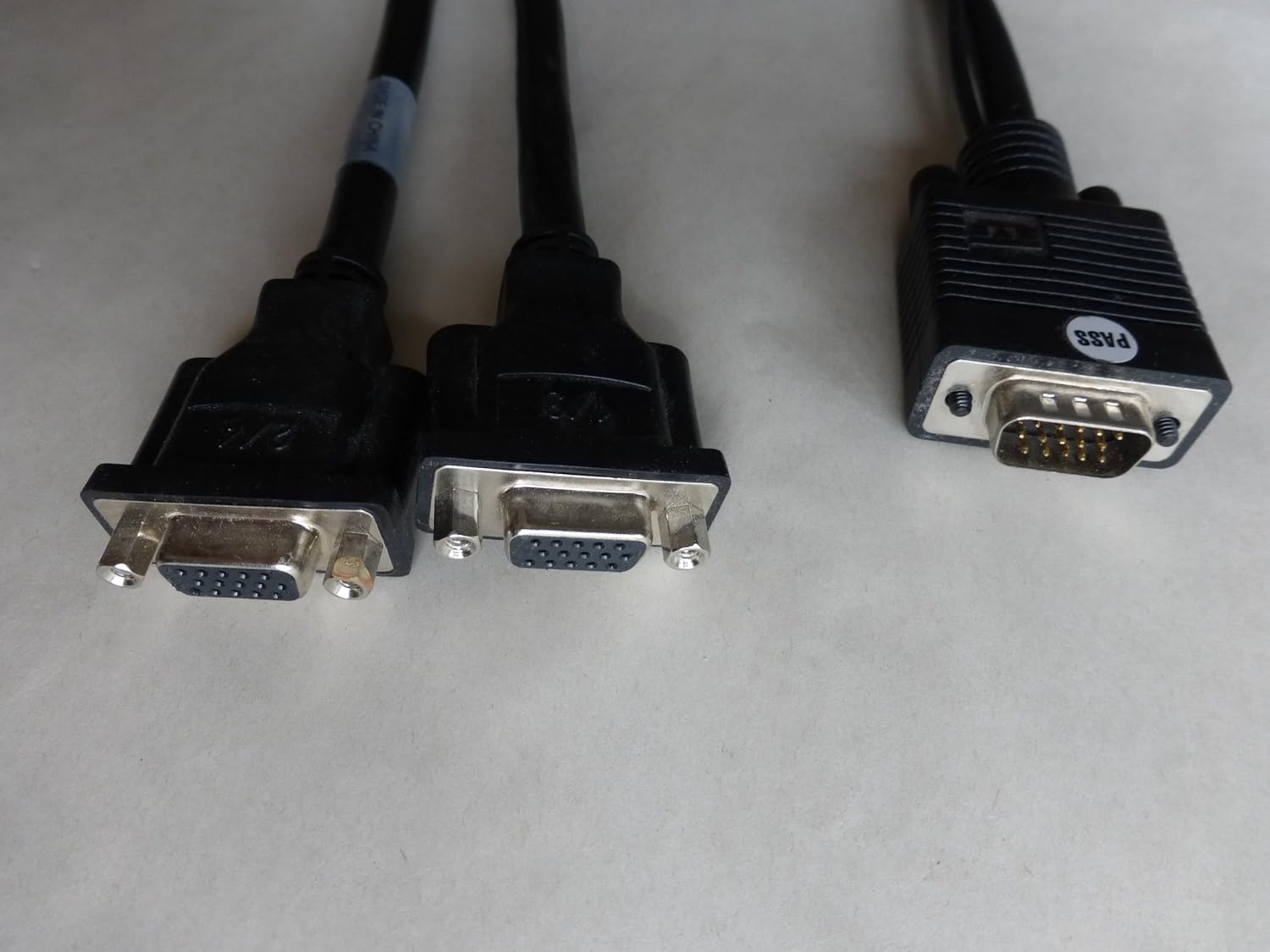
Image: A close-up of the dual VGA connectors and the DMS-59 input connector on the Y-cable, used for connecting two VGA monitors.
4. 사용 설명서
4.1 Connecting Monitors
The Matrox Millennium G200 (G2+/DUALP-PL) uses a DMS-59 connector to support dual analog displays. Use the provided Y-cable to connect your monitors:
- For two VGA monitors, use the DMS-59 to Dual VGA Y-cable.
- For one DVI monitor and one S-Video/Composite display, use the DMS-59 to DVI and S-Video/Composite Y-cable.
4.2 디스플레이 설정 구성
Once drivers are installed, you can configure your display settings through your operating system's display control panel. Matrox also provides its own display utility for advanced settings.
- 해상도 및 화면 주사율: Adjust these settings to match your monitor's native resolution and preferred refresh rate for optimal display quality.
- 다중 모니터 설정:
- 확장된 데스크톱: Extend your desktop across two monitors to increase your workspace.
- Cloned/Mirrored Displays: Duplicate the same image on both monitors.
- 디스플레이 방향: Rotate your display if using a pivot-capable monitor.
5. 유지관리
Proper maintenance ensures the longevity and optimal performance of your graphics adapter.
- 먼지 제거: Periodically open your computer case and gently clean any dust accumulation on the graphics card and its heatsinks using compressed air. Ensure the computer is powered off and unplugged before cleaning.
- 공기 흐름: Ensure your computer case has adequate airflow to prevent overheating, which can affect the performance and lifespan of the graphics card.
- 드라이버 업데이트 : Check the Matrox website periodically for updated drivers. Keeping your drivers current can improve performance, add new features, and resolve compatibility issues.
6. 문제 해결
If you encounter issues with your Matrox Millennium G200 graphics adapter, refer to the following common troubleshooting steps:
- 모니터에 표시되지 않음:
- Ensure the monitor is powered on and correctly connected to the graphics card using the appropriate Y-cable.
- Verify the graphics card is fully seated in its PCI slot. Power off the computer, unplug it, open the case, and reseat the card.
- Check if your monitor input is set to the correct source (VGA, DVI).
- 가능하다면 다른 모니터나 케이블로 테스트해보세요.
- Incorrect Resolution or Colors:
- Ensure the latest Matrox drivers are installed.
- Adjust display settings in your operating system's control panel to the monitor's native resolution and desired color depth.
- 시스템 불안정 또는 충돌:
- 그래픽 카드가 제대로 설치되고 고정되었는지 확인하십시오.
- Ensure your system's power supply unit (PSU) meets the minimum requirements for all installed components.
- Check for driver conflicts with other hardware. Try reinstalling the Matrox drivers.
- Monitor system temperatures to ensure the card is not overheating.
7. 사양
| 특징 | 세부 사항 |
|---|---|
| 모델 번호 | G2+/DUALP-PL |
| 상표 | 매트록스 |
| 그래픽 코프로세서 | MGA G200 |
| 비디오 메모리 | 16메가바이트 |
| 그래픽 RAM 유형 | 에스램 |
| 비디오 출력 인터페이스 | DMS-59 (supporting DVI, VGA via adapter) |
| 인터페이스 유형 | PCI |
| 품목 무게 | 2파운드(대략) |
| 첫 번째 이용 가능 날짜 | 28년 2005월 XNUMX일 |
8. 보증 및 지원
For detailed warranty information, technical support, and driver downloads, please refer to the official Matrox web사이트 또는 고객 서비스 부서에 문의하십시오.
Matrox Official Web대지: https://www.matrox.com/graphics/en/support/
When contacting support, please have your product model number (G2+/DUALP-PL) and any relevant system information ready.