
1. ಪರಿಚಯ
This manual provides comprehensive instructions for the Huawei P Smart Plus 2019 smartphone. It covers essential information regarding product features, setup, operation, maintenance, and troubleshooting to ensure optimal use of your device. Please read this manual thoroughly before using your smartphone.
2. ಉತ್ಪನ್ನ ಮುಗಿದಿದೆview
Familiarize yourself with the physical components of your Huawei P Smart Plus 2019 smartphone.
ಚಿತ್ರ 2.1: ಹಿಂಭಾಗ view of the Huawei P Smart Plus 2019 smartphone, showing the triple camera module, fingerprint sensor, and HUAWEI branding.
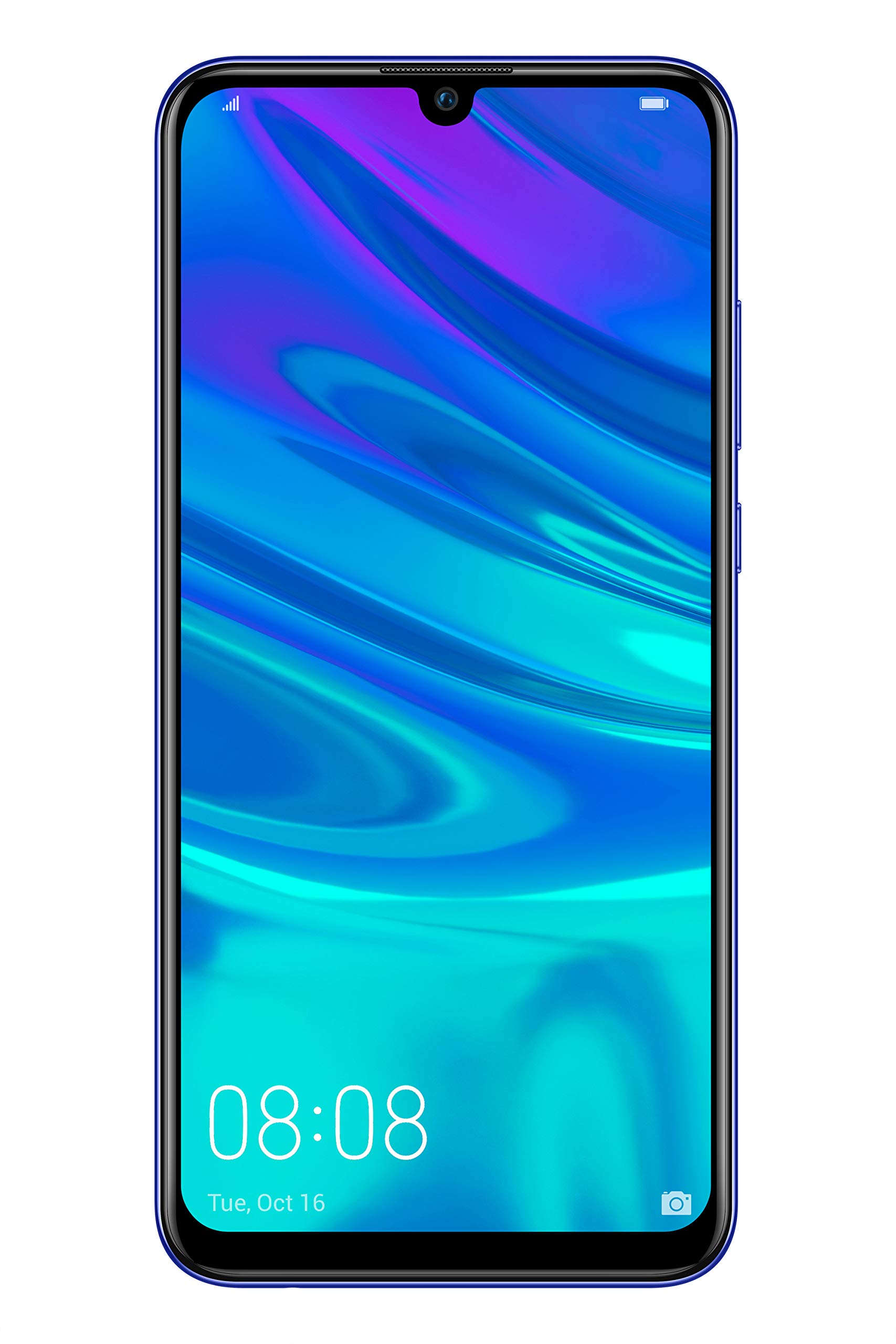
ಚಿತ್ರ 2.2: ಮುಂಭಾಗ view of the Huawei P Smart Plus 2019 smartphone, displaying the 6.21-inch screen with a small notch for the front camera.

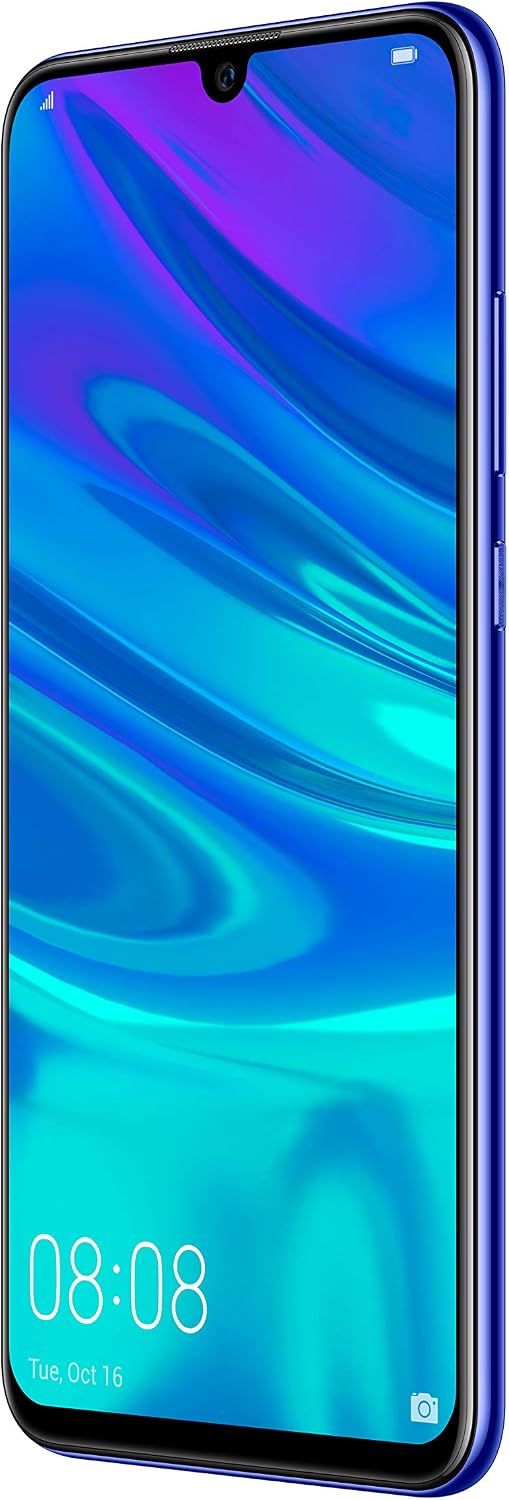
ಚಿತ್ರ 2.3: ಬದಿ view of the Huawei P Smart Plus 2019 smartphone, highlighting the power and volume buttons.
ಪ್ರಮುಖ ಘಟಕಗಳು:
- ಪ್ರದರ್ಶನ: 6.21-inch FHD+ LCD screen.
- ಮುಂಭಾಗದ ಕ್ಯಾಮರಾ: Located in the display notch.
- ಹಿಂದಿನ ಕ್ಯಾಮೆರಾಗಳು: Triple camera module on the back.
- ಫಿಂಗರ್ಪ್ರಿಂಟ್ ಸಂವೇದಕ: Circular sensor on the rear panel.
- ಪವರ್ ಬಟನ್: ಸಾಧನದ ಬಲಭಾಗದಲ್ಲಿ.
- ವಾಲ್ಯೂಮ್ ಬಟನ್ಗಳು: Above the power button on the right side.
- SIM/MicroSD Card Slot: Typically on the left side or top edge.
- ಚಾರ್ಜಿಂಗ್ ಪೋರ್ಟ್: USB Type-C, usually at the bottom.
- ಸ್ಪೀಕರ್/ಮೈಕ್ರೊಫೋನ್: ಕೆಳಭಾಗದಲ್ಲಿ ಇದೆ.
3. ಸೆಟಪ್
3.1 Inserting SIM and MicroSD Cards
- ನಿಮ್ಮ ಸಾಧನದ ಬದಿಯಲ್ಲಿ ಸಿಮ್ ಕಾರ್ಡ್ ಟ್ರೇ ಅನ್ನು ಪತ್ತೆ ಮಾಡಿ.
- ಟ್ರೇ ತೆರೆಯಲು ಅದರ ಪಕ್ಕದಲ್ಲಿರುವ ಸಣ್ಣ ರಂಧ್ರದೊಳಗೆ ಸಿಮ್ ಎಜೆಕ್ಟರ್ ಉಪಕರಣವನ್ನು ಸೇರಿಸಿ.
- Place your Nano-SIM card(s) and/or microSD card into the tray, ensuring correct orientation as indicated on the tray. This device supports Dual SIM functionality and expandable storage up to 512GB.
- ಸಾಧನದೊಂದಿಗೆ ಫ್ಲಶ್ ಆಗುವವರೆಗೆ ಟ್ರೇ ಅನ್ನು ಎಚ್ಚರಿಕೆಯಿಂದ ಸ್ಲಾಟ್ಗೆ ಹಿಂದಕ್ಕೆ ತಳ್ಳಿರಿ.
3.2 ಆರಂಭಿಕ ಪವರ್ ಆನ್ ಮತ್ತು ಚಾರ್ಜಿಂಗ್
- To power on, press and hold the Power button until the HUAWEI logo appears.
- ಭಾಷೆಯ ಆಯ್ಕೆ, ವೈ-ಫೈ ಸಂಪರ್ಕ ಮತ್ತು Google ಖಾತೆ ಸೆಟಪ್ ಸೇರಿದಂತೆ ಆರಂಭಿಕ ಸೆಟಪ್ ಅನ್ನು ಪೂರ್ಣಗೊಳಿಸಲು ಆನ್-ಸ್ಕ್ರೀನ್ ಪ್ರಾಂಪ್ಟ್ಗಳನ್ನು ಅನುಸರಿಸಿ.
- Before first use, it is recommended to fully charge the device. Connect the provided USB Type-C cable to the phone's charging port and the other end to a power adapter.
4. ಆಪರೇಟಿಂಗ್ ಸೂಚನೆಗಳು
4.1 ಮೂಲ ಕಾರ್ಯಗಳು
- Power On/Off/Restart: Press and hold the Power button. Select the desired option from the menu.
- ಸ್ಕ್ರೀನ್ ಲಾಕ್/ಅನ್ಲಾಕ್: Press the Power button to lock/unlock the screen. Use Face Recognition or the Fingerprint Sensor for secure unlocking.
- Calls and Messages: Use the Phone and Messaging applications for communication.
- ನೆಟ್ವರ್ಕ್ ಸಂಪರ್ಕ: Access Wi-Fi settings from the Quick Settings panel or Settings app. Enable mobile data for internet access via your SIM card.
4.2 ಕ್ಯಾಮೆರಾ ಬಳಕೆ
The Huawei P Smart Plus 2019 features a versatile camera system.
- ಹಿಂದಿನ ಕ್ಯಾಮೆರಾ: The triple camera setup includes a 24MP main sensor, a 16MP ultra-wide sensor, and a 2MP bokeh sensor. Open the Camera app and select modes like Automatic, Portrait, or Sport.
- ಮುಂಭಾಗದ ಕ್ಯಾಮರಾ: An 8MP front camera is available for selfies and video calls. Switch to the front camera within the Camera app.
- AI ವೈಶಿಷ್ಟ್ಯಗಳು: The camera utilizes AI to optimize scene recognition and enhance photo quality.
4.3 ಸಂಗ್ರಹಣೆ ಮತ್ತು ಸ್ಮರಣೆ
Your device comes with 64GB of internal storage, which can be expanded up to 512GB using a microSD card. It has 3GB of RAM for smooth multitasking.
4.4 ಬ್ಯಾಟರಿ ನಿರ್ವಹಣೆ
The device is equipped with a 3400 mAh Lithium-Polymer battery. To optimize battery life, manage background apps, adjust screen brightness, and utilize power-saving modes available in the Settings app.
4.5 ಆಪರೇಟಿಂಗ್ ಸಿಸ್ಟಮ್
The smartphone runs on Android 9 (Pie) with Huawei's EMUI 9 interface, offering a range of features and customization options.
5. ನಿರ್ವಹಣೆ
5.1 ನಿಮ್ಮ ಸಾಧನವನ್ನು ಸ್ವಚ್ಛಗೊಳಿಸುವುದು
Use a soft, lint-free cloth to gently wipe the screen and body of your phone. Avoid using harsh chemicals or abrasive materials, which can damage the device's finish or screen coating.
5.2 ಸಾಫ್ಟ್ವೇರ್ ನವೀಕರಣಗಳು
Regularly check for and install software updates to ensure your device has the latest features, security patches, and performance improvements. You can usually find this option in Settings > System > Software update.
5.3 ಬ್ಯಾಟರಿ ಕೇರ್
To prolong battery lifespan, avoid extreme temperatures. Do not leave the phone fully charged or fully discharged for extended periods. Use only approved chargers and cables.
5.4 ಡೇಟಾ ಬ್ಯಾಕಪ್
Regularly back up your important data (photos, contacts, documents) to a cloud service or a computer to prevent data loss.
6. ನಿವಾರಣೆ
This section addresses common issues you might encounter with your Huawei P Smart Plus 2019.
6.1 ಸಾಧನ ಆನ್ ಆಗುತ್ತಿಲ್ಲ
- ಬ್ಯಾಟರಿ ಚಾರ್ಜ್ ಆಗಿದೆಯೇ ಎಂದು ಖಚಿತಪಡಿಸಿಕೊಳ್ಳಿ. ಚಾರ್ಜರ್ ಅನ್ನು ಸಂಪರ್ಕಿಸಿ ಮತ್ತು ಪವರ್ ಆನ್ ಮಾಡಲು ಪ್ರಯತ್ನಿಸುವ ಮೊದಲು ಕೆಲವು ನಿಮಿಷ ಕಾಯಿರಿ.
- ಮರುಪ್ರಾರಂಭಿಸಲು ಒತ್ತಾಯಿಸಲು ಪವರ್ ಬಟನ್ ಅನ್ನು ಕನಿಷ್ಠ 10-15 ಸೆಕೆಂಡುಗಳ ಕಾಲ ಒತ್ತಿ ಹಿಡಿದುಕೊಳ್ಳಿ.
6.2 ಕಳಪೆ ಬ್ಯಾಟರಿ ಬಾಳಿಕೆ
- ಹಿನ್ನೆಲೆಯಲ್ಲಿ ಚಾಲನೆಯಲ್ಲಿರುವ ಬಳಕೆಯಾಗದ ಅಪ್ಲಿಕೇಶನ್ಗಳನ್ನು ಮುಚ್ಚಿ.
- ಪರದೆಯ ಹೊಳಪನ್ನು ಕಡಿಮೆ ಮಾಡಿ ಮತ್ತು ಕಡಿಮೆ ಪರದೆಯ ಸಮಯ ಮೀರುವಿಕೆಯನ್ನು ಹೊಂದಿಸಿ.
- ಬಳಕೆಯಲ್ಲಿಲ್ಲದಿದ್ದಾಗ ವೈ-ಫೈ, ಬ್ಲೂಟೂತ್ ಮತ್ತು ಜಿಪಿಎಸ್ ಅನ್ನು ಆಫ್ ಮಾಡಿ.
- ಹೆಚ್ಚು ವಿದ್ಯುತ್ ಬಳಸುವ ಅಪ್ಲಿಕೇಶನ್ಗಳನ್ನು ಗುರುತಿಸಲು ಸೆಟ್ಟಿಂಗ್ಗಳಲ್ಲಿ ಬ್ಯಾಟರಿ ಬಳಕೆಯನ್ನು ಪರಿಶೀಲಿಸಿ.
6.3 Network Issues (No Signal/Wi-Fi Disconnection)
- ನಿಮ್ಮ ಸಾಧನವನ್ನು ಮರುಪ್ರಾರಂಭಿಸಿ.
- Ensure your SIM card is correctly inserted and your mobile data plan is active.
- For Wi-Fi, try restarting your router. Forget the network on your phone and reconnect.
6.4 ಅಪ್ಲಿಕೇಶನ್ಗಳು ಕ್ರ್ಯಾಶ್ ಆಗುವುದು ಅಥವಾ ಫ್ರೀಜ್ ಆಗುವುದು
- ಅಪ್ಲಿಕೇಶನ್ ಅನ್ನು ಬಲವಂತವಾಗಿ ಮುಚ್ಚಿ ಮತ್ತು ಅದನ್ನು ಮತ್ತೆ ತೆರೆಯಿರಿ.
- ಸೆಟ್ಟಿಂಗ್ಗಳು > ಅಪ್ಲಿಕೇಶನ್ಗಳಲ್ಲಿ ಅಪ್ಲಿಕೇಶನ್ನ ಕ್ಯಾಶ್ ಮತ್ತು ಡೇಟಾವನ್ನು ತೆರವುಗೊಳಿಸಿ.
- ಅಪ್ಲಿಕೇಶನ್ ಅನ್ನು ಅದರ ಇತ್ತೀಚಿನ ಆವೃತ್ತಿಗೆ ನವೀಕರಿಸಲಾಗಿದೆ ಎಂದು ಖಚಿತಪಡಿಸಿಕೊಳ್ಳಿ.
- ಸಮಸ್ಯೆ ಮುಂದುವರಿದರೆ, ಅಪ್ಲಿಕೇಶನ್ ಅನ್ನು ಅಸ್ಥಾಪಿಸಿ ಮತ್ತು ಮರುಸ್ಥಾಪಿಸುವುದನ್ನು ಪರಿಗಣಿಸಿ.
6.5 ಫ್ಯಾಕ್ಟರಿ ಮರುಹೊಂದಿಸುವಿಕೆ (ಕೊನೆಯ ಉಪಾಯ)
If other troubleshooting steps fail, a factory reset may resolve persistent issues. ಎಚ್ಚರಿಕೆ: This will erase all data on your device. Back up your data before proceeding. Go to Settings > System > Reset > Factory data reset.
7. ವಿಶೇಷಣಗಳು
| ವೈಶಿಷ್ಟ್ಯ | ವಿವರ |
|---|---|
| ಮಾದರಿ ಸಂಖ್ಯೆ | POT-LX1T, 51093RVX |
| ಪ್ರದರ್ಶನ | 6.21 inches, LCD, FHD+ (2340 x 1080 pixels), 415 PPI |
| ಪ್ರೊಸೆಸರ್ | Kirin 710 Octa-core (4 x 2.2 GHz, 4 x 1.7 GHz) |
| RAM | 3 ಜಿಬಿ |
| ಆಂತರಿಕ ಸಂಗ್ರಹಣೆ | 64 ಜಿಬಿ |
| ವಿಸ್ತರಿಸಬಹುದಾದ ಸಂಗ್ರಹಣೆ | ಮೈಕ್ರೊ SD 512 GB ವರೆಗೆ |
| ಹಿಂದಿನ ಕ್ಯಾಮೆರಾ | Triple: 24 MP (main) + 16 MP (ultra-wide) + 2 MP (bokeh) |
| ಮುಂಭಾಗದ ಕ್ಯಾಮರಾ | 8 ಎಂಪಿ |
| ಬ್ಯಾಟರಿ | 3400 mAh ಲಿಥಿಯಂ-ಪಾಲಿಮರ್ |
| ಆಪರೇಟಿಂಗ್ ಸಿಸ್ಟಮ್ | Android 9 (Pie) with EMUI 9 |
| ಸಿಮ್ ಕಾರ್ಡ್ ಪ್ರಕಾರ | Nano-SIM (Dual SIM support) |
| ಸಂಪರ್ಕ | LTE, GSM, Wi-Fi, Bluetooth, USB Type-C |
| ಬಯೋಮೆಟ್ರಿಕ್ ಭದ್ರತೆ | Fingerprint Sensor, Face Recognition |
| ಆಯಾಮಗಳು | 8 x 155 x 73 ಮಿಮೀ |
| ತೂಕ | 160 ಗ್ರಾಂ |
| ಸರಾಸರಿ ಬ್ಯಾಟರಿ ಬಾಳಿಕೆ | 25 ಗಂಟೆಗಳು |
8. ಸುರಕ್ಷತೆ ಮಾಹಿತಿ
Please observe the following safety guidelines to prevent injury or damage to your device:
- ಸಾಧನವನ್ನು ತೀವ್ರ ತಾಪಮಾನ, ನೇರ ಸೂರ್ಯನ ಬೆಳಕು ಅಥವಾ ತೇವಾಂಶಕ್ಕೆ ಒಡ್ಡಬೇಡಿ.
- ಅನುಮೋದಿತ ಚಾರ್ಜರ್ಗಳು ಮತ್ತು ಪರಿಕರಗಳನ್ನು ಮಾತ್ರ ಬಳಸಿ.
- ಸಾಧನವನ್ನು ಬೀಳಿಸುವುದನ್ನು ಅಥವಾ ತೀವ್ರ ಪರಿಣಾಮಕ್ಕೆ ಒಳಪಡಿಸುವುದನ್ನು ತಪ್ಪಿಸಿ.
- Do not attempt to disassemble or repair the device yourself. Refer to authorized service personnel.
- ಹಸ್ತಕ್ಷೇಪವನ್ನು ತಪ್ಪಿಸಲು ಸಾಧನವನ್ನು ವೈದ್ಯಕೀಯ ಸಾಧನಗಳಿಂದ ದೂರವಿಡಿ.
- ಸ್ಥಳೀಯ ನಿಯಮಗಳ ಪ್ರಕಾರ ಸಾಧನ ಮತ್ತು ಅದರ ಬ್ಯಾಟರಿಯನ್ನು ಜವಾಬ್ದಾರಿಯುತವಾಗಿ ವಿಲೇವಾರಿ ಮಾಡಿ.
9. ಖಾತರಿ ಮತ್ತು ಬೆಂಬಲ
Your Huawei P Smart Plus 2019 smartphone is covered by a limited warranty. For detailed warranty terms and conditions, please refer to the warranty card included in the product packaging or visit the official HUAWEI webಸೈಟ್.
For technical support, service, or further assistance, please contact HUAWEI customer service or visit an authorized service center. Contact information can typically be found on the official HUAWEI support webಸೈಟ್.


