
1. សេចក្តីផ្តើម
The Corsair Scimitar RGB Elite is a high-performance wired gaming mouse designed for MOBA and MMO games. It features a customizable design, advanced optical sensor, and durable construction to enhance your gaming experience. This manual provides essential information for setting up, operating, and maintaining your mouse.
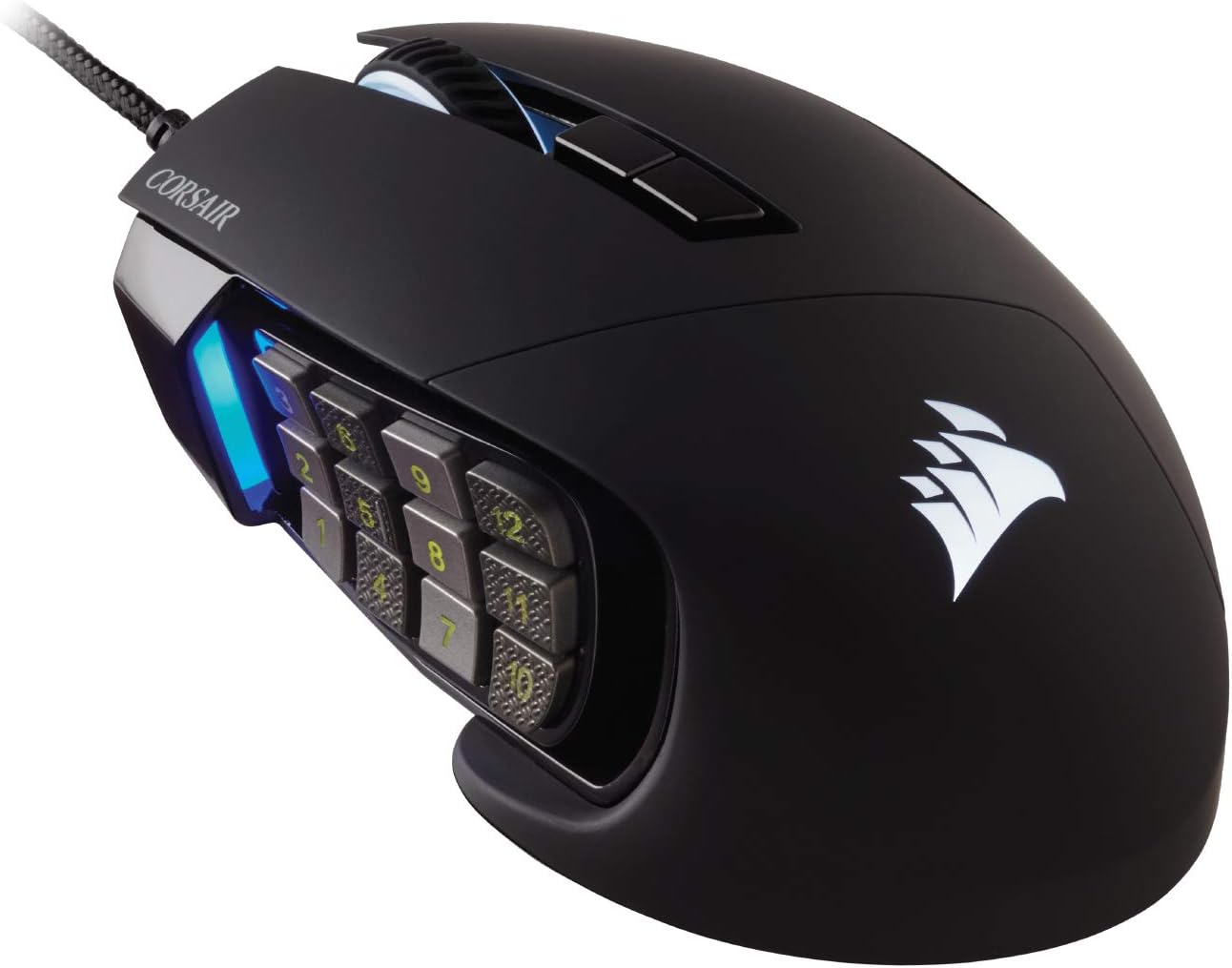
Figure 1: Corsair Scimitar RGB Elite Wired Gaming Mouse
2. រៀបចំ
១.១ ការแกะប្រអប់ និងការតភ្ជាប់ដំបូង
Carefully remove the mouse and its accessories from the packaging. The package includes the Corsair Scimitar RGB Elite mouse and a warranty guide.
Video 1: Unboxing and physical overview of the Corsair Scimitar RGB Elite mouse, demonstrating its design and cable management.
To begin using your mouse:
- Connect the USB cable of the mouse to an available USB 2.0 or USB 3.0 port on your computer.
- The mouse will automatically install necessary drivers.
2.2 Software Installation (iCUE)
For full customization and advanced features, install the Corsair iCUE software:
- Visit the official Corsair webគេហទំព័រ (www.corsair.com/icue) to download the latest iCUE software.
- អនុវត្តតាមការណែនាំនៅលើអេក្រង់ ដើម្បីបញ្ចប់ការដំឡើង។
- Launch iCUE to configure your mouse settings.
3. លក្ខណៈពិសេស
3.1 17 Fully Programmable Buttons
The Scimitar RGB Elite is equipped with 17 fully programmable buttons, including a 12-button side panel. These buttons are ideal for executing complex macros and frequent actions in MOBA and MMO games, providing a significant advantage នៅក្នុងហ្គេម។

Figure 2: The mouse features 17 programmable buttons, including a 12-button side panel for extensive customization.
3.2 Patented Key Slider Control System
Customize the position of the 12 side buttons to perfectly fit your grip. The patented Key Slider Control System allows you to reposition the button cluster by up to 8mm, ensuring comfortable access to all buttons regardless of your hand size or grip style.

Figure 3: The Key Slider allows for precise adjustment of the side button panel to match your hand and grip.
3.3 Native 18,000 DPI Optical Sensor
Equipped with a custom PixArt PMW3391 optical sensor, the mouse offers native 18,000 DPI, adjustable in 1 DPI resolution steps. This provides highly accurate and customizable tracking for precise control in any gaming scenario.

Figure 4: Diagram illustrating the mouse's 18,000 DPI precision optical sensor.
3.4 Ultra-Durable Construction
The Scimitar RGB Elite is built for longevity, featuring 50 million click-rated Omron switches, a sturdy scroll wheel, and a braided cable. This robust construction ensures the mouse can withstand the demands of extended gaming sessions.
3.5 Comfortable Contoured Shape
The mouse is sculpted to fit the contours of your palm, providing comfort regardless of hand size or grip style. A dedicated right-side finger rest offers additional support during long periods of use.

Figure 5: The ergonomic, contoured shape of the mouse is designed for maximum comfort during use.
៣. ការប្រើប្រាស់កណ្ដុរ
4.1 Customizing with iCUE Software
The Corsair iCUE software unlocks the full potential of your Scimitar RGB Elite. With iCUE, you can:
- Control dynamic RGB lighting with near-limitless combinations of colors and effects.
- Assign macros and remap any of the 17 programmable buttons.
- Adjust DPI sensitivity in 1 DPI steps.
- Calibrate the sensor to your surface for optimal tracking performance.
- Create and save multiple onboard profiles សម្រាប់ហ្គេម ឬកម្មវិធីផ្សេងៗ។

Figure 6: The mouse's dynamic RGB backlighting and iCUE software for comprehensive customization.
វីដេអូទី 2: ជាផ្លូវការview of the Corsair Scimitar RGB Elite, highlighting its patented Key Slider, programmable buttons for in-game abilities, durable construction, and 18K DPI optical sensor.
5. ការថែទាំ
To ensure the longevity and optimal performance of your Corsair Scimitar RGB Elite mouse, follow these maintenance guidelines:
- ការសម្អាត៖ ប្រើក្រណាត់ទន់គ្មានសរសៃដើម្បីជូតផ្ទៃកណ្ដុរថ្នមៗ។ សម្រាប់ភាពកខ្វក់រឹងរូស សូមជូតបន្តិចampen ក្រណាត់ជាមួយទឹក។ ជៀសវាងសារធាតុគីមីរឹង ឬសារធាតុសំណឹក។
- ការថែទាំឧបករណ៍ចាប់សញ្ញា៖ Keep the optical sensor on the underside of the mouse clean. Use a cotton swab or compressed air to remove any dust or debris that may affect tracking performance.
- ការគ្រប់គ្រងខ្សែកាបៈ ជៀសវាងការពត់មុតស្រួច ឬការទាញខ្សែ USB ដែលត្បាញខ្លាំងពេក ដើម្បីការពារការខូចខាត។
- ការផ្ទុក៖ ពេលមិនប្រើប្រាស់ សូមទុកកណ្ដុរក្នុងបរិយាកាសស្អាត ស្ងួត ឆ្ងាយពីសីតុណ្ហភាពខ្លាំង។
6. ការដោះស្រាយបញ្ហា
If you encounter issues with your Corsair Scimitar RGB Elite, try the following steps:
- កណ្តុរមិនឆ្លើយតប៖ Try unplugging and re-plugging the USB cable. Test the mouse on a different USB port or another computer to rule out port or system issues.
- បញ្ហាតាមដាន៖ Ensure the optical sensor is clean and free of debris. Try using the mouse on a different surface or recalibrate the sensor using the iCUE software.
- ប៊ូតុងមិនដំណើរការ៖ Check iCUE software to ensure buttons are correctly mapped and not disabled. Update iCUE to the latest version.
- បញ្ហាពន្លឺ RGB៖ Verify RGB settings in iCUE. Ensure the software is up-to-date.
- កម្មវិធីមិនរកឃើញកណ្ដុរ៖ Restart your computer. Reinstall the iCUE software. Ensure your operating system is up-to-date.
For further assistance, refer to the Corsair support webគេហទំព័រ ឬទាក់ទងសេវាកម្មអតិថិជន។
7. លក្ខណៈបច្ចេកទេស
| លក្ខណៈ | លម្អិត |
|---|---|
| ម៉ាក | Corsair |
| គំរូ | អេលីម៉ារីហ្គីមប៊ីអេលីត |
| ពណ៌ | ខ្មៅ |
| បច្ចេកវិទ្យាតភ្ជាប់ | ខ្សែ (យូអេសប៊ី) |
| បច្ចេកវិទ្យារកឃើញចលនា | Optical (PixArt PMW3391) |
| DPI | Native 18,000 DPI (adjustable in 1 DPI steps) |
| ប៊ូតុងដែលអាចសរសេរកម្មវិធីបាន។ | ១៦ (រួមទាំងប៊ូតុងចំហៀងចំនួន ១២) |
| ប្រភេទប្តូរ | Omron (50 million click-rated) |
| លក្ខណៈពិសេស | Patented Key Slider Side Panel |
8. ការធានា និងការគាំទ្រ
Your Corsair Scimitar RGB Elite mouse comes with a manufacturer's warranty. Please refer to the included Warranty Guide for detailed information regarding warranty terms and conditions.
For technical support, FAQs, and additional resources, please visit the official Corsair support webគេហទំព័រ៖ support.corsair.com.