
Merkury Innovations 5962857069
Merkury EVO NEXT VR 360 Virtual Reality Headset User Manual
ម៉ូដែល: 5962857069
សេចក្តីផ្តើម
The Merkury EVO NEXT VR 360 Virtual Reality Headset provides an immersive experience for virtual reality games, movies, and 3D content directly from your smartphone. This headset is designed for universal compatibility with various smartphones, including iPhones and Android devices up to 6 inches in size. It offers a 360-degree panoramic view with a 90-degree field of view, featuring a lightweight design, soft cushioning, and an adjustable headband for comfort. This manual provides instructions for setup, operation, and maintenance of your VR headset and its accompanying Bluetooth controller.
តើមានអ្វីនៅក្នុងប្រអប់
- Merkury EVO NEXT VR 360 Virtual Reality Headset
- ខ្សែក្បាលដែលអាចលៃតម្រូវបាន។
- ឧបករណ៍បញ្ជាប៊្លូធូស
- សៀវភៅណែនាំអ្នកប្រើ (ឯកសារនេះ)
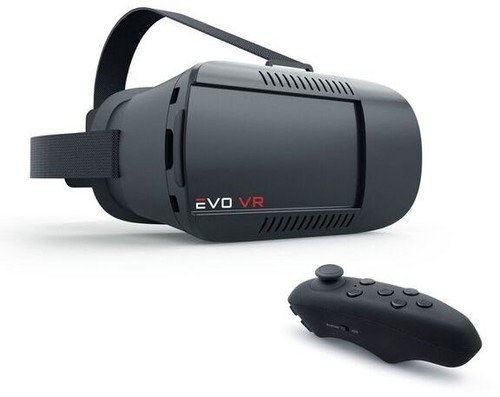
Image: Merkury EVO NEXT VR 360 Virtual Reality Headset with its adjustable headstrap and the included Bluetooth controller.
រៀបចំ
- Adjust the Headstrap: Attach the adjustable headstrap to the headset. Ensure it is securely fastened for a comfortable and stable fit. The straps are designed to be fully adjustable to accommodate various head sizes.
- បញ្ចូលស្មាតហ្វូនរបស់អ្នក៖
- បើកគម្របខាងមុខនៃកាស VR ។
- Slide out the smartphone tray.
- Carefully place your smartphone (4-6 inches) into the tray, ensuring it is centered. The headset supports phones up to 6 inches.
- Slide the tray back into the headset and close the front cover securely. Ensure your phone's screen is clean for optimal viewing.
- Pair the Bluetooth Controller:
- Power on the Bluetooth controller (refer to the controller's specific instructions for power on/pairing mode).
- នៅលើស្មាតហ្វូនរបស់អ្នក សូមចូលទៅកាន់ការកំណត់ប៊្លូធូស ហើយស្វែងរកឧបករណ៍ដែលមាន។
- Select the controller from the list to pair. Once paired, the controller can be used for navigation and interaction within compatible VR applications.
- Download VR Applications: Access your smartphone's app store (e.g., Apple App Store, Google Play Store) and search for "VR" or "Virtual Reality" applications. Download and install compatible apps that support 360-degree content, 3D experiences, or augmented reality.
សេចក្តីណែនាំប្រតិបត្តិការ
- ពាក់កាសស្តាប់ត្រចៀក៖ Place the headset on your head and adjust the headstrap for a snug yet comfortable fit. Ensure the headset is centered over your eyes.
- Adjusting Lenses: The headset features adjustable lenses. Use the adjustment dials (typically located on the top or sides of the headset) to fine-tune the focus and interpupillary distance (IPD) for clear vision. This is especially useful for users with nearsightedness.
- Navigating with the Controller: Use the paired Bluetooth controller to navigate menus, select options, and interact within VR applications. Refer to the specific app's instructions for controller functionality.
- Using Accessible Ports: The headset design allows access to your smartphone's charging and headphone ports while in use. This enables extended play sessions and audio connectivity.
- Augmented Reality (AR) Support: For AR applications, ensure your smartphone's camera is unobstructed and the app is configured for AR mode.
ថែទាំ
- ការសម្អាតកែវភ្នែក៖ Use a soft, dry microfiber cloth to gently clean the headset lenses. Avoid abrasive materials or chemical cleaners, which can scratch or damage the lenses.
- ការសម្អាតតួកាស៖ ជូតផ្នែកខាងក្រៅនៃកាសស្តាប់ត្រចៀកដោយប្រើក្រណាត់ជូតបន្តិចamp, soft cloth. Do not immerse the headset in water or use excessive moisture.
- ការផ្ទុក៖ Store the headset in a cool, dry place away from direct sunlight and extreme temperatures. Keep it free from dust and debris.
- Headstrap Care: The nylon headstrap can be gently hand-washed with mild soap and water if necessary. Allow it to air dry completely before reattaching.
ការដោះស្រាយបញ្ហា
- No image or blurry image:
- Ensure your smartphone is correctly seated and centered in the tray.
- Adjust the headset's focus and IPD dials until the image is clear.
- Check that your smartphone screen is clean and free of smudges.
- Verify that the VR application is running correctly and displaying content in the correct split-screen format for VR.
- Bluetooth controller not connecting:
- Ensure the controller is powered on and in pairing mode.
- Check your smartphone's Bluetooth settings to ensure Bluetooth is enabled.
- ភ្លេចឧបករណ៍នៅក្នុងការកំណត់ប៊្លូធូសរបស់ទូរស័ព្ទរបស់អ្នក ហើយព្យាយាមផ្គូផ្គងឡើងវិញ។
- Ensure the controller has sufficient battery power.
- Discomfort while wearing the headset:
- Adjust the headstrap to relieve pressure points.
- Ensure the headset's cushioning is properly positioned against your face.
- Take breaks during extended use to prevent eye strain or discomfort.
លក្ខណៈបច្ចេកទេស
| ម៉ាក | ការច្នៃប្រឌិត Merkury |
| លេខម៉ូដែល | 5962857069 |
| ឧបករណ៍ដែលត្រូវគ្នា។ | Smartphones (4-6 inches, including iPhone and Android) |
| វាលនៃ View | 90 ដឺក្រេ |
| បច្ចេកវិទ្យាតភ្ជាប់ | Bluetooth (for controller) |
| លក្ខណៈពិសេស | Lightweight design, Adjustable Lenses, Accessible charge/headphone ports |
| សម្ភារៈ | Coated ABS & Nylon Strap |
| ទំងន់ធាតុ | 12 អោន |
| ពណ៌ | ខ្មៅ |
ការធានា និងការគាំទ្រ
For warranty information or technical support, please refer to the official Merkury Innovations webគេហទំព័រ ឬទាក់ទងសេវាកម្មអតិថិជនរបស់ពួកគេដោយផ្ទាល់។ រក្សាបង្កាន់ដៃទិញរបស់អ្នកជាភស្តុតាងនៃការទិញសម្រាប់ការទាមទារធានាណាមួយ។
Note: Specific warranty terms and conditions may vary and are subject to the manufacturer's policy at the time of purchase.
Ask a question about this manual
Ask about setup, troubleshooting, compatibility, parts, safety, or missing instructions. Manuals+ will review the question and use this page’s manual context to help answer it.