
1. შესავალი
This manual provides essential information for setting up, operating, maintaining, and troubleshooting your ASUS TUF Gaming A15 (2023) laptop. Please read this guide thoroughly to ensure proper use and to maximize the performance and longevity of your device.
The ASUS TUF Gaming A15 is a high-performance gaming laptop featuring a 15.6-inch FHD 144Hz display, NVIDIA GeForce RTX 4060 graphics, an AMD Ryzen 7 7735HS processor, 16GB DDR5 RAM, and a 1TB PCIe SSD. It runs on Windows 11 and is designed for demanding gaming and multitasking.
2. პაკეტის შიგთავსი
დარწმუნდით, რომ ქვემოთ ჩამოთვლილი ყველა ნივთი თქვენი პროდუქტის შეფუთვაშია:
- ASUS TUF Gaming A15 Laptop (Model: FA507NV-EH74)
- დენის კაბელი და ადაპტერი
- მომხმარებლის სახელმძღვანელო (ეს დოკუმენტი)
თუ რომელიმე ნივთი აკლია ან დაზიანებულია, გთხოვთ, დაუკავშირდეთ თქვენს გამყიდველს ან ASUS-ის მომხმარებელთა მხარდაჭერის სამსახურს.
3. პროდუქტი დასრულდაview
3.1 ძირითადი მახასიათებლები
- ოპერაციული სისტემა: Windows 11 მთავარი
- პროცესორი: AMD Ryzen 7 7735HS
- გრაფიკა: NVIDIA GeForce RTX 4060 Laptop GPU (140W Max TGP)
- მეხსიერება: 16 გბ DDR5-4800 მჰც ოპერატიული მეხსიერება
- შენახვა: 1TB PCIe 4x4 SSD
- ჩვენება: 15.6-inch FHD (1920x1080) 144Hz, 100% sRGB, Adaptive Sync
- გაგრილება: Dual 84-blade Arc Flow Fans™
- Graphics Switching: MUX Switch with NVIDIA Advanced Optimus
- გამძლეობა: MIL-STD-810H military-grade standard
- აუდიო: Dolby Atmos, Hi-Res Audio, Two-way AI Noise Cancellation
- კლავიატურა: Backlit Keyboard with 4 Hotkeys and 1.7mm travel distance
3.2 External Components and Ports
Familiarize yourself with the various ports and indicators on your laptop.

სურათი: მხარე view of the ASUS TUF Gaming A15 laptop, highlighting the various input/output ports. These include the power input, RJ45 Ethernet port, HDMI 2.1 port, USB4 port, USB 3.2 Gen2 Type-C with Power Delivery, USB 3.2 Gen1 Type-A ports, and an Audio Combo Jack. A Kensington Lock slot is also visible.
- დენის პორტი: უერთდება AC ადაპტერს დატენვისა და კვებისთვის.
- RJ45 პორტი: სადენიანი ქსელის დასაკავშირებლად.
- HDMI 2.1 პორტი: უკავშირდება გარე ეკრანებს.
- USB4 პორტი: მაღალსიჩქარიანი მონაცემთა გადაცემა და ეკრანის გამომავალი.
- USB 3.2 Gen2 Type-C with Power Delivery: Versatile port for data, display, and charging compatible devices.
- USB 3.2 Gen1 Type-A Ports: USB მოწყობილობების დასაკავშირებლად.
- აუდიო კომბინირებული ჯეკი: ყურსასმენებისთვის ან მიკროფონით აღჭურვილი ყურსასმენებისთვის.
- Kensington Lock Slot: თქვენი ლეპტოპის თავსებადი საკეტით დასაცავად.
4. დაყენება
4.1 საწყისი ჩართვა
- დაკავშირება ძალა: შეაერთეთ AC ადაპტერი ლეპტოპის კვების პორტში, შემდეგ კი დენის წყაროში.
- ეკრანის გახსნა: Gently lift the display panel to open the laptop.
- ჩართვა: Press the power button, usually located above the keyboard, to turn on the laptop.
- Windows-ის დაყენება: Windows 11-ის საწყისი ინსტალაციის დასასრულებლად, მათ შორის ენის, რეგიონის, ქსელური კავშირის და მომხმარებლის ანგარიშის შექმნისთვის, მიჰყევით ეკრანზე მოცემულ ინსტრუქციებს.
4.2 პერიფერიული მოწყობილობების შეერთება
You can connect various external devices to your laptop:
- გარე მონიტორი: Use the HDMI 2.1 or USB4 port to connect an external display.
- USB მოწყობილობები: Connect mice, keyboards, external hard drives, or other USB accessories to the USB Type-A or Type-C ports.
- ქსელი: For a stable internet connection, plug an Ethernet cable into the RJ45 port. Alternatively, connect to a Wi-Fi network during Windows setup or via the Windows settings.
- აუდიო მოწყობილობები: Plug headphones or a headset into the Audio Combo Jack.
5. საოპერაციო ინსტრუქციები
5.1 ენერგიის მართვა
- ჩართვა: დააჭირეთ დენის ღილაკს.
- გამორთვა: დააწკაპუნეთ დაწყების ღილაკზე, შემდეგ ჩართვის > გამორთვის ღილაკზე.
- გადატვირთვა: დააწკაპუნეთ ღილაკზე „დაწყება“, შემდეგ ჩართვის > გადატვირთვის ღილაკზე.
- ძილი: დააწკაპუნეთ დაწყების ღილაკზე, შემდეგ ჩართვის > ძილის რეჟიმის გადართვაზე, ან დახურეთ ლეპტოპის სახურავი.
5.2 ეკრანის პარამეტრები
Your laptop features a 15.6-inch FHD 144Hz display with 100% sRGB color and Adaptive Sync technology for smooth visuals.

სურათი: The ASUS TUF Gaming A15 laptop screen displaying a high-action racing game, emphasizing the smooth visual experience provided by its FHD 144Hz refresh rate, 100% sRGB color accuracy, and NVIDIA G-SYNC technology. This combination ensures reduced lag, minimized stuttering, and eliminated visual tearing during gameplay.
- განახლების სიჩქარე: The 144Hz refresh rate provides fluid motion. You can adjust display settings in Windows (Settings > System > Display > Advanced display) or through the NVIDIA Control Panel.
- Adaptive Sync / G-SYNC: This technology synchronizes the display's refresh rate with the GPU's output to prevent screen tearing and minimize stuttering. Ensure it is enabled in NVIDIA Control Panel for optimal gaming.
5.3 MUX Switch with Advanced Optimus
The MUX Switch allows you to route frames directly from the dedicated GPU (dGPU) to the display, bypassing the integrated GPU (iGPU) for increased gaming performance. With Advanced Optimus, this switching is automatic based on the task, optimizing both performance and battery life.

სურათი: A technical diagram explaining the MUX Switch with NVIDIA Advanced Optimus. It illustrates how a GPU MUX switch can directly route frames from the dedicated GPU to the display for higher performance, or allow the system to automatically switch between the integrated GPU and dedicated GPU to optimize for battery life or performance depending on the current task.
You can typically manage MUX Switch settings through the ASUS Armoury Crate software or NVIDIA Control Panel.
5.4 კლავიატურის ფუნქციები
Your laptop features a backlit keyboard with dedicated hotkeys for quick access to functions.

სურათი: ახლოდან view of the ASUS TUF Gaming A15 laptop keyboard, showcasing its RGB backlighting. The image highlights features such as 4 dedicated hotkeys, one-zone RGB lighting, Mini-LED RGB backlight technology, and a comfortable 1.7mm key travel distance for an enhanced typing and gaming experience.
- ცხელი კლავიშები: Use the dedicated hotkeys (e.g., volume, microphone mute, Armoury Crate launch) for quick adjustments.
- უკანა განათება: Adjust keyboard backlight brightness and effects using function keys or Armoury Crate software.
5.5 აუდიო პარამეტრები
Experience immersive audio with Dolby Atmos and Hi-Res Audio certification. Two-way AI Noise Cancellation enhances communication.

სურათი: The ASUS TUF Gaming A15 laptop with a visual representation of sound waves, emphasizing its advanced audio features. These include Dolby Atmos for immersive sound, Hi-Res Audio certification for superior sound quality, and Two-way AI Noise Cancellation Technology to ensure clear communication by filtering out background noise.
- Dolby Atmos: Configure sound profiles through the Dolby Access application for optimized audio.
- ხელოვნური ინტელექტის ხმაურის ჩახშობა: Manage microphone and speaker noise cancellation settings through the Armoury Crate software or Windows sound settings.
6. მოვლა
6.1 ლეპტოპის გაწმენდა
- ეკრანი: მსუბუქად გამოიყენეთ რბილი, უბინაო ქსოვილი დampწყლით ან ეკრანის საწმენდი საშუალებით გარეცხეთ. მოერიდეთ უხეში ქიმიკატების გამოყენებას.
- კლავიატურა და კორპუსი: გამოიყენეთ რბილი, მშრალი ქსოვილი. ჯიუტი ჭუჭყის შემთხვევაში, ოდნავamp შეგიძლიათ გამოიყენოთ რბილი საპნის ხსნარიანი ქსოვილი, რათა დარწმუნდეთ, რომ სითხე ღიობებში არ მოხვდება. გასაღებებს შორის მტვრის მოსაშორებლად გამოიყენეთ შეკუმშული ჰაერი.
- ხვრელები: Regularly clean the cooling vents with compressed air to prevent dust buildup, which can impede airflow and cause overheating.
6.2 პროგრამული უზრუნველყოფის განახლებები
Keep your operating system, drivers, and ASUS utilities updated for optimal performance and security.
- Windows-ის განახლებები: Go to Settings > Windows Update and check for updates regularly.
- დრაივერის განახლებები: Use the ASUS Armoury Crate software or visit the ASUS support website for the latest drivers for your specific model (FA507NV-EH74).
6.3 ბატარეის მოვლა
ბატარეის გახანგრძლივების მიზნით:
- მოერიდეთ ბატარეის ხშირ სრულ დაცლას.
- If storing the laptop for an extended period, charge it to about 50-60% and store it in a cool, dry place.
- Use the provided ASUS AC adapter for charging.

სურათი: The ASUS TUF Gaming A15 laptop screen showing "Take Charge" with details about its 90Wh battery and Fast Charging Technology, which allows it to reach 50% charge in 30 minutes. This highlights the laptop's power efficiency and quick recharge capabilities.
6.4 გაგრილების სისტემა
The laptop features dual 84-blade Arc Flow Fans™ for efficient cooling. Proper airflow is crucial for performance.

სურათი: An internal diagram of the ASUS TUF Gaming A15, showcasing its advanced cooling system. The image highlights the dual 84-blade Arc Flow Fans, designed to improve cooling performance and reduce noise by increasing pressure and reducing turbulence within the system.
- Ensure the laptop's vents are not obstructed when in use.
- გამოიყენეთ ლეპტოპი მყარ, ბრტყელ ზედაპირზე, რათა უზრუნველყოთ ჰაერის ნორმალური ნაკადი.
- Regularly clean dust from the vents as described in section 6.1.
7. Დიაგნოსტიკა
This section addresses common issues you might encounter with your ASUS TUF Gaming A15 laptop.
7.1 ელექტროენერგიის პრობლემები
- ლეპტოპი არ ირთვება:
- დარწმუნდით, რომ ცვლადი დენის ადაპტერი საიმედოდ არის დაკავშირებული როგორც ლეპტოპთან, ასევე მოქმედ დენის წყაროსთან.
- შეამოწმეთ, მუშაობს თუ არა დენის წყარო სხვა მოწყობილობის ჩართვით.
- თუ ბატარეა მთლიანად დაიცალა, ჩართვის მცდელობამდე დაელოდეთ რამდენიმე წუთით დატენვას.
- აკუმულატორი არ იტენება:
- დარწმუნდით, რომ ცვლადი დენის ადაპტერი და კვების კაბელი დაზიანებული არ არის.
- Ensure the power port on the laptop is clean and free of debris.
- Try restarting the laptop.
7.2 ჩვენების პრობლემები
- ეკრანზე არ ჩანს:
- დარწმუნდით, რომ ლეპტოპი ჩართულია.
- Connect an external monitor to check if the issue is with the laptop's internal display.
- Try adjusting the display brightness using the function keys.
- Screen flickering or distorted image:
- Update your graphics drivers (refer to section 6.2).
- Check display cable connections if using an external monitor.
- Ensure the display refresh rate is set correctly in Windows settings.
7.3 შესრულების პრობლემები
- Laptop is slow or freezing:
- დახურეთ ფონზე გაშვებული არასაჭირო აპლიკაციები.
- შეამოწმეთ და წაშალეთ ნებისმიერი მავნე პროგრამა ან ვირუსი.
- Ensure the cooling vents are clear and the laptop is not overheating.
- Update all drivers and Windows (refer to section 6.2).
- Games are stuttering or low FPS:
- Ensure the laptop is running in a high-performance power mode.
- Verify that games are utilizing the NVIDIA GeForce RTX 4060 GPU (check NVIDIA Control Panel).
- გრაფიკული დრაივერების განახლება.
- Monitor CPU/GPU temperatures to prevent thermal throttling.
უფრო რთული პრობლემების შემთხვევაში, იხილეთ ASUS-ის მხარდაჭერის სამსახური. webსაიტი ან დაუკავშირდით მომხმარებელთა მომსახურებას.
8. სპეციფიკაციები
Below are the detailed technical specifications for the ASUS TUF Gaming A15 (Model: FA507NV-EH74).
| ფუნქცია | სპეციფიკაცია |
|---|---|
| ბრენდი | ASUS |
| სერიალი | TUF Gaming A15 |
| მოდელის ნომერი | FA507NV-EH74 |
| ოპერაციული სისტემა | Windows 11 მთავარი |
| ეკრანის ზომა | 15.6 ინჩი |
| ეკრანის გარჩევადობა | 1920x1080 პიქსელი (FHD) |
| პროცესორი | AMD Ryzen 7 7735HS (4.7 GHz) |
| ოპერატიული მეხსიერება | 16 გბ DDR5 (4800 მჰც) |
| მყარი დისკი | 1 TB SSD (PCIe 4x4) |
| გრაფიკული კოპროცესორი | NVIDIA GeForce RTX 4060 |
| გრაფიკული ბარათის ოპერატიული მეხსიერების ზომა | 8 GB |
| უკაბელო ტიპი | 802.11ax (Wi-Fi 6) |
| USB 3.0 პორტები | 2 |
| ნივთის წონა | 8.64 ფუნტი |
| პროდუქტის ზომები (LxWxH) | 13.94 x 0.88 x 9.88 ინჩი |
| ფერი | მეჩა გრეი |
| ბატარეა | 1 ლითიუმ იონური ბატარეა (შედის) |
| სპეციალური ფუნქცია | განათებული კლავიატურა |
9. გარანტია და მხარდაჭერა
9.1 პროდუქტის გარანტია
Every ASUS TUF Gaming A15 laptop includes a standard 12-month warranty. This warranty covers expert support, thorough diagnostics, and genuine parts if a repair is needed. Additionally, a 90-day warranty is provided on all warranty replacement parts.
9.2 შემთხვევითი დაზიანებისგან დაცვა (ADP)
ASUS provides one year of free Accidental Damage Protection (ADP) for new laptops registered within 60 days of purchase. This protection covers liquid spills, drops, and electrical surges, offering peace of mind against common accidents.
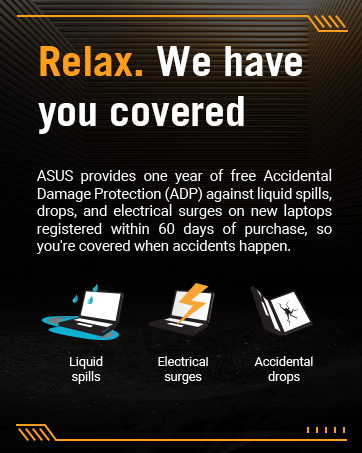
სურათი: Icons representing common accidental damages covered by ASUS Accidental Damage Protection (ADP): liquid spills, electrical surges, and accidental drops. This visual reinforces the scope of the ADP service.
9.3 მომხმარებელთა მხარდაჭერა
ტექნიკური დახმარების, გარანტიის მოთხოვნების ან დამატებითი ინფორმაციისთვის, გთხოვთ, ეწვიოთ ASUS-ის ოფიციალურ მხარდაჭერის საიტს. website or contact their customer service department. Have your laptop's model number (FA507NV-EH74) and serial number ready when contacting support.