
1. პროდუქტი დასრულდაview
The DOGNESS Smart Camera Pet Feeder is designed to provide automated feeding for your pets, offering convenience and peace of mind. It features a built-in camera for monitoring, portion control, voice recording, and timer-programmable feeding schedules.

სურათი 1.1: წინა view of the DOGNESS Smart Camera Pet Feeder. The feeder is dark blue and silver, with a camera lens and speaker grille visible on the front panel, and a stainless steel food bowl at the base.

სურათი 1.2: The DOGNESS Smart Camera Pet Feeder shown alongside a smartphone displaying the live camera feed from the feeder. This illustrates the remote monitoring capability.
2. დაყენება
2.1 გახსნა და კომპონენტების შემოწმება
ფრთხილად ამოიღეთ ყველა კომპონენტი შეფუთვიდან. დარწმუნდით, რომ შემდეგი ნივთები ხელთ არის:
- DOGNESS Smart Camera Pet Feeder unit
- დენის ადაპტერი
- უჟანგავი ფოლადის კვების თასი
- ინსტრუქციის სახელმძღვანელო (ეს დოკუმენტი)
2.2 დენის კავშირი
The feeder can be powered by the included AC adapter or by D-cell batteries (not included) for backup power.
- შეაერთეთ ცვლადი დენის ადაპტერი მიმწოდებლის დენის პორტთან და შეაერთეთ ის სტანდარტულ კედლის სოკეტში.
- For battery backup, open the battery compartment (usually located at the bottom or back of the unit) and insert three (3) D-cell batteries, ensuring correct polarity.
Note: The feeder will automatically switch to battery power in case of a power outage. Wi-Fi functionality may be limited when operating solely on battery power.
2.3 აპლიკაციის ჩამოტვირთვა და ინსტალაცია
The DOGNESS Smart Camera Pet Feeder requires the official DOGNESS app for full functionality.
- ძიება "DOGNESS" in your device's app store (Apple App Store for iOS or Google Play Store for Android).
- Download and install the official DOGNESS app.
- ანგარიშის შესაქმნელად და შესასვლელად მიჰყევით აპლიკაციაში მოცემულ ინსტრუქციებს.
2.4 Wi-Fi კავშირი
Connect your feeder to your home Wi-Fi network using the DOGNESS app.
- დარწმუნდით, რომ თქვენი სმარტფონი დაკავშირებულია 2.4 GHz Wi-Fi ქსელთან. The feeder does not support 5GHz Wi-Fi networks.
- Open the DOGNESS app and select "Add Device" or the '+' icon.
- Follow the on-screen prompts to pair your feeder with the app. This typically involves selecting your Wi-Fi network and entering the password.
- The feeder's indicator light will confirm a successful connection.
2.5 საკვების ბუნკერის შევსება
The feeder has a large capacity for dry pet food.
- Open the lid of the food hopper located at the top of the feeder.
- Pour dry pet food into the hopper. Ensure the food kibble size is appropriate for automatic feeders to prevent jamming.
- საკვების სიახლის შესანარჩუნებლად მჭიდროდ დახურეთ სახურავი.
- Place the stainless steel food bowl into its designated slot at the base of the feeder.
3. საოპერაციო ინსტრუქციები
3.1 კვების დაგეგმვა
Program automatic feeding times and portion sizes through the DOGNESS app.
- Open the DOGNESS app and select your feeder.
- გადადით „გრაფიკის“ ან „კვების გეგმის“ განყოფილებაში.
- დაამატეთ ახალი კვების დრო, მიუთითეთ დღის დრო და თითოეული კვების პორციების რაოდენობა.
- Save your settings. The feeder will dispense food automatically at the scheduled times.
3.2 ხელით კვება
Dispense food instantly using the app or the manual feed button on the unit.
- აპლიკაციის საშუალებით: On the feeder's main screen in the DOGNESS app, locate the "Feed Now" or "Manual Feed" option. Select the desired number of portions and confirm.
- Via Unit: Press and hold the manual feed button (if available) on the feeder for a few seconds to dispense a single portion.
3.3 Voice Recording and Playback
Record a custom message to play at meal times to call your pet.
- In the DOGNESS app, go to the feeder settings.
- Find the "Voice Recording" or "Meal Call" option.
- Follow the prompts to record your voice message.
- The recorded message will play automatically before each scheduled meal.
3.4 კამერის მახასიათებლები
Monitor your pet and the feeder's status using the built-in HD camera with night vision.
- ცოცხალი View: Open the DOGNESS app and select your feeder to access the live camera feed.
- ღამის ხედვა: The camera automatically switches to night vision in low-light conditions, providing clear visibility.
- ორმხრივი აუდიო: Use the app's microphone and speaker functions to communicate with your pet remotely.
4. მოვლა
4.1 დასუფთავების ინსტრუქციები
რეგულარული დასუფთავება უზრუნველყოფს მიმწოდებლის ჰიგიენას და გამართულ ფუნქციონირებას.
- Food Hopper and Bowl: These components are removable and should be hand washed with mild soap and water. Rinse thoroughly and dry completely before reassembling.
- ძირითადი განყოფილება: Wipe the exterior of the feeder with a soft, damp cloth. Do not immerse the main unit in water or use abrasive cleaners.
- Ensure all parts are completely dry before adding food or reconnecting power.
Care Instructions: Hand Wash Only for removable food contact parts.
4.2 საკვების შევსება
Monitor the food level in the hopper and refill as needed to prevent interruptions in feeding.
- The app may provide notifications for low food levels.
- Visually inspect the food level through the transparent section of the hopper.
- Open the lid and add dry kibble, ensuring it does not exceed the maximum fill line.
4.3 ბატარეის გამოცვლა
If using battery backup, replace batteries periodically or when the low battery indicator appears.
- გახსენით ბატარეის განყოფილება.
- Remove old D-cell batteries and dispose of them responsibly.
- Insert new D-cell batteries, observing correct polarity.
- უსაფრთხოდ დახურეთ ბატარეის განყოფილება.
5. Დიაგნოსტიკა
This section addresses common issues you might encounter with your DOGNESS Smart Camera Pet Feeder.
| პრობლემა | შესაძლო მიზეზი | გამოსავალი |
|---|---|---|
| მიმწოდებელი საკვებს არ ანაწილებს. |
|
|
| Wi-Fi-თან დაკავშირება შეუძლებელია. |
|
|
| App is unresponsive or crashes. |
|
|
| Camera feed is unclear or unavailable. |
|
|
6. სპეციფიკაციები
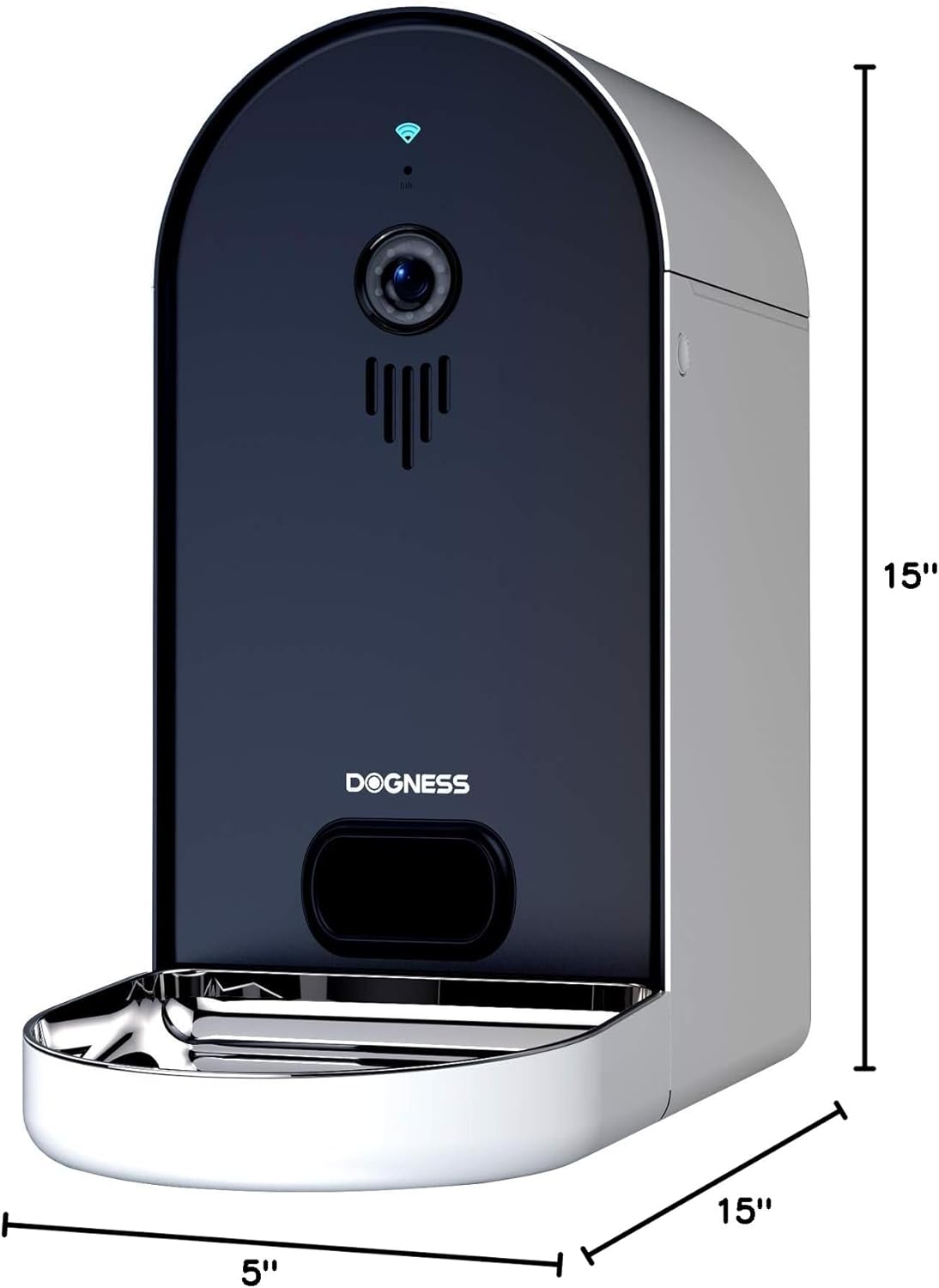
სურათი 6.1: Diagram illustrating the dimensions of the DOGNESS Smart Camera Pet Feeder, showing a height of 15 inches, width of 5 inches, and depth of 15 inches.
| ფუნქცია | დეტალი |
|---|---|
| ბრენდი | DOGNESS |
| მოდელის ნომერი | B09KBPR7TS |
| ნივთის წონა | 6.5 ფუნტი |
| პროდუქტის ზომები (LxWxH) | 15 x 5 x 15 ინჩი |
| სამიზნე სახეობა | ძაღლი, კატა |
| ჯიშის რეკომენდაცია | ყველა ჯიშის ზომა |
| რეკომენდებული გამოყენება | მრავალი შინაური ცხოველი |
| განსაკუთრებული თვისებები | Portion Control, Timer, Voice Recording, Night Vision Camera |
| მოვლის ინსტრუქციები | მხოლოდ ხელით რეცხვა (მოსახსნელი ნაწილები) |
| Wi-Fi თავსებადობა | 2.4GHz networks only |
| დენის წყარო | AC Adapter, D-cell Battery Backup |
7. გარანტია და მხარდაჭერა
For warranty information and customer support, please refer to the documentation included with your product or visit the official DOGNESS webსაიტი. მწარმოებლის website typically provides detailed warranty terms, registration options, and contact information for technical assistance.
შეინახეთ თქვენი შესყიდვის ქვითარი, როგორც შეძენის დამადასტურებელი საბუთი ნებისმიერი გარანტიის მოთხოვნის შემთხვევაში.