
1. შესავალი
The DJI Phantom 4 Pro is an advanced quadcopter drone designed for professional aerial photography and videography. It features a high-resolution camera, intelligent flight modes, and enhanced obstacle sensing capabilities to ensure a safe and stable flight experience. This manual provides essential information for setting up, operating, maintaining, and troubleshooting your Phantom 4 Pro drone.

Figure 1: DJI Phantom 4 Pro Quadcopter Drone. This image shows the white drone with four propellers, landing gear, and a camera gimbal mounted underneath.
2. დაყენება
2.1 ყუთის გახსნა და პირველადი შემოწმება
Carefully remove all components from the packaging. Verify that all items listed in the "What's in the Box" section are present and undamaged. If any components are missing or damaged, contact customer support immediately.
2.2 ბატარეის დატენვა
Ensure the Intelligent Flight Battery and remote controller battery are fully charged before first use. Use only the official DJI charger provided with the drone. Connect the charger to a power outlet and then to the battery. The charging indicator lights will show the charging status.
2.3 პროპელერის მონტაჟი
Attach the propellers to the corresponding motor mounts. Propellers are color-coded (silver and black) to match the motor caps. Ensure they are securely fastened by pushing down and twisting in the direction indicated on the propeller base until locked.
2.4 დისტანციური მართვის პულტის დაყენება
Install your mobile device (smartphone or tablet) into the remote controller's device holder. Connect the mobile device to the remote controller using a USB cable. Power on the remote controller by pressing the power button once, then pressing and holding it for two seconds.
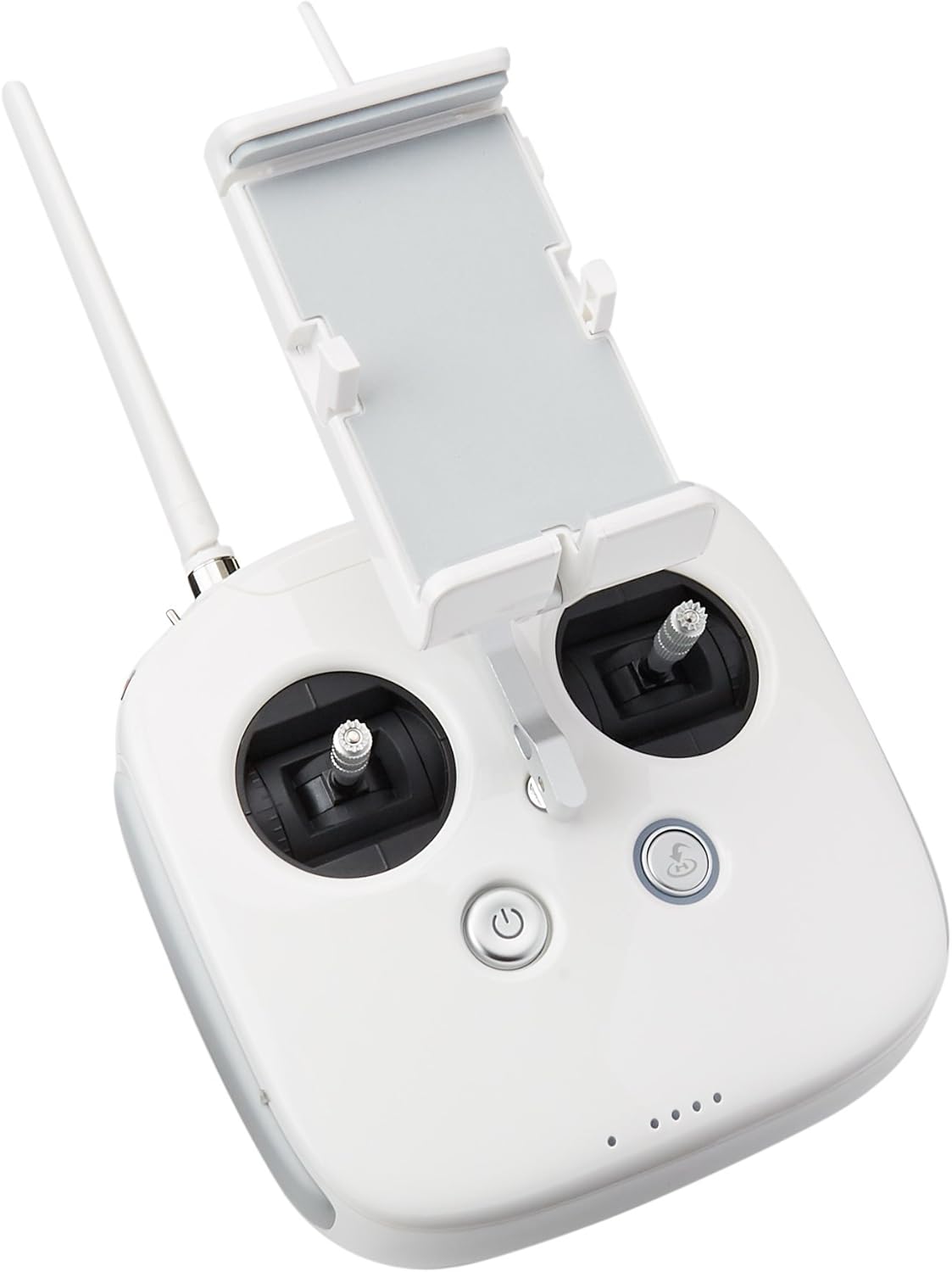
Figure 2: DJI Phantom 4 Pro Remote Controller (Front View). This image displays the front of the white remote controller with joysticks, buttons, and a mobile device holder.

Figure 3: DJI Phantom 4 Pro Remote Controller (Side View). This image shows the side of the white remote controller, highlighting the antennas, USB port, and various switches.
2.5 DJI GO 4 App Installation
Download and install the DJI GO 4 app on your mobile device from the official app store (App Store for iOS or Google Play Store for Android). This app is essential for controlling the drone, accessing intelligent flight modes, and viewკამერის არხის ჩართვა.
3. საოპერაციო ინსტრუქციები
3.1 ფრენის წინ შემოწმების სია
- Ensure batteries are fully charged (drone and remote controller).
- პროპელერები სწორად არის დამონტაჟებული და უსაფრთხოდ არის დამაგრებული.
- გიმბალი კლamp ამოღებულია.
- MicroSD card is inserted into the camera.
- GPS signal is strong (at least 7 satellites).
- Compass is calibrated (if prompted by the app).
- Check for any firmware updates in the DJI GO 4 app.
3.2 Taking Off and Landing
To take off, place the drone on a flat, open surface. Power on the drone and remote controller. Open the DJI GO 4 app. Once the system status indicator is green, tap the auto-takeoff icon in the app or perform the Combination Stick Command (CSC) by pushing both sticks to the bottom inner or outer corners. To land, either tap the auto-landing icon or slowly pull down the left stick (Mode 2) until the drone lands and motors stop.
3.3 ინტელექტუალური ფრენის რეჟიმები
The Phantom 4 Pro features several intelligent flight modes for enhanced control and cinematic shots:
- ActiveTrack: Follows a subject automatically.
- TapFly: Fly to a designated point on the screen with a tap.
- დახატვა: Draw a route on the screen for the drone to follow.
- Gesture Mode: Control the drone with hand gestures for selfies.
- სახლში დაბრუნება (RTH): Automatically returns the drone to its recorded home point.
Refer to the DJI GO 4 app for detailed instructions on activating and using each mode.
3.4 Obstacle Sensing System
The Phantom 4 Pro is equipped with a 5-directional obstacle sensing system, providing 4-way obstacle avoidance. This system uses vision sensors and infrared sensors to detect obstacles and either stop or bypass them, enhancing flight safety. Always maintain visual line of sight and do not rely solely on the obstacle sensing system.
4. მოვლა
4.1 დასუფთავება
Regularly clean the drone body, propellers, and camera lens. Use a soft, dry cloth for the body and a lens cleaning cloth for the camera. Avoid using harsh chemicals or abrasive materials.
4.2 პროპელერის შემოწმება და შეცვლა
Inspect propellers for cracks, bends, or damage before each flight. Damaged propellers can affect flight stability and safety. Replace any damaged propellers immediately with genuine DJI Phantom 4 Pro propellers.
4.3 ბატარეის მოვლა
Store Intelligent Flight Batteries in a cool, dry place. Do not overcharge or over-discharge batteries. If storing for extended periods, discharge batteries to 50-60% capacity. Avoid exposing batteries to extreme temperatures.
4.4 პროგრამული უზრუნველყოფის განახლებები
Periodically check for firmware updates for the drone and remote controller via the DJI GO 4 app. Keeping firmware updated ensures optimal performance, new features, and improved safety.
5. Დიაგნოსტიკა
| პრობლემა | შესაძლო მიზეზი | გამოსავალი |
|---|---|---|
| დრონი არ ირთვება. | დაბალი დატენვის ბატარეა; ბატარეა სწორად არ არის ჩასმული. | Charge the Intelligent Flight Battery; Reinsert battery firmly. |
| GPS სიგნალი არ არის. | Flying indoors; Obstruction from tall buildings/trees. | Fly in an open outdoor area; Wait for more satellites to connect. |
| Gimbal shaking or abnormal movement. | გიმბალი კლamp not removed; Gimbal overloaded; Firmware issue. | ამოიღეთ გიმბალი clamp; Ensure no foreign objects are on gimbal; Update firmware. |
| App displays "Compass Error". | Magnetic interference; Compass needs calibration. | Move to an area free of magnetic interference; Perform compass calibration as per app instructions. |
For further troubleshooting, consult the DJI GO 4 app's help section or visit the official DJI support webსაიტი.
6. სპეციფიკაციები
7. გარანტია და მხარდაჭერა
This product is sold as a renewed item and typically comes with a 1-year warranty. Please refer to the specific warranty terms provided at the time of purchase or contact the seller for details regarding your renewed product's warranty coverage.
For technical support, product inquiries, or warranty claims, please visit the official DJI support website or contact their customer service. You can often find support resources, FAQs, and contact information on the DJI webსაიტი.
მწარმოებელი: DJI Europe B.V.
ბრენდი: DJI