
1. დაყენება
1.1 გახსნა და პირველადი შემოწმება
Carefully remove your ASUS K52F-A2B laptop from its packaging. Inspect the laptop and all accessories for any signs of damage. The package should contain the laptop, AC adapter, power cord, and documentation.
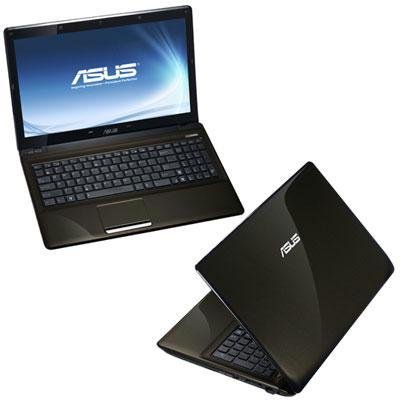
Image 1.1: The ASUS K52F-A2B laptop. This image shows the closed laptop from an angle, highlighting its dark brown finish and sleek design.
1.2 AC ადაპტერის დაკავშირება
Before initial use, connect the AC adapter to the laptop and a power outlet. This ensures the battery is charged and provides stable power for setup.
- Plug the AC adapter into the power connector on the side of your laptop.
- შეაერთეთ დენის კაბელი ცვლადი დენის ადაპტერში.
- შეაერთეთ დენის კაბელის მეორე ბოლო დამიწებულ ელექტრო განყოფილებაში.
1.3 საწყისი ჩართვა
Once the AC adapter is connected, open the laptop lid and press the power button. The laptop will begin its initial boot sequence. Follow the on-screen instructions to complete the operating system setup (Windows 7 Professional 64-bit).
2. Operating Your ASUS K52F-A2B Laptop
2.1 ჩართვა/გამორთვა და ძილის რეჟიმი
- ჩართვა: დააჭირეთ კლავიატურის ზემოთ მდებარე ჩართვის ღილაკს.
- Გამორთვა: Click the Start button, then select 'Shut down'.
- Ძილის რეჟიმი: Close the laptop lid or select 'Sleep' from the Start menu. Press the power button or any key to wake the laptop.
2.2 კლავიატურისა და სენსორული პანელის გამოყენება
The ASUS K52F-A2B features a full-sized keyboard and a multi-touch touchpad.
- კლავიატურა: Standard QWERTY layout with function keys (Fn) for brightness, volume, and other system controls.
- სენსორული პანელი: Supports multi-touch gestures for scrolling, zooming, and navigation. Refer to the operating system's help for detailed gesture information.
2.3 გარე მოწყობილობების დაკავშირება
Your laptop provides various ports for connecting external devices:
- USB პორტები: USB მოწყობილობების, როგორიცაა მაუსები, კლავიატურები და გარე მეხსიერების მოწყობილობები, დასაკავშირებლად.
- HDMI პორტი: Connects to external displays or TVs for high-definition video and audio output.
- VGA პორტი: Connects to older external monitors or projectors.
- აუდიო ჯეკები: ყურსასმენებისა და მიკროფონებისთვის.
- Ethernet პორტი: სადენიანი ქსელის კავშირებისთვის.
2.4 Using the Optical Disk Drive
The laptop includes a Super Multi Optical Disk Drive for reading and writing CDs and DVDs.
- უჯრის გასახსნელად დააჭირეთ დისკზე გამოყვანის ღილაკს.
- Place a CD or DVD onto the tray with the label side facing up.
- Gently push the tray back into the laptop until it clicks shut.
3. მოვლა
3.1 ლეპტოპის გაწმენდა
რეგულარული გაწმენდა ხელს უწყობს ლეპტოპის გარეგნობისა და ფუნქციონირების შენარჩუნებას.
- ეკრანი: მსუბუქად გამოიყენეთ რბილი, უბინაო ქსოვილი დampწყლით ან ეკრანის საწმენდი საშუალებით გაწმინდეთ. არ შეასხუროთ სითხე პირდაპირ ეკრანზე.
- კლავიატურა და Casing: გამოიყენეთ რბილი, მშრალი ქსოვილი. ჯიუტი ჭუჭყის შემთხვევაში, ნაზად გაწმინდეთ ქსოვილი.ampened with mild soap and water can be used. Ensure the laptop is powered off and unplugged before cleaning.
- ხვრელები: Use compressed air to clear dust from the cooling vents to prevent overheating.
3.2 ბატარეის მოვლა
ბატარეის ხანგრძლივობისა და მუშაობის მაქსიმალურად გაზრდისთვის:
- მოერიდეთ ბატარეის ხშირ სრულ დაცლას.
- ლეპტოპი შეინახეთ გრილ, მშრალ ადგილას, თუ დიდი ხნის განმავლობაში არ იყენებთ.
- თუ დიდხანს ინახავთ, შენახვამდე დატენეთ ბატარეა დაახლოებით 50%-მდე.
3.3 პროგრამული უზრუნველყოფის განახლებები
Regularly update your operating system and drivers to ensure optimal performance and security. Check the ASUS support website for the latest drivers for your K52F-A2B model.
4. Დიაგნოსტიკა
This section addresses common issues you might encounter with your ASUS K52F-A2B laptop.
4.1 ელექტროენერგიის პრობლემები
- ლეპტოპი არ ირთვება: Ensure the AC adapter is securely connected to both the laptop and a working power outlet. Check if the power outlet is functional. If the battery is completely drained, allow it to charge for a few minutes before attempting to power on.
- Laptop shuts down unexpectedly: This could indicate overheating. Ensure cooling vents are clear and the laptop is on a hard, flat surface.
4.2 ჩვენების პრობლემები
- ეკრანზე არ ჩანს: Connect an external monitor to the VGA or HDMI port to check if the issue is with the laptop's internal display. Press Fn+F8 to toggle display output modes.
- ეკრანის დაბინდვა: Adjust screen brightness using the Fn+F5 (dim) and Fn+F6 (bright) function keys.
4.3 დაკავშირების პრობლემები
- Wi-Fi არ უკავშირდება: Ensure Wi-Fi is enabled (often via a function key, e.g., Fn+F2). Check network settings in Windows.
- USB მოწყობილობა არ არის ამოცნობილი: სცადეთ მოწყობილობის სხვა USB პორტთან დაკავშირება. დარწმუნდით, რომ მოწყობილობის დრაივერები დაინსტალირებულია.
4.4 Operating System Recovery
The ASUS K52F-A2B comes with Windows 7 Professional. For system recovery or reinstallation, it is recommended to use the recovery partition or create recovery media as instructed by ASUS. Note that official support for downgrading to Windows XP Pro may be limited, and recovery media for Windows 7 Pro might need to be created by the user.
5. ტექნიკური მახასიათებლები
| ფუნქცია | სპეციფიკაცია |
|---|---|
| მოდელის ნომერი | K52F-A2B |
| პროცესორი | Intel Core i3-350M (2.26 GHz) |
| ოპერაციული სისტემა | Windows 7 Professional 64-bit |
| ჩვენება | 15.6-inch HD (1366x768) LED |
| გრაფიკა | Intel GMA HD (Integrated) |
| RAM მეხსიერება | 3 GB DDR3 1066MHz (Max 8GB) |
| შენახვა | 320 GB Hard Drive (5400 RPM) |
| ოპტიკური დისკი | DVD SuperMulti |
| უსადენო კავშირი | 802.11 ბგნ |
| პორტები | HDMI, VGA, USB, Audio Jacks |
| Webკამერა | 0.3 დეპუტატი |
| წონა | 5.8 ფუნტი |
6. გარანტია და მხარდაჭერა
6.1 ინფორმაცია გარანტიის შესახებ
Your ASUS K52F-A2B laptop comes with the following warranty coverage:
- 2 წლიანი გლობალური გარანტია
- 1-Year Accidental Damage Warranty
- 30-Day Zero Bright Dot Guarantee
- 2-way FREE shipping for repairs
6.2 ტექნიკური მხარდაჭერა
ტექნიკური დახმარების, დრაივერის ჩამოტვირთვის ან დამატებითი ინფორმაციისთვის, გთხოვთ, ეწვიოთ ASUS-ის ოფიციალურ მხარდაჭერის საიტს. website. 24/7 technical support is available as part of your warranty.
For the most up-to-date support contact information, please refer to the documentation included with your product or visit www.asus.com/support.