
重要な安全情報
このモニターをご使用になる前に、すべての説明書をよくお読みください。このマニュアルは、今後の参考のために保管してください。
- モニターを水の近くや湿気の多い環境に置かないでください。
- 過熱を防ぐために、モニターの周囲に適切な換気を確保してください。
- モニターに付属の電源アダプターのみを使用してください。
- モニターを直射日光や極端な温度にさらさないでください。
- モニターをご自身で修理しようとしないでください。すべての修理は資格のある専門家にご依頼ください。
- 画面は柔らかく糸くずの出ない布で拭いてください。刺激の強い化学薬品の使用は避けてください。
パッケージ内容
パッケージに以下のすべての項目が含まれていることを確認してください。
- 31.5-inch 2K 120Hz Monitor (x1)
- モニタースタンド(1個)
- クイックスタートガイド(QSG)(1冊)
- HDMIケーブル(1本)
- 電源アダプター(x1)
- 電源コード(x1)

An image showing the monitor's dimensions and a list of included accessories: monitor, QSG, HDMI cable, adapter, power cord, and monitor stand.
設定
モニターの組み立て
モニタースタンドを組み立ててディスプレイパネルに取り付けるには、次の手順に従います。
- モニターとスタンドのコンポーネントをパッケージから慎重に取り出します。
- ベースをスタンド支柱に取り付け、付属のネジで固定します。
- Align the assembled stand with the mounting points on the back of the monitor panel.
- カチッと音がするまでスタンドをゆっくりと押し込みます。
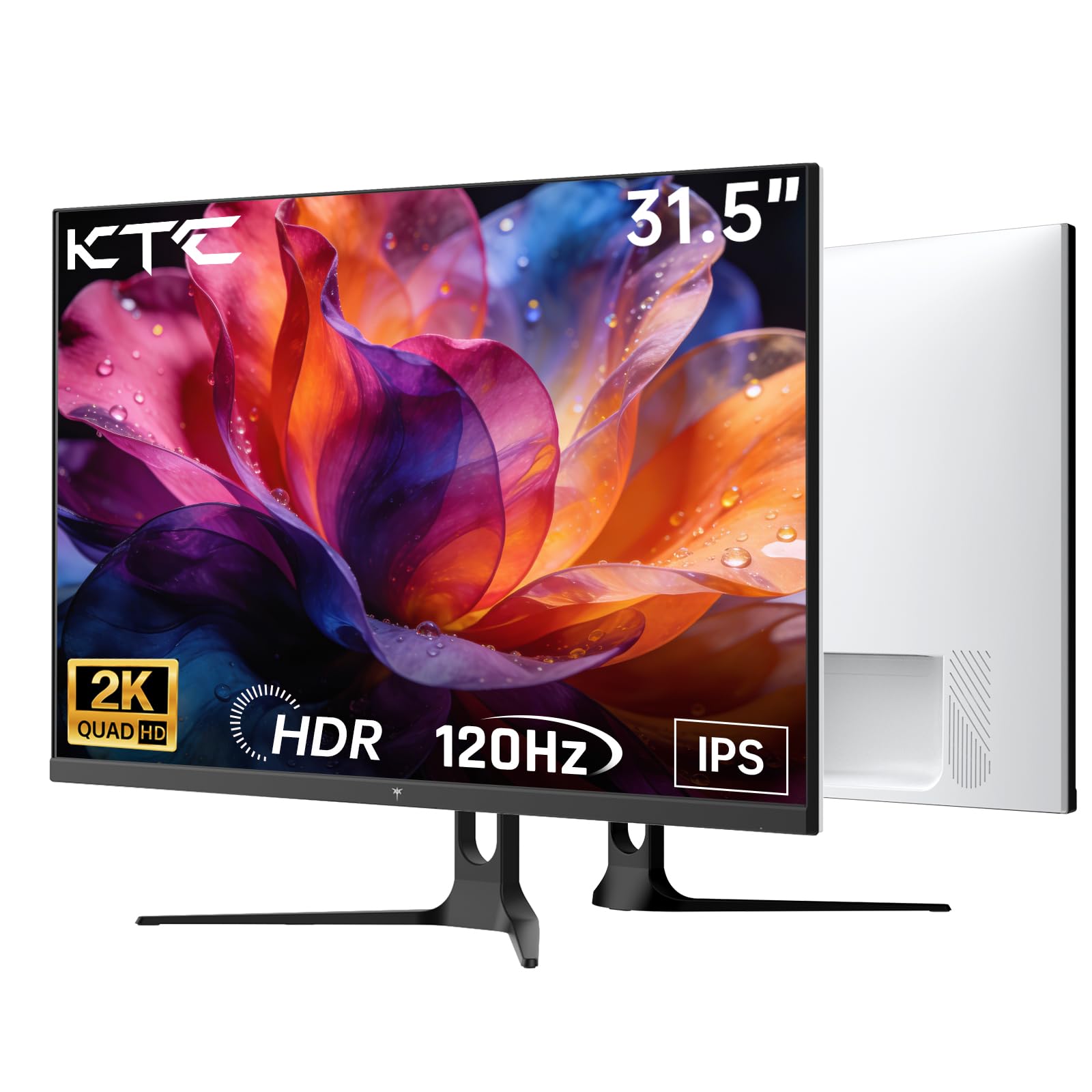
フロント view of the KTC H32D6 31.5-inch monitor on its stand.
接続性
適切なケーブルを使用して、モニターを電源とコンピューターに接続します。
- Connect the power adapter to the monitor's DC input port, then plug the power cord into an electrical outlet.
- For video input, connect one end of the HDMI or DisplayPort cable to your computer's graphics card and the other end to the corresponding port on the monitor.
- 必要に応じて、ヘッドフォンまたは外部スピーカーをイヤホンジャックに接続します。

Close-up of the monitor's rear panel, highlighting the HDMI 2.0 ports (x2), DisplayPort 1.4 (x1), and earphone jack.
このビデオはオーバーを提供しますview of the KTC 32 Inch 2K 120Hz Computer Monitor, showcasing its features and benefits in a dynamic presentation.
操作手順
電源オン/オフ
電源ボタン(通常はモニターの背面または右下にあります)を押すと、モニターの電源のオン/オフを切り替えます。モニターの電源がオンになると、電源インジケーターライトが点灯します。
オンスクリーン ディスプレイ (OSD) メニュー ナビゲーション
The monitor features an intuitive OSD menu for adjusting various settings. Use the joystick or buttons (depending on your model) on the back of the monitor to navigate the menu:
- ジョイスティック/ボタンを押して OSD メニューを開きます。
- Move the joystick up/down or left/right to select menu options.
- Press the joystick/button again to confirm a selection or enter a sub-menu.
- To exit the OSD menu, navigate to the 'Exit' option or hold the joystick/button for a few seconds.
表示設定の調整
OSD メニューでは、次のような設定を調整できます。
- 解決: Set to QHD (2560x1440) for optimal clarity.
- リフレッシュレート: Adjust to 120Hz for ultra-smooth visuals.
- 輝度コントラスト: Fine-tune for your preferred viewing の経験。
- 色の設定: 色温度、ガンマ、その他の色パラメータを調整します。

An image demonstrating the superior clarity of QHD (2560x1440) resolution compared to FHD (1920x1080) on the monitor screen.

A visual representation of smooth motion on the monitor, illustrating the benefit of a 120Hz refresh rate for seamless visuals.
アダプティブ同期
This monitor supports Adaptive Sync technology (FreeSync, G-Sync Compatible) to eliminate screen tearing and stuttering during gaming or fast-paced video. Ensure Adaptive Sync is enabled in both your monitor's OSD settings and your graphics card control panel for optimal performance.

A side-by-side comparison showing the visual difference with Adaptive Sync ON (smooth image) and OFF (screen tearing) during fast-paced action.
HDR10 サポート
The monitor supports HDR10, providing a wider range of colors and contrast for a more immersive viewing experience. To utilize HDR10, ensure your content and graphics card support HDR, and enable it in your operating system display settings.

An image highlighting the enhanced color and contrast provided by HDR10 technology.
アイケア機能
The KTC H32D6 monitor includes Low Blue Light and Flicker-Free technologies to reduce eye fatigue during prolonged use. These features are designed to provide a more comfortable viewing の経験。

An image illustrating the eye care features, including low blue light and flicker-free technology, designed to reduce eye strain.
傾斜調整
The monitor stand allows for tilt adjustment from -5° to 20°. Gently adjust the monitor panel to your desired view人間工学に基づいた快適性を実現する角度。

An image demonstrating the wide 178-degree viewing angle provided by the IPS panel, ensuring consistent image quality from various positions.
メンテナンス
適切なメンテナンスを行うことで、モニターの寿命が長くなり、最適なパフォーマンスが確保されます。
- 画面の掃除: 柔らかく乾いた、糸くずの出ない布で画面を優しく拭いてください。頑固な汚れには、軽くampen the cloth with water or a screen-cleaning solution specifically designed for monitors. Never spray liquid directly onto the screen.
- Cのクリーニングasing: モニターの汚れを拭くときは、柔らかく乾いた布を使用してください。asing. 研磨剤入りの洗剤や溶剤は使用しないでください。
- 使用しないときは電源を切ります: Turn off the monitor when not in use to save energy and extend its lifespan.
- 障害物を避けてください: 過熱を防ぐため、モニターの通気口が塞がれていないことを確認してください。
トラブルシューティング
モニターに問題が発生した場合は、次の一般的な問題と解決策を参照してください。
| 問題 | 考えられる解決策 |
|---|---|
| 画面に画像がありません | 電源ケーブルがしっかりと接続され、モニターの電源が入っていることを確認してください。ビデオケーブル(HDMI/DP)がモニターとコンピューターの両方にしっかりと接続されていることを確認してください。OSDメニューから正しい入力ソースを選択してください。 |
| 画像がちらついたり不安定になったりする | Check the video cable connection. Ensure your graphics card drivers are up to date. Verify that the refresh rate is set correctly in your computer's display settings. Enable Adaptive Sync if supported by your graphics card. |
| 色が正しく表示されない | Adjust color settings (brightness, contrast, color temperature) in the OSD menu. Ensure HDR is correctly configured in your operating system if you are using HDR content. |
| モニターがコンピューターに認識されない | コンピュータを再起動してください。別のビデオポートまたはケーブルを試してください。グラフィックカードのドライバーを更新してください。 |
仕様
Key technical specifications for the KTC H32D6 monitor:
| 特徴 | 仕様 |
|---|---|
| ブランド | KTC |
| モデル番号 | H32D6 |
| 画面サイズ | 31.5インチ |
| 解決 | QHDワイド1440p(2560 x 1440ピクセル) |
| リフレッシュレート | 100 Hz (up to 120Hz overclocked) |
| 表示タイプ | IPS |
| 応答時間 | 7ミリ秒 |
| アスペクト比 | 16:9 |
| 輝度 | 350カンデラ(cd/m²) |
| コントラスト比 | 1000:1 |
| View角度 | 178度 |
| 色域 | 109% sRGB |
| Picture Quality Enhancement | 高画質 |
| 接続性 | HDMI 2.0 x 2、DisplayPort 1.4 x 1、イヤホンジャック |
| アダプティブ同期 | FreeSync, G-Sync Compatible |
| 追加機能 | Eye Care, Flicker-Free, Tilt Adjustment, VESA 100x100mm Compatible |
| 消費電力 | 48ワット |
| 商品の寸法(奥行き x 幅 x 高さ) | 奥行き7.09インチ x 幅28.23インチ x 高さ20.08インチ |
保証とサポート
保証情報
This KTC H32D6 monitor comes with a 3年間のメーカー保証この保証は、通常の使用状況における材料および製造上の欠陥を対象としています。保証請求の際は、購入証明書を保管してください。
誤用、事故、不正な改造、電力サージなどの外部要因によって生じた損傷は保証の対象になりません。
カスタマーサポート
For technical assistance, warranty claims, or any other inquiries, please contact KTC customer support through the official website or the contact information provided with your purchase. You may also refer to the Quick Start Guide for additional support resources.