
導入
The ETIKEZ PM290C is a compact and portable thermal sticker printer designed for various labeling and creative tasks. This manual provides detailed instructions on how to set up, operate, and maintain your printer to ensure optimal performance.
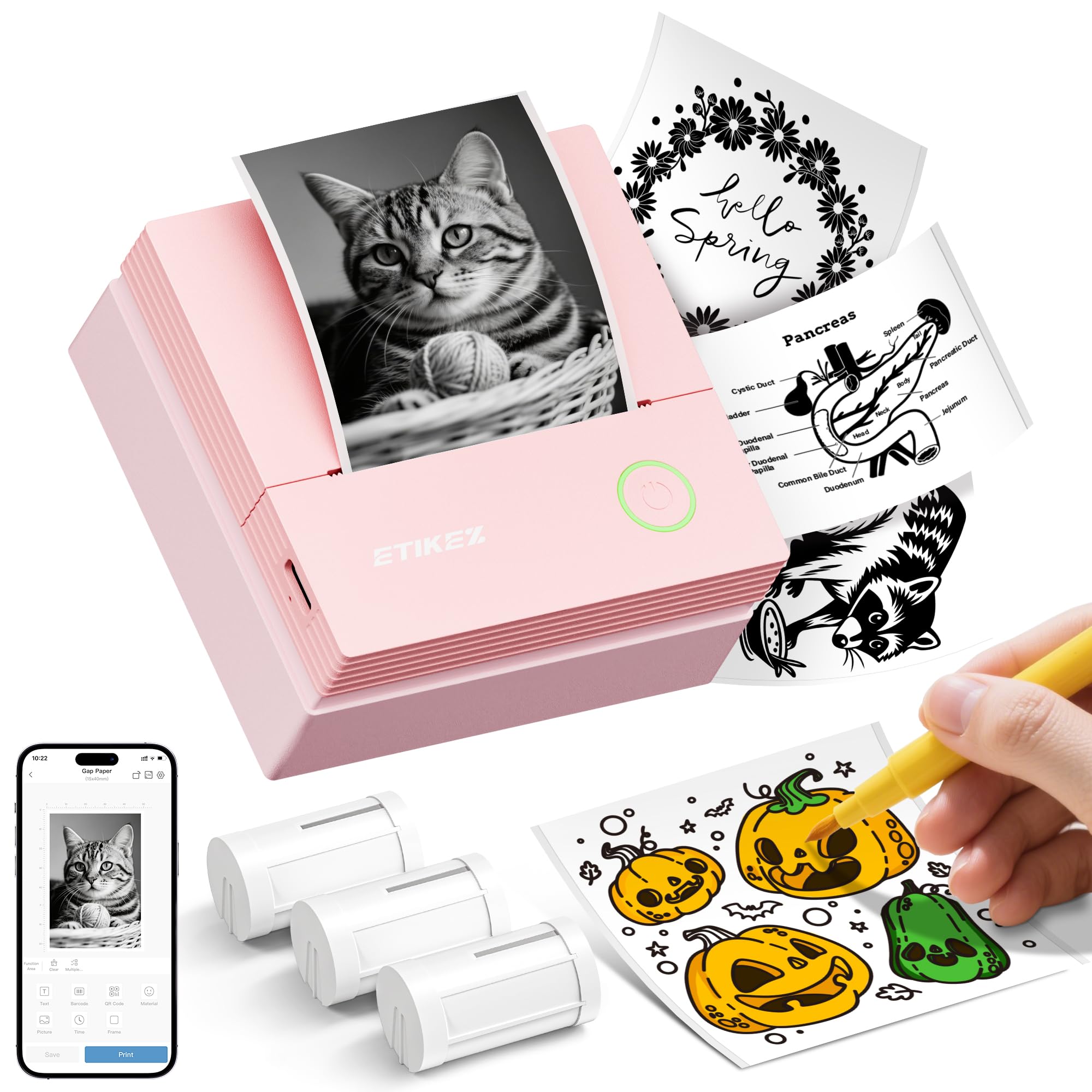
Image: The ETIKEZ PM290C Thermal Sticker Printer, a compact pink device, shown on a wooden desk with paper rolls and pens.
セットアップガイド
1. 開梱と初期検査
Upon receiving your ETIKEZ PM290C printer, carefully remove all components from the packaging. Verify that all items are present and undamaged. The package should include the printer, three rolls of paper, and a charging cable.
2. Loading Paper Rolls
- プリンターのカバーをゆっくり持ち上げて開きます。
- Tear off the green sticker from the paper roll. Ensure the printing side of the paper is facing downwards.
- Align the paper roll with the notch inside the printer and insert it vertically.
- Pull out approximately 1-2 cm of the print paper from the printer's output slot.
- Close the printer cover securely. The printer is now ready for use.
Video: Demonstrates the step-by-step process of loading paper rolls into the ETIKEZ PM290C mini printer.
3. アプリのダウンロードとBluetooth接続
To operate your ETIKEZ PM290C printer, you need to download and connect to the "Labelnize" application.
- Download the "Labelnize" App:
- Method 1 (QR Code): Scan the QR code provided in your printer's packaging or on the official website to directly install the "Labelnize" app.
- Method 2 (App Store Search): 検索する "Labelnize" on the Apple App Store (for iOS devices) or Google Play Store (for Android devices) and download the official application.
- Bluetoothをオンにします: モバイルデバイスでBluetoothが有効になっていることを確認します。
- プリンターを接続します:
- Open the "Labelnize" app.
- Allow the app to use wireless data and grant Bluetooth permissions when prompted.
- Click on "Connect now" within the app.
- Find "PM290" in the list of available devices and click "Click to connect" next to it.
- Once connected, you can choose to register an account for a better experience or skip this step.
Video: A guide on how to download the "Labelnize" app and connect it to the ETIKEZ PM290C printer via Bluetooth.
操作手順
1. Basic Printing with Labelnize App
The "Labelnize" app offers various functions and templates to fulfill your creative and organizational needs. You can print text, images, and use pre-designed templates.
- From the app's main interface, select your desired function (e.g., "Image printing", "System templates", "Text editing").
- If printing an image, allow the app access to your photo library and select the image you wish to print.
- Use the in-app editing tools to make any necessary adjustments to your image or text (e.g., rotate, crop, adjust density).
- Once satisfied with your design, click the "Print" button.
- Adjust print settings such as density and number of copies, then confirm to start printing.
2. Versatile Printing Applications
The ETIKEZ PM290C printer is suitable for a wide range of applications, enhancing organization and creativity:
- Text Printing: Print notes, lists, or short messages for quick reference.
- Bullet Journaling: Create custom stickers and labels to personalize your bullet journal entries.
- 学習ノート: Print diagrams, definitions, or key information to stick into your study materials.
- ホーム組織: Label containers, shelves, and storage boxes for efficient home management.
- Gift Labels: Design and print unique labels for gifts, adding a personal touch.
- File ラベル: Organize documents and files with custom labels for easy identification.
- ToDoリスト: Print small, portable to-do lists to keep track of your tasks.
- ブックマーク: Create personalized bookmarks with quotes or images.
Video: Demonstrates various creative and organizational uses of the ETIKEZ PM290C Thermal Sticker Printer, including text printing, bullet journaling, home organization, and creating gift labels.
メンテナンス
To ensure the longevity and optimal performance of your ETIKEZ PM290C printer, follow these maintenance guidelines:
- プリントヘッドのクリーニング: サーマルプリントヘッドを定期的に柔らかく糸くずの出ない布で軽く拭いてください。ampイソプロピルアルコールで洗浄後、プリンターの電源を切り、十分に冷ましてください。
- 外装清掃: プリンターの外側は、乾いた柔らかい布で拭いてください。刺激の強い化学薬品や研磨剤の使用は避けてください。
- ストレージ: プリンターは、直射日光や極端な温度を避け、涼しく乾燥した場所に保管してください。
- 紙の保管: Store thermal paper rolls in a cool, dark place to prevent premature fading or damage.
トラブルシューティング
If you encounter issues with your ETIKEZ PM290C printer, refer to the following common problems and solutions:
- プリンターが Bluetooth 経由で接続されない:
- Ensure Bluetooth is enabled on your device and the printer is turned on.
- Restart both your device and the printer.
- Check if the "Labelnize" app has Bluetooth permissions.
- Try reconnecting through the app.
- 印刷品質が悪い:
- Check the paper roll for proper loading and ensure it's thermal paper.
- 「メンテナンス」セクションの説明に従ってプリントヘッドをクリーニングします。
- Adjust the print density settings in the "Labelnize" app.
- Ensure the paper roll is not old or damaged.
- 紙詰まり:
- プリンターの電源をオフにします。
- Open the printer cover and carefully remove any jammed paper.
- Reload the paper roll correctly.
- プリンターが起動しない:
- Ensure the printer is fully charged. Connect it to a power source and wait a few minutes before attempting to turn it on.
- 問題が解決しない場合は、カスタマーサポートに連絡してください。
製品仕様
| 特徴 | 仕様 |
|---|---|
| ブランド | ETIKEZ |
| モデル番号 | PM290C |
| 製品寸法 | 3.28 x 1.54 x 3.3インチ |
| アイテム重量 | 10.8オンス |
| サポートされているメディアサイズ | 50 x 30 millimeters |
| 印刷メディア | 感熱紙 |
| 印刷色 | 黒 |
| 最大印刷解像度 | 600 dots per inch (DPI) |
| 両面印刷 | いいえ(シンプレックス) |
| 最大入力シート容量 | 50 |
| 接続性 | ブルートゥース |
| 色 | セリース |
保証とサポート
Your ETIKEZ PM290C Thermal Sticker Printer comes with a standard manufacturer's warranty. For specific warranty details, including coverage period and terms, please refer to the warranty card included in your product packaging or visit the official ETIKEZ webサイト。
If you require technical assistance, have questions about your product, or need to report an issue, please contact ETIKEZ customer support through their official channels. Contact information can typically be found on the product packaging, the official website, or within the "Labelnize" app.