
1. はじめに
This manual provides detailed instructions for the COLORROOM A30L1 Android 16 Tablet. Please read this manual carefully before using your device to ensure proper operation and to maximize its performance and lifespan. Keep this manual for future reference.

Image: The COLORROOM A30L1 Android 16 Tablet, showcasin洗練されたデザイン。
2. 箱の中身
Upon unboxing your COLORROOM A30L1 tablet, verify that all the following items are included:
- COLORROOM A30L1 Android 16 Tablet
- USB Type-C充電ケーブル
- 電源アダプター
- ユーザーマニュアル
- 保護ケース
- スクリーンプロテクター(あらかじめ貼り付けられているか、別途含まれています)

Image: The COLORROOM A30L1 Tablet shown with its included accessories, including a protective case.
ビデオ: 開封の様子と特集view of the Android 16 Tablet, demonstrating its components and capabilities.
3.製品オーバーview
The COLORROOM A30L1 is a high-performance Android 16 tablet designed for both productivity and entertainment. It combines advanced features with a user-friendly interface.
3.1. 主な特徴
- 画面: 10-inch Full HD IPS display with 1280x800 resolution, 300 nits brightness, and 178-degree ultra-wide viewing angle. Widevine L1 certified for 1080P streaming.
- パフォーマンス: Android 16 OS, Unisoc T7200 Octa-core processor (1.6 GHz), 12nm process for improved power efficiency.
- メモリとストレージ: 24GB RAM (物理 4GB + 仮想 20GB)、64GB 内部ストレージ、microSD カード経由で最大 2TB まで拡張可能。
- バッテリー: High-capacity 6,000mAh battery with 18W PD fast charging support.
- 接続性: Dual-band 2.4GHz/5GHz Wi-Fi 5 (802.11ac) for high-speed internet, Bluetooth 5.0, and GPS.
- カメラ: 5MP フロントカメラと 8MP リアカメラ。
- 安全: Facial recognition unlock and enhanced data privacy protection.
- オーディオ: デュアルスピーカーと3.5mmヘッドフォンジャック。

Image: The tablet displaying the Android 16 interface with various application icons.

Image: A visual summary of the COLORROOM A30L1's key features, including battery, OS, CPU, cameras, and connectivity.
3.2. ディスプレイとビジュアル
Experience vibrant colors and sharp details on the 10.1-inch IPS display. Widevine L1 certification ensures you can enjoy your favorite streaming content in full 1080P HD quality.

Image: A comparison demonstrating the superior 1080P quality with Widevine L1 versus 720P with Widevine L2.
3.3. パフォーマンスと処理
The Unisoc T7200 octa-core processor, built on a 12nm process, delivers efficient and powerful performance for smooth app usage and multitasking. Android 16 enhances security and user experience.

Image: Diagram illustrating the Unisoc T7200 Octa-core processor, highlighting its architecture and capabilities.
3.4. メモリとストレージ
With 24GB of combined RAM (4GB physical + 20GB virtual) and 64GB of internal storage, the tablet handles multiple applications with ease. Expand storage up to 2TB using a microSD card for all your fileとメディア。

Image: The tablet with a microSD card, illustrating its expandable storage capability.

Image: Visual representation of the tablet's 24GB RAM and 64GB internal storage, with up to 2TB microSD expansion.

Image: Illustrates the vast storage potential for videos and music on the tablet.
3.5. バッテリーと充電
The 6,000mAh battery provides extended usage times. With 18W PD fast charging via the Type-C port, you can quickly recharge and get back to your activities.

Image: The tablet connected to a Type-C charger, indicating fast charging.

Image: Details on the 6000mAh battery capacity and 18W PD fast charging, showing extended usage time.
3.6. 接続性
Enjoy stable and fast internet with dual-band 2.4GHz/5GHz Wi-Fi 5. Bluetooth 5.0 allows seamless connection to wireless accessories, and built-in GPS provides accurate location services.

Image: The tablet displaying Wi-Fi and Bluetooth connection indicators.
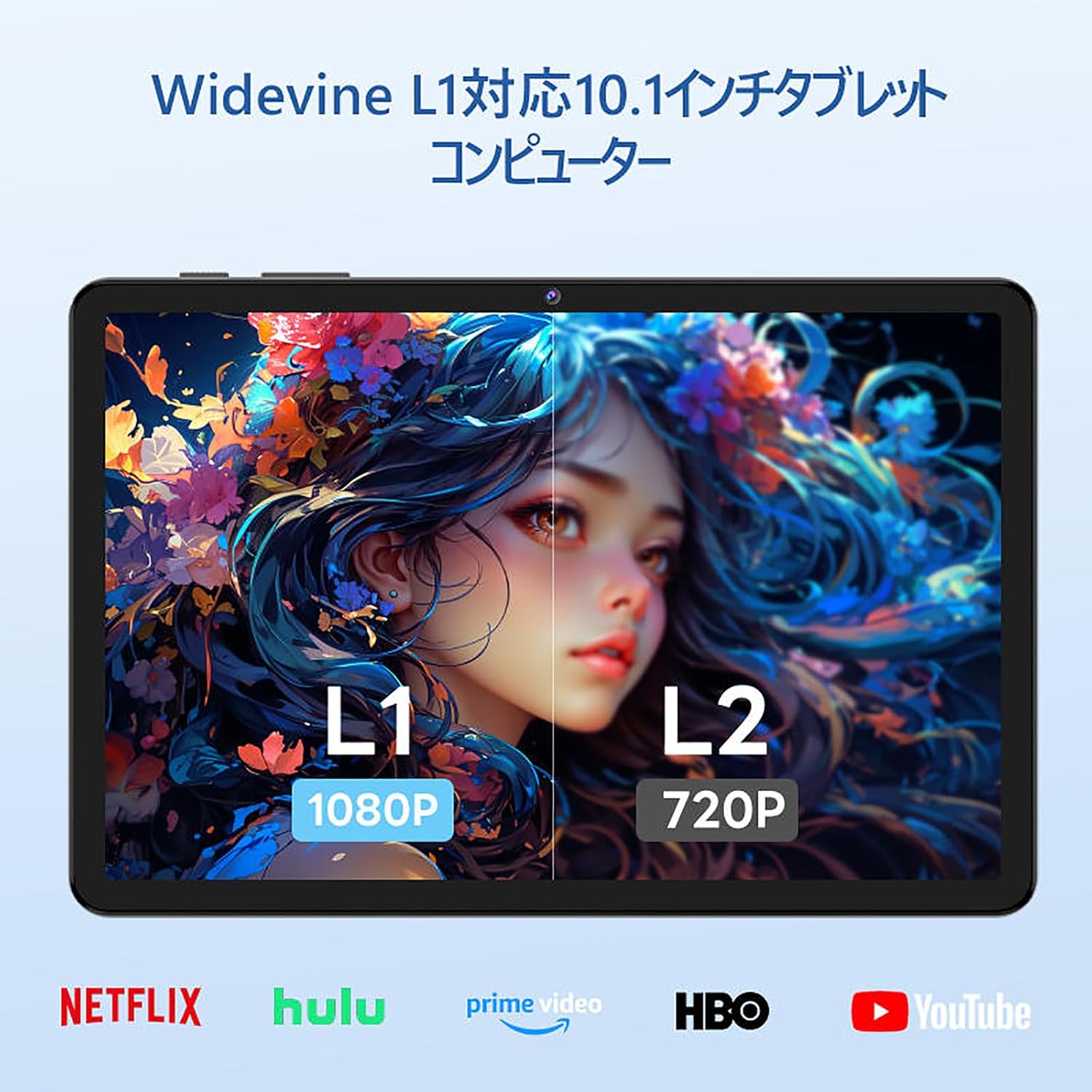
Image: The tablet showing a GPS map, indicating its navigation capabilities.
4. セットアップ
Follow these steps for the initial setup of your COLORROOM A30L1 tablet:
4.1. 初回電源投入と言語選択
- 画面がオンになるまで電源ボタンを押し続けます。
- On the welcome screen, select your preferred language. For English, choose "English (United States)".
- Click "Start" to proceed.
4.2. Wi-Fi and Data Transfer
It is recommended to skip Wi-Fi connection during initial setup to avoid interruptions, especially if your Wi-Fi environment is unstable. You can connect to Wi-Fi later.
- When prompted to set up your device, click "Skip".
- If asked to connect to Wi-Fi, click "Set up offline" or "Skip". Confirm by clicking "Continue" if prompted.
4.3. 日付と時刻の設定
- Select your time zone (e.g., "Japan Standard Time").
- Adjust the date and time if necessary, then click "Next".
4.4. Screen Lock (PIN)
Setting a PIN or screen lock is recommended for security. You can skip this step and set it up later if desired.
- To set a PIN, enter your desired PIN (4 digits or more) and confirm.
- To skip, click "Skip" and confirm the skip action.
4.5. Google サービス
- Review the Google Services information.
- Click "See more" multiple times until the "Agree" button appears.
- Click "Agree" to accept the terms and complete the setup.
Your tablet is now set up and ready for use.
Video: A step-by-step guide on the initial setup process for the tablet, including language selection and basic configurations.
5. 操作手順
5.1. 基本的なナビゲーションとジェスチャー
- 触る: アイコンをタップしてアプリを開いたり、項目を選択したりします。
- スワイプ: 指を画面上でスライドして、ページまたはコンテンツをスクロールします。
- ピンチしてズーム: 2本の指を使って画像を拡大または縮小し、 web ページ。
- 分割画面: Android 16 supports split-screen multitasking. Drag an app to one side of the screen to use two apps simultaneously.
- スクリーンショット: Use a three-finger swipe down gesture to capture a screenshot.

Image: The tablet screen showing various applications, demonstrating its multitasking capabilities.

Image: Various scenarios of using the tablet for entertainment, such as watching videos, reading, and video calls.

Image: More examples of the tablet being used in daily life, including during holidays and for cooking.
5.2. メディアの再生とストリーミング
With Widevine L1 support, you can stream high-definition content from popular services like Amazon Prime Video, Netflix, YouTube, and Hulu.

Image: The tablet displaying a high-definition video from a streaming service.
5.3.ワイヤレスプロジェクション
The tablet supports wireless projection, allowing you to mirror your screen to a larger display for an enhanced viewing の経験。
5.4. GPS機能
Utilize the built-in GPS for navigation, location-based services, and finding points of interest. The tablet supports multiple satellite systems for accurate positioning.
6. メンテナンス
To ensure the longevity and optimal performance of your COLORROOM A30L1 tablet, follow these maintenance guidelines:
- 画面のクリーニング: 柔らかく糸くずの出ない布で画面を優しく拭いてください。頑固な汚れには、軽くamp布に水またはスクリーンクリーナーを含ませてください。刺激の強い化学薬品は使用しないでください。
- ソフトウェアアップデート: 最新の機能、セキュリティ パッチ、パフォーマンスの改善を確実に得られるよう、システム アップデートを定期的に確認してインストールしてください。
- バッテリーのケア: Avoid extreme temperatures. Do not let the battery completely drain frequently. For long-term storage, charge the battery to around 50-60%.
- ストレージ管理: 定期的に不要なものをクリアする files, apps, and cache to free up storage space and maintain performance.
- 物理的保護: Use the provided protective case and screen protector to guard against scratches, drops, and impacts.
Video: Instructions on how to apply a screen protector to the tablet, ensuring a bubble-free installation.
7。 トラブルシューティング
タブレットで問題が発生した場合は、次の一般的な解決策を参照してください。
- タブレットの電源が入らない: バッテリーが充電されていることを確認してください。タブレットを充電器に接続し、数分間待ってから再度電源を入れてください。
- 画面が反応しない: Try restarting the tablet by holding down the power button for about 10-15 seconds until it powers off, then turn it back on.
- アプリがクラッシュ/フリーズする: Close the problematic app and reopen it. If the issue persists, clear the app's cache or reinstall it. Ensure your tablet's software is up to date.
- Wi-Fi 接続の問題: Wi-Fiルーターとタブレットを再起動してください。タブレットのWi-Fiネットワークを削除し、再接続してください。Wi-Fi信号の範囲内にいることを確認してください。
- パフォーマンスが遅い: バックグラウンドで実行されている未使用のアプリを閉じます。キャッシュと一時ファイルを消去します。 file他のトラブルシューティング手順を実行してもパフォーマンスの問題が解決しない場合は、工場出荷時設定へのリセットを検討してください (まずデータをバックアップしてください)。
- 充電の問題: Ensure the charging cable and adapter are securely connected and undamaged. Try using a different compatible charger and cable.
If the problem cannot be resolved using these steps, please contact customer support.
8. 仕様
| 特徴 | 詳細 |
|---|---|
| ブランド | カラールーム |
| モデル名 | A30L1 |
| オペレーティング·システム | アンドロイド16 |
| 表示サイズ | 10.1インチ |
| ディスプレイ解像度 | 1280x800 Pixels (IPS) |
| CPUブランド | ユニソック |
| CPU速度 | 1.6 GHz (Octa-core T7200) |
| ラム | 24GB(物理4GB + 仮想20GB) |
| 内部ストレージ | 64ギガバイト |
| 拡張可能なストレージ | microSDカードで最大2TB |
| バッテリー容量 | 6,000mAh |
| 充電 | 18W PD急速充電(Type-C) |
| ワイヤレスタイプ | 802.11ac (2.4GHz/5GHz デュアルバンド) |
| ブルートゥース | ブルートゥース5.0 |
| GPS | はい |
| フロントカメラ | 5 MP |
| リアカメラ | 8 MP |
| アイテム重量 | 1.07キログラム |
| パッケージ寸法 | 32.4 x 19.8 x 3.7 cm |
9.保証とサポート
COLORROOM offers a 1年間の保証サービス for all tablets purchased from official COLORROOM brand direct stores. This warranty covers manufacturing defects and ensures your product is free from material and workmanship flaws under normal use.
For warranty claims, technical support, or any inquiries regarding your COLORROOM A30L1 tablet, please contact COLORROOM customer service through the retailer where you purchased the product or visit the official COLORROOM webサポートの連絡先情報のサイト。
保証を有効にするために購入証明書を保管してください。