
導入
The RAPOO E9050L is a versatile wireless keyboard designed for seamless connectivity across multiple devices and operating systems. Its ultra-slim profile, quiet keys, and long-lasting rechargeable battery make it ideal for various environments, from office to travel. This manual provides detailed instructions for setup, operation, maintenance, and troubleshooting to ensure optimal use of your keyboard.
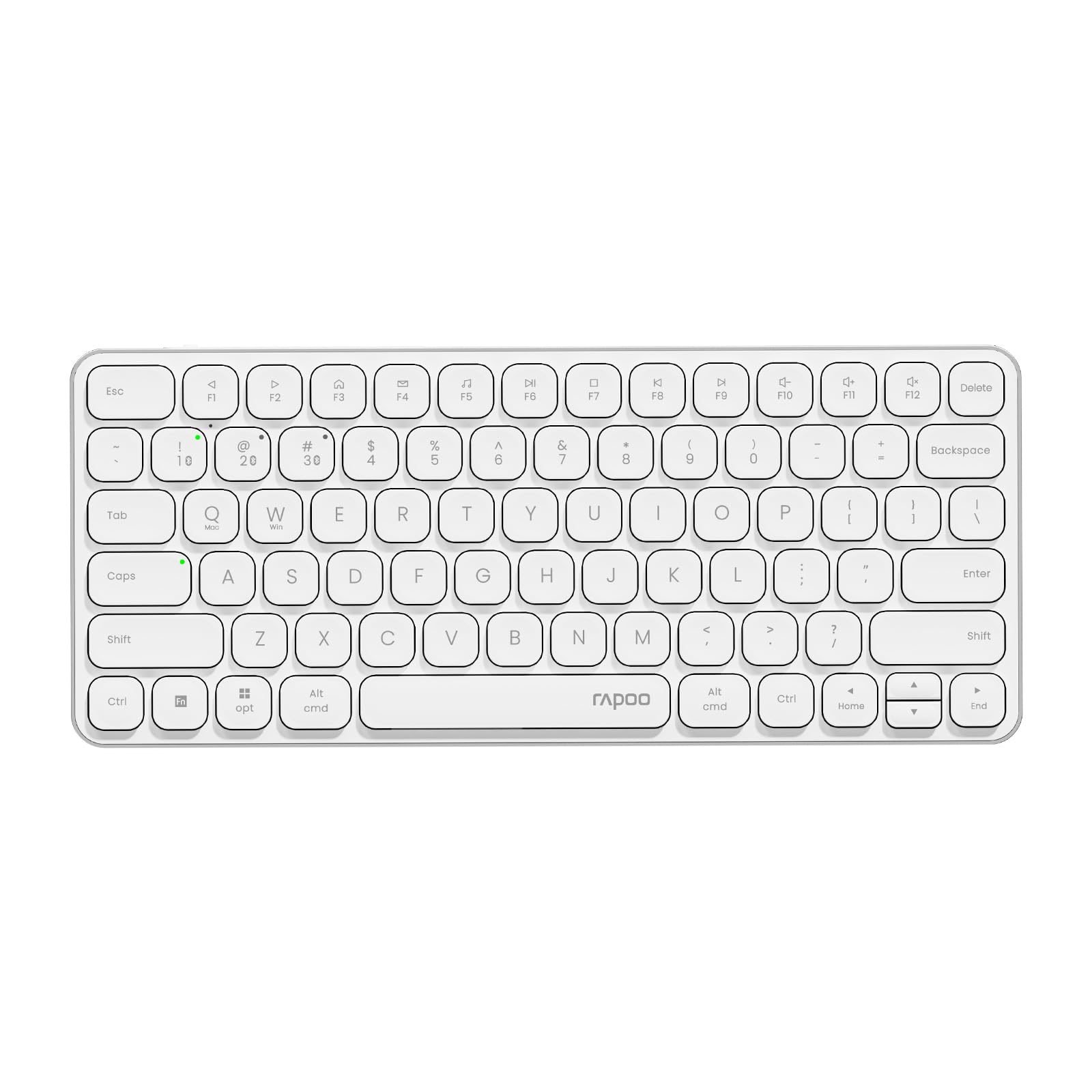
Image: The RAPOO E9050L Wireless Keyboard, showcasin洗練されたデザイン。
設定
パッケージ内容
- RAPOO E9050L Wireless Keyboard
- USB-C充電ケーブル
- ユーザーマニュアル
キーボードの充電
The E9050L features a built-in rechargeable battery. Before first use, fully charge the keyboard using the provided USB-C cable. A full charge can provide up to 90 days of continuous use. A quick 10-minute charge can provide enough power for one day of use.

Image: Diagram illustrating the rechargeable battery and charging indicators.
Connecting to Devices (Multi-Device & Multi-OS)
The keyboard supports wireless connection via 2.4GHz USB receiver or Bluetooth 5.0/4.0, allowing connection to up to 4 devices simultaneously. You can seamlessly switch between a notebook PC, desktop PC, tablet, or smartphone.

Image: Visual representation of multi-device and multi-OS connectivity options.
- 2.4GHzワイヤレス接続:
USBレシーバーをコンピューターの空いているUSBポートに挿入します。キーボードは自動的に接続されます。 - Bluetooth接続:
Press and hold the Bluetooth pairing key (usually indicated by a Bluetooth icon or a specific Fn key combination) until the indicator light flashes. On your device (PC, tablet, smartphone), enable Bluetooth and search for "RAPOO E9050L". Select it to pair. - デバイス間の切り替え:
Use the dedicated device switching keys (e.g., Fn + 1, Fn + 2, Fn + 3, Fn + 4) to switch between your paired devices. The corresponding indicator light will show which device is currently active.

Image: Icons representing compatibility with various operating systems including Windows, Mac OS, Linux, iOS, Android, and Chrome OS.
操作手順
Key Functions and Multimedia Hotkeys
The E9050L features a compact 78-key layout with 12 multimedia hotkeys for quick access to common functions like play/pause, volume control, and email. These functions are accessed by pressing the Fn キーを対応する F キー (F1 ~ F12) と組み合わせて押します。

Image: Diagram showing the multimedia hotkeys and their functions when used with the Fn key.
OSの切り替え
The keyboard supports dual system compatibility. To switch between Windows and Mac OS layouts, use the following key combinations:
- Windowsの場合: Fn + W
- Mac OSの場合: Fn + Q
インジケーターライト
The keyboard includes indicator lights for device connection, Caps Lock status, and battery level. These lights provide clear visual feedback on the keyboard's current state, addressing user feedback for improved clarity.

画像: クローズアップ view of the device indicator lights and Caps Lock indicator.
タイピング経験
The E9050L utilizes thin chiclet keycaps and a scissor-switch mechanism, providing a quiet and comfortable typing experience. The ultra-thin design (0.2 inches / 0.53 cm) reduces wrist strain, eliminating the need for a separate palm rest.

画像: 詳細 view of the thin chiclet keycaps and scissor-switch mechanism.
メンテナンス
To ensure the longevity and optimal performance of your RAPOO E9050L keyboard, follow these maintenance guidelines:
- クリーニング: 柔らかく糸くずの出ない布で軽く拭き取ってください。ampened with water or a mild cleaning solution to wipe the keycaps and surface. Avoid harsh chemicals or abrasive materials.
- ほこりの除去: 圧縮空気を使用して、キー間のほこりやゴミを取り除きます。
- 液体を避ける: Do not expose the keyboard to excessive moisture or submerge it in liquids. In case of spills, immediately disconnect the keyboard and allow it to dry completely before reuse.
- ストレージ: キーボードは、直射日光や極端な温度を避け、涼しく乾燥した場所に保管してください。
トラブルシューティング
If you encounter issues with your RAPOO E9050L keyboard, refer to the following common solutions:
- キーボードが接続されない:
- キーボードが充電されていることを確認してください。
- Verify that the 2.4GHz USB receiver is properly inserted or that Bluetooth is enabled and paired on your device.
- Try re-pairing the Bluetooth connection or re-inserting the USB receiver.
- Ensure you are on the correct device channel (Fn + 1/2/3/4).
- Keys Not Responding or Delayed Response:
- バッテリーレベルを確認してください。バッテリー残量が少ないとパフォーマンスに影響する可能性があります。
- Ensure the keyboard is within range of your device (for Bluetooth/2.4GHz).
- Interference from other wireless devices can cause issues; try moving closer to your device or away from other wireless sources.
- コンピュータまたはデバイスを再起動します。
- Incorrect Key Output (e.g., @ key types "):
- This often indicates an incorrect keyboard layout setting on your operating system. Ensure your device's keyboard settings match the US layout of the E9050L.
- Verify the correct OS mode is selected on the keyboard (Fn + W for Windows, Fn + Q for Mac).
- Caps Lock / Device Indicator Not Working:
- キーボードの電源がオンになっていて接続されていることを確認します。
- If the issue persists, try restarting the keyboard and your device.
仕様
| 特徴 | 詳細 |
|---|---|
| ブランド | ラプー |
| モデル番号 | E9050L |
| 対応デバイス | Smartphones, Tablets, Notebook PCs, Desktop PCs |
| 接続技術 | Bluetooth, USB (2.4GHz) |
| キーボードの説明 | 統合された |
| 推奨用途 | Personal, Business, Student, Everyday Use |
| 特集 | Ergonomic, Silent |
| 色 | 白 |
| 製品寸法(長さ x 幅 x 高さ) | 28.4 cm x 11.9 cm x 1.3 cm (11.18 インチ x 4.69 インチ x 0.51 インチ) |
| 材料 | Plastic (with aluminum frame) |
| 電源 | 電池式(充電式) |
| スイッチタイプ | Mechanical (Scissor-switch) |
| キーボードレイアウト | QWERTY(米国配列) |
| サポートされているオペレーティングシステム | Linux, Windows, Mac OS, iOS, Android, Chrome OS |
| キーの数 | 78 |

Image: Diagram showing the precise dimensions of the RAPOO E9050L keyboard.
保証とサポート
保証情報
The RAPOO E9050L Wireless Keyboard comes with a 1年間のメーカー保証 ご購入日から1年間有効です。本保証は、通常の使用状況における材料および製造上の欠陥を対象としています。保証請求の際は、購入証明書を保管してください。
カスタマーサポート
For technical assistance, troubleshooting, or warranty inquiries, please contact RAPOO customer support through the official website or your retailer. Detailed contact information can typically be found on the product packaging or the RAPOO official support page.