
1. はじめに
This manual provides detailed instructions for the setup, operation, and maintenance of your ELEPHAS K350 Smart Projector. Please read this manual thoroughly before using the product to ensure proper function and longevity. Keep this manual for future reference.
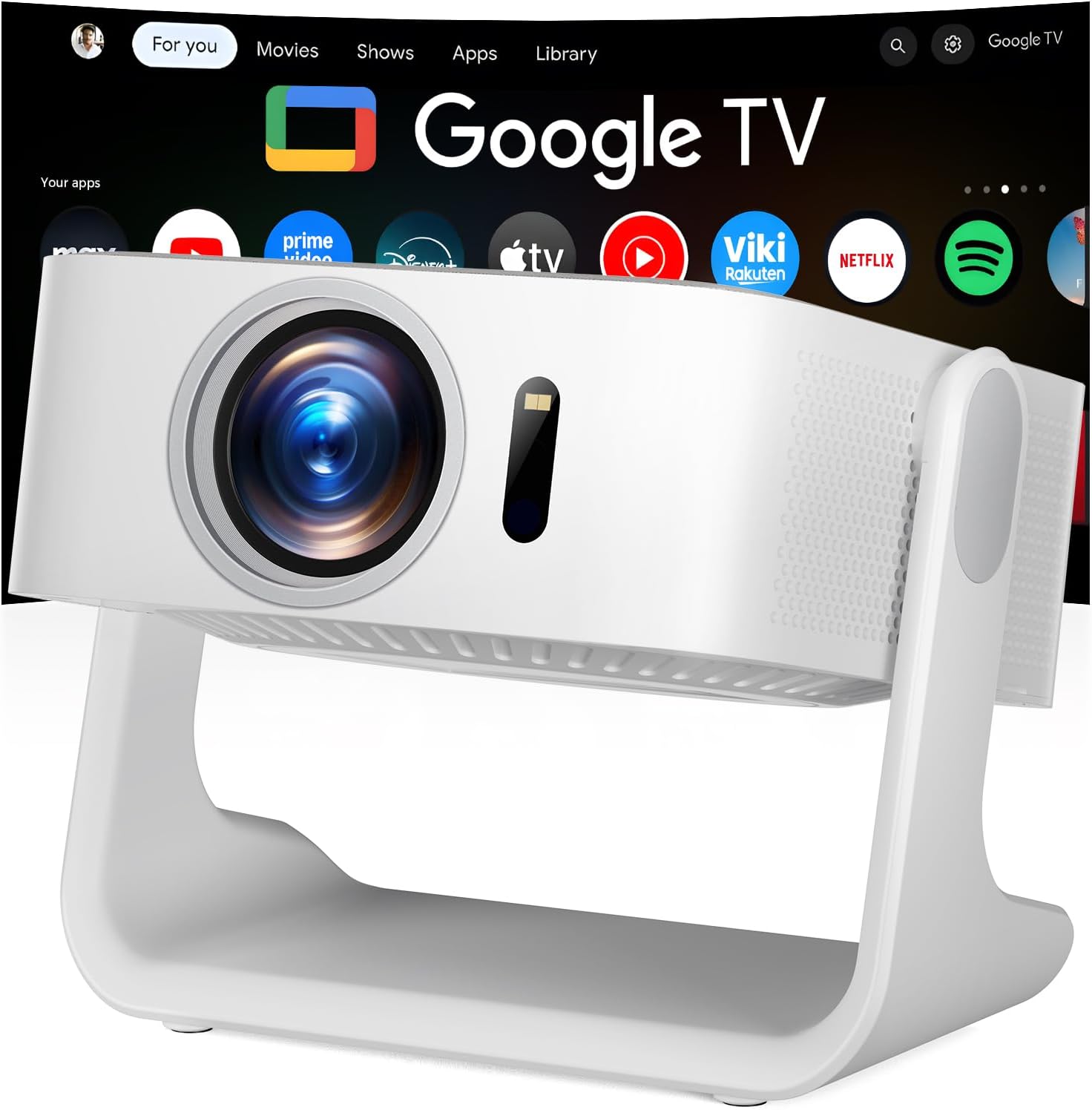
Image 1.1: The ELEPHAS K350 Smart Projector, a compact device with a lens visible on the front, projecting the Google TV interface onto a screen. The projector is white and sits on a stable base.
2. パッケージ内容
パッケージにすべてのアイテムが揃っていることを確認します。
- ELEPHAS K350 Smart Projector
- リモートコントロール
- 電源アダプター
- HDMIケーブル
- ユーザーマニュアル(このドキュメント)
3.製品オーバーview
プロジェクターのコンポーネントとポートについて理解しておいてください。
3.1 前面と側面 View
画像3.1:正面 view of the ELEPHAS K350 Smart Projector, highlighting the projection lens and sensor for auto-focus/keystone correction.
3.2 背面パネルと接続
The rear panel typically includes power input, HDMI port, USB port, and audio output. Refer to the physical device for exact port locations.

Image 3.2: The ELEPHAS K350 Smart Projector connected to power, with its remote control and various streaming app logos (Netflix, Prime Video, YouTube, HBO Max, Hulu) displayed, indicating its smart capabilities.
4. セットアップ
4.1初期電源オン
- 電源アダプタをプロジェクターの電源入力に接続し、次に電源コンセントに接続します。
- プロジェクタまたはリモコンの電源ボタンを押して、デバイスの電源をオンにします。
- Follow the on-screen instructions for initial language and region settings.
4.2 ネットワーク接続(Wi-Fi 6)
The projector supports Wi-Fi 6 for fast and stable internet connectivity.
- Navigate to the "Settings" menu on the Google TV interface.
- 「ネットワークとインターネット」を選択します。
- リストからWi-Fiネットワークを選択し、パスワードを入力します。
- 接続を確認します。

Image 4.1: Illustration of the projector's dual-band Wi-Fi 6 capability, showing a user gaming with the projector, emphasizing fast and stable connections for online content.
4.3 Bluetoothペアリング(Bluetooth 5.4)
外部オーディオ デバイスを接続するか、プロジェクターを Bluetooth スピーカーとして使用します。
- Go to "Settings" and select "Remotes & Accessories".
- Enable Bluetooth on the projector and your desired device (e.g., speaker, headphones).
- リストからペアリングするデバイスを選択します。

Image 4.2: Depiction of the projector's two-way Bluetooth 5.4 connectivity, showing it paired with external speakers for enhanced audio and a tablet for screen mirroring, illustrating versatile audio and display options.
4.4 Physical Placement and 270° Rotatable Stand
The integrated 270° rotatable stand allows flexible projection angles.
- プロジェクターを安定した面に置きます。
- Adjust the stand to direct the projection onto a wall, screen, or ceiling.
- Ensure no objects obstruct the projection path.
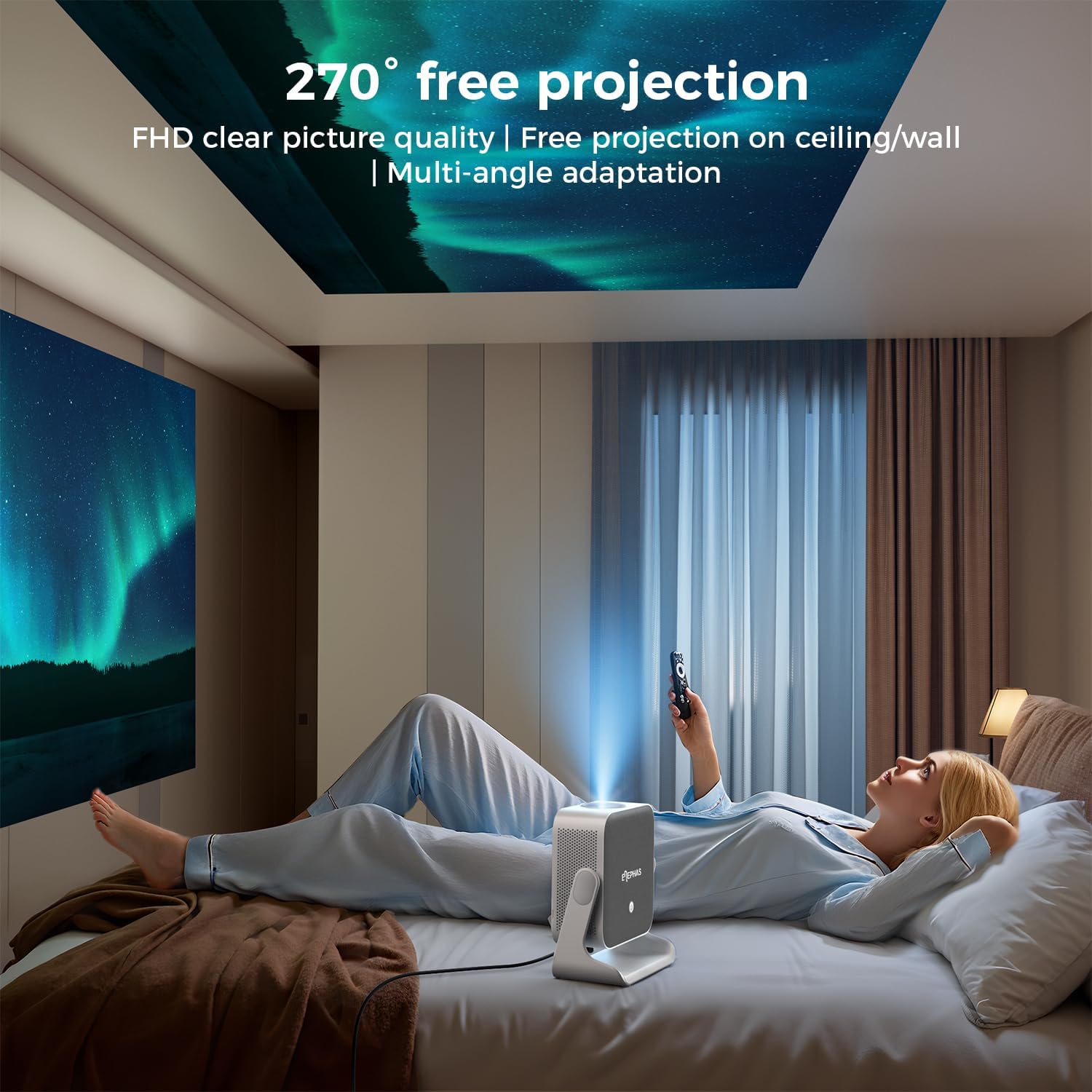
Image 4.3: A user lying in bed, watching content projected onto the ceiling by the ELEPHAS K350 Smart Projector, demonstrating its 270° rotatable stand for flexible view角度を変える。
4.5 Auto Focus, Auto Keystone, and Auto Obstacle Avoidance
The projector features advanced automatic adjustments for optimal image quality.
- オートフォーカス: The projector automatically adjusts the image clarity using TOF technology. This occurs within milliseconds upon startup or movement.
- 自動台形補正: The image will automatically adjust to a rectangular shape, even if the projector is placed at an angle (up to ±30° vertical/horizontal).
- 自動障害物回避: The projector detects and adjusts the projection area to avoid obstacles on the surface.
- ズーム: The projection size can be adjusted up to 70% via settings if needed.

Image 4.4: A diagram illustrating the projector's AI intelligent algorithm for image correction, showing how TOF auto focus, auto obstacle avoidance, and auto keystone correction work to provide a clear, properly framed image.
5. 操作手順
5.1 Google TV インターフェース
The ELEPHAS K350 features an integrated Google TV system, providing access to a wide range of streaming services and applications.
- Use the remote control's navigation buttons to browse the Google TV home screen.
- Access pre-installed apps like Netflix, Prime Video, YouTube, Hulu, and Disney+.
- Google Play ストアから追加のアプリケーションをダウンロードします。

Image 5.1: The Google TV interface displayed on a projection screen, with examples of voice commands for the Google Assistant, such as "Open YouTube" or "Play Netflix," demonstrating effortless smart control.
5.2 Google音声アシスタント
Utilize the built-in Google Voice Assistant for hands-free control.
- リモコンの専用音声ボタンを押します。
- Speak your command clearly, such as "Open Netflix," "Adjust volume," or "検索する アクション映画です。"
- The projector will respond to your voice commands.
5.3 外部デバイス接続(HDMI)
Connect gaming consoles, Blu-ray players, or other devices via the HDMI port.
- Ensure both the projector and the external device are powered off.
- Connect one end of the HDMI cable (included) to the external device and the other end to the HDMI port on the projector.
- 両方のデバイスの電源を入れます。
- Select the HDMI input source from the projector's input menu.
5.4 Screen Mirroring (Google Cast)
Cast content from your Android or iOS devices using Google Cast.
- モバイル デバイスとプロジェクターが同じ Wi-Fi ネットワークに接続されていることを確認します。
- On your mobile device, open a compatible app (e.g., YouTube, Netflix) or use the screen mirroring function.
- Select the Cast icon and choose your ELEPHAS K350 projector from the list of available devices.
6. メンテナンス
定期的なメンテナンスにより、最適なパフォーマンスが確保され、プロジェクターの寿命が延びます。
- レンズクリーニング: プロジェクターレンズを拭く際は、光学レンズ専用の柔らかく糸くずの出ない布をご使用ください。研磨剤や刺激の強い化学薬品の使用は避けてください。
- ほこりの除去: Periodically clean the projector's exterior with a soft, dry cloth. Ensure ventilation openings are free from dust accumulation to prevent overheating. Do not spray cleaning liquids directly onto the projector.
- ストレージ: 長期間使用しない場合は、プロジェクターを直射日光や極端な温度を避け、涼しく乾燥した場所に保管してください。
- ソフトウェアアップデート: Ensure the projector's software is up-to-date through the Google TV settings to benefit from the latest features and performance improvements.
7。 トラブルシューティング
このセクションでは、発生する可能性のある一般的な問題について説明します。
| 問題 | 考えられる原因 | 解決 |
|---|---|---|
| 電源なし | 電源ケーブルが接続されていない; 電源コンセントの問題 | 電源ケーブルがしっかりと接続されていることを確認してください。別の機器でコンセントをテストしてください。 |
| 画像が投影されない | Lens cap on; Incorrect input source; Device not powered on | Remove lens cap. Select the correct input source (e.g., HDMI). Ensure connected device is powered on. |
| 画像がぼやけている | 焦点が合っていない。プロジェクターが動いた。 | The projector has auto-focus. If manual adjustment is needed, check settings. Ensure the projector is stable. |
| 画像が歪んでいる(長方形ではない) | Incorrect keystone settings; Projector angle too extreme | The projector has auto-keystone correction. If issues persist, check manual keystone settings in the menu. Reposition the projector if the angle is too severe. |
| 音が出ない | Volume too low; Muted; Incorrect audio output selected; Bluetooth not paired | Increase volume. Check if muted. Ensure internal speakers are selected or Bluetooth device is correctly paired. |
| Wi-Fi接続の問題 | パスワードが間違っています; ルーターの問題; 範囲外 | Verify Wi-Fi password. Restart router. Move projector closer to router. |
8. 仕様
| 特徴 | 詳細 |
|---|---|
| ブランド | エレファス |
| モデル番号 | K350 |
| ディスプレイ解像度 | 1920 x 1080 (フルHD) |
| 接続技術 | Wi-Fi 6, Bluetooth 5.4, HDMI |
| 特集 | Auto Focus, Auto Keystone, Auto Obstacle Avoidance, Built-In Speaker, Built-In Wi-Fi, Google TV, Google Voice Assistant, 270° Rotatable Stand |
| オーディオ | Built-in 10W Hi-Fi speakers (Dolby Audio support) |
| アイテム重量 | 4.51ポンド |
| パッケージ寸法 | 11.02 x 10.12 x 7.09インチ |
| 推奨用途 | Home Cinema, Gaming, Outdoor Movie Nights, Presentations |
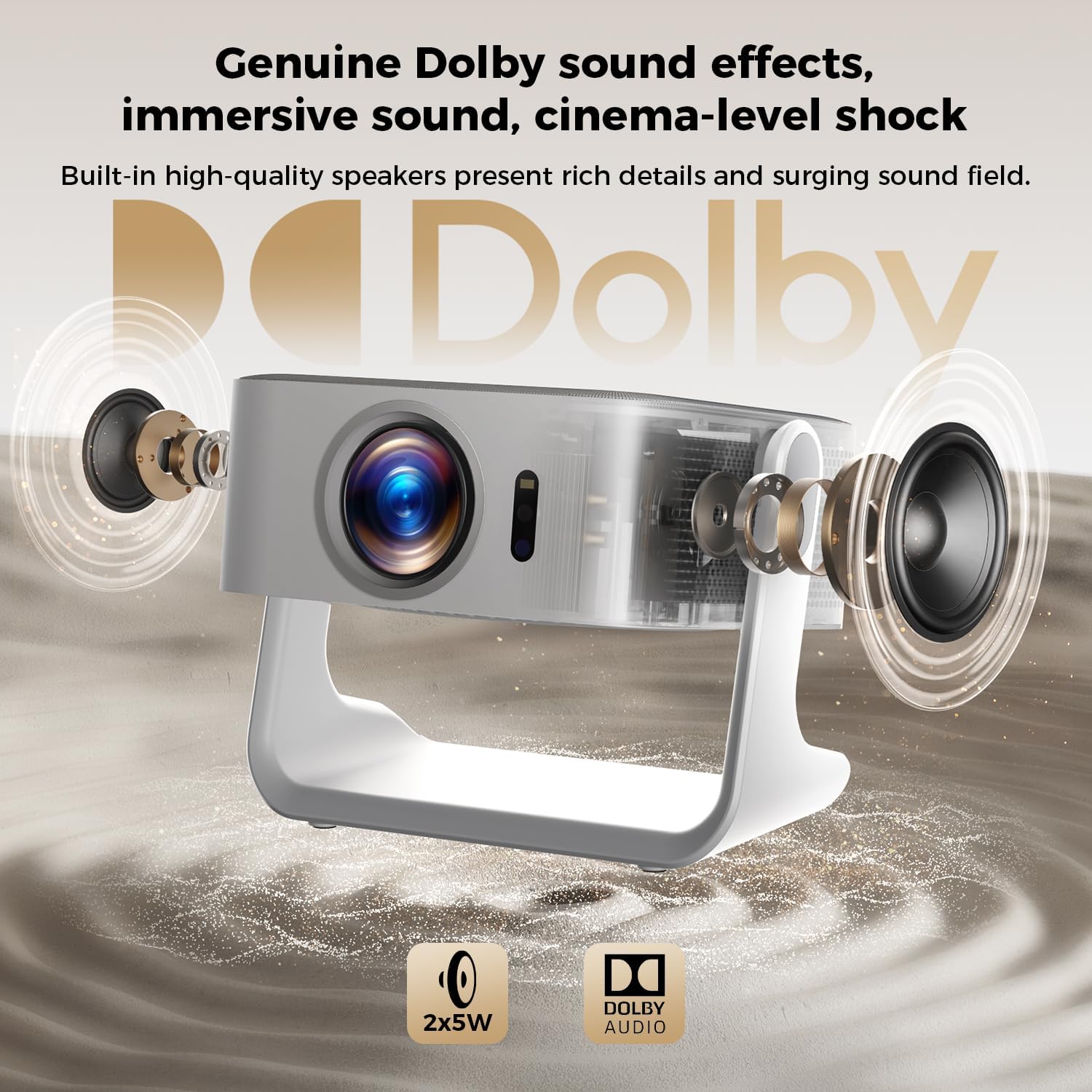
図8.1: 爆発した view of the ELEPHAS K350 Smart Projector, highlighting its internal 2x5W speakers and Dolby Audio support, indicating immersive sound capabilities.
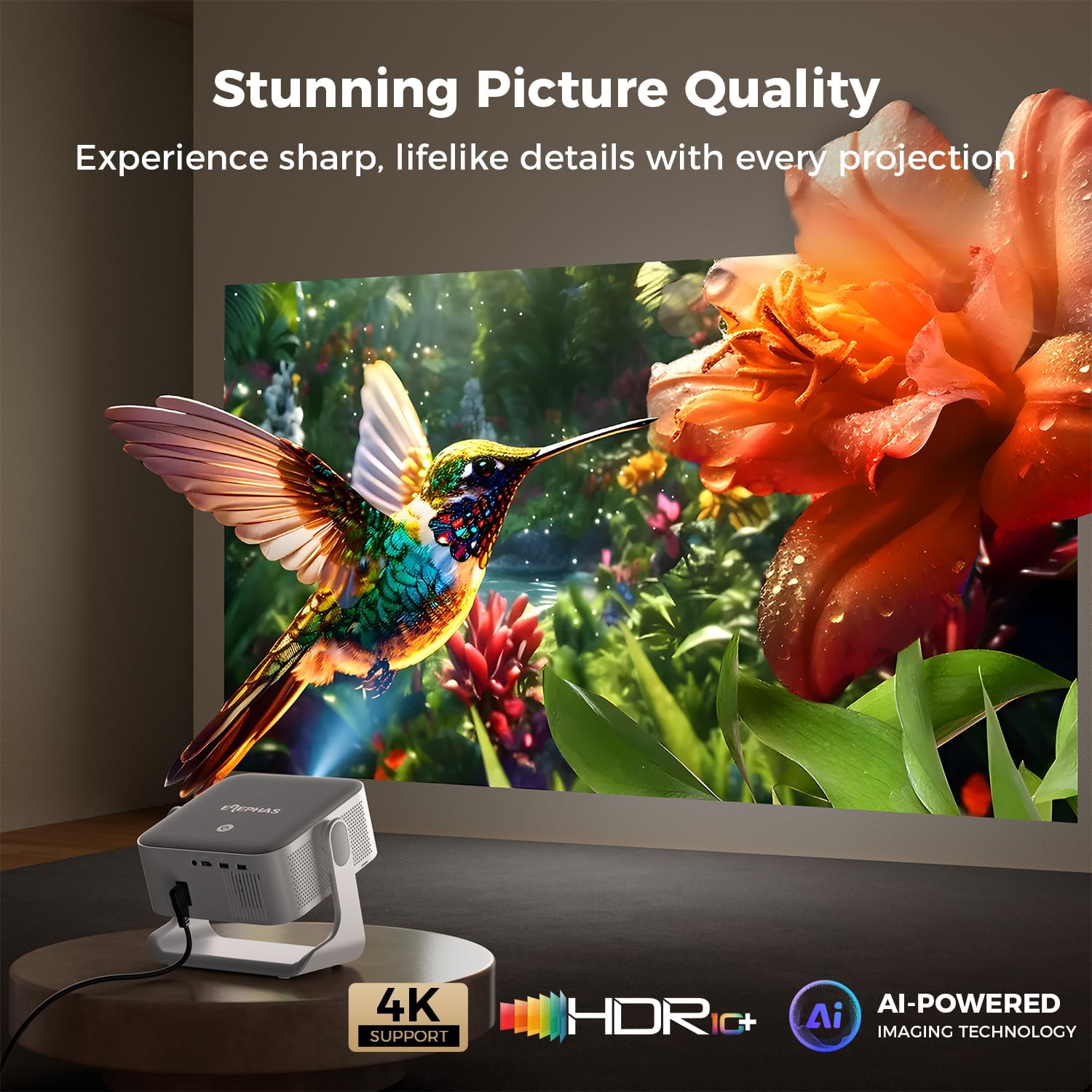
Image 8.2: The ELEPHAS K350 Smart Projector projecting a vibrant, detailed image of a hummingbird and flower, emphasizing its stunning picture quality with 4K support, HDR, and AI-powered imaging technology.
9. 保証とサポート
The ELEPHAS K350 Smart Projector is backed by a 2-year service guarantee.
For any product-related issues, technical assistance, or warranty claims, please contact ELEPHAS customer support through the official channels provided at the point of purchase or on the ELEPHAS brand webサイト。
保証を有効にするために購入証明書を保管してください。