1. はじめに
The FIREBAT X3 Wired RGB Gaming Mouse is designed for precision and comfort, suitable for various computing tasks including gaming, office work, and general use. This manual provides detailed instructions for setting up, operating, and maintaining your mouse.

以上view of the FIREBAT X3 Wired RGB Gaming Mouse highlighting its main features.
2. セットアップ
2.1 マウスの接続
The FIREBAT X3 Gaming Mouse features a simple plug-and-play design for easy setup.
- Locate an available USB-A port on your computer or laptop.
- Insert the USB connector of the mouse into the USB-A port.
- Your operating system will automatically detect and install the necessary drivers. No additional software installation is required for basic functionality.

The FIREBAT X3 mouse connects via a standard USB-A port for immediate use.
3. 操作
3.1 ボタンの機能
The FIREBAT X3 Gaming Mouse is equipped with 6 programmable buttons for enhanced control.
- 左ボタン: 標準クリック機能。
- 右ボタン: 標準的な右クリック機能。
- スクロールホイール: Scrolls up and down. Can also be pressed for a middle-click function.
- DPI調整キー: マウスの感度(DPI)を変更します。
- 進むボタン: 前方に移動します web ブラウザまたは file 探検家。
- 戻るボタン: 後方に移動します web ブラウザまたは file 探検家。

Illustration of the 6-button layout on the FIREBAT X3 Gaming Mouse.
3.2 DPI(感度)の調整
The mouse features 4 adjustable DPI levels to suit different tasks and preferences.
- を押す DPI調整キー (located behind the scroll wheel) to cycle through the preset DPI settings.
- The default DPI levels are 1200, 1800, 2400, and 3600.
- Each press will switch to the next DPI level, allowing you to find the optimal sensitivity for your current activity.

The DPI adjustment key allows for quick changes in mouse sensitivity.
3.3つのRGB照明モード
The FIREBAT X3 mouse features 7 dynamic RGB backlit modes to enhance your setup.
- The RGB lighting automatically cycles through its 7 distinct modes.
- There is no manual button to change the RGB mode; the mouse will continuously display various lighting effects.
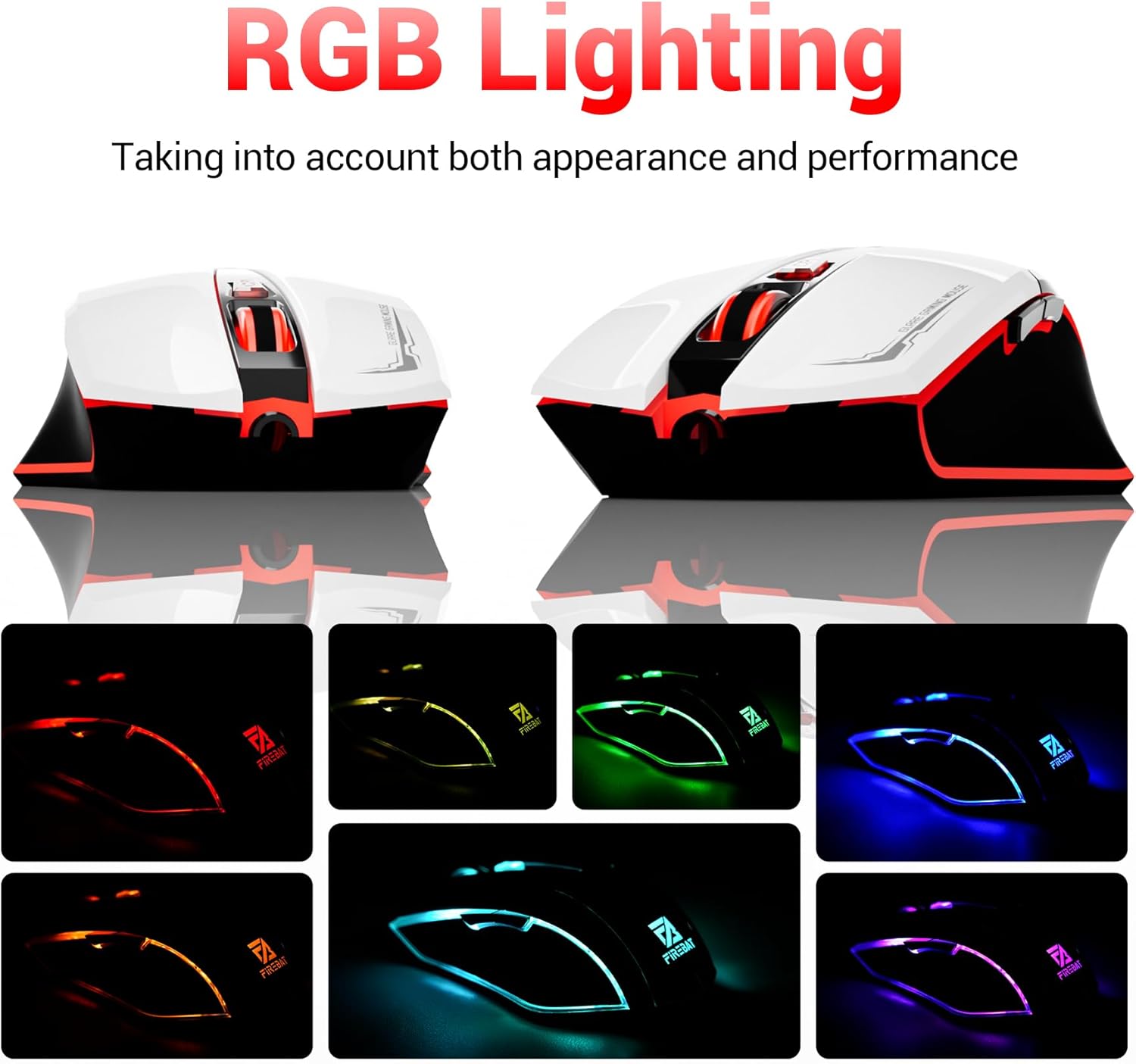
The mouse features vibrant RGB lighting with multiple dynamic modes.
3.4 人間工学に基づいたデザインと快適性
The mouse is designed with an ergonomic shape to provide a comfortable grip and reduce hand fatigue during extended use, suitable for both right and left-hand users.

The ergonomic design ensures comfort during prolonged use.
3.5 Quiet Click Feature
The mouse incorporates a 'Heavy Bass Design' for its key sounds, ensuring soft clicks without excessive noise, which is beneficial in quiet environments.

The mouse features quiet clicks, minimizing noise during use.
4. メンテナンス
4.1 クリーニング
To ensure optimal performance and longevity, keep your mouse clean.
- 掃除する前に、マウスをコンピューターから取り外してください。
- 柔らかく糸くずの出ない布を軽く拭いてください。ampマウスの表面を水または中性洗浄液で拭いてください。
- マウスを損傷する恐れがあるため、刺激の強い化学薬品、研磨剤入りの洗剤、または過度の湿気の使用は避けてください。
- For the optical sensor, use a cotton swab to gently remove any dust or debris.
4.2 ストレージ
使用していないときは、マウスを極端な温度や直射日光を避け、清潔で乾燥した環境に保管してください。
5。 トラブルシューティング
5.1 マウスが反応しない
- USB接続を確認してください: USBケーブルがコンピュータの正常なUSBポートにしっかりと差し込まれていることを確認してください。別のUSBポートを試してください。
- コンピューターを再起動: 場合によっては、単純に再起動するだけで接続の問題が解決することがあります。
- 別のコンピューターでテストする: 可能であれば、別のコンピューターでマウスをテストして、問題がマウスにあるのか、コンピューターの設定にあるのかを判断します。
5.2 カーソルの動きが不規則または飛び跳ねる
- 光学センサーのクリーニング: Dust or debris on the optical sensor can cause erratic movement. Refer to the cleaning instructions in the Maintenance section.
- Use a Mouse Pad: Ensure you are using the mouse on a suitable surface. Reflective, transparent, or uneven surfaces can interfere with the optical sensor.
5.3 RGB照明が機能しない
- USB電源を確認します: Ensure the mouse is receiving sufficient power through the USB connection.
- 手動制御なし: Remember that the RGB lighting cycles automatically and does not have a manual control button. If the mouse is functioning otherwise, the lighting should be active.
6. 仕様
| 特徴 | 詳細 |
|---|---|
| モデル番号 | X3 Gaming Mouse |
| ブランド | ファイアバット |
| 接続技術 | USB有線 |
| 動き検出 | 光学 |
| DPI レベル | 1200 / 1800 / 2400 / 3600 |
| ボタンの数 | 6(プログラム可能) |
| バックライト | 7RGBモード |
| 製品寸法 | 5 x 3 x 0.1 インチ (12.7 x 7.6 x 0.25 cm) |
| アイテム重量 | 5.1オンス(144.6グラム) |
| 人間工学 | Right or Left Hand Use |
| メーカー | ファイアバット |
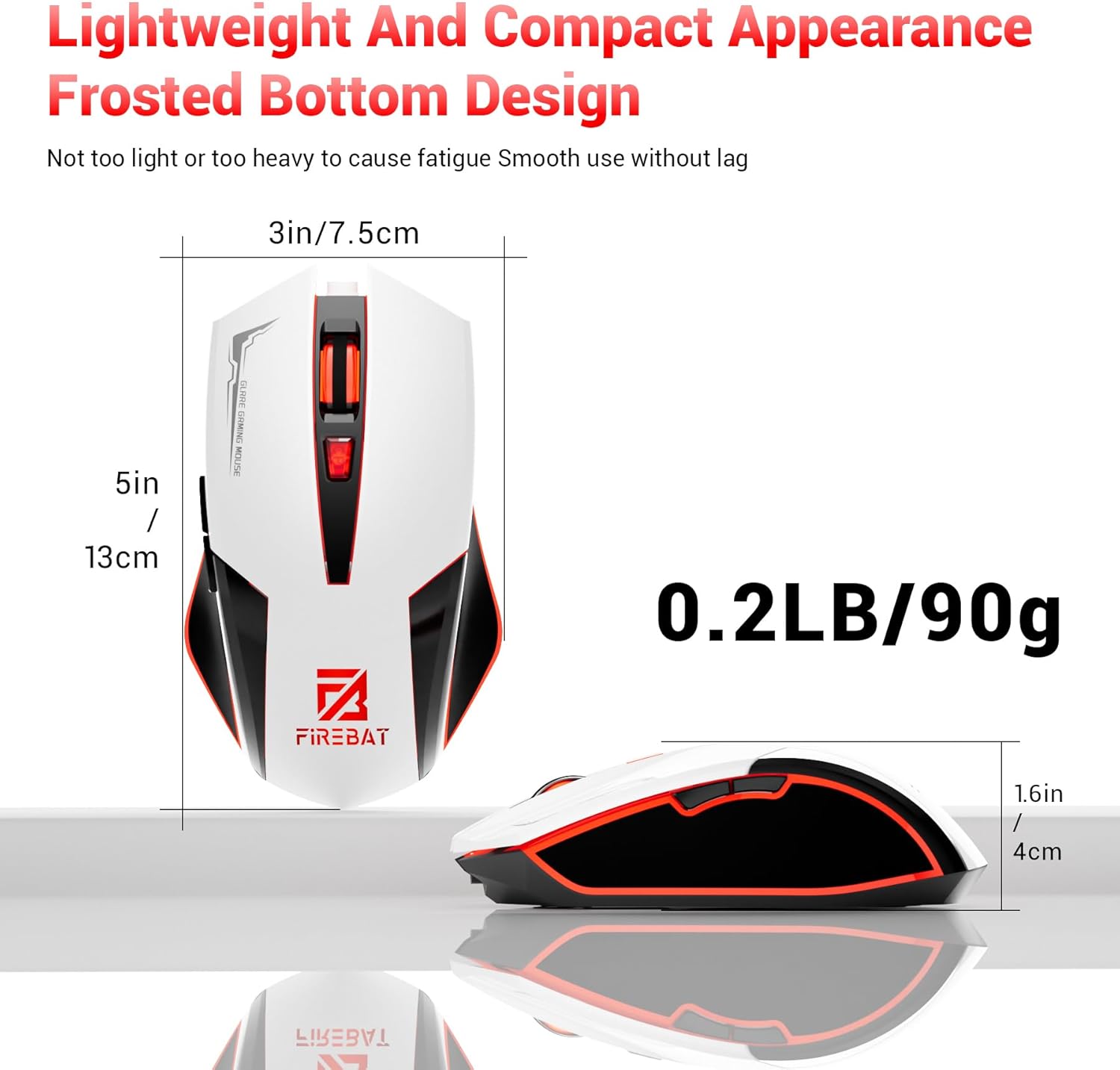
Physical dimensions and weight of the FIREBAT X3 Gaming Mouse.
7. 保証とサポート
7.1 保証情報
FIREBAT products are manufactured to high-quality standards. For specific warranty details, please refer to the warranty card included with your product or visit the official FIREBAT webサイトをご覧ください。通常、製品には製造上の欠陥をカバーする限定保証が付いています。
7.2 カスタマーサポート
If you encounter any issues or have questions regarding your FIREBAT X3 Gaming Mouse, please contact our customer support team:
Please provide your product model number (X3 Gaming Mouse) and a detailed description of your issue when contacting support for faster assistance.