
導入
This manual provides essential information for setting up, operating, and maintaining your paitanry 10.1 Inch Android Tablet. Please read this manual thoroughly before using your device to ensure proper function and longevity.
The paitanry 10.1 Inch Android Tablet (Model G80) features the Android 15 operating system, an octa-core MediaTek Helio G80 processor, 12GB RAM, and 128GB internal storage. It is equipped with a 10.1-inch In-Cell IPS display, dual cameras (5MP front, 13MP rear), dual-band Wi-Fi, Bluetooth 5.0, and an 8000mAh battery with 18W fast charging support.
パッケージ内容
パッケージにすべてのアイテムが揃っていることを確認します。
- 1 × paitanry 10.1 Inch Android Tablet
- 1 × Protective Case
- 1 × 9V/2A Fast Charger
- 1 × Dual Type-C Data Cable
- 1 × OTGアダプター
- 1 × ユーザーマニュアル(本書)

Image: The paitanry 10.1 Inch Android Tablet shown with its included protective case, charger, and cables.
設定
1. タブレットの充電
Before first use, fully charge the tablet. Connect the provided Type-C data cable to the tablet's USB-C port and the 9V/2A fast charger. Plug the charger into a power outlet. The battery icon on the screen will indicate charging status.
The 8000mAh battery supports up to 8 hours of mixed use. 18W PD fast charging allows for efficient recharging.

Image: Visual representation of the tablet's powerful 8000mAh battery and its estimated usage duration for various activities like gaming, online video, web surfing, music, and e-books.
2. 電源のオン/オフ
- 電源を入れるには: Press and hold the Power button located on the side of the tablet until the paitanry logo appears on the screen.
- 電源を切るには: 電源メニューが表示されるまで電源ボタンを長押しします。オプションから「電源を切る」を選択します。
- 再起動します: 電源メニューが表示されるまで電源ボタンを長押しします。オプションから「再起動」を選択します。
3. 初期設定
初めて電源を入れると、タブレットが初期設定の手順を案内します。画面の指示に従ってください。
- 言語を選択します。
- Wi-Fi ネットワークに接続します。
- Google アカウントでサインインするか、新しいアカウントを作成してください。
- 画面ロック(PIN、パターン、パスワード)を設定します。
- Review 利用規約に同意します。
操作手順
1. 基本的なナビゲーション
- 触る: アイコンまたはオプションをタップして選択します。
- スワイプ: 画面上で指をドラッグして、画面をスクロールしたり、画面間を移動したりします。
- ピンチしてズーム: 画面に 2 本の指を置き、指を離したり近づけたりして、ズームインまたはズームアウトします。
- ホームボタン: ホーム画面に戻ります。
- 戻るボタン: 前の画面に戻ります。
- 最近使ったアプリボタン: 最近開いたアプリケーションを表示します。
2。 Wi-Fi接続
Wi-Fi ネットワークに接続するには:
- へ移動 設定 > ネットワークとインターネット > Wi-Fi.
- Wi-Fiの切り替え On.
- リストから希望のネットワークを選択します。
- パスワードを求められた場合は入力し、タップします 接続する.
The tablet supports dual-band Wi-Fi (802.11ac) for stable and fast internet connectivity.
3.Bluetooth接続
Bluetoothデバイスとペアリングするには:
- へ移動 設定 > 接続されたデバイス > ブルートゥース.
- Bluetoothを切り替える On.
- Bluetooth デバイスがペアリング モードになっていることを確認します。
- 「利用可能なデバイス」リストからデバイスを選択し、画面の指示に従ってペアリングを完了します。
The tablet features Bluetooth 5.0 for efficient wireless connections.
4. カメラの使用
このタブレットには、5MP の前面カメラと 13MP の背面カメラが搭載されています。
- 開く カメラ 応用。
- カメラアイコンをタップして、前面カメラと背面カメラを切り替えます。
- シャッターボタンをタップして写真を撮ったり、ビデオ録画を開始/停止したりします。
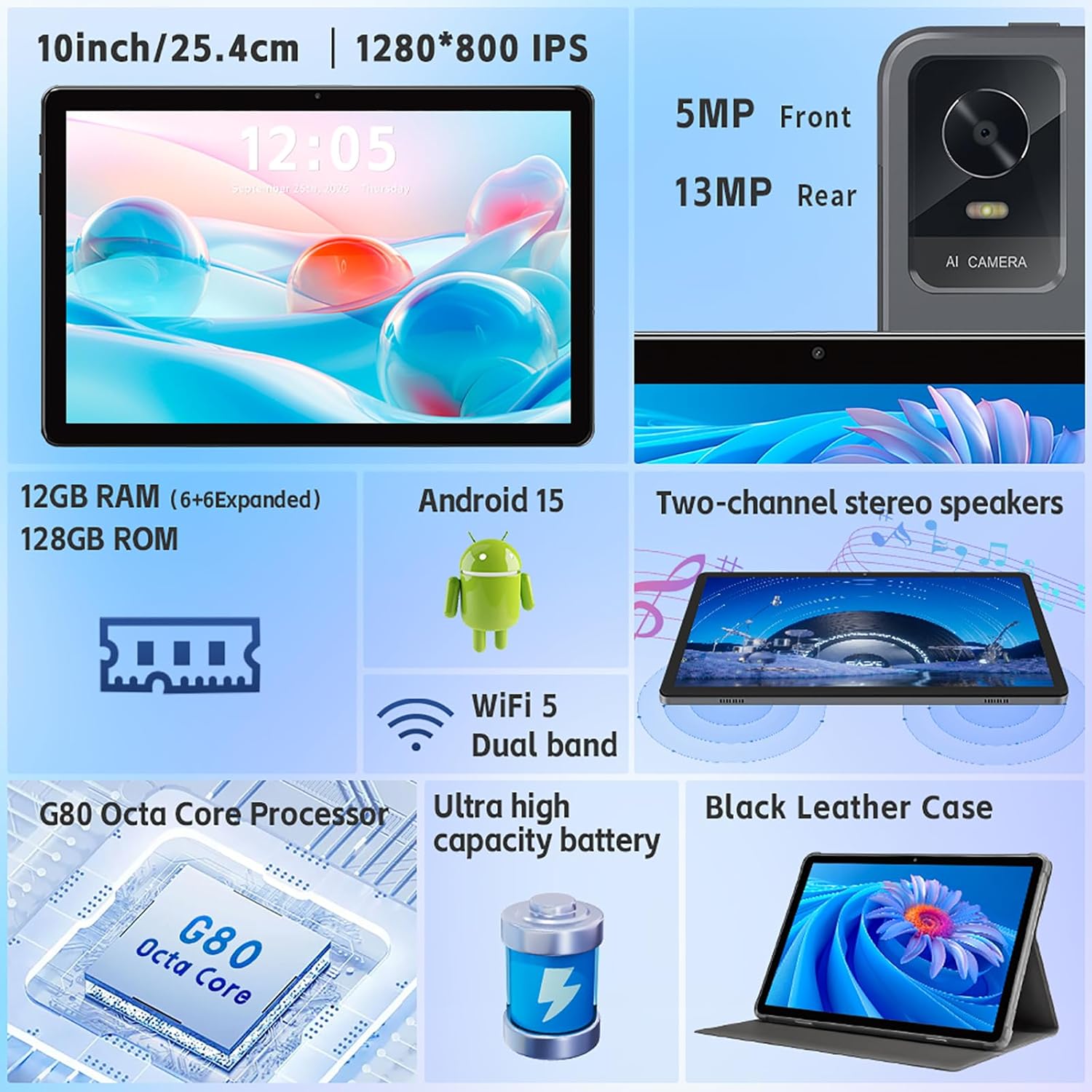
画像: オーバーview of the tablet's features, including the 5MP front camera and 13MP rear camera, 12GB RAM, 128GB ROM, Android 15, Wi-Fi 5 Dual band, G80 Octa Core Processor, and ultra-high capacity battery.
5. ストレージ管理
The tablet has 128GB of internal storage. You can expand storage up to 2TB using a Micro SD card (sold separately).
- Micro SD カードを挿入するには: Locate the card slot on the side of the tablet. Gently insert the Micro SD card until it clicks into place.
- ストレージを管理するには: へ移動 設定 > ストレージ に view ストレージの使用と管理 files.
6.ディスプレイ設定
表示エクスペリエンスをカスタマイズします。
- へ移動 設定 > 画面.
- Adjust brightness, dark theme, night light, and font size.
- Set screen timeout duration.
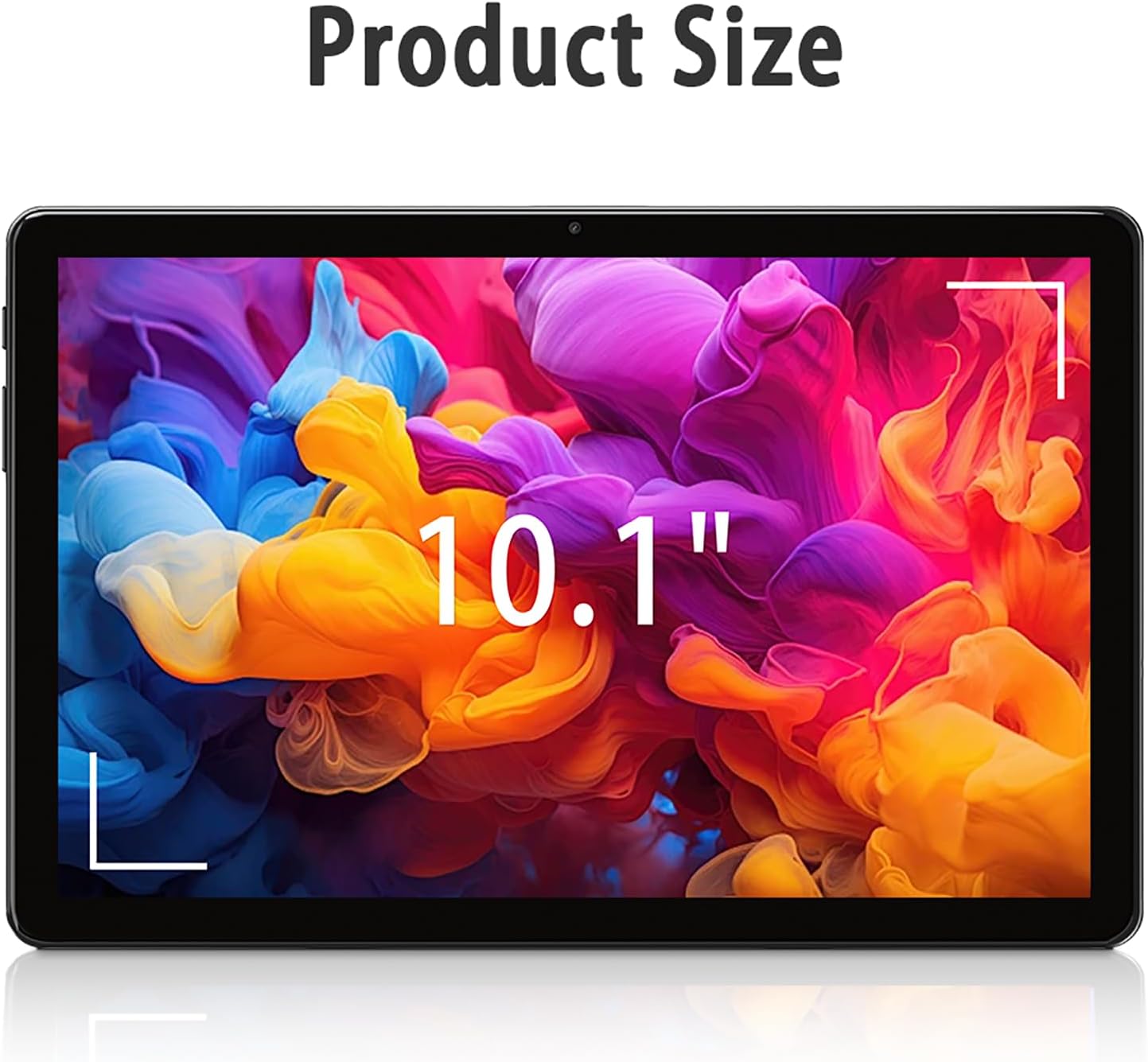
Image: The tablet screen showing "10.1"" to indicate its display size, with colorful abstract art on the screen.
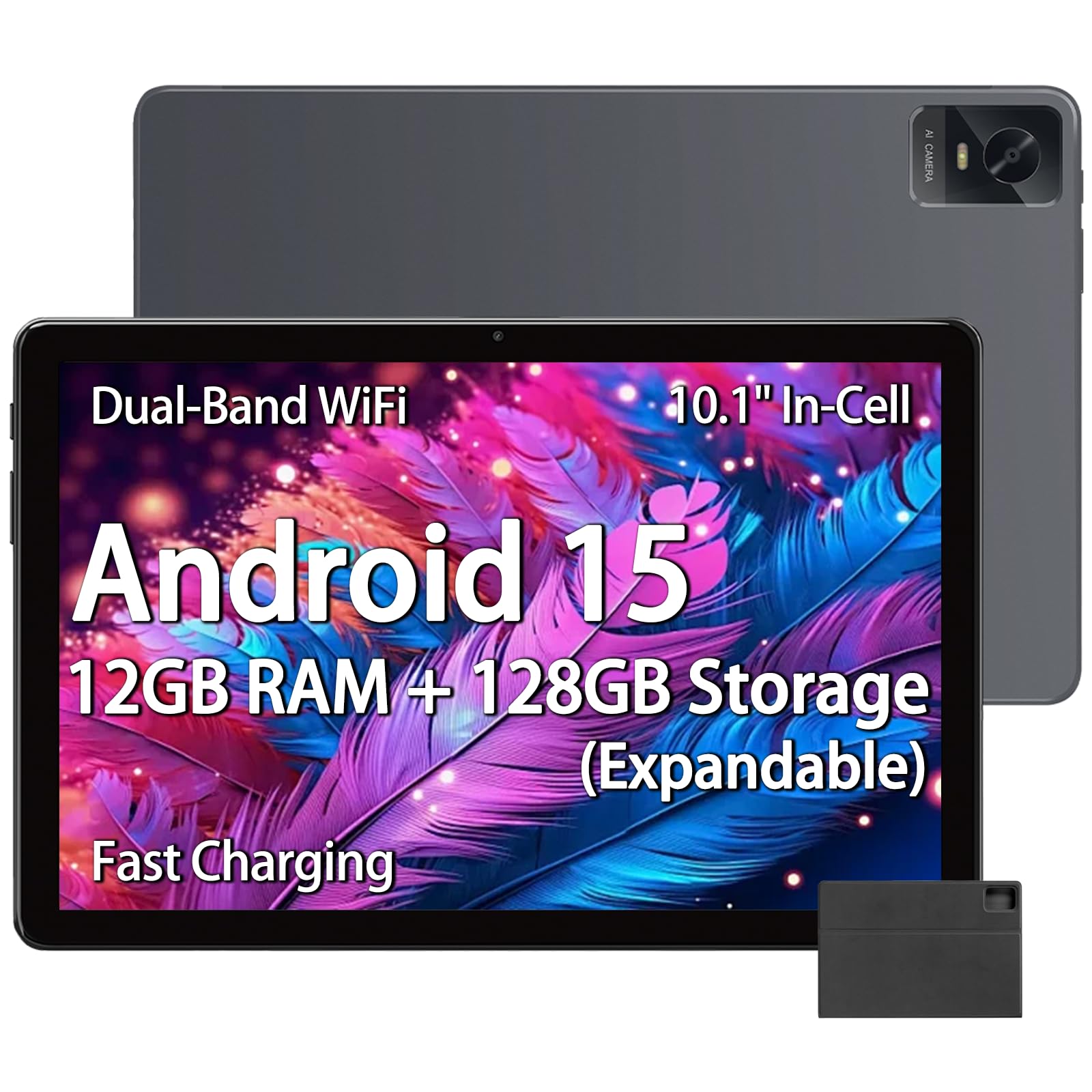
Image: The tablet displaying an image of penguins in an icy landscape, emphasizing its 16:10 aspect ratio and 10.1-inch 1280x800 HD In-Cell full lamination touchscreen for an immersive view.
7.オーディオ設定
Adjust volume and sound preferences:
- へ移動 設定 > 音と振動.
- メディア、通話、着信音、アラームの音量を調整します。
- Select ringtones and notification sounds.
The tablet includes a 3.5mm headphone jack for wired audio accessories.
メンテナンス
1. タブレットのクリーニング
- 柔らかく糸くずの出ない布を使用して、タブレットの画面と本体を清掃してください。
- 頑固な汚れには、軽くamp布に水または電子機器用のスクリーンクリーナーを含ませて拭いてください。
- 刺激の強い化学薬品、研磨材、過度の湿気の使用は避けてください。
2. ソフトウェアの更新
最適なパフォーマンス、セキュリティ、新機能へのアクセスを確保するために、ソフトウェア アップデートを定期的に確認してインストールしてください。
- へ移動 設定 > システム > システムアップデート.
- 画面上の指示に従って、利用可能な更新プログラムを確認し、インストールします。
3. バッテリーのお手入れ
- タブレットを極端な温度(高温または低温)にさらさないでください。
- バッテリーを頻繁に完全に放電させないでください。20%を下回る前に充電してください。
- 付属の充電器とケーブル、または認定された互換性のあるアクセサリのみを使用してください。
トラブルシューティング
タブレットが起動しない
- タブレットが十分に充電されていることを確認してください。少なくとも30分間充電器に接続してください。
- 強制的に再起動するには、電源ボタンを 10 ~ 15 秒間押し続けます。
Wi-Fi接続の問題
- 設定でWi-Fiが有効になっているかどうかを確認します。
- Wi-Fiルーターとタブレットを再起動します。
- タブレットの設定でネットワークを削除し、再接続します。
- Wi-Fi 信号の範囲内にいることを確認してください。
パフォーマンスが遅い
- 不要なバックグラウンド アプリケーションを閉じます。
- よく使用するアプリのキャッシュ データを消去します (設定 > アプリ > [アプリ名] > ストレージとキャッシュ > キャッシュを消去)。
- Ensure sufficient free storage space. Delete unused filesまたはアプリ。
- タブレットを再起動します。
アプリがクラッシュしたり応答しなくなったりする
- アプリを強制的に閉じます (設定 > アプリ > [アプリ名] > 強制停止)。
- アプリのキャッシュをクリアします(設定 > アプリ > [アプリ名] > ストレージとキャッシュ > キャッシュをクリア)。
- Google Play ストアからアプリを更新します。
- 問題が解決しない場合は、アプリをアンインストールして再インストールしてください。
仕様
| ブランド | paitanry |
| モデル名 | 10.1インチタブレット |
| モデル番号 | G80 |
| オペレーティング·システム | アンドロイド15 |
| プロセッサ | MediaTek Helio G80 Octa-Core (Arm Cortex-A75 @ 2GHz, Arm Cortex-A55 @ 1.8GHz) |
| グラフィックスコプロセッサ | アーム マリ-G52 MC2 |
| RAMメモリ | 12 GB (物理 6 GB + 仮想 6 GB) |
| 内部ストレージ | 128ギガバイト |
| 拡張可能なストレージ | Up to 2 TB (Micro SD card, sold separately) |
| 画面サイズ | 10.1インチ |
| 表示タイプ | In-Cell IPS LCD |
| ディスプレイ解像度 | 1280 x 800 ピクセル |
| アスペクト比 | 16:10 |
| フロントカメラ | 5 MP |
| リアカメラ | 13 MP |
| バッテリー容量 | 8000 mAh(リチウムポリマー) |
| バッテリー寿命(平均) | 8時間(混合利用) |
| 充電 | 18W PD急速充電(USB Type-C) |
| Wi-Fi | デュアルバンド802.11ac |
| ブルートゥース | ブルートゥース5.0 |
| 接続性 | USBタイプC、3.5mmヘッドフォンジャック |
| Dimensions (L x W x Thickness) | 9.45インチ x 6.26インチ x 0.28インチ |
| 重さ | 1ポンド |
| 特集 | Expandable Storage, Fast Charging, Supports USB OTG |

画像: 詳細な view of the Helio G80 Octa-Core CPU, highlighting its central role in the tablet's performance.
保証とサポート
保証情報
Your paitanry 10.1 Inch Android Tablet comes with a 1年間のメーカー保証この保証は、通常の使用における材料および製造上の欠陥を対象とします。誤用、事故、不正な改造、または外的要因による損傷は保証の対象外となります。
保証請求のために購入証明書を保管してください。
カスタマーサポート
For technical assistance, warranty claims, or further inquiries, please contact paitanry customer support through the retailer's platform or the official paitanry webサイト。
When contacting support, please have your tablet's model number (G80) and proof of purchase ready.