
導入
This manual provides essential information for setting up, operating, maintaining, and troubleshooting your HP 14-cf2733wm laptop. Please read this manual thoroughly before using your device to ensure proper function and longevity.
The HP 14-cf2733wm is a 14-inch laptop designed for portability and everyday productivity. It features an Intel Celeron N4120 processor, 4GB of RAM, and 64GB eMMC storage, running on Windows 11 Home in S mode.
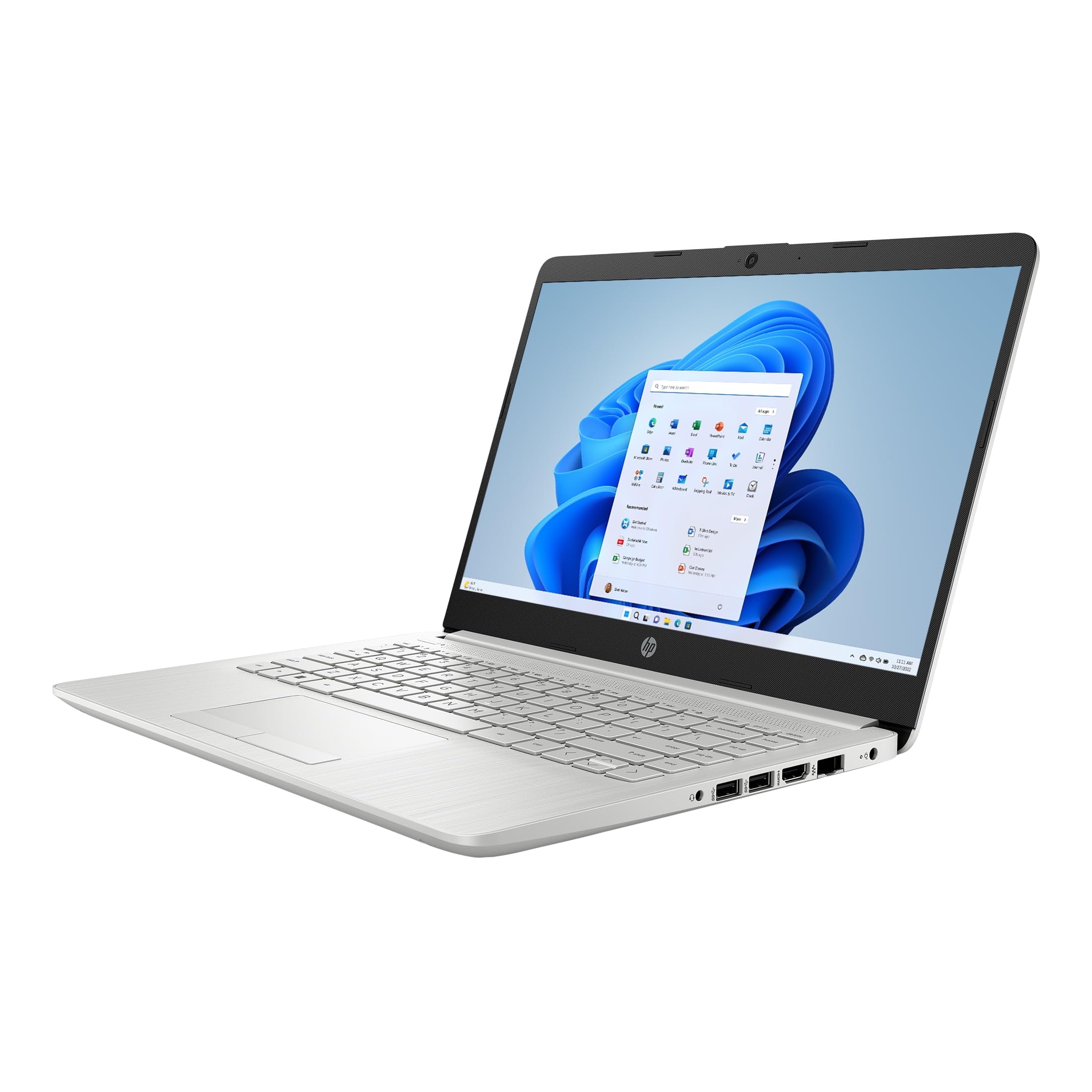
Figure 1: HP 14-cf2733wm Laptop. This image shows the silver HP laptop in a closed position, highlighting its slim design.
1. セットアップ
1.1 ノートパソコンの開梱
すべての部品をパッケージから慎重に取り出します。以下のものがすべて揃っていることを確認してください。
- HP 14-cf2733wm Laptop
- 電源アダプターとケーブル
- ドキュメント(クイックスタートガイド、安全情報)
1.2 電源アダプタの接続
- 電源ケーブルを電源アダプタに接続します。
- 電源アダプタを壁のコンセントに差し込みます。
- Insert the adapter's connector into the power port on the side of your HP laptop.
初めて使用する前に、ラップトップを完全に充電することをお勧めします。
1.3 初回電源投入とWindowsのセットアップ
- ノートパソコンの蓋を開けます。
- 通常キーボード デッキにある電源ボタンを押します。
- Follow the on-screen instructions to complete the Windows 11 Home in S mode setup. This includes selecting your region, language, connecting to a Wi-Fi network, and creating a user account.
- Activate the included 12-month Microsoft 365 Personal subscription as prompted during setup or later via the Microsoft Store.
2. ノートパソコンの操作
2.1 タッチパッドの使用
The precision touchpad supports multi-touch gestures for navigation. Common gestures include:
- タップ: シングルタップでクリック、ダブルタップで開きます。
- 2本指でスクロール: 2 本の指を上または下にドラッグしてスクロールします。
- ピンチしてズーム: 2 本の指をつまむか広げると、拡大または縮小します。
- 2本指タップ: 右クリックとして機能します。
2.2 外部機器の接続
Your laptop features various ports for connecting peripherals:
- USB ポート: Connect USB drives, external mice, keyboards, or other compatible USB devices.
- HDMIポート: 拡張ディスプレイ用に外部モニターまたはテレビを接続します。
- オーディオジャック: ヘッドホンまたは外部スピーカーを接続します。
2.3 Wi-FiおよびBluetooth接続
Wi-Fi ネットワークに接続するには:
- タスクバーの Wi-Fi アイコンをクリックします。
- リストから希望のネットワークを選択します。
- プロンプトが表示されたらネットワーク パスワードを入力し、「接続」をクリックします。
To enable or disable Bluetooth:
- へ移動 設定 > Bluetoothとデバイス.
- Toggle the Bluetooth switch On or Off.
2.4 Windows 11 Home in S mode
Windows 11 Home in S mode is a version of Windows optimized for security and performance. It exclusively runs apps from the Microsoft Store and uses Microsoft Edge for safe browsing. If you need to install apps outside the Microsoft Store, you can switch out of S mode. This is a one-way switch.
To switch out of S mode:
- Windows 11(Sモード)を実行しているPCで、 設定 > システム > アクティベーション.
- In the "Switch to Windows 11 Home" section, select ストアへ.
- Microsoft Storeに表示される「Sモードを解除する」(または同様の)ページで、 得る ボタン。
- After you see a confirmation message on the page, you'll be able to install apps from outside the Microsoft Store.
3. メンテナンス
3.1 ノートパソコンのクリーニング
- 画面: 柔らかく糸くずの出ない布を軽く拭いてください。amp水またはスクリーンクリーナーで拭いてください。刺激の強い化学薬品は使用しないでください。
- キーボードとシャーシ: 柔らかく乾いた布を使用してください。頑固な汚れには、軽く湿らせた布で拭いてください。amp cloth can be used. Avoid getting moisture into openings.
- ポート: 圧縮空気を使用して、ポートからほこりを丁寧に取り除きます。
掃除する前に必ずノートパソコンの電源をオフにして、プラグを抜いてください。
3.2バッテリーケア
- 極端な温度を避けてください。
- 定期的にバッテリーを完全に放電しないでください。
- ノートパソコンを長期間保管する場合は、バッテリーを約 50 ~ 70% まで充電してください。
3.3ソフトウェアアップデート
システムの安定性、セキュリティ、パフォーマンスを確保するために、Windowsの更新プログラムを定期的に確認してインストールしてください。 設定 > Windowsアップデート.
4。 トラブルシューティング
4.1 ノートパソコンの電源が入らない
- 電源アダプターがノートパソコンと正常な壁のコンセントの両方にしっかりと接続されていることを確認します。
- 別のデバイスを接続して、壁のコンセントが機能していることを確認します。
- 電源ボタンを 15 ~ 20 秒間押し続けて、ハードリセットを実行してみてください。
4.2 パフォーマンスの低下
- バックグラウンドで実行されている不要なアプリケーションを閉じます。
- 保留中の Windows 更新プログラムを確認してインストールします。
- Ensure you have sufficient free storage space on the 64GB eMMC drive.
- マルウェアやウイルスがないかシステムスキャンを実行します。
4.3 Wi-Fi接続の問題
- ノートパソコンと Wi-Fi ルーターを再起動します。
- Windows 設定で Wi-Fi が有効になっていることを確認します。
- ネットワークを忘れて再接続し、パスワードを再度入力します。
- 他のデバイスが同じ Wi-Fi ネットワークに接続できるかどうかを確認します。
5. 仕様
| 特徴 | 詳細 |
|---|---|
| モデル名 | HP 14-cf2733wm |
| プロセッサ | Intel Celeron N4120 (up to 2.6 GHz burst frequency) |
| オペレーティング·システム | Windows 11 Home(Sモード) |
| 画面 | 14-inch HD (1366 x 768) micro-edge anti-glare LED display |
| グラフィックス | 統合型インテル UHD グラフィックス 600 |
| ラム | 4GB DDR4 |
| ストレージ | 64 GB eMMC |
| ワイヤレス接続 | 802.11n Wi-Fi、Bluetooth |
| ポート | 2x USB, 1x HDMI, 1x Headphone/Microphone combo |
| バッテリー | リチウムイオン、45ワット時 |
| 寸法(長さ×幅×高さ) | 12.82インチ x 8.42インチ x 0.65インチ (32.56 x 21.39 x 1.65 cm) |
| 重さ | 3.5ポンド(1.59kg) |
| 色 | 銀 |
| Webカム | 統合された Webカム |
6. 保証とサポート
6.1 限定保証
Your HP 14-cf2733wm laptop comes with a 1-year limited hardware warranty. This warranty covers defects in materials and workmanship under normal use. For full terms and conditions, please refer to the warranty documentation included with your product or visit the official HP support webサイト。
The warranty does not cover damage caused by accidents, misuse, unauthorized modifications, or external causes such as power fluctuations.
6.2 テクニカルサポート
技術サポート、ドライバーのダウンロード、その他のサポートについては、HPの公式サポートをご覧ください。 website. You will need your product's model number (14-cf2733wm) and serial number (found on the product label) when contacting support.
HPサポート Webサイト: https://support.hp.com