
導入
Thank you for choosing the Phomemo M836 A4 Portable Thermal Printer. This device offers convenient, inkless printing for various document types, making it ideal for business, travel, and personal use. This manual will guide you through the setup, operation, and maintenance of your printer to ensure optimal performance.
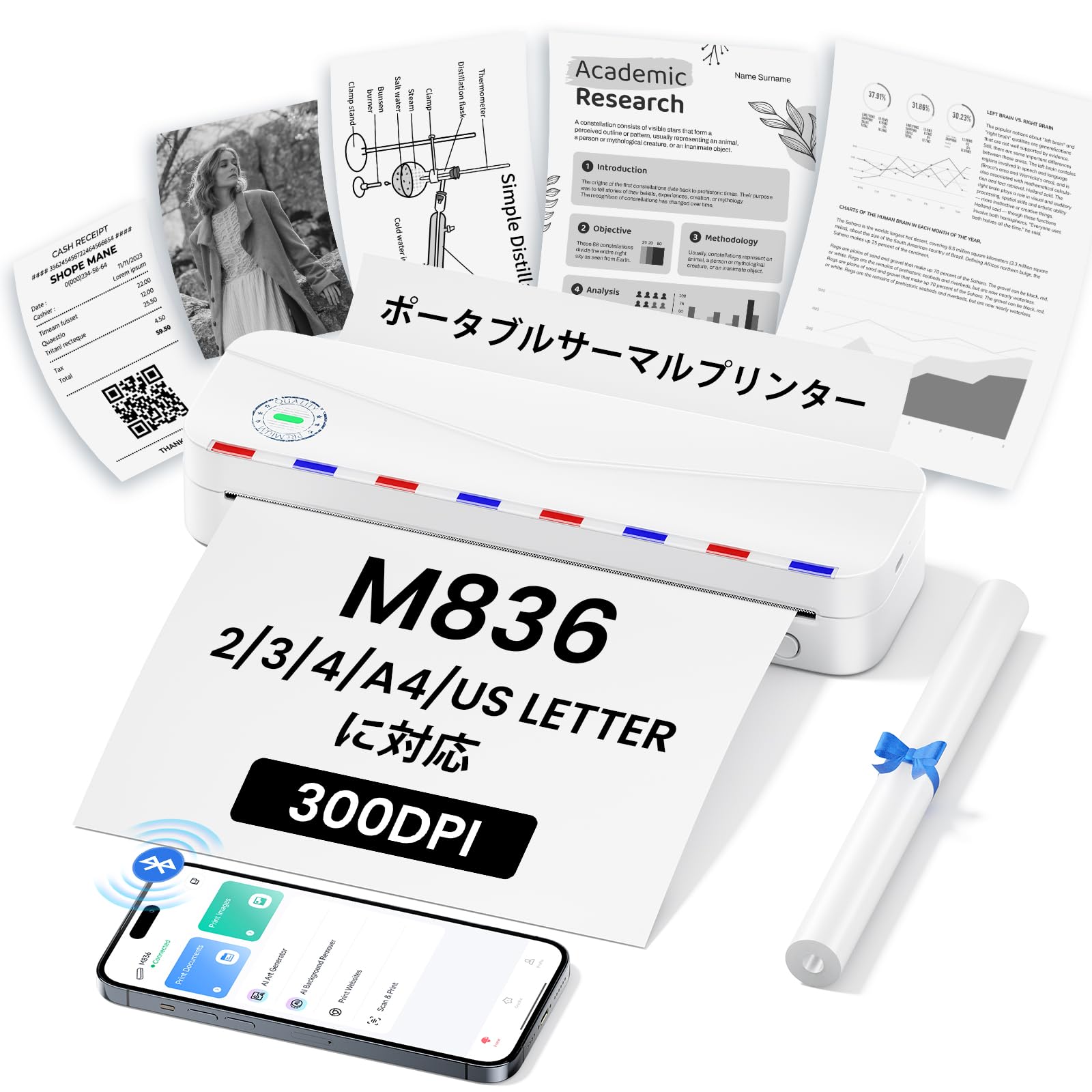
Image: The Phomemo M836 A4 Portable Thermal Printer, showcasing its compact design and portability.
製品終了view
主な特徴
- インクレスサーマル印刷: Utilizes advanced thermal printing technology, eliminating the need for ink cartridges or toner.
- コンパクトで持ち運びに便利: Weighing approximately 750g, it is designed for easy transport in a bag, perfect for on-the-go printing.
- 複数サイズの用紙のサポート: Compatible with A4 (8.27 x 11.69 inches) and other thermal paper sizes including 53mm, 80mm, and 110mm. Supports standard thermal sheets, roll paper, and fanfold thermal paper.
- 高解像度: Delivers clear and vivid prints at 304dpi resolution.
- 幅広い互換性: Connects via Bluetooth to iPhones, Android phones, and iPads, and via USB cable to laptops and computers (Windows, macOS).
- 長持ちバッテリー: Equipped with an upgraded 2600mAh battery, ensuring extended use throughout the day.
- 多彩な印刷: Capable of printing PDF, Word, image (JPG), web pages, TXT, office documents, receipts, contracts, resumes, invoices, drawings, and school notes.

Image: The Phomemo M836 printer highlighting its compact dimensions (264mm length, 78mm width, 45mm height) and light weight (715g).

Image: The printer demonstrating compatibility with single sheets, fanfold paper, and roll paper. Note: Only thermal paper is supported, not ordinary copy paper.
セットアップ手順
1. 感熱紙のセット
- Open the paper cover of the printer.
- Insert the thermal paper with the printable side facing up. Ensure the paper is aligned correctly.
- Close the paper cover. The printer will automatically adjust the paper.

Image: Illustration of how to load thermal paper into the printer, showing the adjustable snaps for different paper widths.
2. モバイルデバイスの接続(Bluetooth)
- Download the "Phomemo" app from the Apple App Store or Google Play Store.
- Turn on your mobile phone's Bluetooth.
- Press and hold the power button on the M836 printer to turn it on.
- Open the "Phomemo" app and connect to the printer via Bluetooth within the app.

Image: Step-by-step guide for connecting the Phomemo M836 to a smartphone via the Phomemo app and Bluetooth.
3. PC接続(USB)
- Turn on the printer by pressing and holding the power button. Ensure thermal paper is loaded.
- 付属の Type-C USB ケーブルを使用してプリンターをコンピューターに接続します。
- Download and install the printer driver from M836.phomemo.com.
- After driver installation, select "[M836] Printer" from your computer's print options to begin printing.

Image: Instructions for connecting the Phomemo M836 to a PC via USB, including driver download and print selection.
操作手順
General Printing Steps
- Ensure the printer is powered on and connected to your device (mobile or PC) as described in the Setup section.
- デバイスで印刷したいドキュメントまたは画像を開きます。
- Initiate the print function from your application (e.g., "Print" in the Phomemo app, or "File" > "Print" on PC).
- Select the "M836 Printer" from the list of available printers.
- 必要に応じて、用紙サイズ、向き、コピー枚数などの印刷設定を調整します。
- Confirm and send the print job to the printer.

Image: The Phomemo app interface, showing options to print various file types like Word, TXT, PDF, Excel, Web pages, and images, along with scanning functionality.
メンテナンス
プリンタヘッドのクリーニング
- プリンタの電源をオフにし、すべての電源から取り外します。
- 用紙カバーを開きます。
- サーマルプリントヘッドを綿棒で軽く拭きます。ampイソプロピルアルコールで消毒しました。
- カバーを閉じて使用を再開する前に、プリントヘッドが完全に乾くまでお待ちください。
- Do not touch the print head with bare hands to avoid damage or residue transfer.
バッテリーケア
- Charge the printer regularly, especially if it will not be used for an extended period, to maintain battery health.
- Use the provided Type-C USB cable for charging.
- Avoid exposing the printer to extreme temperatures, which can affect battery life.
トラブルシューティング
| 問題 | 考えられる原因 | 解決 |
|---|---|---|
| プリンターの電源が入りません。 | バッテリー残量が少ない、または電源に問題があります。 | Charge the printer using the Type-C USB cable. Ensure the power adapter is working. |
| Bluetooth経由で接続できません。 | Bluetooth is off, incorrect pairing, or app issue. | Ensure Bluetooth is enabled on your device. Restart the printer and your device. Try pairing again through the Phomemo app. |
| Poor print quality (faint or blank). | Incorrect paper loading, non-thermal paper, or dirty print head. | Ensure thermal paper is loaded correctly with the printable side up. Verify you are using thermal paper. Clean the print head as described in the Maintenance section. |
| プリンターがPCに認識されません。 | Driver not installed or USB cable issue. | 正しいドライバーをインストールしてください M836.phomemo.com. Try a different USB port or cable. |
| 紙詰まり。 | 用紙の挿入が不適切であるか、異物が入っています。 | Turn off the printer. Carefully open the paper cover and remove any jammed paper or obstructions. Reload paper correctly. |
仕様
| 特徴 | 詳細 |
|---|---|
| ブランド | フォメモ |
| モデル名 | M836 |
| 接続技術 | ブルートゥース、USB |
| 印刷技術 | サーマル |
| 特集 | ポータブル |
| 色 | 白 |
| プリンタ出力 | モノクロ |
| 最大印刷速度(モノクロ) | 20ページ/分 |
| 製品寸法(奥行き×幅×高さ) | 210mm x 47mm x 65mm |
| 最大メディア(用紙)サイズ | 8.5 x 11インチ(A4) |
| 印刷メディアの種類 | 感熱紙 |
| 追加のプリンター機能 | 印刷のみ |
| 解決 | 304dpi |
| 最大入力シート容量 | 10枚 |
| ハードウェアインターフェイス | USB-C |
| 両面印刷 | いいえ(シンプレックス) |
| バッテリー容量 | 2600mAh |
保証とサポート
The Phomemo M836 A4 Portable Thermal Printer comes with a 1年間のメーカー保証 購入日から。この保証は通常の使用における材料および製造上の欠陥をカバーします。
For technical support, warranty claims, or any questions regarding your product, please contact Phomemo customer service through their official website or the retailer where you purchased the product. Please have your model number (M836) and proof of purchase ready when contacting support.