1. はじめに
Thank you for choosing the PUTRIMS K12 Google TV Projector. This manual provides essential information for the safe and efficient use of your new projector. Please read it thoroughly before operation and keep it for future reference.

Figure 1.1: PUTRIMS K12 Projector
2. 安全情報
- プロジェクターレンズを直接見ないでください。amp オンです。
- 過熱を防ぐために適切な換気を確保してください。
- プロジェクターを水やその他の液体から遠ざけてください。
- 付属の電源アダプターのみを使用してください。
- プロジェクターを不安定な場所に置かないでください。
- プロジェクターをご自身で分解したり修理したりしないでください。サポートが必要な場合は、カスタマーサポートにお問い合わせください。
3. パッケージ内容
パッケージにすべてのアイテムが含まれていることを確認します。
- PUTRIMS K12プロジェクター
- リモートコントロール
- 電源コード
- HDMIケーブル
- プロジェクターレンズカバー
- ユーザーマニュアル(このドキュメント)
4.製品オーバーview
The PUTRIMS K12 projector is designed for a versatile home theater and business experience. It features a sleek design with essential ports for connectivity.
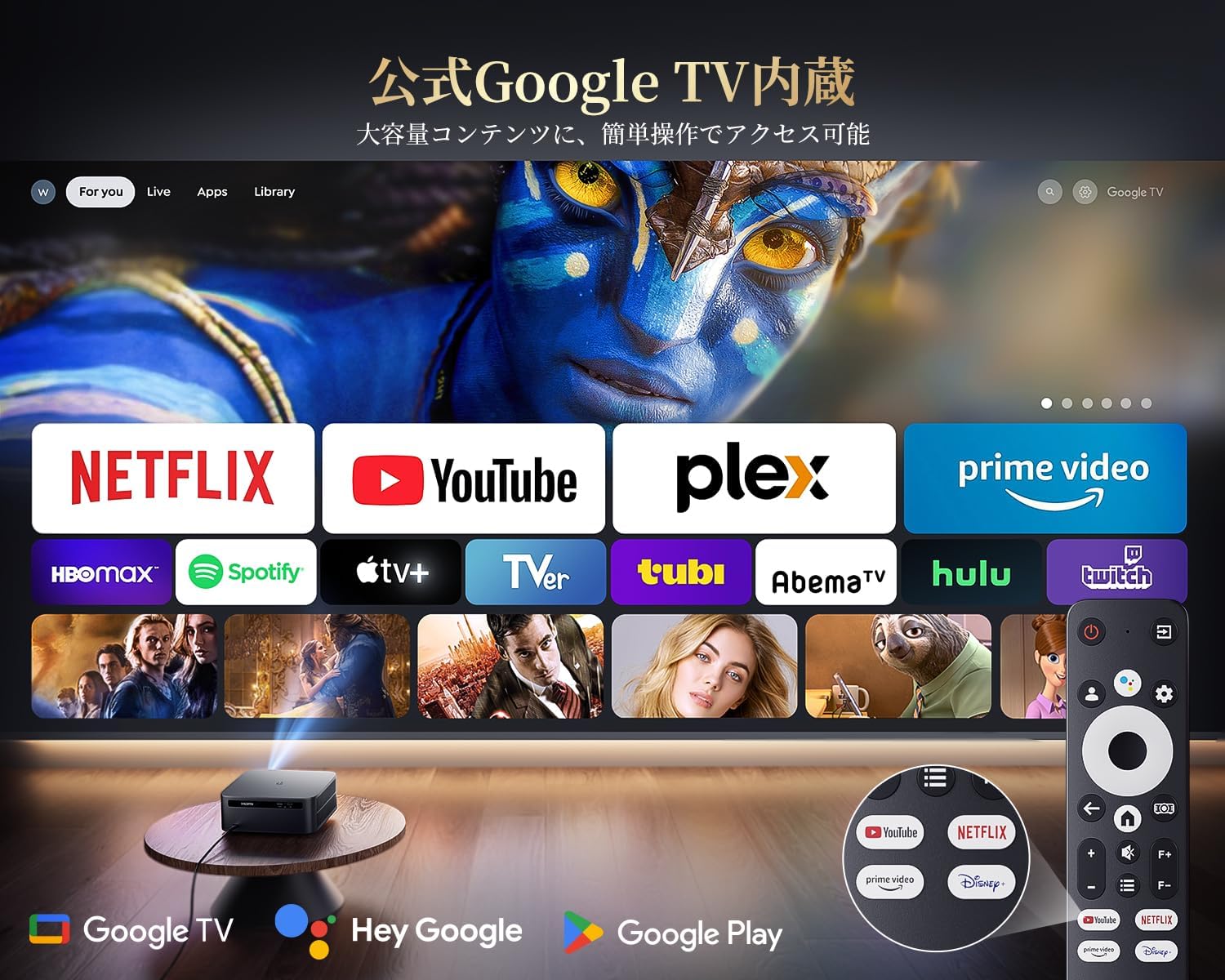
図4.1: 前面 view of the K12 Projector, showing the lens and auto-focus sensors.

図4.2:背面 view of the K12 Projector, highlighting HDMI, USB, and audio ports.
Video 4.1: General product overview and feature demonstration of the PUTRIMS K12 projector.
5. セットアップ
5.1 物理的なセットアップ
The K12 projector offers flexible installation options to suit various environments:
- 卓上の配置: プロジェクターを安定した平らな面に設置します。
- 三脚取り付け: Use the M5 screw hole on the bottom to attach a tripod.
- 天井取り付け: 互換性のあるマウントを使用してプロジェクターを天井にしっかりと取り付けます。
- 壁掛け: Attach the projector to a wall using a suitable bracket.

Figure 5.1: Diverse installation methods for the K12 Projector.
5.2初期電源オン
- 電源コードをプロジェクターと電源コンセントに接続します。
- プロジェクターまたはリモコンの電源ボタンを押して電源を入れます。
- プロジェクターはオートフォーカスとキーストーン補正を自動的に実行します。
5.3 ネットワーク接続(WiFi)
To access online streaming services and updates, connect your projector to a WiFi network:
- プロジェクターの「設定」メニューに移動します。
- 「ネットワーク」または「WiFi設定」を選択します。
- WiFiをオンにして、リストから希望のネットワークを選択します。
- プロンプトが表示されたらパスワードを入力して接続します。
5.4 Bluetooth接続
外部 Bluetooth スピーカーまたはヘッドフォンを接続して、オーディオを強化します。
- 「設定」に移動して「Bluetooth」を選択します。
- Bluetoothをオンにして、外部デバイスをペアリングモードにします。
- リストからペアリングするデバイスを選択します。
5.5 スクリーンミラーリング
モバイル デバイスやコンピューターからワイヤレスでコンテンツを共有します。
- For iOS devices (Airplay): Ensure your iOS device and the projector are connected to the same WiFi network. Open the 'iOS Cast' interface on the projector. On your iOS device, open Control Center, tap 'Screen Mirroring', and select 'K12-xxxx' from the list.
- For Android/Windows devices (Miracast): Ensure your device and the projector are connected to the same WiFi network. Open the 'Miracast' interface on the projector. On your Android/Windows device, enable screen mirroring/cast feature and select 'K12-xxxx' to connect.
6. 操作手順
6.1 Google TVの機能
The PUTRIMS K12 comes with official Google TV, providing access to a vast library of content and applications.
- ストリーミングアプリ: Directly access Netflix, Disney+, YouTube, Prime Video, Hulu, and many more with a single click.
- Google Play ストア: Download and install over 10,000 applications and games.
- 定期的な更新: The projector receives periodic updates to enhance security and stability.

Figure 6.1: Google TV interface with popular streaming applications.
6.2 音声制御
Utilize the Google Voice Assistant for convenient control of your projector and content.
- Press the voice control button on your remote.
- Speak commands such as "Open Netflix," "Play One Piece," "Tell me the weather," or "Increase volume."

Figure 6.2: Using the Google Voice Assistant with the remote control.
6.3 画像調整
The K12 projector features advanced image adjustment capabilities for optimal viewing。
- オートフォーカス: プロジェクターは起動時または移動時に鮮明な画像が表示されるように自動的に焦点を調整します。
- 自動台形補正: It automatically corrects horizontal and vertical trapezoidal distortions, ensuring a perfectly rectangular image even from an angle.
- ズーム機能: プロジェクターを動かさずに画面サイズを 50% から 100% に調整します。
- アスペクト比: 4:3 および 16:9 のアスペクト比をサポートします。
- 輝度コントラスト: Customize brightness and contrast settings to your preference.

Figure 6.3: Automatic focus and keystone correction in action.

Figure 6.4: Projection distances and corresponding screen sizes (100", 120", 150").
6.4 外部機器の接続
The K12 projector offers multiple connectivity options for various devices:
- HDMI ARC: Connect to soundbars, laptops, gaming consoles (Switch, PS5), or DVD players.
- USB: Play media directly from USB memory sticks.
- 3.5mmオーディオポート: 外部オーディオ システムに接続します。

Figure 6.5: Seamless connection with various external devices.
7. メンテナンス
7.1 レンズクリーニング
最適な画質を維持するために、プロジェクターのレンズを定期的に清掃してください。
- プロジェクターの電源がオフになっていて、プラグが抜かれていることを確認してください。
- Gently wipe the lens with a soft, lint-free cloth or a cotton swab.
- 頑固な汚れには、光学表面専用に設計されたレンズ洗浄液を使用してください。
- Avoid using abrasive materials or harsh chemicals that could damage the lens.
8。 トラブルシューティング
発生する可能性のある一般的な問題に対する解決策は次のとおりです。
- No image/signal: Check all cable connections (HDMI, power). Ensure the correct input source is selected on the projector.
- ぼやけた画像: The projector features auto-focus. If the image remains blurry, ensure the lens is clean and there are no obstructions.
- Image not rectangular: The projector has auto-keystone correction. If issues persist, ensure the projector is placed on a stable surface and try repositioning it.
- 音が出ない: Check volume settings on both the projector and connected devices. Ensure external speakers are properly connected via Bluetooth or audio cable. If using HDMI ARC, verify the connection and settings.
- WiFi/Bluetooth connection issues: Ensure the projector and your device are within range of the router/device. Restart both the projector and the router/device.
- App crashes or malfunctions (for unofficial Android TV versions): The PUTRIMS K12 has an official Google TV license, which ensures stability. If you experience issues, ensure your system is updated.
さらに詳しいサポートについては、「保証とサポート」セクションを参照してください。
9. 仕様
| 特徴 | 説明 |
|---|---|
| ブランド | プトリム |
| モデル | K12 |
| 輝度 | 1500 ANSIルーメン |
| 解決 | 1080P FHD (4K Support) |
| オペレーティング·システム | 公式Google TV |
| 音声コントロール | Google 音声アシスタント |
| 集中 | Omnidirectional Auto Focus |
| キーストーン補正 | Horizontal & Vertical Auto Keystone Correction |
| ズーム | 50%-100% |
| 最大画面サイズ | 300インチ |
| Wi-Fi | WiFi6 について |
| ブルートゥース | ブルートゥース5.3 |
| オーディオ出力 | 20W HIFI Speaker, 3.5mm Audio Jack |
| 入力ポート | HDMI ARC, USB |
| 寸法 | 40.5 x 30.2 x 17 cm |
| 重さ | 3.31キロ |
10. 保証とサポート
PUTRIMS is committed to providing excellent customer service. Your K12 projector comes with comprehensive support:
- アフターサービス: 24 hours a day, 365 days a year.
- テクニカルサポート: Professional technical assistance is available.
- 保証: Free exchange or 100% refund guarantee for initial defects or natural failures under normal use.
If you have any questions or require assistance, please contact PUTRIMS customer support via the official email address provided in your product packaging or on the official webサイト。