
1. はじめに
The LILYGO TTGO T-U2T is a compact USB to TTL automatic downloader designed to facilitate program uploads to compatible development boards. This module integrates the CH9102 USB chip, providing a reliable serial communication interface with a maximum read/write speed of 4Mbps. It is an open-source module intended for use by developers and hobbyists working with microcontrollers and other serial communication devices.
2. 主な特徴
- Automatic downloader functionality for efficient program uploading.
- Compatibility with various development boards that utilize USB to TTL circuits.
- Equipped with the CH9102 USB chip, ensuring stable serial communication.
- Supports a maximum read/write speed of 4Mbps.
3.セットアップガイド
Follow these steps to set up your LILYGO TTGO T-U2T programmer adapter:
- Identify the T-U2T Module: Locate the LILYGO TTGO T-U2T adapter. It features a USB-C male connector on one end and a USB-C female port on the other, with the LILYGO branding.
- Connect to Development Board: Insert the male USB-C connector of the T-U2T adapter into the corresponding USB-C port on your development board. Ensure a secure connection.
- PCに接続: Use a standard USB Type-C to USB Type-A (or Type-C) data cable to connect the female USB-C port of the T-U2T adapter to an available USB port on your personal computer or laptop.
- ドライバーのインストール: Your operating system may automatically install the necessary drivers for the CH9102 chip. If not, you may need to download and install the appropriate drivers from the LILYGO official website or the CH9102 chip manufacturer's webサイト。
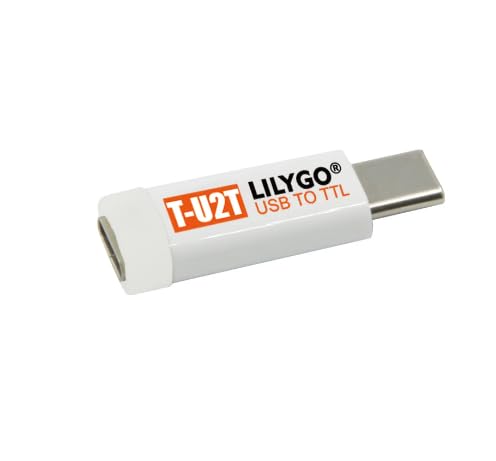
図3.1: 前面と背面 view of the LILYGO TTGO T-U2T USB to TTL programmer adapter, showing the LILYGO branding and USB to TTL label on one side, and a plain white casing on the other.
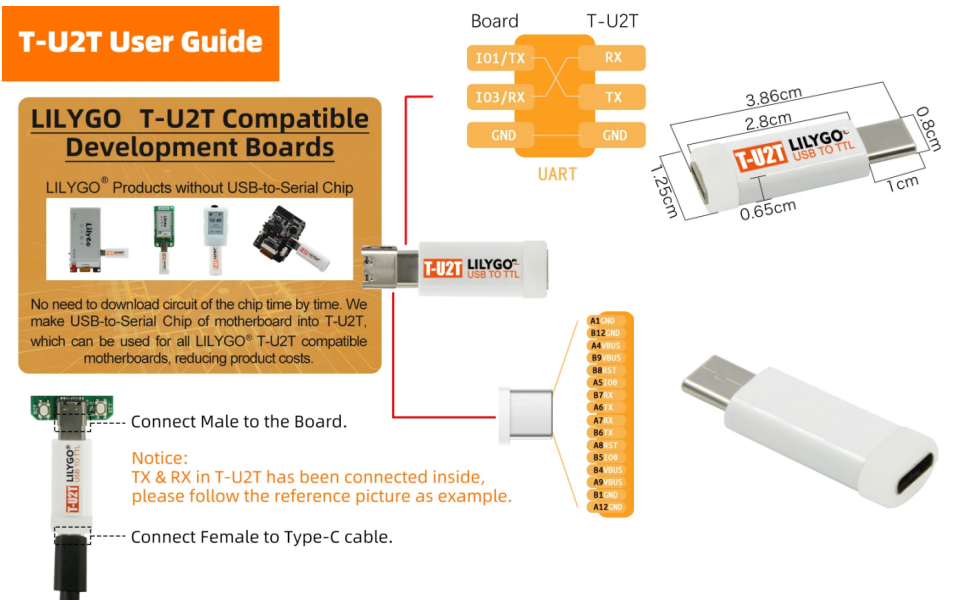
Figure 3.2: A diagram illustrating the LILYGO T-U2T user guide, detailing how to connect the T-U2T to a development board and a Type-C cable. It also shows the internal TX/RX connections and physical dimensions of the adapter.

Figure 3.3: A diagram showing the LILYGO T-U2T USB connection setup. It illustrates connecting the T-U2T to a development board, then via a Type-C to USB data cable to a personal computer for programming.
4. 操作手順
Once the LILYGO TTGO T-U2T is connected to your development board and computer, it functions as a serial communication bridge. The automatic downloader feature simplifies the process of uploading firmware or programs to your microcontroller.
- Open Your IDE/Programming Software: Launch your preferred Integrated Development Environment (IDE) or programming software (e.g., Arduino IDE, PlatformIO, ESP-IDF).
- 正しいポートを選択してください: In your software's settings, identify and select the serial port corresponding to the CH9102 chip. This port will typically appear as a COM port on Windows or a /dev/ttyUSBx or /dev/ttyCH9102 on Linux/macOS.
- Configure Board Settings: Ensure your IDE's board settings match the specifications of your development board (e.g., board type, CPU frequency, flash size).
- Upload Program: Compile your code and initiate the upload process. The T-U2T will automatically handle the necessary boot mode signaling for program transfer.
注記: The TX and RX pins within the T-U2T are internally connected to facilitate the automatic download process. Refer to your development board's documentation for specific programming procedures and pin configurations.
5. 仕様
| モデル番号 | T-U2T |
| ブランド | リリゴ |
| USBチップ | 9102 位 |
| Max Read/Write Speed | 4Mbps |
| 対応デバイス | パソコン、ラップトップ |
| アイテム数 | 1 |
| メーカー | リリゴ |
6。 トラブルシューティング
- デバイスが認識されません: Ensure all physical connections are secure. Try a different USB port on your computer or a different USB-C data cable. Verify that the CH9102 drivers are correctly installed.
- アップロードエラー: Double-check that the correct serial port is selected in your IDE. Confirm that the board settings (e.g., board type, flash mode, baud rate) in your programming software match your development board's requirements.
- 転送速度が遅い: While the CH9102 supports up to 4Mbps, actual speeds may vary based on your computer's USB controller, cable quality, and the development board's capabilities. Ensure you are using a high-quality USB-C data cable.
- No Automatic Download: If the automatic download feature is not working, ensure your development board is compatible with this functionality. Some boards may require manual boot mode activation.
7. 保証とサポート
For detailed warranty information, technical support, and further resources, please visit the official LILYGO website or contact the retailer from whom you purchased this product. Keep your proof of purchase for warranty claims.


