
1. はじめに
This manual provides detailed instructions for the safe and efficient operation of your MARKLIFE P50 Portable Bluetooth Thermal Label Maker Machine. Please read this manual thoroughly before using the device and retain it for future reference. The P50 is designed for creating various labels using thermal printing technology, connecting wirelessly via Bluetooth to mobile devices or via USB to Windows PCs.
2. パッケージ内容
下記のすべての品目がパッケージに含まれていることをご確認ください。不足または破損している品目がある場合は、カスタマーサポートまでご連絡ください。
- MARKLIFEP50ラベルメーカーマシン
- 3 Label Tapes (2 rolls of 1.57" x 1.18" white gap labels, 1 roll of 2" x 2" circle gap labels)
- USB-C充電ケーブル
- ユーザーマニュアル(このドキュメント)
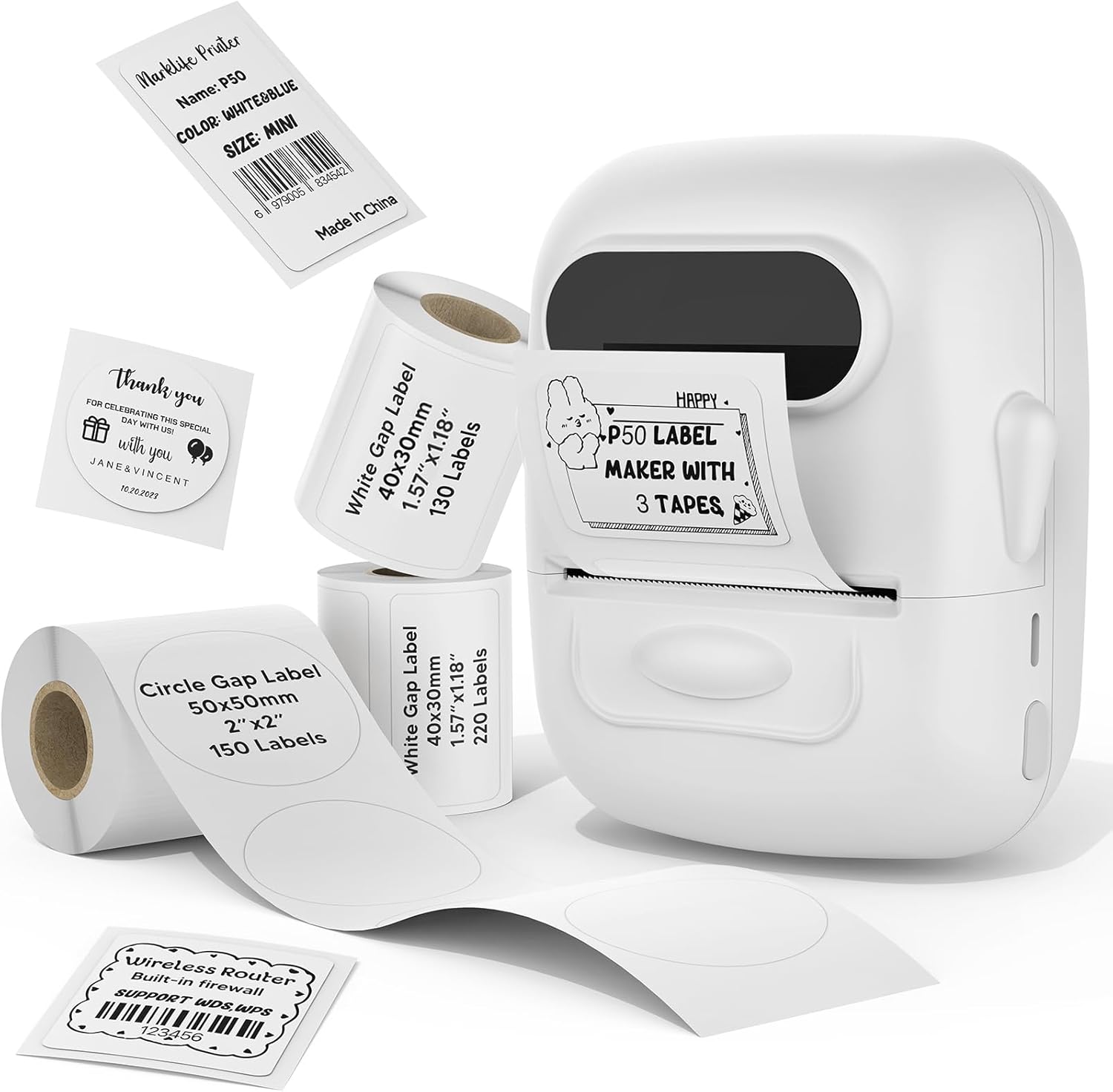
Image: The MARKLIFE P50 label maker machine shown with various label rolls and printed labels, including a barcode label (example: 6979005834542) and a "Thank You" label. This illustrates the device and its primary function of printing labels.
3.製品オーバーview
The MARKLIFE P50 is a compact and portable thermal label printer designed for various labeling needs. It connects wirelessly via Bluetooth to your smartphone or tablet, and also supports USB connection to Windows PCs. The device utilizes thermal printing technology, meaning it does not require ink cartridges, only thermal label paper.
主な特徴:
- サーマルプリント: No ink required, prints in black and white.
- ワイヤレス接続: Bluetooth 4.0 for mobile devices (Android & iOS).
- PC の互換性: USB connection and online software for Windows PCs.
- 幅広いラベルの互換性: Supports label widths from 0.59 inches to 2.24 inches.
- ポータブルデザイン: Lightweight and equipped with a built-in 1200mAh rechargeable battery for on-the-go use.
- Smart App Functions: Features voice and image recognition, barcode scanning, PDF batch printing, and photo printing on labels.

Image: A hand placing the compact MARKLIFE P50 label maker into a small handbag, emphasizing its portable design. Icons indicate its portability, built-in 1200mAh battery, and Type-C charging capability.
4. セットアップ
4.1デバイスの充電
Before initial use, fully charge the P50 label maker. Connect the provided USB-C cable to the charging port on the device and the other end to a compatible USB power adapter (not included) or a computer USB port. The charging indicator light will provide status feedback.
4.2 ラベルロールの装着
- ラベルコンパートメントカバーを開きます。
- Insert the label roll with the printing surface facing upwards, ensuring it is aligned correctly within the guides.
- Pull a small portion of the label paper out past the printing slot.
- Close the label compartment cover firmly.
- Press the power button twice quickly to initiate automatic label calibration. The printer will feed a small amount of label paper to detect the label size.

Image: A visual guide demonstrating the process of loading label rolls into the P50 label maker. It also illustrates the compatible label widths, ranging from 0.59 inches to 2.24 inches, and contrasts it with fixed-size label makers.
4.3 アプリのインストールとBluetoothペアリング
- アプリをダウンロード: 検索する "MARKLIFE" in your mobile device's app store (iOS App Store or Google Play Store) and install the official application.
- 電源オン: Press and hold the power button on the P50 label maker until the indicator light turns on.
- Bluetoothを有効にする: モバイルデバイスでBluetoothが有効になっていることを確認します。
- ペアリング: Open the MARKLIFE app. The app should automatically detect the P50 printer. Follow the on-screen prompts to connect. No Wi-Fi connection is required for mobile pairing.
5. 操作手順
5.1 Basic Label Creation and Printing (Mobile App)
- Ensure the P50 is powered on and connected to the MARKLIFE app via Bluetooth.
- Within the app, select a template or create a new label design. The app offers various templates for clothing labels, price labels, cable labels, jewelry labels, address labels, and ingredient labels.
- Customize your label with text, images, barcodes, or QR codes.
- Adjust print density and photo quality settings as needed.
- 前view 正確性を確保するためにラベルを付けます。
- Tap the "Print" button in the app to send the design to the P50 label maker.

Image: The P50 label printer positioned next to a laptop and a smartphone, demonstrating its connectivity with both mobile and PC devices. The laptop screen displays label design software, and the smartphone shows the MARKLIFE app interface.
5.2 高度なアプリ機能
- Voice and Image Recognition: Convert spoken words or images into editable text for your labels.
- バーコードスキャン: Scan existing barcodes (e.g., 0123456789005) to generate new ones or integrate them into your designs.
- PDF Batch Printing: Print multiple labels from a PDF document.
- 写真印刷: Insert and print photos directly onto labels.
- OCR Scanner: Use your phone's camera as an OCR scanner within the app to extract text from documents for labeling.
- クラウドストレージ: Save your label designs to the cloud for easy access and reprinting.
5.3 PC Connection (Windows)
For Windows PC users, connect the P50 label maker via the USB-C cable. Download and install the dedicated software from the official MARKLIFE website. This software allows for label design and printing directly from your computer.
5.4 バッチ印刷
The P50 supports batch printing, allowing you to print multiple copies of the same label or a series of different labels efficiently. This feature is managed through the MARKLIFE app or PC software.

Image: The P50 label maker actively printing a continuous roll of labels, demonstrating its batch printing capability. The labels shown are price tags with barcodes (example: 123456), indicating efficient production for business use.
6. メンテナンス
- プリントヘッドのクリーニング: サーマルプリントヘッドを定期的に柔らかく糸くずの出ない布で軽く拭いてください。ampened with isopropyl alcohol. Ensure the device is powered off and cool before cleaning.
- 外装清掃: Wipe the exterior of the device with a soft, dry cloth. Avoid using abrasive cleaners or solvents.
- ストレージ: ラベルメーカーは、直射日光や極端な温度を避け、涼しく乾燥した場所に保管してください。
- バッテリーのケア: バッテリーの寿命を延ばすには、バッテリーを頻繁に完全に放電させないでください。長期間使用しない場合でも、定期的に充電してください。
- ラベル保管場所: 早期の色あせや劣化を防ぐため、サーマルラベルは涼しく暗い場所に保管してください。
7。 トラブルシューティング
7.1 一般的な問題と解決策
| 問題 | 考えられる原因 | 解決 |
|---|---|---|
| プリンターが起動しない | バッテリー残量が少ない、または電源に問題があります。 | Charge the device using the provided USB-C cable. Ensure the charging cable and adapter are functioning correctly. |
| Bluetooth経由で接続できません | Bluetooth がオフになっているか、デバイスが範囲外にあるか、アプリに問題があります。 |
|
| 印刷品質が悪い、またはラベルが空白 | Incorrect label loading, dirty print head, or low-quality labels. |
|
| ラベルが正しく送られない、または詰まる | Improper label loading or foreign objects in the paper path. |
|
8. 仕様
| 特徴 | 詳細 |
|---|---|
| モデル名 | P50 LABEL PRINTER |
| ブランド | マークライフ |
| 印刷技術 | サーマル |
| プリンタ出力 | モノクロ(白黒) |
| 接続技術 | ブルートゥース、USB |
| 対応デバイス | Android, iOS mobile devices, Windows PC |
| 制御方法 | アプリ |
| 最大メディアサイズ | 2.24インチ(57mm) |
| サポートされているラベル幅 | 0.59インチ - 2.24インチ (15mm - 57mm) |
| バッテリー | 1200mAh充電式バッテリー内蔵 |
| 充電ポート | USBタイプC |
| 製品寸法 | 4×3×2インチ(約) |
| アイテム重量 | 6オンス(約) |
9. 保証とサポート
9.1 限定保証
The MARKLIFE P50 Label Maker Machine comes with a limited warranty. Please refer to the warranty card included in your package or contact MARKLIFE customer support for specific terms and conditions. This warranty typically covers manufacturing defects under normal use.
9.2 カスタマーサポート
For technical assistance, troubleshooting, or warranty claims, please contact MARKLIFE customer support through the official website or the contact information provided in your product packaging. Please have your model number (P50) and purchase details ready when contacting support.