
1. はじめに
This manual provides instructions for the MoKo Wireless RGB Backlight Chatpad Keyboard. This accessory is designed to enhance your gaming experience by providing a convenient way to type messages and navigate menus on compatible Xbox controllers.
パッケージ内容:
- 1x MoKo Wireless RGB Backlight Chatpad Keyboard
- 1x 2.4G レシーバー
- ユーザーマニュアル x 1

Image: Contents of the MoKo Wireless RGB Backlight Chatpad Keyboard package, including the keyboard, 2.4G receiver, and manual.
2. 互換性
The MoKo Wireless RGB Backlight Chatpad Keyboard is compatible with the following Xbox controllers:
- Xbox One Controller
- Xbox One S コントローラー
- Xbox Series S Controller
- Xbox シリーズ X コントローラー
- Xbox Elite Controller
- Xbox Elite 2 Controller
Note: This keyboard is not compatible with Xbox One X controllers.

Image: Visual representation of compatible Xbox controllers, including Xbox One S, Xbox One, Xbox Series X, Xbox Series S, Xbox Elite, and Xbox Elite 2.
3. セットアップとインストール
Follow these steps to install and connect your MoKo Wireless RGB Backlight Chatpad Keyboard:
- Connect Controller to Console: Ensure your Xbox controller is already connected and paired with your Xbox console.
- Prepare Controller: If necessary, open the silicone cover on your controller and turn over the 3.5mm headphone jack to expose the expansion port.
- キーボードを取り付けます: Align the keyboard with the bottom of your Xbox controller and firmly press to attach it. The keyboard is designed for a precise and ergonomic fit.
- Insert 2.4G Receiver: Locate the 2.4G receiver (found in the top right of the keyboard or separately in the package) and insert it into an available USB port on your Xbox console.
- ペアリング: With the controller connected to the console and the keyboard attached, press the pairing key on the keyboard. The blue indicator light will glitter and turn off after successful pairing. For optimal pairing, ensure the console is within 0.5 meters of the keyboard during this step.

Image: Illustration showing an Xbox controller connected to a console.

Image: A hand opening the silicone cover on the controller to access the headphone jack.

Image: The chatpad keyboard being attached to the bottom of an Xbox controller.

Image: The 2.4G receiver being inserted into a USB port on an Xbox console.
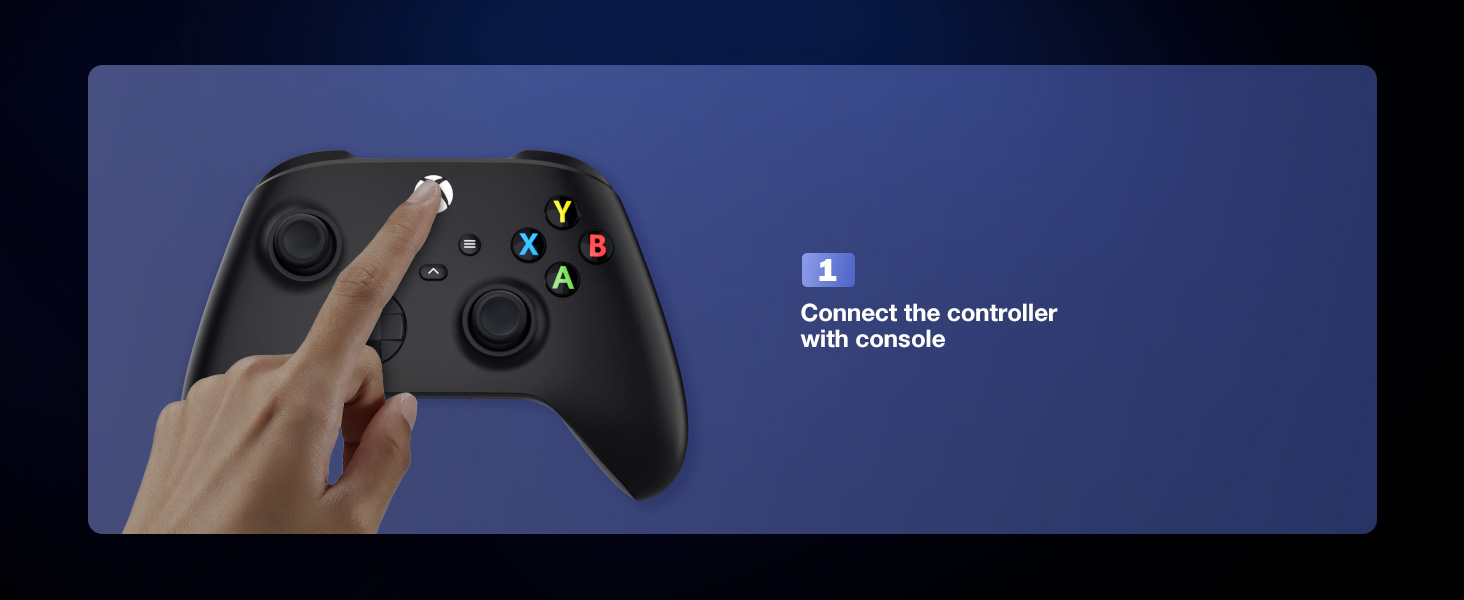
Image: A finger pressing the pairing key on the side of the chatpad keyboard.
Video: This video demonstrates the wireless connection and installation of the MoKo Chatpad Keypad for Xbox One controllers.
Video: This video highlights the ergonomic design and installation process of the MoKo Keyboard for Xbox One.
4. 操作手順
4.1 Basic Typing and Chat
The 47-key layout allows for quick and easy text input for chatting, messaging, and navigating menus. Simply press the desired keys to type.
4.2 RGBバックライトモード
The keyboard features three RGB backlight modes to enhance visibility and personalize your gaming setup. The backlight will automatically turn off if there is no operation within 10 seconds and will restore the previous mode upon reactivation.
- Rainbow Breathing Mode: プレス Shift + Q to activate a dynamic rainbow color cycle.
- Trichrome Mode: プレス シフト+W for a three-color display across different key sections.
- モノクロモード: プレス Shift + E to cycle through single-color backlighting. Further presses of Shift + R (Orange), Shift + T (緑)、または Shift + Y (Pink/Purple) will select specific monochrome colors.
- ライトのオン/オフ: プレス Shift + スペース バックライトのオン/オフを切り替えます。

Image: Demonstrates the three backlight modes: Rainbow Breathing Mode, Trichrome Mode, and Monochrome Mode.

Image: Close-up of the keyboard displaying the Rainbow Breathing Mode, activated by Shift + Q.

Image: Close-up of the keyboard displaying the Trichrome Mode, activated by Shift + W, showing three distinct color zones.

Image: Close-up of the keyboard displaying the Monochrome Mode, activated by Shift + E, with options for specific colors like orange, green, and pink/purple.
Video: This video demonstrates the newly upgraded MoKo Keyboard for Xbox, showcasing its features and backlight options.
Video: A short demonstration of the fantastic RGB backlight keyboard for Xbox One by MoKo, showing color changes.
Video: This video showcases the RGB backlight keyboard for Xbox One Controller by MoKo, demonstrating its various lighting effects.
4.3 オーディオジャックの使用
The integrated 3.5mm audio jack allows you to connect headphones, earphones, or a headset directly to the keyboard for in-game audio and voice chat. Ensure your controller's power is above 20% for normal use, as the keyboard is powered by the Xbox controller.
5. メンテナンス
To ensure the longevity and optimal performance of your MoKo Wireless RGB Backlight Chatpad Keyboard, follow these simple maintenance guidelines:
- クリーニング: キーボードの表面は、柔らかく乾いた布で拭いてください。頑固な汚れには、軽く湿らせた布で拭いてください。amp 布を使用することもできますが、デバイス内に水分が入らないようにしてください。
- ストレージ: 使用していないときは、キーボードを直射日光や極端な温度を避け、涼しく乾燥した場所に保管してください。
- 液体を避ける: キーボードを水やその他の液体にさらさないでください。
- 取り扱いにはご注意ください: キーボードを落としたり、強い衝撃を与えたりしないでください。
6。 トラブルシューティング
If you encounter issues with your MoKo Wireless RGB Backlight Chatpad Keyboard, please refer to the following common solutions:
- キーボードが応答しない:
- Ensure the 2.4G receiver is securely plugged into a USB port on your Xbox console.
- Verify that the keyboard is correctly attached to the controller.
- Re-attempt the pairing process (Section 3. Setup and Installation, Step 5).
- Check if your Xbox controller has sufficient battery charge (above 20%).
- バックライトが機能しない:
- キーボードがペアリングされ、接続されていることを確認します。
- プレス Shift + スペース to toggle the backlight on.
- The backlight turns off after 10 seconds of inactivity; press any key to reactivate.
- ワイヤレス接続が不安定:
- Ensure the console and keyboard are within the 10-meter valid range.
- Minimize obstructions between the receiver and the keyboard.
- オーディオジャックの問題:
- Ensure your headset/earphones are fully plugged into the keyboard's 3.5mm jack.
- Confirm the controller has adequate power.
If these steps do not resolve your issue, please contact MoKo customer support for further assistance.
7. 仕様
| ブランド | モコ |
| モデル番号 | P723314151540 |
| 対応デバイス | Xbox One, Xbox Series X/S, Xbox Elite, Xbox Elite 2 Controllers |
| 接続技術 | 2.4Gワイヤレス |
| キーボードタイプ | Chatpad, Gaming |
| バックライトカラーのサポート | RGB (Rainbow Breathing, Trichrome, Monochrome) |
| アイテム重量 | 2.17オンス |
| 製品寸法(長さx幅x高さ) | 5.59 x 2.13 x 1.65インチ |
| 電源 | Powered by Xbox Controller (No internal battery) |
8. 保証とサポート
MoKo is committed to customer satisfaction. While specific warranty details are not provided in this manual, if you have any questions, concerns, or require assistance with your product, please do not hesitate to contact MoKo customer support. Your feedback is valuable and helps us improve our products and services.
For support, please refer to the contact information provided on the product packaging or the official MoKo webサイト。


