
1. はじめに
Thank you for choosing the EBTOOLS 2.4G Wireless Keyboard and Mouse combo. This product is designed for comfortable and efficient use with its low-noise operation, adjustable DPI settings, and reliable 2.4G wireless connectivity. This manual provides detailed instructions for setup, operation, and maintenance to ensure optimal performance.
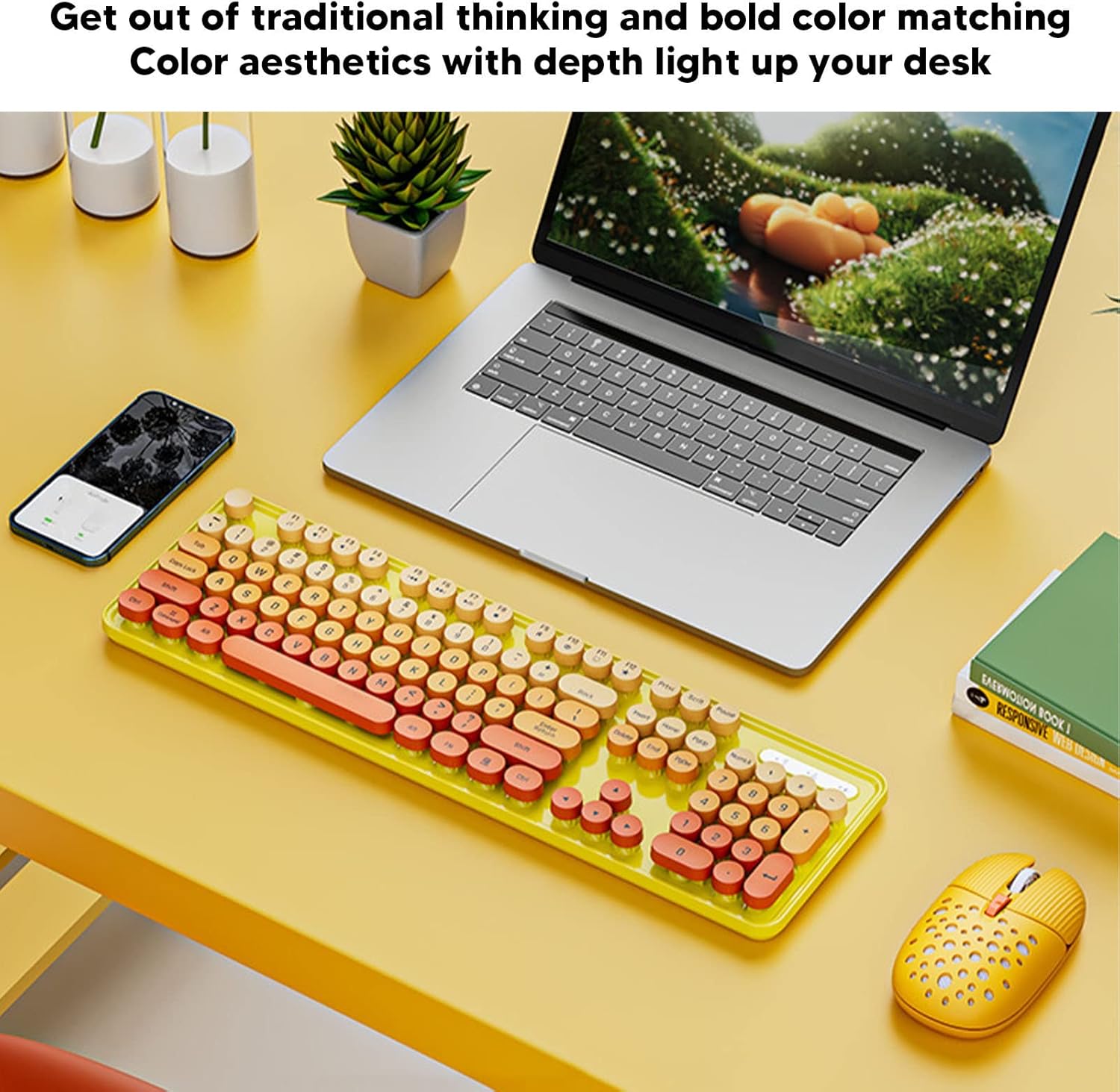
Image: The EBTOOLS 2.4G Wireless Keyboard and Mouse in mixed color yellow, displayed on a desk alongside a laptop and smartphone, showcasinデザインとコンパクトなフォームファクターが優れています。
2. パッケージ内容
- 1 x EBTOOLS 2.4G Wireless Keyboard
- 1 x EBTOOLS 2.4G Wireless Mouse
- USBレシーバー x 1(通常はマウスの電池ボックスに収納されています)
- ユーザーマニュアル(このドキュメント)
3. セットアップ手順
3.1. バッテリーの取り付け
The keyboard and mouse require batteries for operation. Please ensure you have 1 AA battery for the keyboard and 1 AA battery for the mouse (batteries are not included).
- キーボードの裏側にある電池ボックスを見つけます。
- 電池ボックスのカバーを開きます。
- Insert the AA battery according to the polarity indicators (+/-) inside the compartment.
- 電池カバーをしっかりと閉じてください。

Image: The underside of the EBTOOLS keyboard with the battery compartment open, showing where to insert the AA battery.
3.2. USBレシーバーの接続
The keyboard and mouse share a single 2.4G USB receiver for wireless connection.
- Locate the USB receiver. It is typically stored in the battery compartment of the mouse for safekeeping.
- USB レシーバーを収納スロットから取り外します。
- USB レシーバーをコンピューター (デスクトップ PC、ラップトップなど) の使用可能な USB ポートに接続します。
- The system should automatically detect and install the necessary drivers. This is a plug-and-play device.

Image: A diagram illustrating the compatibility of the keyboard and mouse with various systems, including desktop PCs, laptops, and other computers, highlighting its plug-and-play functionality.

Image: An illustration demonstrating the 2.4G wireless connection mode for the keyboard and mouse, emphasizing the ability to connect two devices wirelessly with a single receiver.
4. 操作手順
4.1. マウスDPIの調整
The mouse features three adjustable DPI (Dots Per Inch) settings to suit your preference and task requirements. You can cycle through these settings by pressing the DPI button, usually located near the scroll wheel on the mouse.
- 800dpi: 正確なタスクやゆっくりとしたカーソル移動に適しています。
- 1600dpi: 一般的な使用のための標準設定。
- 2400dpi: ゲームや大画面でのナビゲーションなど、カーソルの移動を高速化するのに最適です。
4.2. Using Multimedia Keys
The keyboard is equipped with 18 multimedia keys for quick access to various functions. These keys are typically activated by pressing the Fn key in combination with the corresponding function key (F1-F12) or dedicated multimedia keys.

画像: 詳細な view of the EBTOOLS keyboard layout, highlighting the standard keys and the 18 multimedia keys, along with their respective functions such as volume control, media playback, and quick access to applications.
Common multimedia functions include:
- Volume Down / Up / Mute
- Play / Pause / Previous Track / Next Track
- Home / My Computer / Mail / Favorites
- Other system-specific functions
5. メンテナンス
5.1. 清掃
To maintain the longevity and appearance of your keyboard and mouse:
- 表面を拭くときは、柔らかく乾いた布を使用してください。
- 頑固な汚れには、軽くamp布を水または中性洗剤で拭いてください。刺激の強い化学薬品は避けてください。
- 圧縮空気を使用して、キーボードのキーの間のほこりやゴミを取り除きます。
5.2. バッテリーの交換
When the keyboard or mouse becomes unresponsive or exhibits intermittent connectivity, it may be time to replace the batteries. Follow the battery installation steps in Section 3.1.

Image: An illustration depicting the energy-saving features of the keyboard and mouse, emphasizing lower power consumption and extended battery life for continuous use.
6。 トラブルシューティング
| 問題 | 解決 |
|---|---|
| キーボード/マウスが反応しない |
|
| 断続的な接続 |
|
| マウスカーソルが不安定またはスムーズに動かない |
|
7. 仕様
| 特徴 | 詳細 |
|---|---|
| ブランド | EBTOOLS |
| 色 | Mixed Color Yellow |
| 接続技術 | 2.4G Radio Frequency Wireless |
| 特集 | 低騒音動作 |
| 対応デバイス | Personal Computer (Desktop PC, Laptop) |
| オペレーティング·システム | Major PC Operating Systems |
| 手の向き(マウス) | 両利き |
| 電池が必要 | Yes (1 AA for keyboard, 1 AA for mouse) |
| キーの数(キーボード) | 104 |
| 電源 | 電池駆動 |
| キーボードレイアウト | QWERTY |
| マウスのDPI設定 | 800、1600、2400(調整可能) |
| 材料 | アブソリュート |
8. 公式製品ビデオ
8.1. Keyboard and Mouse Overview
ビデオ: オーバーview of the EBTOOLS Keyboard and Mouse, demonstrating its features and design. This video is provided by the seller, Zhiyavex-US.
8.2. Yunseity Wireless Keyboard and Mouse Demonstration
Video: A demonstration of the Yunseity Wireless Keyboard and Mouse, showcasing its functionality and user experience. This video is provided by the seller, Zhiyavex-US.
9. 保証とサポート
EBTOOLS products are designed for reliability and performance. For any questions, technical support, or warranty inquiries, please refer to the contact information provided with your purchase or visit the official EBTOOLS webサイトでご確認ください。保証請求のために購入証明書を保管してください。
The product comes with a standard return policy of 30 days from the date of purchase for refund or replacement, as per seller terms.