
1. はじめに
Thank you for choosing the VENTION Mac mini M4 Dock. This 10-in-1 aluminum stand is designed to expand the connectivity and storage capabilities of your Mac mini M4 or M4 Pro. It features an M.2 NVMe SSD enclosure, a DisplayPort for 4K video output, multiple USB 3.2 ports for high-speed data transfer, and an SD/TF card reader. This manual provides detailed instructions for setup, operation, and maintenance to ensure optimal performance of your device.
2.製品オーバーview
The VENTION Mac mini M4 Dock integrates seamlessly with your Mac mini, offering a compact and efficient solution for expanding your workspace.
2.1 パッケージ内容
- VENTION Mac mini M4 Dock
- ユーザーマニュアル
- ドライバー
- Thermal Silicone Pads (x2)
2.2 デバイスのレイアウトとポート
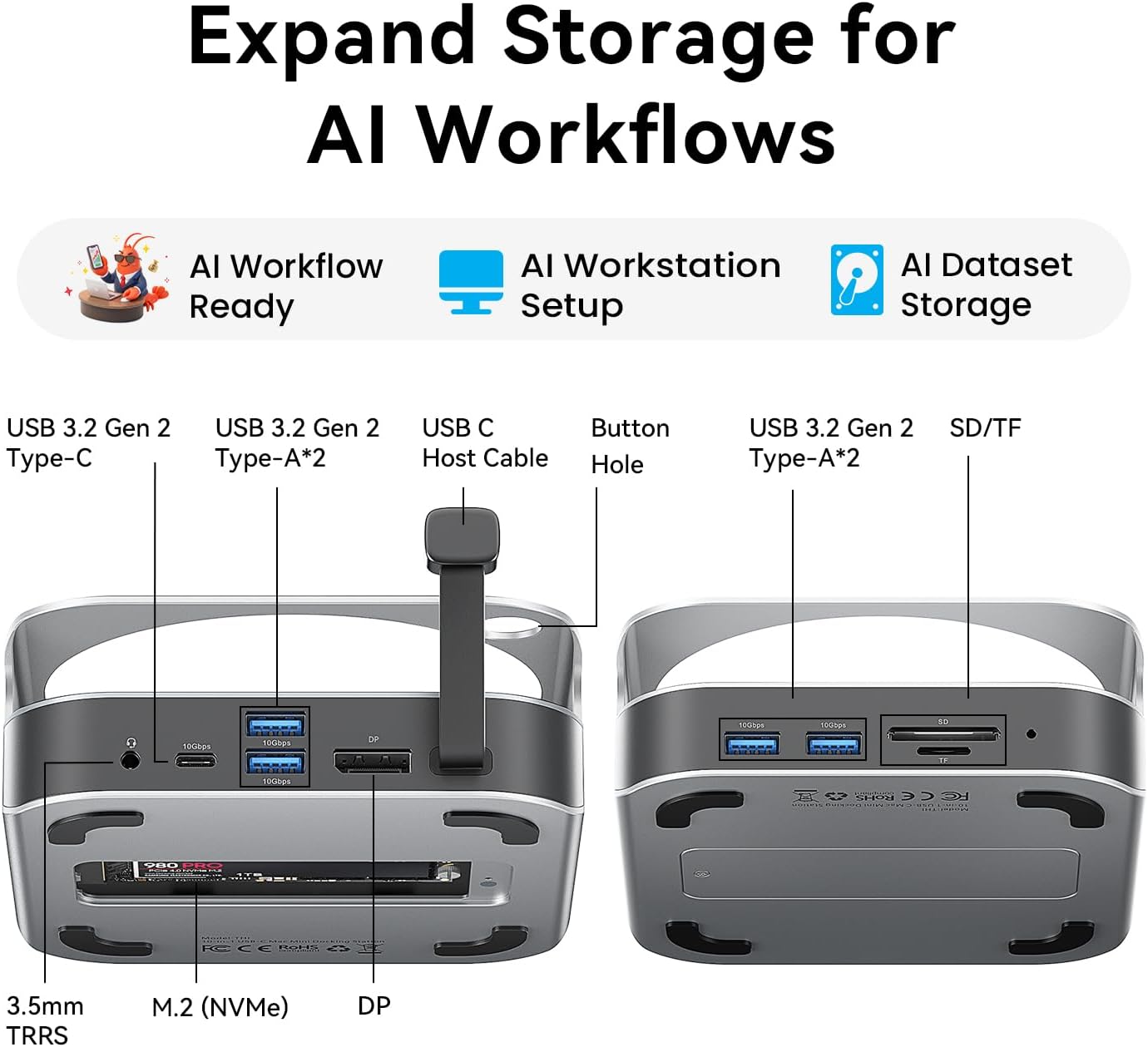
画像: 前面と背面 view of the VENTION Mac mini M4 Dock, highlighting all available ports and connections.
The dock features a comprehensive array of ports for enhanced connectivity:
- フロントポート:
- 2x USB 3.2 Gen 2 タイプA (10Gbps)
- SDカードリーダー
- TF Card Reader (supports simultaneous read with SD)
- 背面ポート:
- USB 3.2 Gen 1 Type-C (10Gbps) x 2
- 2x USB 3.2 Gen 2 タイプA (10Gbps)
- DisplayPort(DP)
- 3.5mm Audio Jack (TRRS)
- M.2 NVMe SSD Enclosure (supports 2230/2242/2260/2280 sizes)

Image: The VENTION Mac mini M4 Dock with a Mac mini placed on top, illustrating the floating design that promotes airflow for efficient cooling.
The dock's design includes a floating stand that elevates your Mac mini, creating 360° airflow channels for optimal heat dissipation during intensive workloads. It also features a dedicated power button hole for easy access to your Mac mini's power button.

画像: クローズアップ view of the VENTION Mac mini M4 Dock, highlighting the cutout for easy access to the Mac mini's power button.
3. セットアップ手順
3.1 M.2 NVMe SSDのインストール
The dock supports M.2 NVMe SSDs (M Key) of sizes 2230, 2242, 2260, and 2280, allowing for storage expansion up to 8TB. Follow these steps to install your SSD:
- Turn the dock upside down. Use the included screwdriver to remove the screws securing the M.2 NVMe SSD enclosure cover.
- Carefully lift off the cover.
- If your SSD requires it, place one of the provided thermal silicone pads on top of your M.2 NVMe SSD.
- Loosen the fixing screw inside the enclosure by hand or with a flat-head screwdriver.
- Align the notch on your M.2 NVMe SSD with the latch in the enclosure, insert it firmly, and press down.
- Tighten the fixing screw to secure the SSD. Ensure the thermal pad makes contact with the enclosure cover for optimal heat dissipation.
- Replace the enclosure cover and tighten the screws.

Image: Illustration of the M.2 NVMe SSD enclosure, showing compatibility with various SSD lengths (2230, 2242, 2260, 2280).
Video: A step-by-step guide demonstrating the installation process of an M.2 NVMe SSD into the VENTION Mac mini M4 Dock's enclosure.
3.2 Mac miniへの接続
- Place your Mac mini M4 or M4 Pro securely on top of the VENTION Dock. Ensure the power button hole aligns correctly.
- Connect the integrated USB-C host cable from the dock to an available USB-C/Thunderbolt port on your Mac mini.
- Connect any necessary peripherals (monitor, keyboard, mouse, etc.) to the corresponding ports on the dock.

Image: The VENTION Mac mini M4 Dock with a Mac mini positioned on top, showcasing the integrated setup.
4. 操作手順
4.1 Display Output (DisplayPort)
The DisplayPort on the dock supports high-resolution video output:
- Mac mini M4 Pro: 240Hzで最大4K解像度。
- Mac mini M4: 144Hzで最大4K解像度。
重要: Ensure you use a DisplayPort-to-DisplayPort cable for optimal performance and to achieve the advertised refresh rates.
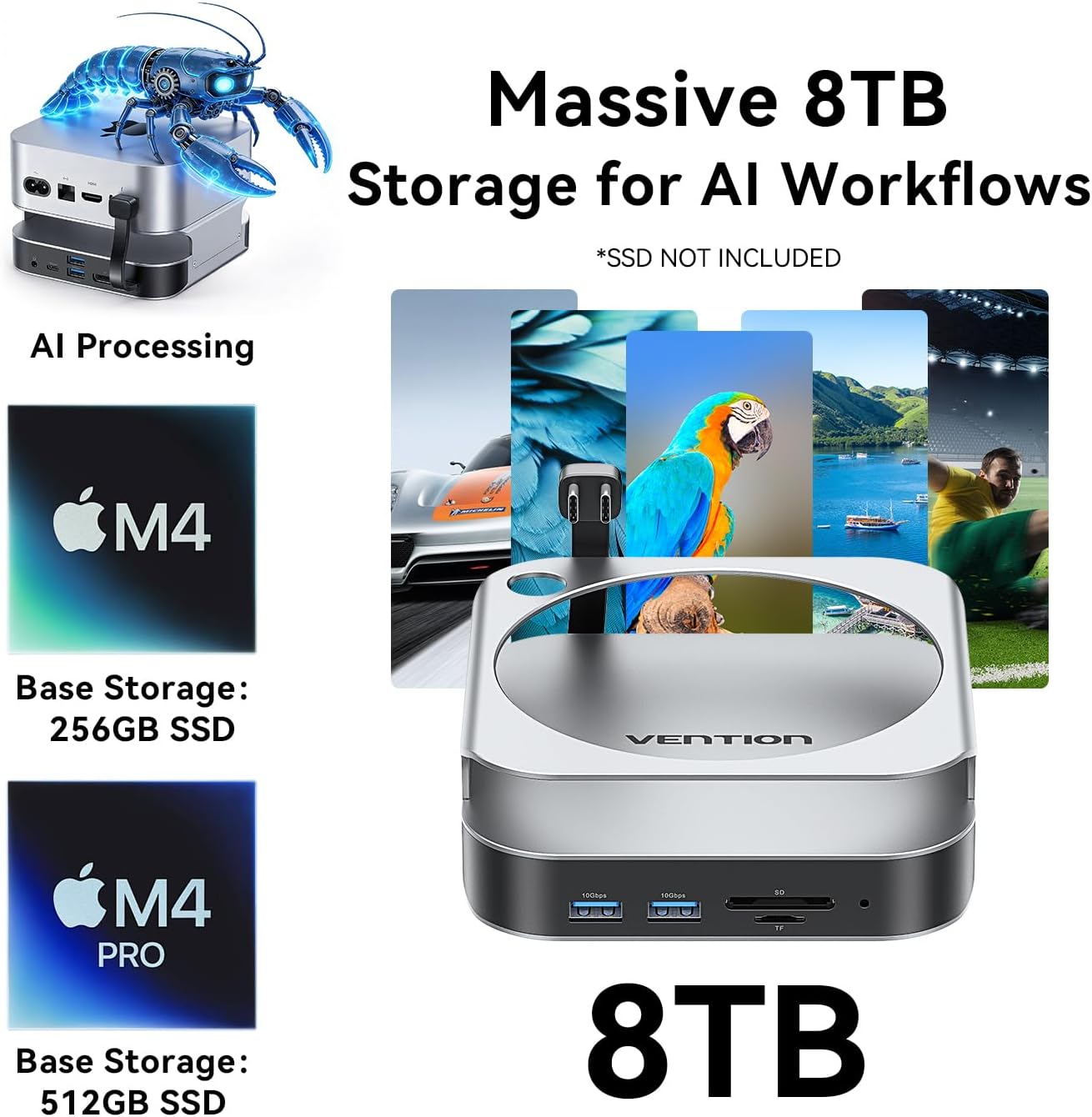
Image: A Mac mini connected to an external monitor through the VENTION Dock, demonstrating 4K display output.
4.2 High-Speed Data Transfer (USB Ports)
The dock provides 5 USB 3.2 Gen 2 ports (4x USB-A, 1x USB-C) with a data transfer speed of up to 10Gbps. This allows for rapid transfer of large fileたとえば、1GB を約 1 秒で転送します。
ビデオ: オーバーview of the VENTION Mac mini M4 Dock's features, including high-speed data transfer and display capabilities.
4.3 SD/TFカードリーダー
The integrated SD and TF card readers support simultaneous reading and writing, making it convenient for photographers and content creators to access media file直接。
5. メンテナンス
To ensure the longevity and optimal performance of your VENTION Mac mini M4 Dock, follow these maintenance guidelines:
- クリーニング: Use a soft, dry, lint-free cloth to wipe the exterior of the dock. Avoid using harsh chemicals or abrasive materials.
- 換気: Ensure the ventilation channels around the dock and your Mac mini are clear of obstructions to maintain proper airflow and heat dissipation.
- ストレージ: 長期間使用しない場合は、ドックを直射日光や極端な温度を避け、涼しく乾燥した場所に保管してください。
- SSD の取り扱い: Do not plug or unplug SSDs while the device is powered on to prevent data corruption or damage.
6。 トラブルシューティング
If you encounter issues with your VENTION Mac mini M4 Dock, refer to the following common solutions:
6.1 ディスプレイ出力の問題
- 表示なし/ちらつき: Ensure you are using a high-quality DisplayPort-to-DisplayPort cable. Check that the cable is securely connected to both the dock and your monitor. Verify your monitor's input settings.
- 解像度/リフレッシュ レートが正しくありません: Confirm your monitor supports the desired resolution and refresh rate. Adjust display settings in macOS System Settings.
6.2 SSDが認識されない
- インストールの確認: Re-open the SSD enclosure and ensure the M.2 NVMe SSD is correctly seated and the fixing screw is tightened.
- SSD をフォーマットします: For new SSDs, you may need to format them using Disk Utility in macOS before they appear in Finder.
- 電源サイクル: Disconnect and reconnect the dock from your Mac mini.
6.3 データ転送速度が遅い
- USB 3.2 の互換性を確認する: Ensure the connected device (e.g., USB drive) and cable support USB 3.2 Gen 2 (10Gbps) speeds. Older USB 2.0 or 3.0 devices will operate at their respective lower speeds.
- 過負荷を避ける: Transferring data to/from multiple high-speed devices simultaneously may reduce individual transfer rates.
6.4 オーディオジャックが機能しない
- Check macOS Audio Settings: Go to System Settings > Sound > Output and ensure the VENTION Dock's audio output is selected.
- Test with Different Headphones/Speakers: Rule out issues with your audio peripherals.
7. 仕様
| 特徴 | 詳細 |
|---|---|
| ブランド | ヴェンション |
| モデル | M4 ドック |
| 色 | 銀 |
| ハードウェアインターフェイス | DisplayPort, SD Card, TF Card, USB 3.2 Gen 2, USB Type-C |
| 対応デバイス | Mac mini M4/M4 Pro |
| USBポート合計 | 7 (5x USB 3.2 Gen 2, 2x USB-C for host connection) |
| ポート数 | 10-in-1 (including M.2 NVMe slot, DisplayPort, SD/TF) |
| M.2 NVMe SSD サポート | M Key, sizes 2230/2242/2260/2280, up to 8TB |
| DisplayPort出力 | 4K@240Hz (M4 Pro), 4K@144Hz (M4) |
| データ転送速度 | 最大10Gbps(USB 3.2 Gen 2) |
8. 保証とサポート
8.1 保証情報
The VENTION Mac mini M4 Dock comes with a 12ヶ月保証 ご購入日から1年間有効です。本保証は、通常の使用における製造上の欠陥および故障を対象としています。誤用、事故、不正な改造、不適切な取り付けによる損傷は保証の対象外となります。
8.2 カスタマーサポート
For technical assistance, warranty claims, or any questions regarding your VENTION product, please contact VENTION customer support through the official VENTION website or your retailer's support channels. Please have your purchase receipt and product model information ready when contacting support.