
1. はじめに
This manual provides instructions for the installation, operation, and maintenance of your 10.4 Inch Embedded Resistive Touch Industrial All-in-one Computer. This device features resistive touchscreen technology, offering single-touch, pressure-sensing control with a theoretical lifespan of over 50 million clicks. It is equipped with Mohs grade 7 explosion-proof glass and is designed to operate within a temperature range of -20°C to 60°C.
The computer's display offers a brightness of 250-350 cd/m² and a contrast ratio of 1000:1. It comes with a power adapter (Input: 100-250VAC, Output: DC 12V 5A) and supports various plug types (AU, EU, USA, UK). The default operating system is Windows 10 Pro, with Windows 7 or Linux available as optional installations.

図1: 前面 view of the computer showcasing its slim design and embedded installation capability, with Windows 10 operating system.
2. 箱の中身
開梱後、すべての部品が揃っていて損傷がないことをご確認ください。パッケージには以下のものが含まれています。
- 1 x 10.4 Inch Embedded Resistive Touch Industrial All-in-one Computer
- 1 x Power Adapter (with appropriate regional plug)
- Mounting hardware (for embedded or wall mount installation)
3. セットアップ
Follow these steps to set up your industrial all-in-one computer:
- 開梱: Carefully remove the computer and all accessories from the packaging. Retain packaging for future transport or storage.
- 取り付け: Determine your preferred installation method. The unit supports embedded and wall-mount installations. Use the provided mounting hardware to secure the computer in place. Ensure the mounting surface is stable and can support the device's weight.

Figure 2: Reference for installation methods, demonstrating how the unit can be embedded or secured with screws.
- 周辺機器の接続: Connect necessary peripherals such as a keyboard, mouse, or external display to the available ports. The unit features multiple interfaces including HDMI, USB (USB1, USB2), VGA, LAN, and Audio ports.

図3:以上view of the multiple interfaces available on the rear panel for various connectivity requirements.
- 電源接続: Connect the provided DC 12V 5A power adapter to the DC12V input port on the computer, then plug the adapter into a suitable power outlet.
4. 操作手順
This section outlines the basic operation of your industrial all-in-one computer.
- 電源オン/オフ: Locate the power button, typically on the side or rear panel. Press it once to power on the device. To power off, use the operating system's shutdown function. For a forced shutdown, press and hold the power button for several seconds.
- タッチスクリーン操作: The resistive touchscreen supports single-point touch input. Apply gentle pressure with your finger or a stylus to interact with the display.

Figure 4: User interacting with the resistive touchscreen display.
- オペレーティング·システム: The computer comes pre-installed with Windows 10 Pro. Familiarize yourself with the operating system's interface and functions.
5. メンテナンス
Proper maintenance ensures the longevity and optimal performance of your industrial computer.
- クリーニング: 柔らかくてamp cloth to clean the screen and exterior surfaces. Avoid abrasive cleaners or solvents that could damage the display or finish. Ensure the device is powered off and unplugged before cleaning.
- 換気: The unit is designed with ventilation to dissipate heat. Ensure that the ventilation openings on the back panel are not obstructed to prevent overheating.

Figure 5: Rear panel with ventilation design for efficient heat management.
- 環境条件: Operate the computer within the specified temperature range of -20°C to 60°C. Avoid exposing the device to extreme humidity or direct sunlight.
6。 トラブルシューティング
If you encounter issues with your industrial computer, refer to the following common troubleshooting steps:
- 電源なし:
- Check if the power adapter is securely connected to both the computer and the power outlet.
- 別のデバイスを接続して、電源コンセントが機能していることを確認します。
- 表示なし:
- コンピュータの電源がオンになっていることを確認します。
- If an external monitor is connected, check its power and cable connections.
- タッチスクリーンが反応しない:
- コンピュータを再起動します。
- 画面がきれいでゴミなどがないことを確認してください。
- システムの速度低下:
- 不要なアプリケーションを閉じます。
- SSD に十分な空き容量があるかどうかを確認します。
7. 仕様
Detailed technical specifications for the 10.4 Inch Embedded Resistive Touch Industrial All-in-one Computer (Model YTKK104DZ).
| 特徴 | 仕様 |
|---|---|
| ブランド | ジェネリック |
| モデル番号 | YTKK104DZ |
| オペレーティング·システム | Windows 10 Pro (Win7/Linux optional) |
| CPUモデル | コア i7-7500U |
| CPU速度 | 2.7GHz帯 |
| RAMメモリ搭載 | 4GB DDR3 |
| メモリストレージ容量 | 64GB SSD |
| 画面サイズ | 10.4インチ |
| 解決 | 1024×768 |
| 表示タイプ | 液晶 |
| アスペクト比 | 4:3 |
| ヒューマンインターフェース入力 | Touchscreen (Resistive) |
| 輝度 | 250-350cd /m² |
| コントラスト比 | 1000:1 |
| Explosion-Proof Glass | Mohs grade 7 |
| 動作温度 | -20°C ~ 60°C |
| ハードウェアインターフェイス | Ethernet, USB (4 Total), HDMI (1 Total) |
| ワイヤレステクノロジー | Wi-Fi |
| アイテムの寸法 | 10.67 x 2.28 x 8.58インチ |
| アイテム重量 | 4キログラム |
| 電源プラグタイプ | Type A - 2 pin (North American) |
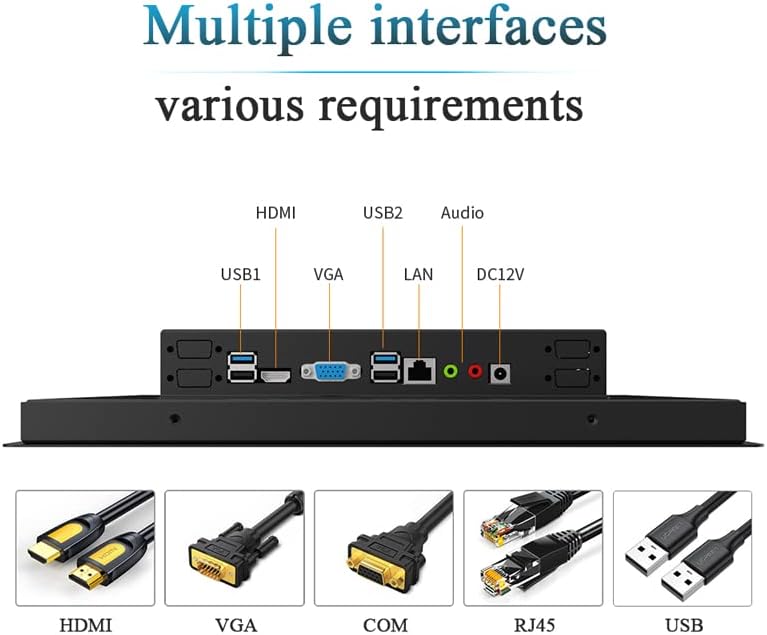
Figure 6: Detailed dimensional drawing of the 10.4-inch industrial computer.
8. 保証とサポート
保証: この製品には、 1年間保証 ご購入日より1年間有効です。保証請求の際は購入証明書を保管してください。
サポート: For technical assistance, troubleshooting, or inquiries regarding customization options (such as screen size, interface type, power supply, or installation methods), please contact the manufacturer. Customization inquiries can be sent via email to: Slubee-zzl@outlook.com.