
1.製品オーバーview および機能
The XINMENG K61 60% Gaming Keyboard and Mouse Combo offers a compact and efficient setup for gaming and typing. This combo includes a mini RGB backlit keyboard, a high-precision RGB 6400 DPI honeycomb optical mouse, and a gaming mouse pad. Designed for space-saving and enhanced performance, it provides a comfortable and responsive user experience.

Image: The XINMENG K61 60% Gaming Keyboard and Mouse Combo, showcasinコンパクトなデザインと RGB 照明が特徴。
主な特徴:
- 60% コンパクトレイアウト: Ultra-compact design saves desktop space, ideal for gamers requiring more mouse movement area.
- RGBバックライト: Keyboard and mouse feature customizable RGB backlighting with multiple effects and brightness levels.
- メカニカルフィールキーボード: Utilizes advanced imitation mechanical technology for a responsive and relatively quiet typing experience.
- 人間工学に基づいたデザイン: Scientific stair-up keycap design and ergonomic mouse housing ensure maximum comfort during extended use.
- High Precision Mouse: 6400 DPI honeycomb optical mouse with 6 adjustable levels, capable of withstanding 20g acceleration.
- 耐久性のあるキーキャップ: ABS two-color injection keycaps provide strong light transmittance and clear lighting.
- 幅広い互換性: Windows XP、WIN 7/8/10、MAC OS 2.0 と互換性があります。

Image: Diagram illustrating the 60% compact layout of the keyboard, measuring approximately 11.8 inches in width and 4.3 inches in height.

Image: The compact keyboard being easily stored in a backpack, highlighting its portability for travel, office, and home use.
2. セットアップ手順
2.1 キーボードの接続
- コンピューターで使用可能なUSBポートを見つけます。
- キーボードのUSBコネクタをUSBポートに差し込みます。
- キーボードはプラグアンドプレイなので、オペレーティング システムによって自動的に認識されます。
2.2 マウスの接続
- コンピューターで使用可能なUSBポートを見つけます。
- マウスのUSBコネクタをUSBポートに差し込みます。
- The mouse is plug-and-play and should be recognized automatically by your operating system.
For optimal performance, ensure both devices are connected directly to your computer's USB ports rather than through unpowered USB hubs.
3. 操作手順
3.1 キーボードの機能
The 60% keyboard layout utilizes function (Fn) key combinations to access keys typically found on a full-size keyboard.
- 標準的なタイピング: Use keys as labeled for alphanumeric input.
- FNキーの組み合わせ: を押し続けます Fn key, then press the desired key to activate its secondary function (e.g., F1-F12, arrow keys, Home, End, Delete).
- Shift Key Combinations: 使用 シフト key with other keys to access uppercase letters and symbols.
- WASDと矢印キーの入れ替え: The keyboard supports swapping WASD keys with arrow keys. Refer to the specific key combination on your keyboard (often Fn + W) to toggle this function.
- Windows キーロック: To prevent accidental presses during gaming, the Windows key can be locked. Look for a key combination (e.g., Fn + Win) to activate/deactivate this feature.
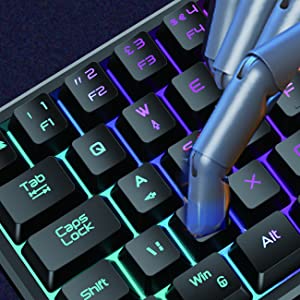
Image: A hand demonstrating key presses on the keyboard, highlighting the ergonomic design.

Image: An icon indicating the Windows key lock feature, useful for uninterrupted gaming.
3.2 マウスの機能
The honeycomb optical mouse provides precise tracking and customizable settings.
- 左/右クリック: プライマリアクションとセカンダリアクション用の標準マウス ボタン。
- スクロールホイール: 垂直スクロールと中クリック機能用。
- DPIボタン: Press the DPI button (usually located behind the scroll wheel) to cycle through 6 different DPI levels (up to 6400 DPI). This allows for on-the-fly sensitivity adjustments.
- 進む/戻るボタン: Side buttons for navigation in web ブラウザまたはその他のアプリケーション。
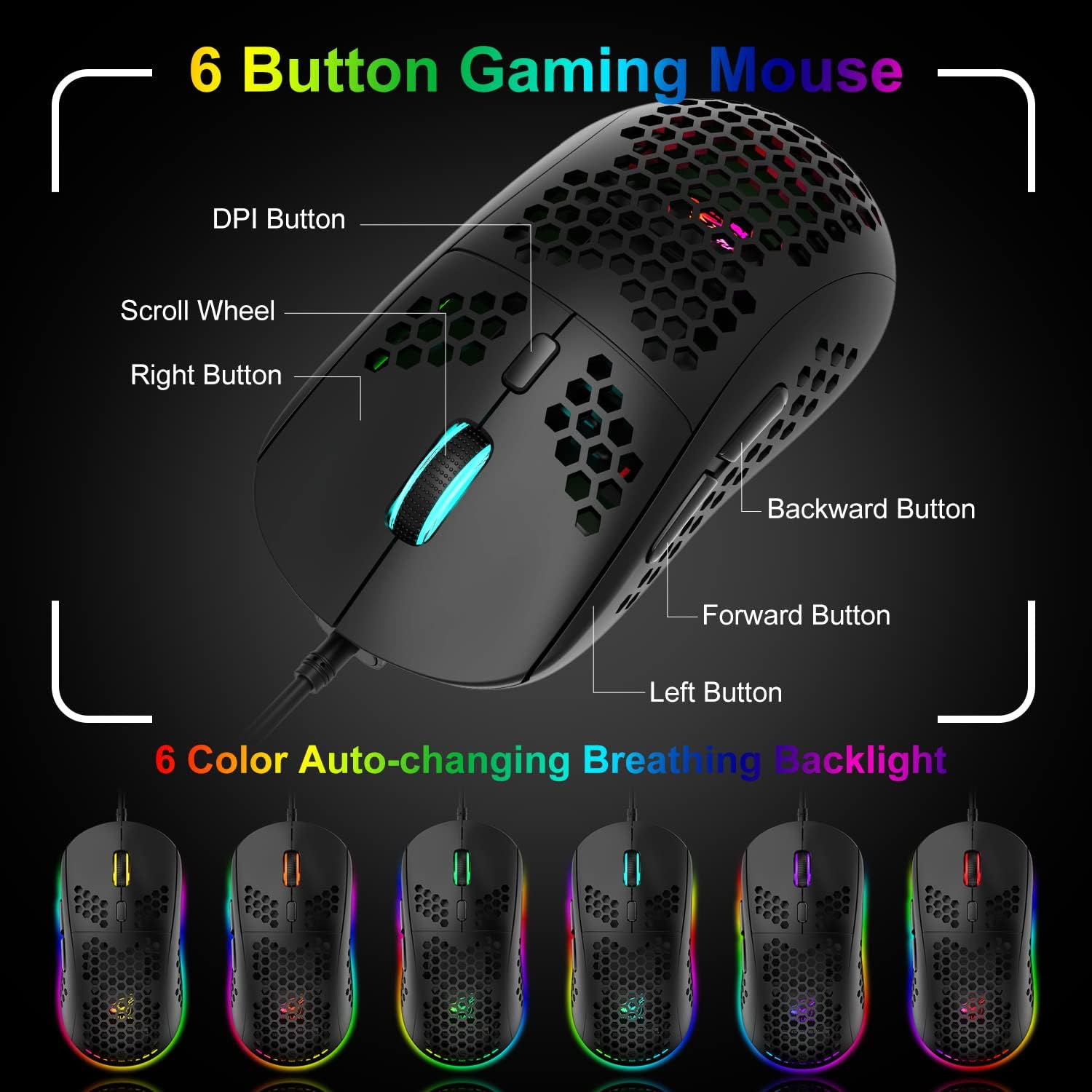
Image: A detailed diagram labeling the 6 buttons on the gaming mouse, including DPI, scroll wheel, left/right, forward, and backward buttons.
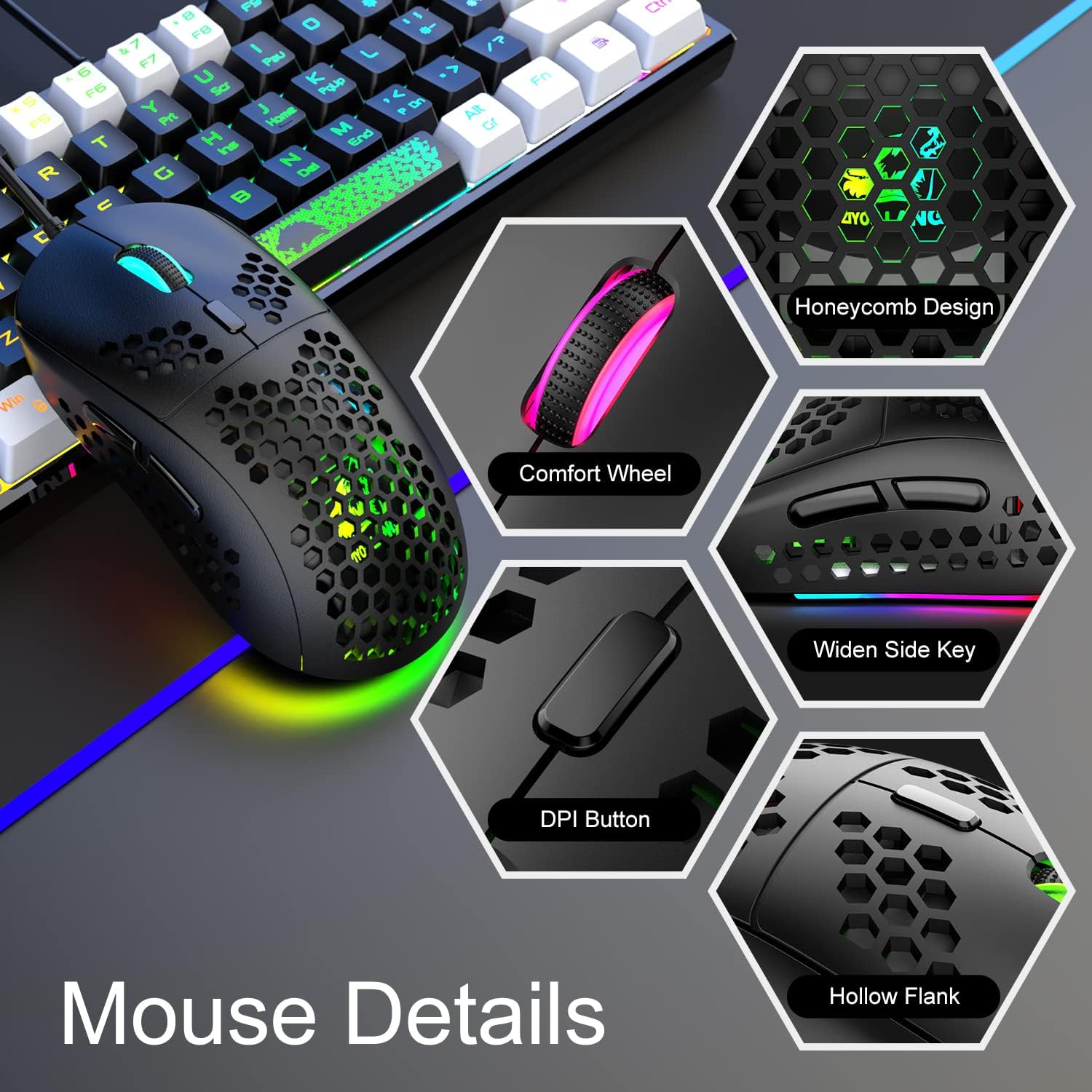
画像: クローズアップ views of the mouse's features, including honeycomb design, comfort wheel, widen side key, DPI button, and hollow flank.
4. RGB照明制御
4.1 Keyboard RGB Backlight
キーボードには、さまざまな効果を備えたダイナミック RGB バックライトが搭載されています。
- ライト効果の変更: プレス Fn + P to cycle through different RGB lighting modes and effects.
- 明るさを調整: The keyboard offers 5 levels of brightness. Use specific key combinations (refer to your keyboard's markings, often Fn + Up/Down arrow or similar) to adjust.
- Monochromatic Light Effect: In addition to RGB, the keyboard can display monochromatic light effects.

Image: The keyboard displaying various cool RGB backlit effects, with instructions to press Fn+P to change them.
4.2 Mouse RGB Backlight
The mouse features 6-color auto-changing breathing backlight.
- The mouse's RGB lighting automatically cycles through 6 different colors, creating a breathing effect.
- This lighting enhances the aesthetic appeal and competitive atmosphere during gaming.
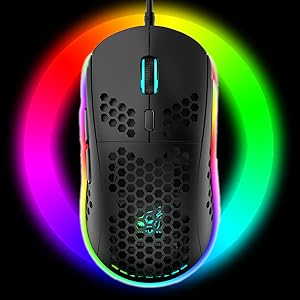
Image: The gaming mouse illuminated with vibrant RGB lighting, showcasing その美的魅力。
5. メンテナンス
5.1 キーボードのクリーニング
- キーボードをコンピューターから取り外します。
- 圧縮空気の缶を使用して、キーの間のほこりやゴミを吹き飛ばします。
- キーキャップと表面を柔らかく、少し硬めの布で拭いてください。amp 布で拭いてください。過度の湿気を避けてください。
- For deeper cleaning, keycaps can be carefully removed using a keycap puller (if included) and cleaned separately. Ensure they are completely dry before reattaching.
5.2 マウスのクリーニング
- マウスをコンピューターから取り外します。
- 柔らかく乾いた布を使用してマウスの表面を拭きます。
- For the honeycomb shell, use compressed air to clear any dust.
- Clean the optical sensor on the bottom of the mouse with a cotton swab lightly damp消毒用アルコールで強化。
5.3一般的なケア
- Avoid spilling liquids on the keyboard or mouse.
- デバイスを極端な温度や直射日光にさらさないでください。
- 損傷を防ぐためにケーブルを慎重に扱ってください。
6。 トラブルシューティング
6.1 キーボード/マウスが反応しない
- USB ケーブルがコンピューターの動作中の USB ポートにしっかりと差し込まれていることを確認します。
- デバイスを別の USB ポートに接続してみてください。
- コンピュータを再起動します。
- Test the device on another computer to determine if the issue is with the device or your system.
6.2 RGB Lights Not Working or Incorrectly Displaying
- For the keyboard, ensure it is properly connected. Press Fn + P 照明モードを切り替えます。
- Check brightness settings using the appropriate Fn key combination.
- For the mouse, ensure it is connected. The mouse lighting is typically automatic.
- If the issue persists, try reconnecting the device or restarting your computer.
6.3 Mouse Tracking Issues or Incorrect DPI
- マウスセンサーが清潔でゴミがないことを確認してください。
- Press the DPI button on the mouse to cycle through different sensitivity levels.
- マウスを適切な表面(できれば付属のマウス パッド)で使用していることを確認してください。
7. 仕様
| ブランド | 新門 |
| モデル | K61 |
| 色 | 黒と白 |
| 接続技術 | USB有線 |
| 特集 | バックライト、人間工学 |
| 対応デバイス | ゲーム機、パソコン |
| 動き検出(マウス) | 光学 |
| キーボードのバックライト色のサポート | RGB |
| 電池が必要 | いいえ |
| 電源 | コード式電気 |
| キーボードレイアウト | QWERTY |
| 手の向き(マウス) | 両利き |
| オペレーティング·システム | Mac OS, Windows XP, WIN 7/8/10 |
| キーの数(キーボード) | 61 |
| キーボードの説明 | Ergonomic, Mechanical Feel |
| マウスDPI | 最大6400 DPI(6段階) |
8. 保証とサポート
8.1 保証情報
This XINMENG product comes with a 1-year warranty from the date of purchase, covering manufacturing defects. Please retain your proof of purchase for warranty claims.
8.2 カスタマーサポート
For technical assistance, troubleshooting, or warranty inquiries, please contact XINMENG customer support through the retailer where the product was purchased or visit the official XINMENG web連絡先情報のサイト。