
1. はじめに
The Ducky Feather Lightweight Gaming Mouse is engineered for precision and speed, featuring the PixArt PMW3389DM optical sensor. Designed for both left and right-handed users, this mouse weighs approximately 65g and utilizes durable Omron switches for reliable performance. This manual provides essential information for setting up, operating, maintaining, and troubleshooting your Ducky Feather gaming mouse.
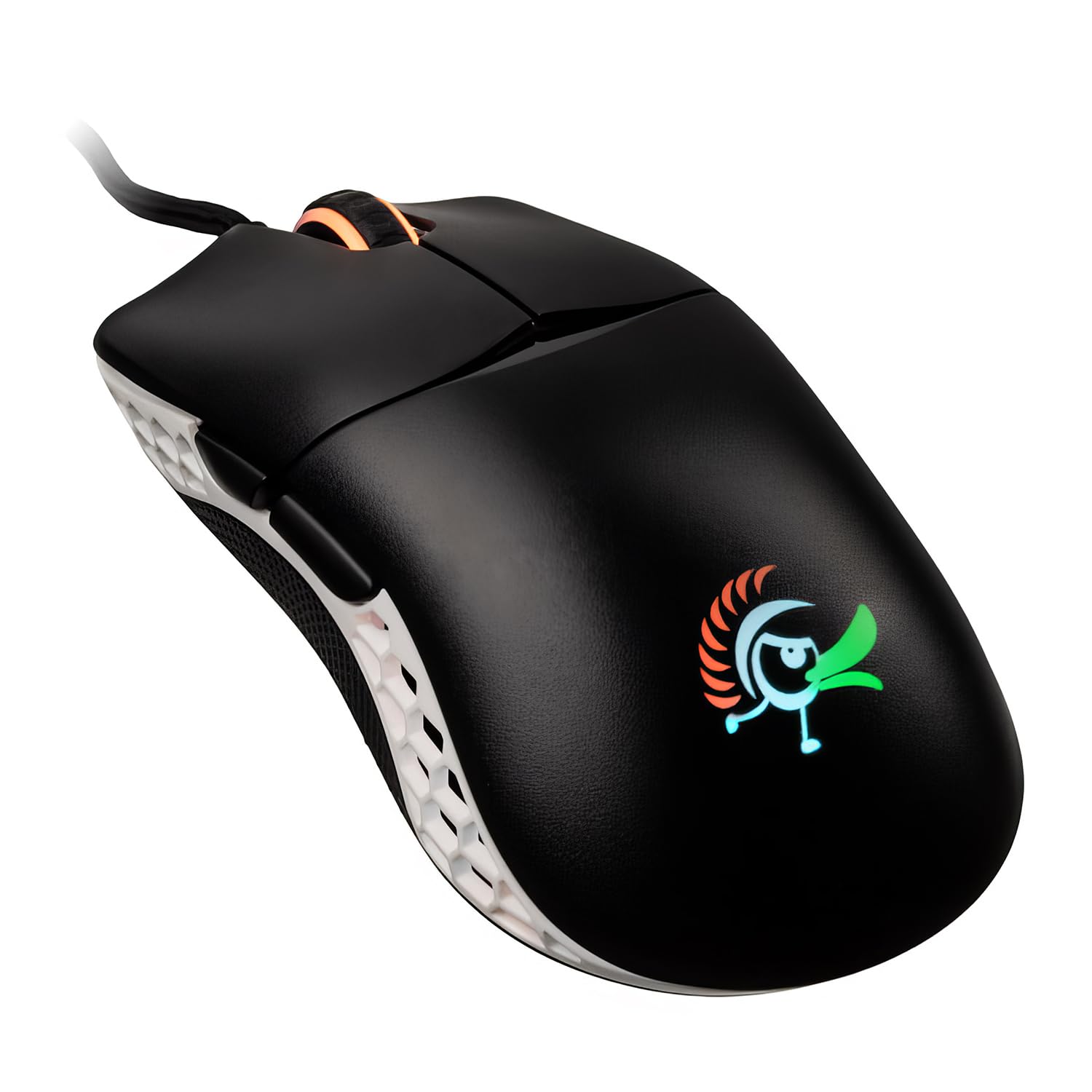
Image: The Ducky Feather Lightweight Gaming Mouse, showcasing its ergonomic design and lightweight build.
2. パッケージ内容
パッケージにすべてのアイテムが含まれていることを確認してください。
- Ducky Feather Lightweight Gaming Mouse
- USB接続ケーブル
- ユーザーマニュアル(このドキュメント)
3. セットアップ
Follow these steps to set up your Ducky Feather gaming mouse:
- マウスを接続します: Plug the USB connection cable from the Ducky Feather mouse into an available USB port on your computer.
- ドライバーのインストール: The mouse is typically plug-and-play and does not require additional drivers for basic functionality. Your operating system should automatically detect and install the necessary drivers.
- ソフトウェア(オプション): For advanced customization, such as DPI settings, button remapping, and macro creation, please visit the official Ducky website to download any available software for the Feather mouse.
Video: A detailed guide on setting up and configuring the Ducky Feather Gaming Mouse (1:39 duration).
4. 操作手順
The Ducky Feather mouse offers intuitive controls for an optimized gaming experience:
- DPI 調整: Use the dedicated DPI button (usually located behind the scroll wheel) to cycle through different sensitivity levels. The mouse may have an indicator light to show the current DPI setting.
- プログラム可能なボタン: The mouse features multiple buttons, including side buttons. These can often be customized using the Ducky software to perform specific functions or macros.
- 両手利きのデザイン: The symmetrical design allows comfortable use for both left and right-handed users. Ensure any software settings are adjusted to match your preferred hand orientation if applicable.
ビデオ: オーバーview of the Ducky Feather Gaming Mouse features and basic operation (0:33 duration).
5. メンテナンス
Proper maintenance ensures the longevity and performance of your Ducky Feather mouse:
- センサーのクリーニング: Periodically clean the optical sensor on the underside of the mouse with a soft, dry cloth or a cotton swab. Avoid using harsh chemicals.
- 表面のクリーニング: マウスの表面を軽く拭きますamp, soft cloth. Do not immerse the mouse in water or use abrasive cleaners.
- ケーブルのお手入れ: 損傷を防ぐため、USB ケーブルを急激に曲げたり、過度に引っ張ったりしないでください。
- ストレージ: マウスを使用しないときは、清潔で乾燥した環境に保管してください。
6。 トラブルシューティング
If you encounter issues with your Ducky Feather mouse, refer to the following common solutions:
| 問題 | 考えられる解決策 |
|---|---|
| マウスが検出されません |
|
| カーソルの不規則な動き |
|
| ボタンが反応しない |
|
7. 仕様
Key technical specifications for the Ducky Feather Lightweight Gaming Mouse:
- モデル番号: DMFE20O-OAZPA7V
- センサー: PixArt PMW3389DM Optical Sensor
- スイッチ: Omron (60M click lifespan)
- 重さ: 約2.29オンス(65g)
- 寸法: 4.88 x 2.32 x 1.42インチ
- 接続性: USB
- 特集: Lightweight, Ambidextrous Design
- 色: 黒、白
- メーカー: Duckychannel International Co., Ltd.
- ASIN: B0928GLWYS
8. 保証とサポート
Ducky products are manufactured to high-quality standards. For warranty information, technical support, or to access additional resources, please visit the official Ducky webサイトをご覧いただくか、お近くの販売店にお問い合わせください。
また、 Amazonのダッキーストア 製品情報およびカスタマーサービスについて。