
導入
This manual provides comprehensive instructions for the Docooler T-Wolf V11 Wired Gaming Mouse. It covers setup, operation, maintenance, and troubleshooting to ensure optimal performance and longevity of your device. The T-Wolf V11 is designed for both gaming and office use, featuring adjustable DPI, ergonomic design, and customizable RGB lighting.
製品の特徴
- 8ボタンデザイン: Equipped with 8 programmable buttons suitable for various tasks in gaming and office applications.
- 調整可能なDPI: Offers 6 levels of DPI adjustment (1000/1600/2400/3200/4800/6400) for precise cursor control and sensitive operation.
- Ergonomic Arc Design: Engineered for a comfortable grip, fitting closely to your palm to reduce fatigue during extended use.
- Integrated Weights: Features independent weights within the mouse, allowing customization for improved stability and precision to suit individual preferences.
- RGB Colorful Backlight: Provides 6 types of colorful RGB streaming light effects, enhancing the visual experience.
- 耐久性のある構造: Includes a lightweight aluminum alloy anti-skid roller for comfortable and reliable use.
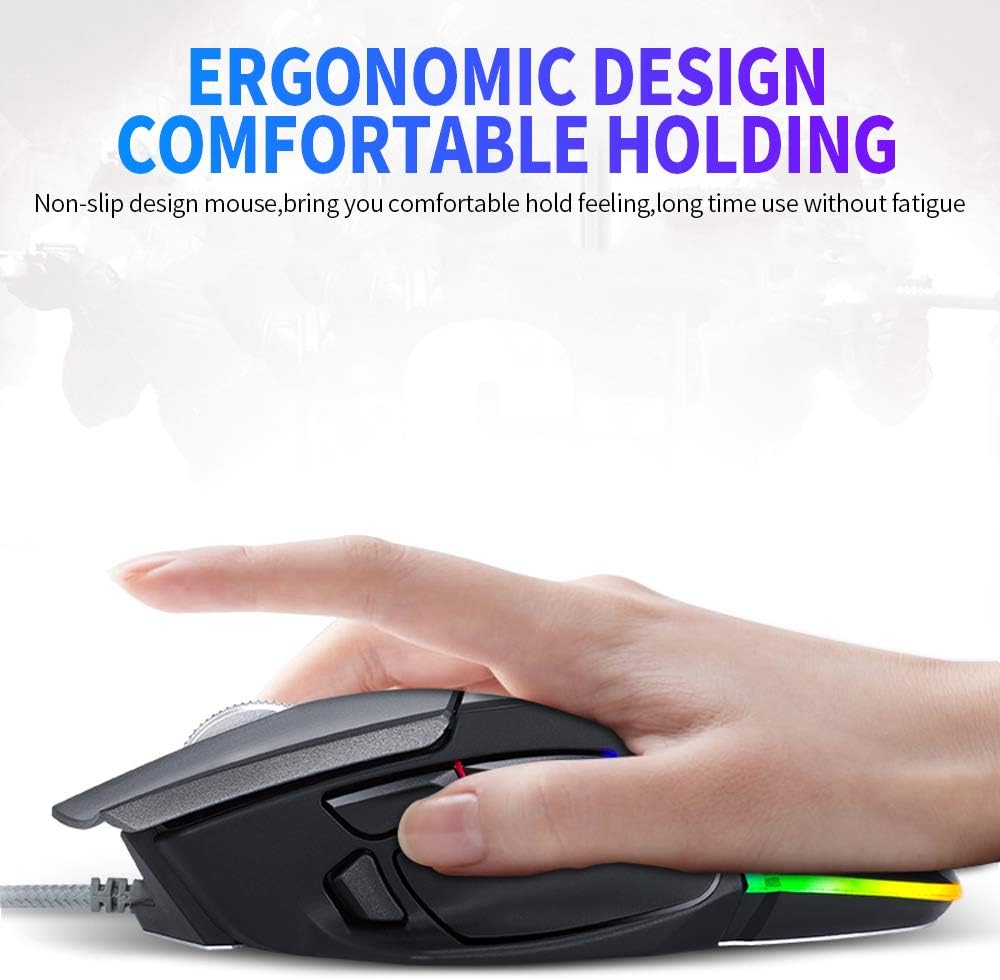
Image: The ergonomic design of the T-Wolf V11 mouse, demonstrating how it comfortably fits the hand to reduce strain during prolonged use.

Image: The T-Wolf V11 mouse illuminated with its dynamic RGB streaming light effects, showcasinカスタマイズ可能な照明オプション。
セットアップ手順
- マウスを開梱します。 Carefully remove the T-Wolf V11 mouse from its packaging.
- コンピュータに接続します: Plug the USB connector of the mouse's cable into an available USB port on your computer (desktop or laptop).
- ドライバーのインストール: The mouse is typically plug-and-play. Your operating system (Windows, macOS, Linux) should automatically detect and install the necessary drivers. No additional software installation is usually required for basic functionality.
- 機能の確認: Once connected, move the mouse to check cursor movement and click the left and right buttons to ensure they are responsive.

Image: The Docooler T-Wolf V11 gaming mouse connected to a laptop, illustrating a typical setup scenario.
操作手順
ボタンの機能
- 左クリック(ボタン1): 標準的なプライマリクリック機能。
- 右クリック(ボタン2): 標準的なセカンダリクリック機能。
- スクロールホイール(ボタン3): コンテンツを上下にスクロールします。また、押すと中クリックとして機能します。
- DPI Cycle Button (Button 4): Located near the scroll wheel, press to cycle through DPI settings (1000/1600/2400/3200/4800/6400).
- 進む/戻るボタン(ボタン5と6): 通常は側面に配置され、ナビゲーションに使用されます。 web ブラウザまたは file 探検家。
- Additional Programmable Buttons (Buttons 7 & 8): These buttons can often be customized using third-party software or operating system settings for specific functions or macros.
DPI調整
Press the DPI cycle button (usually located behind the scroll wheel) to switch between the available DPI settings. Each press will change the sensitivity, allowing you to adapt to different tasks, from precise aiming in games to fast navigation in desktop environments. The RGB lighting may change color to indicate the current DPI level.
RGB照明効果
The T-Wolf V11 features 6 types of colorful RGB streaming light effects. These effects are pre-programmed and cycle automatically, providing a dynamic visual experience. There is no specific button to change RGB modes on the mouse itself; the lighting patterns are typically fixed or cycle through automatically.

画像: 詳細な view of the T-Wolf V11 mouse, illustrating its DPI adjustment capabilities and RGB streamer marquee lighting.
メンテナンス
- クリーニング: マウスの表面は、柔らかく乾いた布で拭いてください。頑固な汚れには、軽くamp布を水または低刺激性の非研磨性洗剤で拭いてください。刺激の強い化学薬品や過度の湿気の使用は避けてください。
- センサーのクリーニング: 正確なトラッキングを確保するために、マウスの裏側にある光学センサーを綿棒で定期的に清掃してください。
- ケーブルのお手入れ: マウスケーブルを急激に曲げたりねじったりすると、内部の損傷につながる恐れがあります。使用しないときは、ケーブルをきちんと保管してください。
- ストレージ: 長期間使用しない場合は、直射日光や極端な温度を避け、清潔で乾燥した環境にマウスを保管してください。
トラブルシューティング
- マウスが反応しない:
- USB ケーブルがコンピューターの動作中の USB ポートにしっかりと差し込まれていることを確認します。
- マウスを別の USB ポートに接続してみてください。
- コンピュータを再起動します。
- カーソルの動きが不規則または飛び跳ねる:
- マウスの底面にある光学センサーを清掃します。
- マウスを清潔で反射しない均一な表面 (マウス パッドなど) で使用していることを確認してください。
- DPIが変化しない:
- Press the DPI cycle button firmly.
- マウスが正しく接続され、システムによって認識されていることを確認します。
- RGB ライトが機能しない:
- USB接続を確認してください。
- The RGB lighting is typically automatic; if it's not illuminating, ensure the mouse is receiving power.
仕様
| ブランド | ドクーラー |
| モデル | バージョン11 |
| 色 | 黒 |
| 接続技術 | 有線 |
| ボタンの数 | 8 |
| DPI設定 | 1000/1600/2400/3200/4800/6400 (Adjustable) |
| バックライトタイプ | RGB Colorful |
| ケーブル長さ | 1.9メートル |
| 商品サイズ | 13 x 8.5 x 4.5 cm(5.1 x 3.3 x 1.8インチ) |
| アイテム重量 | 177g(6.24オンス) |
| 対応デバイス | ラップトップ、PC |
| ハードウェアプラットフォーム | PC |
| 電源 | ケーブル電気(USB) |
保証とサポート
For warranty information and technical support, please refer to the documentation provided with your purchase or contact Docooler customer service directly. Keep your proof of purchase for any warranty claims. Support contact details can typically be found on the manufacturer's official webサイト。